CYP OR-88U-4K22 Manual de usuario

OR-88U-4K22
8×8 HDMI Matrix Switcher with 8 USB Power Outputs
(4K/UHD, HDR, HDMI2.0, HDCP 2.2, 18Gbps)
OPERATION MANUAL


3
DISCLAIMERS
The information in this manual has been carefully checked and is
believed to be accurate. CYP (UK) Ltd assumes no responsibility for any
infringements of patents or other rights of third parties which may result
from its use.
CYP (UK) Ltd assumes no responsibility for any inaccuracies that may be
contained in this document. CYP (UK) Ltd also makes no commitment to
update or to keep current the information contained in this document.
CYP (UK) Ltd reserves the right to make improvements to this document
and/or product at any time and without notice.
COPYRIGHT NOTICE
No part of this document may be reproduced, transmitted, transcribed,
stored in a retrieval system, or any of its part translated into any language
or computer file, in any form or by any means—electronic, mechanical,
magnetic, optical, chemical, manual, or otherwise—without express
written permission and consent from CYP (UK) Ltd.
© Copyright 2011 by CYP (UK) Ltd.
All Rights Reserved.
Version 1.1 August 2011
TRADEMARK ACKNOWLEDGMENTS
All products or service names mentioned in this document may be
trademarks of the companies with which they are associated.

4
SAFETY PRECAUTIONS
Please read all instructions before attempting to unpack, install or operate
this equipment and before connecting the power supply.
Please keep the following in mind as you unpack and install this
equipment:
• Always follow basic safety precautions to reduce the risk of fire,
electrical shock and injury to persons.
• To prevent fire or shock hazard, do not expose the unit to rain,
moisture or install this product near water.
• Never spill liquid of any kind on or into this product.
• Never push an object of any kind into this product through any
openings or empty slots in the unit, as you may damage parts inside
the unit.
• Do not attach the power supply cabling to building surfaces.
• Use only the supplied power supply unit (PSU). Do not use the PSU if
it is damaged.
• Do not allow anything to rest on the power cabling or allow any
weight to be placed upon it or any person walk on it.
• To protect the unit from overheating, do not block any vents or
openings in the unit housing that provide ventilation and allow for
sufficient space for air to circulate around the unit.
REVISION HISTORY
VERSION NO. DATE SUMMARY OF CHANGE
v1.00 12/03/2018 First release
v1.01 05/04/2023 Amended TV Resolutions
v1.02 12/04/2023 Additional TV Resolutions Amendments

5
CONTENTS
1. Introduction...........................................6
2. Applications ...........................................6
3. Package Contents ..................................6
4. System Requirements ...........................7
5. Features..................................................7
6. Operation Controls and Functions.......8
6.1 Front Panel ................................................... 8
6.2 Rear Panel..................................................... 9
6.3 Remote Control........................................10
6.4 LCD Menu...................................................11
6.5 IR Cable Pin Assignments .....................12
6.6 RS-232 Protocol........................................12
6.7 Telnet Control............................................13
6.8 RS-232 and Telnet Commands............14
6.9 WebGUI Control .......................................26
7. Connection Diagram .......................... 38
8. Specifications...................................... 39
8.1 Technical Specifications ........................39
8.2 Video Specifications................................40
9. Acronyms............................................. 42

6
1. INTRODUCTION
This 4K UHD 8 by 8 Matrix provides the ability to connect up to eight 4K
UHD HDMI sources to up to eight 4K UHD HDMI displays and freely switch
between them. This unit comes with full support for 18Gbps (600Mhz)
resolutions up to, and including 4K@60Hz (RGB & YUV 4:4:4, 8-bit). With
a comprehensive EDID management feature that includes the ability
to select between built in default EDID, EDID copied from connected
sink devices, as well as a configurable EDID, this matrix can solve many
interconnectivity problems.
This unit also features eight USB ports which supply up to 5V/1A power
for use with connected AOC (Active Optical Cable) fiber cable extenders.
By using these specialised cables your HDMI content can be extended
much further than would be possible with normal HDMI cables. The built-
in OSD has the ability to display user editable general information text
so each output can display up to 2 lines of customised text on top of the
video source in the colour of your choice. This unit provides an intuitive
set of front panel controls with an LCD as well as RS-232, Telnet, WebGUI,
and IR remote control options.
2. APPLICATIONS
Smart Home Control
Control Center
Function Room
Product Showroom
Ballroom
3. PACKAGE CONTENTS
1×8 by 8 HDMI Matrix
1×Remote Control (CR-177)
1×IR Extender Cable
1×24V/6.25A DC Power Adaptor
1×Power Cord
1×Rack Mount Ears (Set of 2)
1×Operation Manual
4. SYSTEM REQUIREMENTS

7
HDMI source equipment such as media players, video game consoles
or set-top boxes.
HDMI receiving equipment such as HDTVs, monitors or audio
amplifiers.
The use of “Premium High Speed HDMI”cables is highly recommended.
5. FEATURES
HDMI 2.0a and DVI 1.0 compliant
HDCP 1.x and 2.2 compliant
Eight HDMI inputs matrixed to eight HDMI outputs with 18Gbps
(600MHz) 4K UHD support
Supports HD resolutions up to 3840×2160@60Hz (RGB & YUV 4:4:4,
8-bit) & 4096×2160@60Hz (RGB & YUV 4:4:4, 8-bit)
Supports 16-bit Deep Colour up to 1080p@60Hz
Supports pass-through of audio formats including LPCM 2.0/5.1/7.1,
Bitstream, and HD Bitstream
Supports six internal EDIDs, eight external EDIDs copied from
connected devices, and four user provided EDIDs
Eight USB ports to supply 5V/1A power to AOC (Active Optical Cable)
fiber extension cables
OSD with user customizable information text
Controllable via front-panel buttons with LCD, WebGUI, Telnet, RS-232,
and IR remote

8
6. OPERATION CONTROLS AND FUNCTIONS
6.1 Front Panel
IN 1 IN 2 IN 3 IN 4
OUT A OUT B OUT C OUT D CANCEL
IN 5
OUT E
IN 6
OUT F
IN 7
OUT G
IN 8
OUT H
CONFIRM ENTER
MENU
PRESET
ALL LOCK
+
-
MUTE
1 2 3
5 7 9 11
4 6 8 10 12 13
1POWER: Press this button to power the unit on (green LED) or place it
into stand-by mode (red LED).
2IR WINDOW: Accepts IR signals from the included IR remote for
control of this unit only.
3IN 1~8 & OUT A~H: Press the “OUT” keys (A~H) of the outputs you
wish to route a source to (the letters will flash in the LCD to indicate
selection). Next, press the “IN” key of the input (1~8) you wish to route
to the selected outputs. Finally, press “CONFIRM” to confirm your
selection and execute the routing change.
4CONFIRM: Press this button to confirm newly made input/output
routing selections.
5CANCEL: Press this button to cancel newly made input/output routing
selections before they have been confirmed.
6ENTER: Press to confirm a selection within the LCD menu or to go
deeper into a menu item.
7MENU: Press to enter the LCD menu, or to back out from menu items.
8PLUS (+) & MINUS (−): Press to move up and down or adjust
selections within menus.
9ALL: Press this button to select all outputs simultaneously for routing.
Next, press the “IN” key of the input (1~8) you wish to route to all
outputs. Finally, press “CONFIRM” to confirm your selection and
execute the routing change.
10 PRESET: Press to enter the preset recall menu in the LCD window.
Press the “+/-” buttons followed by the“ENTER” button to select and
activate the preferred preset.
11 LOCK: Press to lock all button functions on the front panel. Press and
hold for 3 seconds to release the lock function. The LCD will display
“Lock” when the function is active.

9
12 MUTE: The “MUTE” button functions as a blank audio/video source.
To use it, follow the standard matrix routing instructions, but use the
“MUTE” button as the input to blank out the selected outputs. When a
“MUTE” input is in use it will show up as “M” within the routing display.
13 LCD WINDOW: Displays the unit’s menu, settings and information.
6.2 Rear Panel
12345678
HDMI IN ABCDEFGH
HDMI OUT
USB 5V/1A OUT
12345678
CONTROL RS232 SERVICE DC 24V
IR IN
1 2
3 6
5
47 8
1HDMI IN 1~8: Connect to HDMI source equipment such as media
players, game consoles or set-top boxes.
2HDMI OUT A~H: Connect the HDMI outputs to devices such as HDMI
TVs, monitors or amplifiers for digital video and audio output.
3USB POWER OUTPUT 1~ 8: Each USB port provides 5V/1A of power
intended for use with HDMI over AOC (Active Optical Cables) fiber
optic video extension cables. Power on each port may be individually
enabled/disabled.
Note: If a USB device requiring more than 1A is connected, the port will
automatically shut off to prevent an overload and the red LED will turn
on.
4IR IN: Connect to the provided IR Extender to extend the IR control
range of the unit. Ensure that the remote being used is within direct
line-of-sight of the IR Extender.
5CONTROL: Connect directly, or through a network switch, to your PC/
laptop to control the unit via Telnet/WebGUI.
6RS-232: Connect directly to a PC, laptop or other serial control device
to send RS-232 commands to control the unit.
7SERVICE: This slot is reserved for firmware update use only.
8DC 24V: Plug the 24V DC power adapter into the unit and connect it
to an AC wall outlet for power.

10
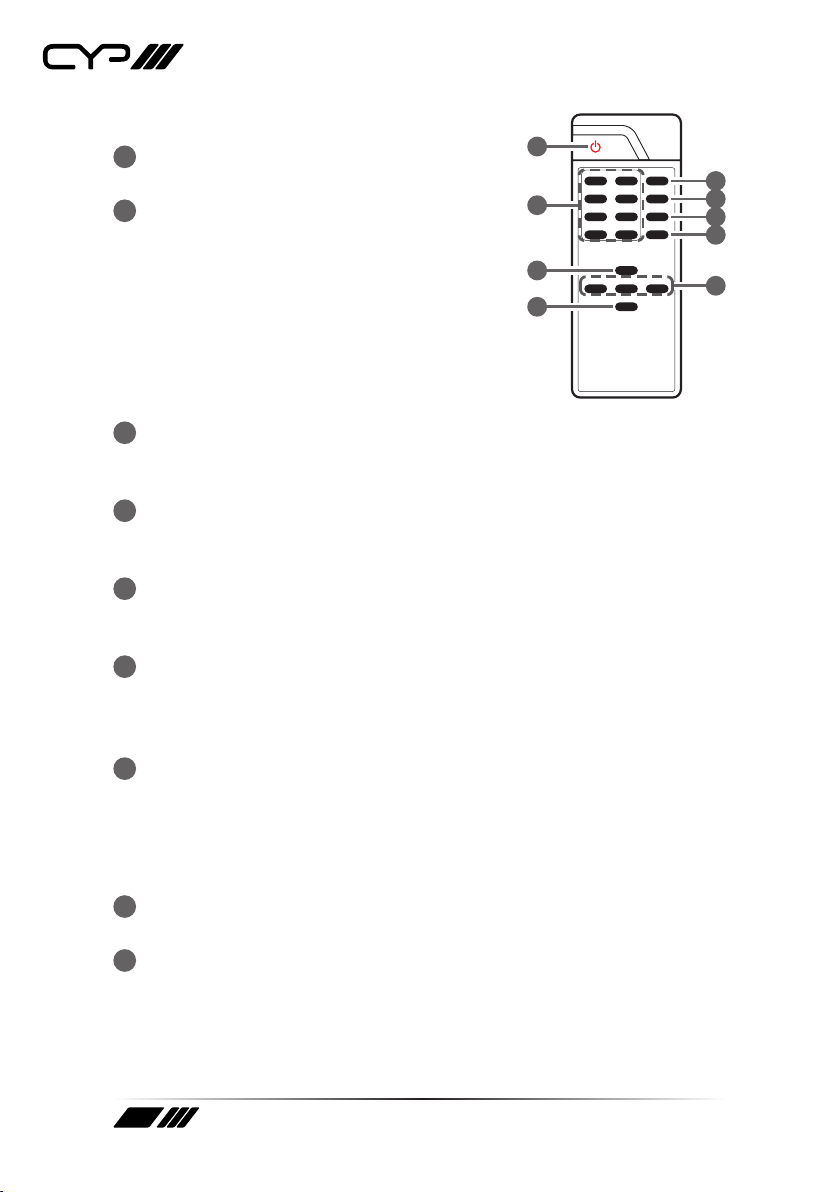
6.3 Remote Control
1POWER: Press to power the unit on or place
it into stand-by mode.
21/A ~ 8/H: Press these keys to configure the
video routing. Press the“OUT” key followed
by the keys (A~H) of the outputs you wish
to route a source to (the letters will flash in
the LCD to indicate selection). Next, press
the “IN” key followed by the input (1~8) you
wish to route to the selected outputs. Finally,
press “ENTER” to confirm your selection and
execute the routing change.
3INFO: Switches the information displayed on each output’s OSD
between the user customised text and the current video/Ethernet
details.
4MUTE: The “MUTE” button functions as a blank audio/video source.
To use it, follow the standard matrix routing instructions, but use the
“MUTE” button as the input to blank out the selected outputs.
5PRESET: Press to enter the preset call menu in the LCD window. Press
the “+/-” buttons followed by the“ENTER” button to select and activate
the preferred preset.
6ALL: Press this key to select all outputs simultaneously for routing.
Next, press the key of the input (1~8) you wish to route to all outputs.
Finally, press “ENTER” to confirm your selection and execute the
routing change.
7MENU: Press to enter the LCD menu, or to back out from menu items.
ENTER: Press to confirm a selection within the LCD menu or to go
deeper into a menu item.
CANCEL: Press to cancel newly made input/output/preset routing
selections before they have been confirmed.
8Plus (+)/IN: Press “+/IN” to navigate up within menus or to begin the
selection of an input for routing.
9Minus (−)/OUT: Press “−/OUT” to navigate down within menus or to
begin the selection of outputs for routing.
PRESET
ALL
INFO
MUTE
- /
OUT
+ /
IN
ENTER
CANCELMENU
CR-177
1 / A
2 / B
3 / C
4 / D8/ H
5 / E
6 / F
7 / G
1
2
8
9
3
4
5
6
7
Tabla de contenidos
Otros manuales de Cambiar de CYP

CYP
CYP PU-22HC Manual de usuario

CYP
CYP EL-C61C Manual de usuario

CYP
CYP CPLUS-V3H1H-TB Manual de usuario

CYP
CYP EL-42S Manual de usuario

CYP
CYP CPRO-3D41GAME Manual de usuario

CYP
CYP EL-C41C Manual de usuario

CYP
CYP AU-D21 Manual de usuario

CYP
CYP AU-11CA Manual de usuario

CYP
CYP EL-41S-4K22 Manual de usuario

CYP
CYP CDPS-UH4H1HFS Manual de usuario

CYP
CYP EL-41SY Manual de usuario

CYP
CYP CPRO-3D42S Manual de usuario

CYP
CYP PU-22HC Manual de usuario

CYP
CYP CDPS-U2HPIP Manual de usuario

CYP
CYP MA-U42 Manual de usuario

CYP
CYP CSDI-42 Manual de usuario

CYP
CYP CPRO-U4H1HFS Manual de usuario

CYP
CYP EL-41WAD Manual de usuario

CYP
CYP CSSW-91WF Manual de usuario

CYP
CYP EL-41WX Manual de usuario