
Atlas MMK-KVM8 Manual de usuario

– 1 – AtlasSound.com
Specifications are subject to change without notice.
1601 Jack McKay Blvd. • Ennis, Texas 75119 U.S.A.
Telephone: 800.876.3333 • Fax: 800.765.3435
Owner’s Manual MMK-KVM8 Modular KVM Switch for
LCD Console Use
MMK-KVM8
Modular KVM Switch for LCD Console Use

AtlasSound.com – 2 –
Specifications are subject to change without notice.
1601 Jack McKay Blvd. • Ennis, Texas 75119 U.S.A.
Telephone: 800.876.3333 • Fax: 800.765.3435
Owner’s Manual
MMK-KVM8 Modular KVM Switch for
LCD Console Use
Table of Contents
Table of Contents.................................................................................................................................. 2
1. Introduction...................................................................................................................................... 3
1.1 Features.................................................................................................................................. 3
1.2 Package Contents ................................................................................................................. 3
1.3 Technical Specifications ....................................................................................................... 4
1.4 System Requirements .......................................................................................................... 4
1.5 Cable Diagrams ..................................................................................................................... 5
1.6 Rear Panel .............................................................................................................................. 6
2. Hardware Installation...................................................................................................................... 6
2.1 Rack Mount Installation ....................................................................................................... 6
2.2 Computer / Server Installation............................................................................................ 7
2.3 Optional Module Installation ............................................................................................... 9
2.4 Power ON............................................................................................................................... 9
2.5 Daisy Chain Connection ..................................................................................................... 10
3. Usage .............................................................................................................................................. 11
3.1 Front panel PC port LED Indication:.................................................................................. 11
3.2 Hot plug ............................................................................................................................... 11
4. Hotkey............................................................................................................................................. 12
5. OSD (On Screen Display)............................................................................................................. 13
5.1 Login Window ................................................................................................................... 14
5.2 Port Name .......................................................................................................................... 15
5.3 Main Menu......................................................................................................................... 16
5.3.1 LANGUAGE....................................................................................................................... 16
5.3.2 PORT NAME EDIT............................................................................................................. 17
5.3.3 PORT SEARCH .................................................................................................................. 18
5.3.4 USER SECURITY............................................................................................................... 18
5.3.5 ACCESS LIST .................................................................................................................. 19
5.3.6 HOTKEY ........................................................................................................................... 20
5.3.7 TIME SETTINGS ............................................................................................................... 21
5.3.8 OSD MOUSE..................................................................................................................... 22
6. Troubleshooting............................................................................................................................. 23
7. Certifications .................................................................................................................................. 23
8. Warranty Info ................................................................................................................................. 24

– 3 – AtlasSound.com
Specifications are subject to change without notice.
1601 Jack McKay Blvd. • Ennis, Texas 75119 U.S.A.
Telephone: 800.876.3333 • Fax: 800.765.3435
Owner’s Manual MMK-KVM8 Modular KVM Switch for
LCD Console Use
1. Introduction
The 8-port modular combo-free KVM switch can control attached servers and computers from local or remote consoles. This KVM
switch is loaded with features including one optional IP-based remote console port (MMK-IPM), On Screen Display (OSD) Menu,
Password security, Hot key Control, and Auto Scan Control. It has complete keyboard and mouse emulation for simultaneous PC boot-
up process.
With the optional IP-based remote console port you can control one or several computers locally at the server site or remotely via the
Internet using a standard browser. You can securely gain BIOS level access to systems for maintenance, support, or failure recovery
over the Internet. Communication is secure via SSL encryption.
1.1 Features
• 8-portKVMswitch
• Supportcombointerfaceforconnectingtocomputerportsconveniently
• Supportonelocalconsoleplusoneoptionalremoteconsole(IP)
• SupportMSwindows,Netware,Unix,andLinux
• SupportiMAC,PowerMACandSunMicroSystemswithUSBport
• NoSoftwareRequired---easycomputerselectionviaOnScreenDisplay(OSD)Menu,PushButtons,andHotkeys
• ProvidevariousHotkey(Scroll-Lock/Cap-Lock/Num-Lock/L-Alt/L-Ctrl/L-Win/R-Alt/R-Ctrl/R-Win)forswitchingcomputer
port and other control functions, so Hotkey function can be used in various types of keyboards, and to avoid Hotkey duplicate
problem.
• ProvideACL(AccessControlList)securityfunction.Storeupto8independentuseraccounts
• HotPlug---addorremoveconnectedcomputerswithoutpoweringofftheKVMswitchorcomputers
• Supporttwouserlayers,andsearchcomputer/servername
• Plug-n-Playmonitorsupport
• Keyboardstatusrestoredwhenswitchingcomputer
• SupportDaisyChainfunctionwithbothBus(8-layer)andTree(2-layer)topologies
1.2 Package Contents
ModularKVMSwitchUnit–1PCS
QuickInstallationGuide–1PCS
Bracketwiththumbscrew–1SET
Screw–4PCS
Table 1-1. Package Contents

AtlasSound.com – 4 –
Specifications are subject to change without notice.
1601 Jack McKay Blvd. • Ennis, Texas 75119 U.S.A.
Telephone: 800.876.3333 • Fax: 800.765.3435
Owner’s Manual
MMK-KVM8 Modular KVM Switch for
LCD Console Use
1.3 Technical Specifications
Feature Specification
KVM Type PS/2andUSBinterfaceKVMswitch
Console Ports PlusOneOptionalRemoteModule
PC Port Connector HDDB-15
PC Ports 8
Max.Distance(KVMswitch--Host) 10m(32feet)
VideoResolution 1920x1440(LocalConsole)
1280x1024forIP-Basedremoteconsole
IP-BasedRemoteModule(MMK-IPM) RJ-458P8Cfor10/100MEthernet,DB9maleforModem,Null
modemandserialpowercontrol,MiniUSB2.0receptacle
Daisy Chaining SupportDaisyChainingwithbothBus(8-layer)andTree(2-layer)
topologies,DB15FemaleConnector
Computer port selection On Screen Display (OSD) Menu, Hot Key
Hotkey ProvidevariousHotkey(Scroll-Lock/Cap-Lock/Num-Lock/Alt/
Ctrl/Win)
Security Provide ACL (Access Control List) security function, store up to 8
independent controllable Computer lists
Multilingual OSD (On Screen Display) control 8languages(English,France,Germen,Spanish,Italian,Russian,
Japanese,SimplifiedChinese)
Auto-Scan Intervals 5~99Sec.
KeyboardEmulation PS/2orUSB
MouseEmulation PS/2orUSB
Housing Metal
Power DCPoweradapter:12VDC,1A
Operation Temperature 0°c–50°c
Storage Temperature -20°c–60°c
Humidity 0–80%,Non-Condensing
Mechanical For1RURackMountModularDesignLCDConsoleUse
Dimension 16.5"x6.7"x1.7"(420mmx170mmx44mm)
Table 1-2. Technical Specifications
1.4 System Requirements
Model 8-port modular KVM switch
Computer Side 8HDDB-15pinmaletooneHDDB-15pin,oneMiniDin6pin,
andoneUSBspecialcables
IP Module OneCAT5cable,NetworkAccessEnvironment
Table 1-3. System Requirements

– 5 – AtlasSound.com
Specifications are subject to change without notice.
1601 Jack McKay Blvd. • Ennis, Texas 75119 U.S.A.
Telephone: 800.876.3333 • Fax: 800.765.3435
Owner’s Manual MMK-KVM8 Modular KVM Switch for
LCD Console Use
1.5 Cable Diagrams
PC Port Special Cable
HDDB-15pinmaletooneHDDB-15pinmale,oneMiniDin6pinandoneUSBspecialcable
Figure 1-1. HDDB-15 / VGA + USB x 1 (3M) (MMK-DB10)
Figure 1-2. HDDB-15 / VGA + PS/2 x 1 (3M) (MMK-DD10)
Daisy Chain Cable
VGA Cable
HDDB-15pinMaletoMale
Figure 1-3. Daisy Chain Cable
Note: Daisy chain needs all 15 cable lines connected. This is a special VGA cable, normal VGA cable has unconnected lines.
Do not use other VGA cable for daisy chain.
CAT5/5E/6 Straight Through UTP/STP Cable
Figure 1-4. CAT5/5E/6 Straight Through UTP/STP Cable (8P8C)

AtlasSound.com – 6 –
Specifications are subject to change without notice.
1601 Jack McKay Blvd. • Ennis, Texas 75119 U.S.A.
Telephone: 800.876.3333 • Fax: 800.765.3435
Owner’s Manual
MMK-KVM8 Modular KVM Switch for
LCD Console Use
1.6 Rear Panel
8 port Modular Combo-free KVM Switch:
8 port Modular Combo-free KVM Switch with optional IP module (MMK-IPM):
Figure 1-5. Rear Panel
2. Hardware Installation
1. Pleasecheckallperipheralsaccordingtothelistbeforeinstallation,tomakesurethattheunitwasnotdamagedduringshipping.If
you encounter any problem, please contact Atlas Sound.
2. Beforeinstallation,makesureallperipheralsandconsolehavebeenturnedoff.
2.1 Rack Mount Installation
Hardware kits contents:
1.BracketAwiththumbscrewx2
2.Screw(length=6mm)x4
Install modular KVM switch step:
1.Installtwoscrews(length=6mm)tocombinebracketA
and KVM switch. (Both sides)
Connector for Each Host Port
Daisy Chain In
DC Power Jack
Remote Console Module (IP Module)

– 7 – AtlasSound.com
Specifications are subject to change without notice.
1601 Jack McKay Blvd. • Ennis, Texas 75119 U.S.A.
Telephone: 800.876.3333 • Fax: 800.765.3435
Owner’s Manual MMK-KVM8 Modular KVM Switch for
LCD Console Use
2.PushKVMswitchintotherailsfromrearofcabinet.
3.TighentthumbscrewofbracketAtofixKVMswitchtoconsoleandfinishinstallation.(Bothsides)
2.2 Computer / Server Installation
Figure 2-1. Computer / Server Installation

AtlasSound.com – 8 –
Specifications are subject to change without notice.
1601 Jack McKay Blvd. • Ennis, Texas 75119 U.S.A.
Telephone: 800.876.3333 • Fax: 800.765.3435
Owner’s Manual
MMK-KVM8 Modular KVM Switch for
LCD Console Use
3-in-1 HDDB-15 Cable Installation
EachcomputerportconnectorisHDDB-15type.Inspectthe3-in-1DB15cable.ItwillhaveaHDDB-15maleconnectoratoneend.
PlugitintocomputerportontherearofKVMswitch.Theotherendofinputcablehasthreeconnectors:aHDDB-15maletypefor
computervideo,apurpleminidin6-pinPS/2connectorforkeyboardandagreenminidin6-pinPS/2connectorformouse.Plugthese
threeconnectorsintotherespectiveportsonthecomputer.Repeatthesameprocedureforallothercomputers.
a. PS/2computer---PlugPS/2mouseconnectortocomputermouseportandPS/2keyboardconnectortocomputerkeyboard
port. Do not hot plug PS/2 port.IfyoumustdothatmakesurePS/2mouseispluggedinfirstthenthePS/2
keyboard.
Figure 2-2. 3-in-1 HDDB-15 Cable, 3m (MMK-DD10)
b. USBcomputer---PluginUSBconnector.ThissingleUSBconnectorcanhandlebothkeyboardandmousedata,itworkasa
standardHID(HumanInterfaceDevice)noextradriverneeded.
Figure 2-3. HDDB-15 / VGA + USB Cable, 3m (MMK-DB10)

– 9 – AtlasSound.com
Specifications are subject to change without notice.
1601 Jack McKay Blvd. • Ennis, Texas 75119 U.S.A.
Telephone: 800.876.3333 • Fax: 800.765.3435
Owner’s Manual MMK-KVM8 Modular KVM Switch for
LCD Console Use
2.3 Optional Module Installation
IP Module
Please refer to “MMK-IPM Owner's Manual” for details.
IP Remote Console
Installation:PowerofftheKVMswitchfirst.Removethecoveroftheadd-onslot,slideintheIPmoduleandmakesurethemoduleis
fully inserted into the slot.
The IP module redirects local keyboard, mouse and video data to a remote administration console. It allows you to control one or many
computers locally at the server site or remotely via the Internet using a standard browser.
Figure 2-4. IP Module Installation
2.4 Power ON
Check Connections and Plug In Power Supply
Doublechecktoensureallcables/connectorsareproperlyconnected.Visuallycheckthecolorofkeyboardandmouseconnectorto
make sure the keyboard and mouse cables are connected to the proper ports.
PluginthepowersupplytotheKVMswitchandplugtheACpowerplugintotheelectricalreceptacle.NowyouwillseetheLEDof
Port1lightupandheara"beep"sound.
Recommend Power ON sequence as follows: Monitor, KVM Switch, finally Computer.
AtlasSound.com – 10 –
Specifications are subject to change without notice.
1601 Jack McKay Blvd. • Ennis, Texas 75119 U.S.A.
Telephone: 800.876.3333 • Fax: 800.765.3435
Owner’s Manual
MMK-KVM8 Modular KVM Switch for
LCD Console Use
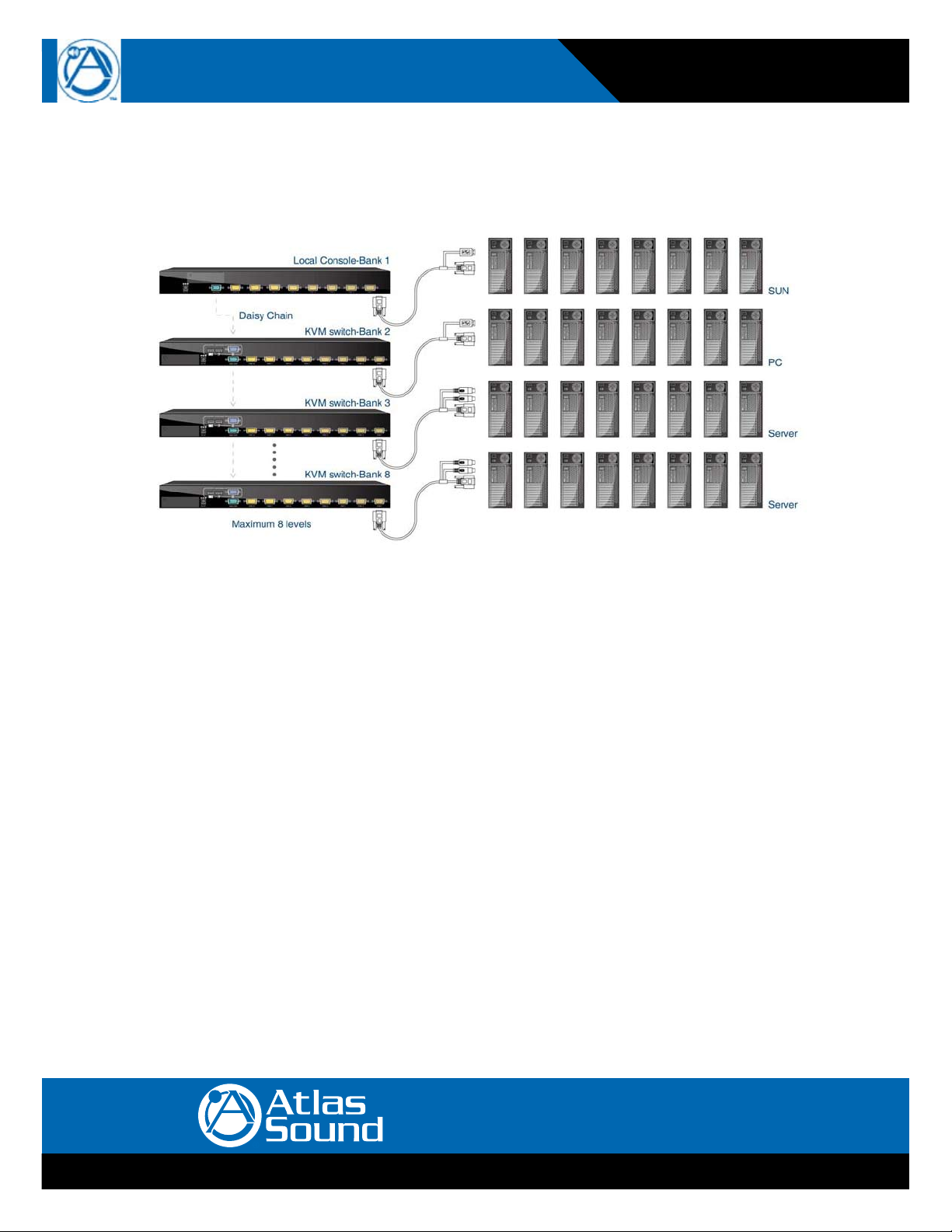
2.5 Daisy Chain Connection
UseoneendofthedaisychaincabletoconnecttotheDaisyChainportofMasterKVMswitchandconnecttheotherendofthedaisy
chaincabletotheLocalConsoleportofthenextSlaveKVMswitch.PleaserepeattheconnectionproceduresfornextSlaveKVM
switch.Youcandaisychainamaximumofeightbanks.
Figure 2-6. Daisy Chain Connection
TheconsoleOSDmenuwillshowonlytheportinformationofthemasterKVMswitch.Whenthemasterunitstartsup,itwillqueryall
daisy chained Slave units, and automatically set up the Bank ID for each Slave unit.
Tabla de contenidos
Otros manuales de Cambiar de Atlas

Atlas
Atlas SACR-191 Manual de servicio

Atlas
Atlas Loudspeaker Switching System ASL-6A Manual de usuario

Atlas
Atlas ASL Series Manual de usuario

Atlas
Atlas WPD-MIX42RT Manual de usuario

Atlas
Atlas ASL-6A Manual de usuario

Atlas
Atlas "Switch" Whispertouch DWS-8 Manual de usuario

Atlas
Atlas WPD-SWCC Manual de usuario
Manuales populares de Cambiar de otras marcas


MicroNet
MicroNet SP1200A Manual de usuario

Ruijie
Ruijie RG-PF2920 Series Manual de instalación y funcionamiento

Altinex
Altinex DA1914SX Manual de usuario

MiLAN
MiLAN MIL-SM2401M Manual de usuario

RJM
RJM MASTERMIND PBC/6X Manual de usuario

Cabletron Systems
Cabletron Systems GIGAswitch GSR-16 Manual de usuario