
Science Image FLOW 4K Manual de usuario

FLOW 4K
USER MANUAL

If the device fails to start, check whether the power indicator and startup indicator of the device are normal and
whether an official power adapter is used. Whether to close the upgrade page or power off the device during the
upgrade.
If you fail to log in to the WebUI, check whether the IP address of the device is on the same network segment as that
of the PC, and whether the IP address of the device conflicts with that of other devices in the network segment.
If the IP address of the discovered device is 192.168.8.8, log in to the WebUI, set the IP address mode in I network
Settings to manual, and enter the REQUIRED IP address, subnet mask, and gateway.
If the login fails due to the upgrade, clear the browser cache, refresh the page, and log in again.
If a video jam occurs, check whether the CPU temperature is too high. Generally, the TEMPERATURE should not
exceed 70 ° C. Check whether the device is connected to a GIGABit network port. Alternatively, disable the multicast
mode on the WebUI.
If the video output from the device is abnormal in color, sound, or screen, restart the device in the Web UI system or
manually restart the device.
1
2
3
4
5
7
6
If you find that some functions are unavailable in future use, you need to check the following to find out whether it is
caused by improper operation or settings:
READING BEFORE USE

FLOW 4K interface and indicator
----------------------------------------------------------
------------------------------------------------
---------------------------------------------------------
-------------------------------------------------------------------------
--------------------------------------------------------------------
---------------------------------------------------------------------
--------------------------------------------------------------------
------------------------------------------------------------------
----------------------------------------------------------------
---------------------------------------------------------------------
-----------------------------------------------------------
------------------------------------------------------
--------------------------------------------------
--------------------------------------------------------
----------------------------------------------------------------------
-------------------------------------------------------------
-----------------------------------------------------------
----------------------------------------------------------------
--------------------------------------------------------------------
2.
3.
4.
5.
6.
7.
8.
TWO ways to power on and connect to LAN
OLED screen display instructions
Login Web UI
Device Information
Network settings
Modify the IP
DHCP mode
Manual mode
Control settings
Video format conversion
7.1
7.1.1
7.1.2
8.1
External audio embedding settings
Input source priority selection
Optical transceiver settings
8.2
8.4
8.3
9.
System settings
Reset login password
9.1
Firmware upgrade
Restore factory settings
9.2
9.3
Device restart
9.4
02
FLOW 4K application topology
----------------------------------------------------------
1.
01
03
04
05
06
07
07
07
08
09
09
10
10
11
11
12
12
13
14
CONTENTS
----------------------------------------------------------
------------------------------------------------
---------------------------------------------------------
-------------------------------------------------------------------------
--------------------------------------------------------------------
---------------------------------------------------------------------
--------------------------------------------------------------------
------------------------------------------------------------------
----------------------------------------------------------------
---------------------------------------------------------------------
-----------------------------------------------------------
------------------------------------------------------
--------------------------------------------------
--------------------------------------------------------
02
----------------------------------------------------------
01
03
04
05
06
07
07
07
08
09
09
10
10
11
11

1. FLOW 4K application topology
UpDown conversion Application Topology
HDMI OUT
SDI OUT
HDMI IN
2160p50
1080i59.95
1080i59.94
HDMI to SDI Down conversion
1080i50
SDI IN
SDI OUT
HDMI OUT
Encoder
Encoder
Encoder
Encoder
Encoder
Encoder
Encoder
Encoder
Encoder
Encoder
Encoder
Encoder
Encoder
Encoder
Encoder
Encoder
Encoder
Encoder
2160p60
2160p60
SDI to HDMI Up conversion
Optical Transceiver Application Topology
SDI
SDI
HDMI
Receiver/1080p60
Receiver/2160p60
Transimtter/1080i50
Transmitter/2160p60
Optical Transmitter / Receiver
Optical Transmitter / Receiver
SDI
SDI
HDMI
Maximum 20km
Maximum 20km
Maximum 20km
Optical fiber
Optical fiber
Transmitter / Receiver, One key switching
Optical module
Optical module
Optical module
External audio
External audio
embedding
Mixing console
LINE IN
LINE IN
External audio De-Embeding
Headset/Mic
01

1
2
3
4
5
6
7
8
9
10
11
12
13
14
15
SDI IN: SDI signal input interface
SDI LINE LED: When the SDI input signal is detected, the SDI indicator is steady on
SDI OUT: SDI output port
HDMI LINE LED: When the HDMI input signal is detected, the HDMI indicator is steady on
HDMI IN: HDMI input port
HDMI OUT: HDMI output port
Optical fiber input/output: SMPTE Optical fiber SFP ports, used to connect different types of GIGABit/Gigabit
/12G-SDI optical fiber modules
Network port /POE: Network connection/Power Over Ethernet (POE) switches connect to the LAN and Power
on the LAN
12V dc-in: provides 12V DC power input
Reset: Hold down the Reset button to power the device and restore factory Settings five seconds later
LINE IN: 3.5mm audio input port for external analog audio embedding
Headset or Mic: headphone jack, using American standard; Also can be used as Mic
USB: You can use the USB RNDIS function to directly enter the management address and access the Web UI
1/4 inch screw hole: fixed connection hole with imaging equipment
Power LED
2. FLOW 4K interface and indicator introduction
1 2 3 4 5 6 7 8
912
10 11 13
14
15
1
2
3
4
5
6
7
8
9
12
10
11
13
14
15
02

It takes about 30 seconds for the system to work properly. It takes a while for the Linux
system to start.
3. Two ways to power on and connect to LAN
For FLOW 4K series, you can choose two power supply modes: DC input and POE
1. DC-12V Input
2. POE Power supplier
Power on with the SCIENCE IMAGE original standard 12V power supply
Power up through the network cable connecting the POE (power over Ethernet) with Gigabit network switch
PoE Power over Ethernet(802.11af/at) support
Always use a certified 802.11 af/at with minimum 10W port power capacity and it's a gigabit network switch.
Always use genuine SCIENCE IMAGE power adapters, 3rd party products perhaps can cause permanent
damage.
After startup, you will find that the character SCIENCE IMAGE Tech begins to appear on the OLED screen,
and the power light on the right starts to light up.
At this time, the device is powered up successfully.
4. OLED screen display instructions
After the device is started, the current status and parameters will be displayed alternately on lines 1, 3 and 4
of the screen
03

Log in to the WebUI using a network cable, power on the device using the original power adapter, and
connect the device to the PC using a network cable. Or connect the device and computer to the same
router or switch.
If 192.168.8.8 is displayed, the device cannot automatically obtain an IP address. You need to
manually set the IP address of the PC to the same network segment, that is, 192.168.8.*, to log
in to the WebUI.
5. Login Web UI
The first line -- 4K Converter/ Optical Transmit
Display the name of the current device and the status of the Optical Receiver (the Optical transmitter
by default, and the Optical Receiver by default).
The second line -- PrimaryIN: SDI
Displays which input, SDI or HDMI, is recognized by the current device.
Line 3 -- IN: 1080I50 / CH: SDI-Y HDMI-N
Displays the video format of the current input source of the device (when the device serves as an
optical receiver, the video format of the optical input is displayed) and whether the SDI and HDMI
inputs are detected (Y indicates that there is an input and N indicates that there is no input).
Line 4 -- OUT: 2160p60/192.168.3.166
Displays the output video format (the format selected in the video Format conversion list) and the
current IP address of the device.
04

Open the IE browser, enter the IP address on the OLED screen and enter the Web UI home page Default user
name: admin Password: admin
Example 1:
Example 2:
05

You may need to install the RNDIS driver when you log in to the WebUI for the first time. If the
driver has been installed, enter the management address 192.168.88 to log in to the WebUI.
Log in to the WebUI using the USB RNDIS function, power on the device using the original power adapter, and
connect the device to the PC using a USB cable.
Next, right-click My computer - Manage - Device Manager on the desktop. An unknown device RNDIS
appears in device Manager.
Then, right-click RNDIS and select Update Driver -- browse my computer to find a new driver -- let me
select from the list of drivers available on my computer -- Network Adapters -- Microsoft -- Remote NDIS
compatible devices.
06

12
3 4
56
07
Tabla de contenidos
Otros manuales de Convertidor de medios de Science Image

Science Image
Science Image NDI Studio 4K Manual de usuario

Science Image
Science Image NDI Studio 4K SH Manual de usuario

Science Image
Science Image NDI Studio 4K Manual de usuario
Science Image
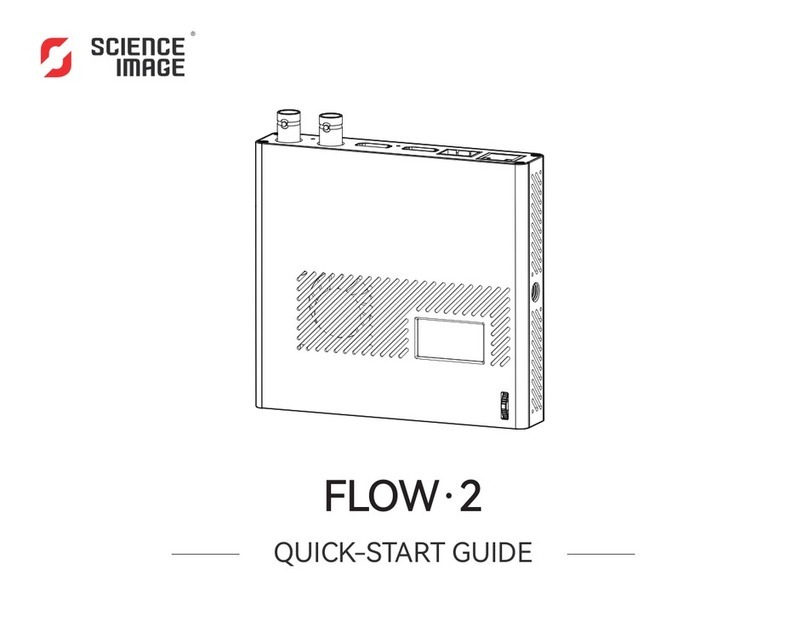
Science Image FLOW 2 Manual de usuario

Science Image
Science Image NDI HD mini Manual de usuario

Science Image
Science Image NDI HD mini Manual de usuario

Science Image
Science Image NDI HD Manual de usuario

Science Image
Science Image NDI Studio 4K SH Manual de usuario


