ROBO C2 Manual de usuario

C2 User Manual
Release 1.0.0
Robo
May 08, 2018


Contents
1 Getting Started 3
1.1 What’s in the box ............................................. 3
1.2 Unboxing Robo C2 ............................................ 4
1.3 Register your Robo C2 .......................................... 5
1.4 Initial set-up ............................................... 5
1.5 Connecting to Wi-Fi ........................................... 6
1.6 Updating Robo C2 ............................................ 7
1.7 Calibration and setting Z offset ..................................... 8
1.8 Loading filament ............................................. 10
1.9 The test print ............................................... 12
1.10 Removing the test print ......................................... 14
1.11 Using Hotspot Mode ........................................... 14
2 Operation 15
2.1 Display Screen .............................................. 15
2.2 Setting the Z offset ............................................ 16
2.3 Loading and Unloading Filament .................................... 18
2.4 Start a print ................................................ 20
2.5 Print Status ................................................ 22
2.6 Using print bed adhesion ......................................... 23
2.7 Removing the print ............................................ 23
2.8 Setting Up Wifi .............................................. 24
2.9 Downloading the Robo App ....................................... 25
2.10 Connecting your iOS device to your Robo C2 .............................. 25
2.11 Updating Your Printer .......................................... 26
3 Maintenance 29
3.1 Be sure to check for the following before every print: .......................... 29
3.2 Cleaning the feeder gear ......................................... 30
3.3 Lubricating the axis ........................................... 30
3.4 Cleaning the print bed surface ...................................... 30
3.5 Replacing your Hotend Nozzle ..................................... 31
4 Troubleshooting 33
4.1 Print Not Sticking to Bed ........................................ 33
4.2 Grinding Noise when Starting a Print .................................. 34
4.3 Material Not Extruding .......................................... 35
i

4.4 Shifting Layers/bad print quality ..................................... 40
4.5 Hotend Clogged ............................................. 41
4.6 Hotend Falling Out ............................................ 46
4.7 Drive Gear aligning and tightening ................................... 47
4.8 Screens Goes White or Doesn’t Work .................................. 48
4.9 Hotend Cover is falling off ........................................ 49
4.10 Filament Runout Sensor Error ...................................... 50
4.11 Firmware Update ............................................. 52
4.12 Error Messages .............................................. 54
5 Cura for Robo Desktop 59
5.1 Get Started ................................................ 59
5.2 Configure and View the Model ...................................... 62
5.3 Settings .................................................. 65
5.4 Connecting a Printer via Wifi ...................................... 75
5.5 Troubleshooting ............................................. 79
6 Robo Web Dashboard 81
6.1 Overview ................................................. 82
6.2 How to connect .............................................. 82
6.3 Uploading gcode Files .......................................... 83
6.4 Uploading stl Files ............................................ 85
6.5 Set temperature and move motors .................................... 85
6.6 View on-board camera + timelapse (Robo R2 only) ........................... 86
6.7 Terminal ................................................. 88
6.8 Manage plugins ............................................. 89
6.9 View history and statistics of printer ................................... 92
6.10 Set your z-offset ............................................. 92
6.11 Monitor your print ............................................ 95
6.12 Download OctoPrint Logs for Support .................................. 96
7 Robo App for iOS 99
7.1 Overview ................................................. 100
7.2 Logging In ................................................ 100
7.3 Adding a Printer ............................................. 101
7.4 Linking Cloud Storage .......................................... 106
7.5 Quick Workflow ............................................. 111
7.6 Printer Controls ............................................. 112
7.7 Slicing a model .............................................. 112
7.8 Library .................................................. 114
7.9 Connecting your printer to wifi ..................................... 116
7.10 Your Settings ............................................... 118
7.11 Store ................................................... 121
7.12 Multiple Printers ............................................. 123
ii

C2 User Manual, Release 1.0.0
General Safety Information
This User Guide contains important safety directions that should be followed during installation and operation of Robo
3D printers. It also includes warnings against negligence and misuse that could cause damages or injuries.
It is essential to update the firmware so as to avoid any kind of failures. Visit our website: https://robo3d.com/ regularly
to see the latest news and updates.
Robo 3D printers operate at high temperatures and have easy to access movable components, therefore, you must be
particularly careful when handling or operating the devices. While operating the printer, it is extremely important to
avoid situations that may lead to burns or interference in proper functioning.
Do not leave the machine unattended during the print job - check it periodically for proper functioning in order to avoid
potential accidents or failures. Turn off the printer once the print job is finished. Monitor your printer for wear and
tear regularly. Contact our Support Center at: http://help.robo3d.com/ for assistance while replacing worn or broken
parts.
Keep the printer away from heat sources, fire, flammable materials, humidity as well as water and other liquids. Place
the machine away from any equipment emitting radiation. To prevent any inadvertent use, keep the device out of reach
of children and animals. Do not shake or drop the printer as it may cause the printer to fail in performing as expected.
Health and Safety during operation
All service and maintenance activities as well as device operation require wearing safety gloves included in the Starter
Kit. Wearing safety gloves is also advised while removing the finished print from the platform.
The vapors released during the printing process are not hazardous, however, it is important to ensure proper ventilation
in the print room.
Food and beverages should be kept away from both the 3D printers and 3D printed objects. While operating Robo
devices, all measures regarding health and safety provided in this User Guide as well as in separate regulations should
be taken into account.
Electrical Safety
The Robo C2 3D printer has been tested for compliance with Low Voltage Directive. In order to ensure the high-
est safety standards, including protection against short circuit, overload, overvoltage and printer overheating, do not
attempt to modify the printer and do not use electronic replacement parts other than those recommended by the Man-
ufacturer.
Replace electronic units according to the instructions and be particularly careful while using the tools supplied with
the printer.
Before plugging the power cable into the outlet, make sure that the power supply voltage in the outlet matches the
required value provided on the nameplate at the back of the printer. Avoid overloading the outlet with too many
devices.
The printer must be well-grounded. Always make sure that the ground complies with local and national regulations.
Use only the original power cable supplied with the printer. Do not damage, cut or repair the cable. A damaged cable
should be immediately replaced with a new one.
All maintenance and repair work should be carried out while the device is off and unplugged. Do not expose the device
to moisture and liquids. Modifications such as soldering of electronic subunits are forbidden.
Mechanical Safety
Robo 3D printers have movable components, such as the drive belts, Z-axis screw, extruder or build plate. Therefore,
do not reach into the printer or put anything inside the printer when it is running, about to start running or at rest. This
may lead to serious injuries or damages.
Tools and accessories from the Toolbox should be used with special care for intended purposes only. Improper use
may cause serious injuries.
Contents 1

C2 User Manual, Release 1.0.0
Removing the prints from the platform should be done carefully so as to avoid injuries.
Risk of Burns
There is a high risk of burns while operating Robo printers as the hotend’s temperature may reach up to 3000C [5720F].
Do not touch the hotend with bare hands. Be extremely careful during maintenance and repair work of heated units.
If it is necessary to touch a heated component, use the pliers which are specially adapted for this purpose. Cooling of
components should not take less than 30 minutes.
Electromagnetic Compatibility (EMC)
Each Robo printer complies with Part 15 of the FCC rules. Operation is subject to the following two conditions: (1)
this device may not cause harmful interference, and (2) this device must accept any interference received, including
interference that may cause undesired operation.
This equipment generates, uses, and can radiate radio frequency energy and, if not installed and used in accordance
with this instruction manual, may cause harmful interference to radio communications. Operation of this equipment
in a residential area is likely to cause harmful interference - the user will be required to correct the interference at their
own expense.
2 Contents

CHAPTER 1
Getting Started
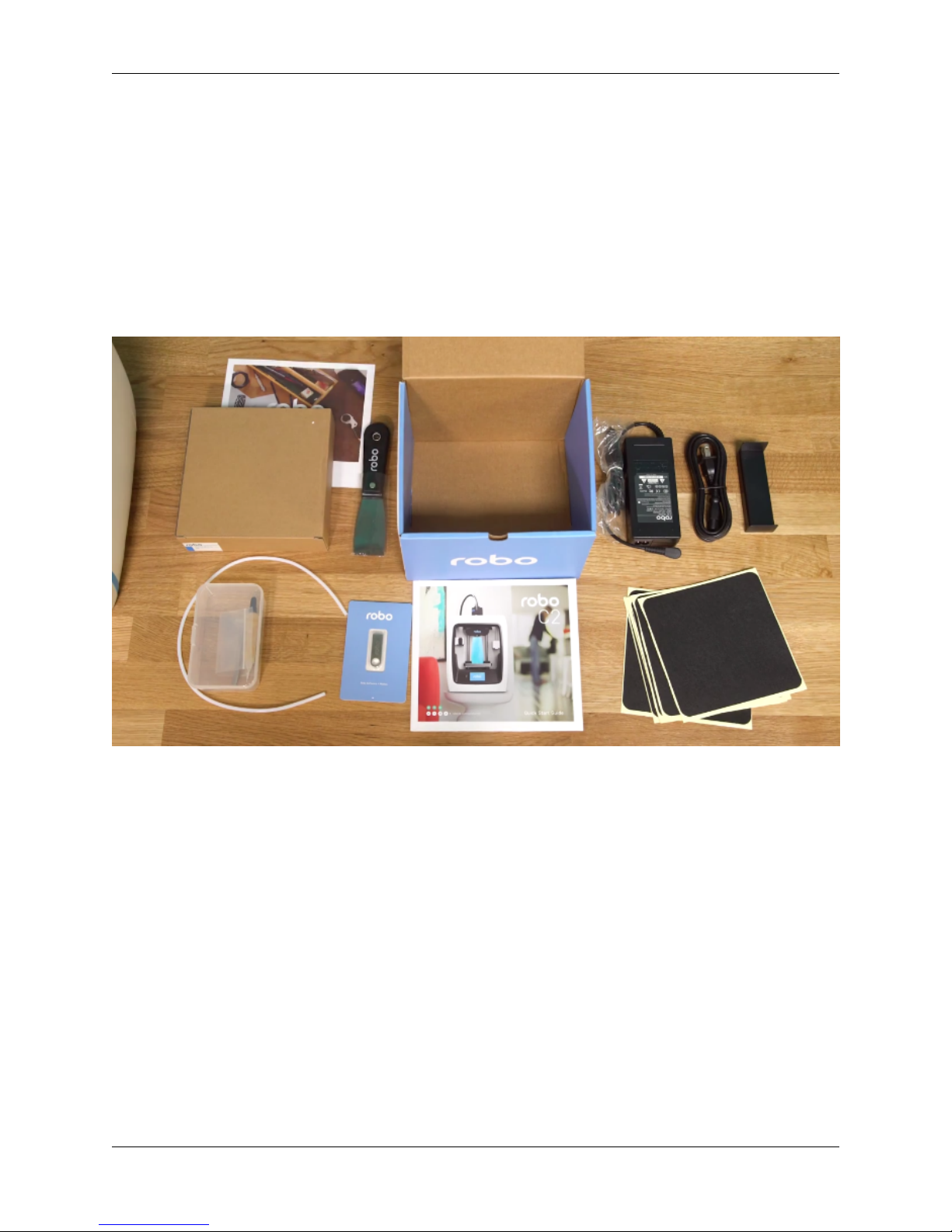
1.1 What’s in the box
Besides your new Robo C2, you will find the following in the box:
1. Quick Start Guide
2. Autodesk Fusion 360 design software free 1-year voucher
3. 9 print bed tape covers (with 1 BuildTak sheet already applied to your print bed).
3

C2 User Manual, Release 1.0.0
4. Robo stickers to place EVERYWHERE.
5. 19V power supply
6. Filament Guide Tube
7. 2 filament spool arms
8. Toolbox with the hotend cover, 2 allen wrenches, lubricant, and stylus.
9. Robo USB drive
10. 300g Robo light blue filament
11. Spatula
1.2 Unboxing Robo C2
Now that you’ve received your Robo C2, it’s time to unbox it and get familiar with your printer and accessories.
Your C2 is housed in 3 styrofoam pieces, secured together by a nylon strap. Simply lift the printer from the box using
the strap and set it down.
Unclip the black nylon strap and remove the two halves of the top styrofoam shell.
Finally, using the handholds on the bottom of your C2, lift the printer out of the bottom styrofoam piece.
4 Chapter 1. Getting Started

C2 User Manual, Release 1.0.0
Tip: Save your printer box, nylon strap, foam inserts, and inclusions box for transportation. Also, you might need
the original packaging to exercise your warranty or ship your printer in the future.
The printer’s accessories are stored in the inclusions box inside the printer. Simply slide the inclusion box out and be
sure to remove the foam.
Now we are ready to take off the additional shipping material and zip ties. There are 4 orange rod holders that need to
be taken off. Simply push on the clip and it will come off. There is one at each corner of the top gantry.
Next, remove the zip ties securing the rods to their plastic brackets
1.3 Register your Robo C2
Before you start, please register your Robo C2 for any servicing or warranty needs if they’re ever required. You can
register your product by visiting our registration_site.
1.4 Initial set-up
Now let’s move forward with your initial set-up of Robo C2.
First, insert the spool holder into the rear slot of the printer. Make sure the taller tab is inserted first.
1.3. Register your Robo C2 5

C2 User Manual, Release 1.0.0
Next, insert the filament feed tube into the filament sensor block, and then insert it into the extruder.
Inside the toolbox you will find the hotend cover. Go ahead and take that out and place it over the hotend. It is held in
with magnets so it just pops right in.
From here you’ll want to connect the power cord to the designated area on the back of the printer and then plug it into
an AC outlet.
Now go ahead and turn on the printer.
1.5 Connecting to Wi-Fi
We highly recommend connecting Robo C2 to your Wi-Fi network. Doing so provides you with necessary updates
that allows for a more enjoyable 3D printing experience.
Note: You can also use an Ethernet cable (LAN) to connect Robo C2 directly to your Wi-Fi network.
To begin connecting to your Wi-Fi network, Select UTILITIES on home screen.
Select NETWORK.
6 Chapter 1. Getting Started
Otros manuales para C2
4
Tabla de contenidos
Otros manuales de Impresora 3D de ROBO