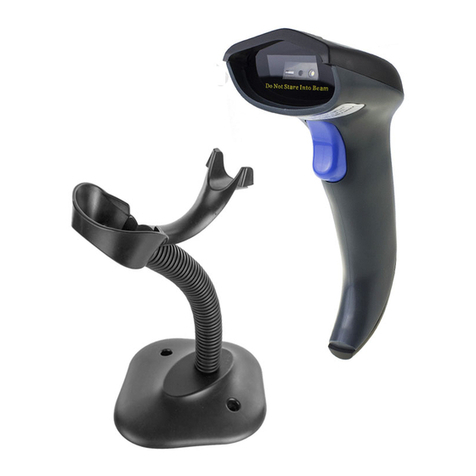
Barcode Programming
Netum barcode scanners are factory programmed for the most common
terminal and communications settings. If you need to change these settings,
programming is accomplished by scanning the bar codes in this guide. An
asterisk (*) next to an option indicates the default setting.
Important Notes :
Many command barcodes only work with scanner in a particular connection
mode. Please pay attention to below symbol when you scanning the command
barcodes.
Command barcodes only apply to scanner work via Bluetooth connection.
Command bacodes only apply to scanner work via Wireless Connection.
Command bacodes only apply to scanner work via USB Wired Connection
(3)
%#IFSN0$1
*Wireless Transmit
%#IFSNO$4
Working via Bluetooth
Working Via USB Dongle (Wireless Mode)
Get Started: Plug the USB dongle on your computer. If you use US keyboard,
it's plug and play. If you use other type of keyboard , please refer to
"keyboard language" to con�igure the keyboard language before use it.
Working Via Bluetooth
Get Started: Scan “Working via Bluetooth”,pairing the bluetooth. US Keyboard
is set by default if you use other types of keyboard please con�igure keyboard
language before you use it.
Important Notes:
• Make sure the device is in range with Bluetooth turned on.
• Pressing the scan button will initiate the attempts to connect.
• If a connection is made, the blue light will stop blinking and turn solid.
• If a connection is not made after several attempts, the scanner will
emit a long beep (and the blue light will turn off).
• Bluetooth working channel is not set by default.If you want to work via
bluetooth, you have to scan command barcode of “Working via bluetooth”
before pairing. If you want to shift from bluetooth working channel to RF
Wireless channel, you have to scan “ RF Wireless Transmit” then plug the USB
receiver into your device.