
multicomp MC-I20 Manual de usuario

www.element14.com
www.farnell.com
www.newark.com
Page <1> V1.118/06/18
MC-I20 User Manual & Troubleshooting
Industrial grade 3D Printer

www.element14.com
www.farnell.com
www.newark.com
Page <2> V1.118/06/18
MC-I20 User Manual & Troubleshooting
Important: Please be sure to read the following instructions carefully before operating this machine.
Incorrect and inappropriate operation, maintenance and installation may cause injury, machine damage
and failed prints. Becoming familiar with the machine and being aware of its functions and capabilities
before printing is strongly advised to safely perform reliable and high quality prints.

www.element14.com
www.farnell.com
www.newark.com
Page <3> V1.118/06/18
MC-I20 User Manual & Troubleshooting
Table of Contents
Personal Safety and Avoiding Machine Damage...................................................................4
Specications ...........................................................................................................................4
Getting Started..........................................................................................................................5
Equipment and Printing Instructions ...................................................................................10
Testing Instructions ...............................................................................................................13
Levelling the Heating platform..............................................................................................15
Debugging...............................................................................................................................17

www.element14.com
www.farnell.com
www.newark.com
Page <4> V1.118/06/18
MC-I20 User Manual & Troubleshooting
Personal Safety and Avoiding Machine Damage
1. Safety precautions
Only use the consumable recommended by the original manufacturer and do not use other manufacturer’s consumable willingly,
as this could clog the nozzle. Do not attempt to use the machine in any way not described in the instructions for use to avoid
causing personal injury and property damage.
2. Properly choose the location
The machine is suitable for placement in ventilated, cool, dry and dustless environments.
Pay attention to the heat dissipation of the surrounding environment of the printer and avoid placing it on a thick carpet or
against a wall. Do not place this machine near ammable materials or high heat sources. Do not place the machine in high
vibration or other unstable environments. Do not stack heavy objects on this machine.
3. Use the power supply according to the specication
Use the power cord supplied with this machine. Do not plug or unplug the power plug while your hands are wet. Use a qualied
three-hole socket with a ground wire.
Be sure to fully insert the power seat when using the plug.
Do not intentionally pull or twist the distribution line of this machine to prevent open circuit or short circuit.
4. Pay attention during the printing process
Be careful not to set the hot bed temperature too high to avoid burns when using the hot bed function.
Do not use this machine under the age of 10 without supervision by personnel to avoid personal injury.
Do not touching the nozzle head to anti-scald during printing and just after printing.
If abnormal noise occurs during printing, immediately turn off the power switch and stop the printer, then contact your purchaser.
Always do product maintenance and regularly dust and lubricate the machine.
Do not attempt to disassemble or modify the machine not described in this manual to prevent the printer from damage or other
more serious safety incidents.
Periodically clean the printer with a dry cloth to remove dust and sticky print material. If you must use a damp cloth to clean.
Do not use ammable solvents and prevent ammable solvents from contacting the printer’s internal circuitry to cause re or
electric shock.
Notice after printing
Power off in a timely manner after printing. Use the remaining temperature of the nozzle promptly to clean the consumable on
the nozzle with the tool. Do not directly touch the nozzle. Try not to scratch the hot bed board when using a blade to take the
model. Ensure the machine is well maintained. Dust removal and lubrication should be performed in a timely manner the later
period. The machine must be de-energized and be protected against dust when the printer is not used for a long time.
Specications
Modelling technology : FDM (Fused Deposition Modelling)
Printing size : 200mm × 200mm × 200mm
Machine size : 370mm × 390mm × 500mm
Filament diameter : 1.75mm
Layer height : 0.05 ~ 0.4mm
Nozzle size : 0.4mm
Connectivity : online & SD card
Print speed : <200mm/s normal50mm/s
Printing material :1.75mm PLA, ABS, TPU, composites and more
Support format : STL obj gcode

www.element14.com
www.farnell.com
www.newark.com
Page <5> V1.118/06/18
MC-I20 User Manual & Troubleshooting
System : Linux,Windows and OSX
Software : Multicomp 3D slicing software, Cura, simplify3D
Applicable voltage : 110 – 240v
Environmental requirements : 10°C - 30°C, Humidity 20-50%
Getting Started
1. Open the box
a. Multicomp MC-I20 3D printer
b. Material Guide
c. Material Spool
d. Cutting Knife & Scalpel
e. Allen Keys
f. Nozzle Key & Nozzle Needle
g. Pliers
h. Spatula & Tweezers
i. Service Grease
j. Power Cable
k. SD Card & SD Card Reader
2. Get familiar with your 3D printer
1. Extruder 7. Extrusion line
2. Nozzle and fan 8. Guide tube
3. Broken material detection 9. Control knob
4. Rack 10. Display
5. Switch and power socket 11. Z axis
6. SD and USB 12. Reset switch

www.element14.com
www.farnell.com
www.newark.com
Page <6> V1.118/06/18
MC-I20 User Manual & Troubleshooting
3. Installation
a. Connect the power cord
b. Install extrusion line, guide tube and rack
c. Load material – when feeding, the material tray should rotate counter clockwise
4. Load material
a. All installations have been done well. “prepare” >> “change lament”
b. “Load”
Attention: When the material is unloaded, the material is quickly pulled out, otherwise the consumable material will be blocked.
c. When temperature reaches the pre-set temperature, extruder will move.
5. Adjust platform
Adjusting platform is very important. It has effect on the printing quality and success. Before your printing, when you have
adjusted the platform, the later cannot adjust platform.
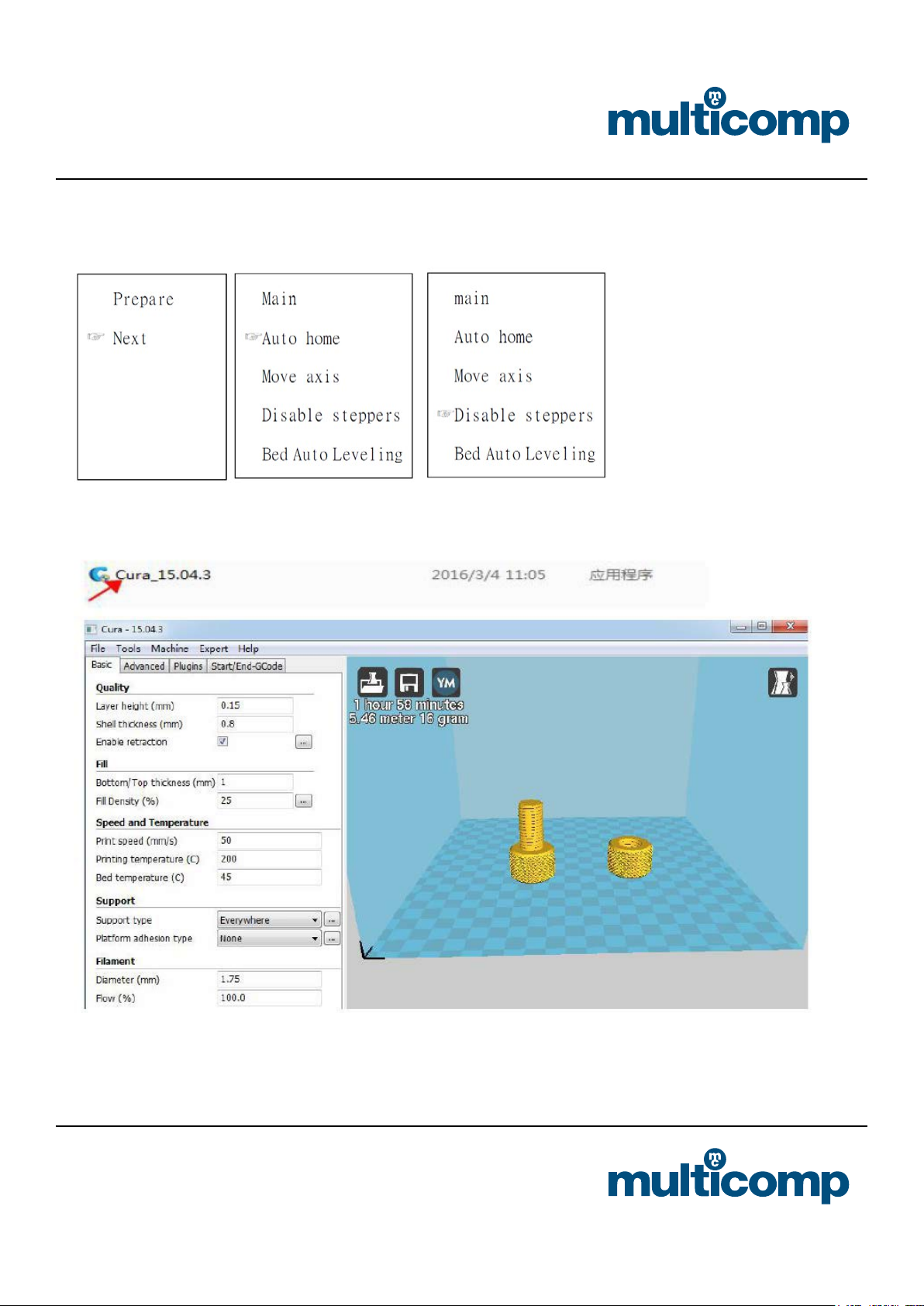
a. “prepare”>> “Bed Auto Leveling”
www.element14.com
www.farnell.com
www.newark.com
Page <7> V1.118/06/18
MC-I20 User Manual & Troubleshooting
b. After choose the command, according to the screen, by rotating platform of screws, check the platform with a horizontal
nozzle of A4 paper. Choosing “Auto home”>> “ Disable steppers”, Then you move the nozzle, you may nd that there are
shallow scratches on the paper.
6. Install Software
Double click Install Package. Details refer to the software description from SD card.

www.element14.com
www.farnell.com
www.newark.com
Page <8> V1.118/06/18
MC-I20 User Manual & Troubleshooting
7. Printing
a. Choose “Print from SD”.
Add new machine wizard: “other”>> “Prusa
Mendel i3”, then changing settings. If you want
to automatic shutdown, you should add the
“M81” command in the “end.gcode”. You can
open your machine by the reset switch.

www.element14.com
www.farnell.com
www.newark.com
Page <9> V1.118/06/18
MC-I20 User Manual & Troubleshooting
b. Choose the le you want to print
c. Wait for the temperature to reach its predened settings, once the machine is up to temperature, the machine will start to
print
d. After printing, the heat will reset automatically, and you can separate the model from the print bed
8. Menu item function description
Menu options Sub menu Explanation
Info screen Show the nozzle and bed temperature,
Fan and printing speed,printing time.
Prepare Main Return to previous menu
Disable steppers Moving X Y Z axis by your hands
Auto home Return to the origin position
Preheat PLA Different materials have different printing temperature
Preheat ABS
Bed Auto Leveling Adjusting platform
Change lament Load and unload material
Cool down Closing heating
Move axis Moving X Y Z axis by switching the knob. There are three
choices, stepping 10mm/1mm/0.1mm
Control Main This selection is generally not used. We advise that these
parameters are not modied
Temperature
Restore failsafe Restore factory settings
Print from SD Selecting the le that what you want to printing.(.gcode)
LED control Take on/off LED

www.element14.com
www.farnell.com
www.newark.com
Page <10> V1.118/06/18
MC-I20 User Manual & Troubleshooting
Equipment and Printing Instructions
1. Prepare before printing
a. Connect the power supply, turn on the switch (connect the main switch at the power cord and the sub switch on the side of
the machine), and install the rack
b. Feed (Note: 1, preheated nozzle before the feeding, click “Prepare” ☞“Preheat pla”, until the temperature is heated to the
specied temperature, the consumable are sent to the feed gear, select “ change lament “”loading”)
Preheat the nozzle before feeding and retreating, quickly pull out the lament after the lament is withdrawn, otherwise the
lament will block the nozzle.
Tabla de contenidos


