I-Tech Bluetooth Virtual Keyboard Manual de usuario

1
Bluetooth Virtual Keyboard
For Palm OS5
User Guide v1.7

2
Table of Contents
Introduction ................................................................................. 4
G
ENERAL
P
RODUCT
D
ESCRIPTION
..................................................................4
L
ASER
S
AFETY
P
RECAUTION
..........................................................................4
D
ISCLAIMER
..................................................................................................5
T
RADEMARKS
...............................................................................................5
Getting Started ............................................................................ 6
Y
OUR
V
IRTUAL
K
EYBOARD
............................................................................6
O
VERVIEW
....................................................................................................6
S
WITCHING
O
N
..............................................................................................7
Virtual Keyboard your PalmOS5 PDA/Phone and Bluetooth ... 8
I
NSTALLING THE DRIVER ON YOUR
P
ALM
OS5
D
EVICE
.......................................8
P
REPARING YOUR KEYBOARD FOR PAIRING
.....................................................9
Y
OUR KEYBOARD IS NOW READY FOR PAIRING
. ................................................9
P
AIRING WITH YOUR DEVICE
......................................................................... 10
A
PPLICATION
D
EMONSTRATION
....................................................................12
Exploring the VKB Driver.......................................................... 13
VKB
F
ORM
.................................................................................................13
Battery Level...........................................................................................13
Projection intensity.................................................................................. 14
Sound Effects .........................................................................................14
P
ROPERTIES
F
ORM
......................................................................................15
Sensitivity................................................................................................ 15
Reset to Default ......................................................................................15
Time-Outs ...............................................................................................15
A
UTO
R
EPEAT
F
ORM
....................................................................................16
Enable AutoRepeat................................................................................. 16
Repeat Rate............................................................................................ 16
Initial Repeat Delay.................................................................................16
S
PECIAL
S
HORT
-C
UTS
F
ORM
.......................................................................17
T
HE
A
BOUT
F
ORM
.......................................................................................17
G
ENERAL
H
ANDLING
I
NSTRUCTION
...............................................................18
M
ICRO
-
SWITCH
............................................................................................ 18
G
ENERAL
M
AINTENANCE
.............................................................................18
R
ESETTING THE KEYBOARD TO FACTORY SETTINGS
........................................18
P
REPARING THE KEYBOARD TO BE PAIRED WITH A DIFFERENT DEVICE
..............18
Troubleshooting ........................................................................ 19

3
Specifications............................................................................ 20
Short-Cuts.................................................................................. 22

4
Introduction
Congratulations on choosing the VKB Virtual Keyboard for PalmOS5
handheld. The keyboard will allow the effortless composition of documents
and e-mails and will turn your PDA/Phone into a truly indispensable tool
whether in the office or on the go.
Please take a few minutes to review the simple operating instructions in
order to get the most out of your keyboard.
General Product Description
The Virtual Keyboard is a miniature, stand-alone accessory that emulates
the function of a standard, full-sized keyboard. The Virtual Keyboard can
connect via Bluetooth to almost any information appliance, including: PCs,
Tablet PCs, Laptops, PDAs and Smartphones, with the use of an
appropriate driver.
Laser Safety Precaution
The Virtual Keyboard device emits two laser beams. One beam (red) projects
the keyboard image, and the other beam (invisible) is used for sensing the
touched keys.
The radiation levels of both laser beams do not exceed the Accessible
Emission Limits of Class 1, as defined by the international standard IEC
60825-1 (A2) and the American standard 21 CFR 1040.10. The Virtual
Keyboard device is, therefore, a “Class 1 Laser product”.
This means that the Virtual Keyboard device is safe under reasonably
foreseeable conditions of operation.
Although the emitted laser beams are safe (as defined in the above
standard), it is highly recommended not to stare directly into laser beams.

5
Disclaimer
The manufacturer shall not be liable for errors contained herein or for
incidental or consequential damages in connection with the furnishing,
performance or use of this material. This document contains proprietary
information, which is protected by international patent applications and
copyright. All rights reserved. No part of this document may be photocopied,
reproduced or translated without prior written consent of the manufacturer.
The manufacturer reserves the right to revise this publication and to make
changes from time to time in the contents hereof without obligation to notify
any person of such revision or change. The manufacturer also reserves the
right to change the specifications without notice.
Trademarks
PalmOS is a registered trademark of Palm Inc.
VKB Virtual Keyboard is a registered trademark of VKB Inc.
Bluetooth is a registered trademark of Bluetooth SIG.

6
Getting Started
Your Virtual Keyboard
Unpack and inspect your Virtual Keyboard. Take a few moments to
familiarize yourself with device using the diagram below.
Overview
Figure 1 – Getting to know your Virtual Keyboard
Before using your Virtual Keyboard:
•Ensure that you remove all protection materials including the
protection sheet on the laser windows.
•Your Virtual Keyboard will need to be charged for at least 2
hours.
Power Key
Charging
Socket
Status indicator
(LED)
Reset
button
Keyboard projection window
Keyboard sensing
receiver window

7
Switching On
Place the Virtual Keyboard on a flat surface with the Keyboard projection
and sensing windows facing you. To switch it on press the On/Off button,
located on the upper-left hand side.
Once the unit is switched on an image of a keyboard is projected on to the
surface. Notice that the keyboard image is the basic English keyboard,
including 4 Arrow keys, 1 Control, 2 Shift keys, 1 Alt and a VKB dedicated
Fn function key.
A two-color LED located at the top of the unit indicates the current status of
the Virtual Keyboard, where:
Colour Status/Cause Action
Blinking
Blue
Virtual Keyboard is
ready to pair to a
Bluetooth device
Long Flash
Blue
Virtual Keyboard is
paired to a Bluetooth
device
Blinking
Red
Virtual Keyboard’s
battery is low.
Recharge the
Virtual Keyboard
Solid Red The area of the
projected keyboard is
exposed to direct
sun-shine or some other
source of direct light.
Move the Virtual
Keyboard to a
shaded location
Table 1 – Functional Status Indicator

8
Virtual Keyboard your PalmOS5 PDA/Phone and Bluetooth
The Virtual Keyboard (VKB) is equipped with Bluetooth, a short-ranged
radio communications technology which allows the device to communicate
with your PalmOS5 PDA/Phone up to 10 meters away without the need for
a physical connection.
As with all Bluetooth devices, to connect with your PalmOS5 PDA/Phone
you will need to do the following:
Pair your PalmOS device with the virtual keyboard…
…open the VKB Driver to set up a connection…
…and connect.
The first time you use your Virtual Keyboard with a PalmOS5 device you will
also need to install some software, called a driver, on the PalmOS5 device.
Installing the driver on your PalmOS5 Device
1. Install the Palm Quick Install program that is provided with
your PalmOS device.
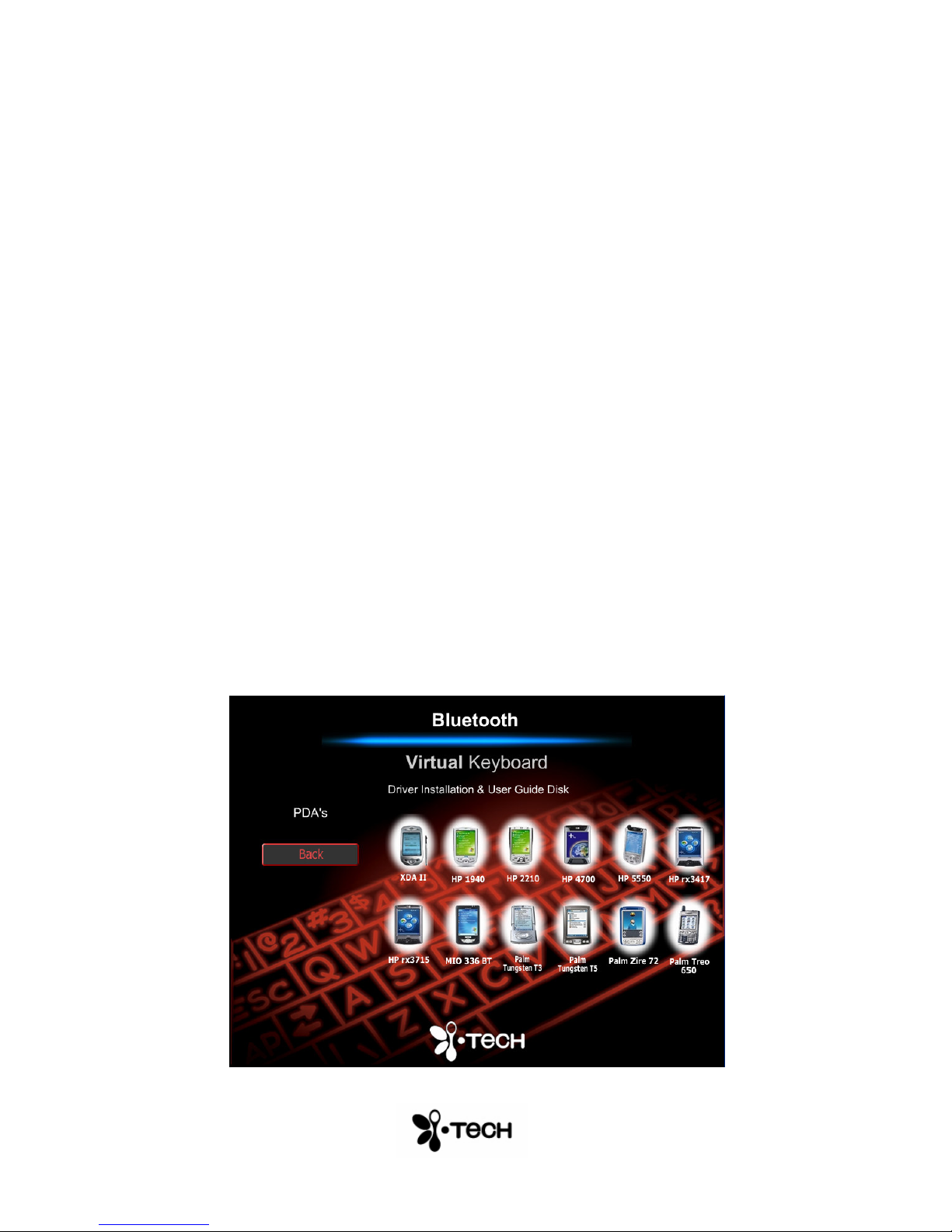
2. Insert the Bluetooth Virtual Keyboard & User Guide Disk into a
CD-ROM drive on your computer. (The CD should run
automatically however if it does not start by itself, please open
the CD and run setup.exe)
3. Select the PalmOS5 device, which matches yours.

9
4. Select Install Software and follow the onscreen instructions
to install the software onto your PalmOS5 device.
5. The next time you perform a HotSync the VKB Driver will be
installed on your PalmOS5 device.
Preparing your keyboard for pairing
Place the Virtual keyboard on a flat surface and turn it on. The blue LED at
the top should flash at about once a second. This signifies that the Virtual
Keyboard is currently “unpaired” with any device. If this is not the case,
please see “Resetting the Device for Bluetooth Pairing” on page 18.
Your keyboard is now ready for pairing.

10
Pairing with your device
1. Tap the Bluetooth icon on your PalmOS5 PDA/Phone
2. Tap the On button
3. Tap the Prefs or Setup Devices button
4. Tap the Trusted Devices button
Ensure the VKB is in paring mode
1. Tap Add Device
2. Select VKB Keyboard and tap OK
3. Listen for the “beep” on the Virtual Keyboard, then, using the
keyboard projected by the Virtual Keyboard enter a passkey of
between 1 and 8 numbers on the projected keyboard and press
return [].
4. Repeat the passkey on the Palm device and tap OK
5. Tap the Home button and tap the VKB program.
6. Open the Menu and select Connections from the list.
Figure 2 – Select Connection Window
7. Select Bluetooth from the drop down list.
8. Open the Menu and select VKB, then select Enable Keyboard
Otros manuales para Bluetooth Virtual Keyboard
1
Tabla de contenidos
Otros manuales de Teclado de I-Tech