AJAX KeyPad Combi Manual de usuario

KeyPad Combi User Manual
Updated October 1, 2021
KeyPad Combi is a wireless touch keypad for Ajax security systems management
using contactless cards and key fobs. Is equipped with in-built siren. The device is
designed for indoor installation.
KeyPad Combi is only compatible with , , running OS Malevich
2.11 and later, and range extender. Connection to and the and
integration modules is not supported!
Buy KeyPad Combi
Functional elements
Hub Plus Hub 2 Hub 2 Plus
ReX Hub ocBridge Plus
uartBridge


Operating principle
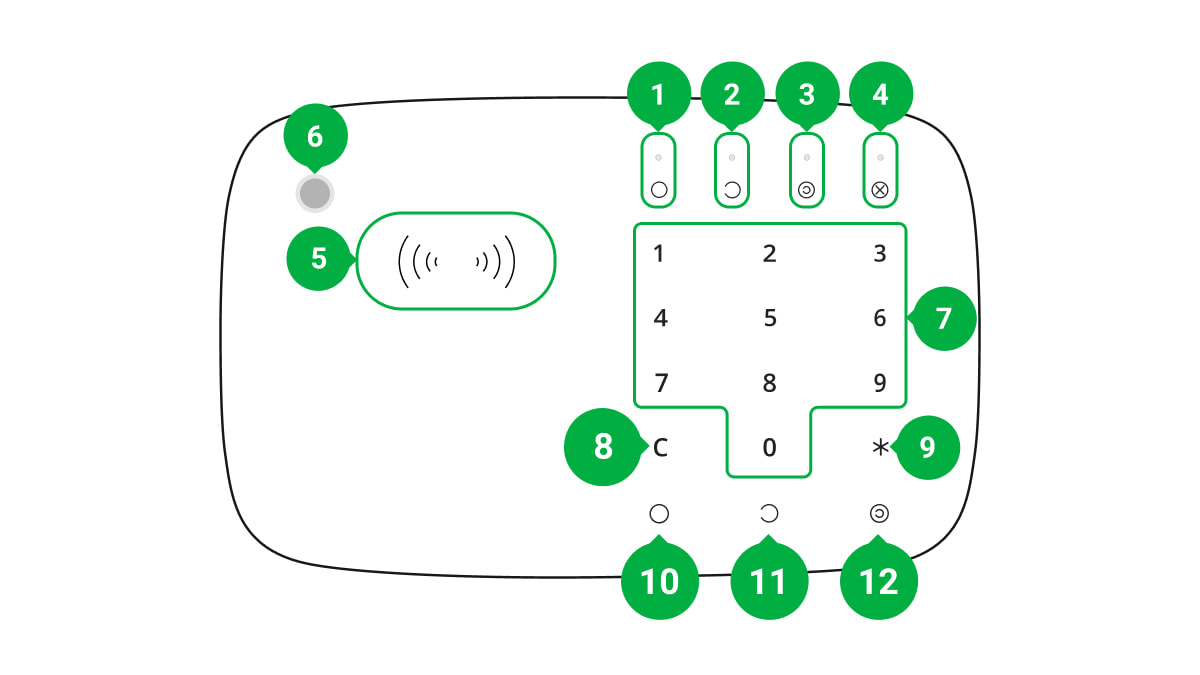
7. Numeric touch button box
8. Reset button
9. Function button
10. Arm button
11. Disarm button
12. button Night mode
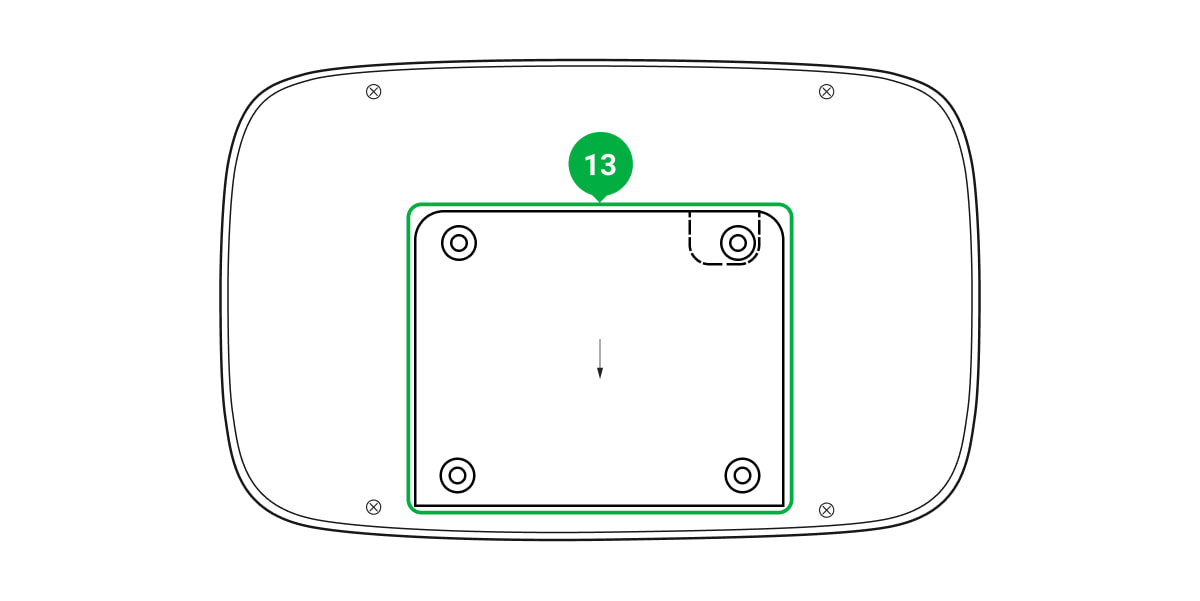
13. SmartBracket mounting plate (to remove the plate, slide it down)
Do not tear off the perforated part of the mount. It is required for actuating the tamper
in case of any attempt to dismantle the device.
14. Tamper button
15. Power button
16. QR code

KeyPad Combi combines two devices: a siren and a keypad with RFID card and key
fob support. This means that the same device may be used to manage the security
modes and to notify about system alarms and events.
Security management
KeyPad Combi arms and disarms the security of the entire facility or separate
groups and allows activating the Night mode. You can manage the security modes
using:
Before entering a password or using Tag/Pass, you should activate (“wake up”)
KeyPad Combi by sliding your hand over the touch panel from top to bottom. Once
you activate the device, the security status indication turns on, and the device
beeps. The security status is only displayed when KeyPad Combi is active.
1. Passwords. KeyPad Combi supports common and personal passwords, as well
as arming without entering a password.
2. Cards or key fobs. To quickly and securely identify users, KeyPad Plus uses the
DESFire® technology. DESFire® is based on the ISO 14443 international
standard and combines 128-bit encryption and copy protection.
00:00 00:07

Pressing of the buttons is accompanied by a sound signal. If you do not touch the
keypad for 12 seconds, KeyPad Combi goes into power-saving mode and turns off
the display of the current arming mode.
Keep in mind that KeyPad Combi has no touch buttons or cards/tags reader backlight.
Using the siren
KeyPad Combi includes a fully functional Ajax security system siren. The device
has 2 tasks:
1. Informing about alarms. The device responds to triggering of the tamper and
security system alarms in less than a second by turning on the siren, which
scares off intruders and attracts the attention of neighbors.
2. Indicating the security status. The siren may notify on the arming mode
change as well as on entry/exit delays.

Function button
KeyPad Combi has a Function button that operates in 3 modes:
Duress code
KeyPad Combi supports . It allows you to simulate alarm deactivation.
The and installed at the facility will not give you away in this case,
and the security company and other users of the security system will be warned
about the incident.
Two-stage arming
Off — the button is disabled and nothing happens after it is pressed.
Alarm — after the Function button is pressed, the system sends an alarm to the
security company monitoring station and all users.
Mute Interconnected Fire Alarm — after the Function button is pressed, the
system mutes the fire alarm of the FireProtect/FireProtect Plus detectors.
Keep in mind that this option functions only if
are active.
interconnected alarms of fire
detectors
duress code
Ajax app sirens
Learn more

KeyPad Combi can participate in two-stage arming but cannot be used as a
second-stage device. The two-stage arming process using Tag or Pass is similar to
arming using a personal or common password.
Event transmission to the monitoring station
The Ajax security system can connect to the CMS and transmit events and alarms
to the monitoring station of the security company in Sur-Gard (ContactID), SIA DC-
09, and other proprietary protocol formats. A complete list of supported protocols
is . The device ID and the number of the loop (zone) can be found in
.
Connection
KeyPad Combi is incompatible with Hub, third-party security central units, and ocBridge Plus
and uartBridge integration modules.
Before starting connection
Only a user or PRO with full administrator rights can add a device to the hub.
Learn more
available here
its states
1. Install the Ajax app and . Add a hub and create at least one
room.
create an account
2. Make sure that the hub is on and has Internet access (via Ethernet cable, Wi-Fi,
and/or mobile network). This can be done by opening the Ajax app or by
looking at the hub logo on the faceplate — it lights white or green if the hub is
connected to the network.
3. Make sure that the hub is disarmed and does not start updates by checking its
status in the Ajax app.

To connect KeyPad Combi
The device only works with one hub. When connected to a new hub, the device stops
sending commands to the old hub. Once added to a new hub, KeyPad Combi is not removed
from the device list of the old hub. This must be done manually through the Ajax app.
KeyPad Combi turns off automatically 6 seconds after being turned on if the device
fails to connect to the hub. Therefore, you do not need to turn off the device to retry
the connection.
Updating the statuses of devices in the list depends on the Jeweller settings; the
default value is 36 seconds.
Icons
The icons represent some of KeyPad Combi states. You can see them in the
Devices tab in the Ajax app.
Icon Value
Jeweller signal strength — Displays the signal strength between the hub or
1. Open the Ajax app. If your account has access to multiple hubs, select the one
to which you want to connect KeyPad Combi.
2. Go to the Devices menu and click Add Device.
3. Name the device, scan or enter the QR code (located on the package and under
the SmartBracket mount), and select a room.
4. Click Add; the countdown will begin.
5. Switch on the device by holding the power button for 3 seconds. Once
connected, KeyPad Combi will appear in the hub device list in the app. To
connect, locate the device at the same protected facility as the system (within
the coverage area of the hub radio network range). If the connection fails, try
again in 10 seconds.
ReX range

and KeyPad Combi
Battery charge level of KeyPad Combi
KeyPad Combi works via a ReX radio signal range extender
KeyPad Combi body status notifications are temporarily disabled
KeyPad Combi is temporarily excluded from the system operation
Pass/Tag reading is enabled in KeyPad Combi settings
Pass/Tag reading is disabled in KeyPad Combi settings
States
The states include information about the device and its operating parameters. The
states of KeyPad Combi can be found in the Ajax app:
Parameter Value
Malfunction
Pressing opens the KeyPad Combi
malfunctions list.
The field is displayed only if a malfunction is
detected.
Temperature Device temperature. It is measured on the
processor and changes gradually. Displayed in
1°C increment.
extender
Learn more
Learn more
Learn more
1. Go to the Devices tab.
2. Select KeyPad Combi from the list.

Acceptable error between the value in the app and
the room temperature: 2–4°C.
Jeweller signal strength
Jeweller signal strength between the hub (or a
ReX range extender) and KeyPad Combi.
Recommended values — 2-3 bars.
Connection
Connection status between the hub/range
extender and the device:
Battery charge
The battery charge level of the device. Two states
are available:
When the batteries are discharged, the Ajax apps
and the security company will receive appropriate
notifications.
After sending a low battery notification, KeyPad
Combi can work for up to 2 months.
Lid
The status of the device tamper, which reacts to
the detachment of or damage to the body:
ReX range extender name Displays the status of the ReX range extender
Online — KeyPad Combi is connected to the
hub/range extender
Offline — KeyPad Combi is not connected to
the hub/range extender
ОК
Battery low
How battery charge is displayed in
Ajax apps
Opened — the device is removed from
SmartBracket mount or body is dismantled
Closed — the device is normal
What is a tamper
Tabla de contenidos
Otros manuales de Teclado de AJAX

AJAX
AJAX KeyPad Manual de usuario

AJAX
AJAX Fibra Manual de usuario

AJAX
AJAX KeyPad Plus Manual de usuario

AJAX
AJAX KeyPad Manual de usuario

AJAX
AJAX KeyPad Fibra Manual de usuario

AJAX
AJAX KeyPad Manual de usuario

AJAX
AJAX KeyPad Cómo utilizar

AJAX
AJAX SpaceControl Manual de usuario

AJAX
AJAX KeyPad Jeweller Manual de usuario

AJAX
AJAX KeyPad S Plus Jeweler Manual de usuario