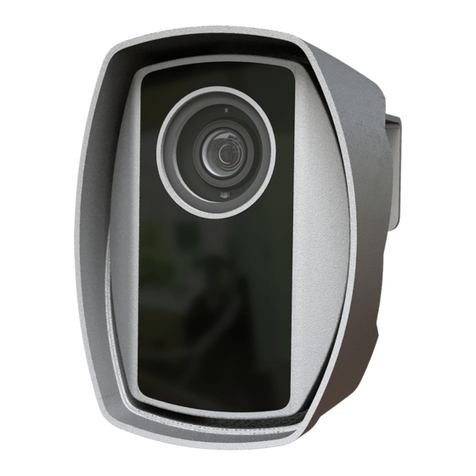
Adaptive Recognition S1 Manual de usuario

S1
User Manual
This manual contains instructions on accessing
the web interface, system settings and setup guidelines,
and usage and maintenance.
© Copyright Adaptive Recognition Inc.
All rights reserved.
20.04.2023.

Page 2/31
S1 User Manual
Adaptive Recognition America
Adaptive Recognition Hungary
Adaptive Recognition Nordic
Adaptive Recognition Singapore
REQUESTINFO@ADAPTIVERECOGNITION.COM
WWW.ADAPTIVERECOGNITION.COM
S1
USER MANUAL
Document version: 2.00.02
Table of Contents
S1 ..............................................................................................................................................................................2
1. Introduction ................................................................................................................................................3
2. SETUP ARH CAM S1.................................................................................................................................4
3. login..............................................................................................................................................................5
4. Setup enforcement....................................................................................................................................6
5. Stop enforcement....................................................................................................................................13
6. Introduction to the Main screen............................................................................................................14
6.1. Enforcement menu .........................................................................................................................15
6.2. Information menu ...........................................................................................................................16
6.3. events menu.....................................................................................................................................16
6.4. Devices..............................................................................................................................................17
6.5. options...............................................................................................................................................17
6.6. camera ..............................................................................................................................................18
7. Bottom information bar..........................................................................................................................19
8. upper information bar.............................................................................................................................19
9. Detailed description of the speed measurement ..............................................................................21
10. Control functions pairing ...................................................................................................................25
11. Usage of tripod ....................................................................................................................................26
11.1. set up of tripod ............................................................................................................................26
12. Fold up of tripod ..................................................................................................................................29
CONTACT INFORMATION..............................................................................................................................31

Page 3/31
S1 User Manual
Adaptive Recognition America
Adaptive Recognition Hungary
Adaptive Recognition Nordic
Adaptive Recognition Singapore
REQUESTINFO@ADAPTIVERECOGNITION.COM
WWW.ADAPTIVERECOGNITION.COM
1. INTRODUCTION
S1 is a mobile no-staff speed and traffic enforcement camera with on-board ANPR. It is capable of
spotting a violator from 1200 meters (4000 feet) away and to return certified speed measurement
result from 600 meters (2000 feet) away. The unique high-precision built-in laser technology reaches
as far as no other speed monitoring camera on the market.
The S1 speed camera is extremely portable: setup takes less than two minutes. Afterwards, no human
interaction is required: the camera measures speed and uploads every passing vehicle’s data – or,
depending on user-defined settings, just the violators –via a secured and encrypted channel. The
uploaded results include license plate data, the vehicle’s speed, exact location (via GPS) and time
stamp as well as other selectable parameters. The result files are encrypted and cannot be altered.
This guide is going to show you the functions of the app and the methods of the use.
Structure of the Manual is the following:
•First, accessing to the camera and the operation of the device will be discussed.
•Next, a closer look will be taken at the menu overview.
•Moreover, the user will be guided through the sections of the features.
•Finally, usage of the tripod will be shown.

Page 4/31
S1 User Manual
Adaptive Recognition America
Adaptive Recognition Hungary
Adaptive Recognition Nordic
Adaptive Recognition Singapore
REQUESTINFO@ADAPTIVERECOGNITION.COM
WWW.ADAPTIVERECOGNITION.COM
2. SETUP ARH CAM S1
1. Connect external battery to ARH CAM S1.
2. Turn on power on external battery.
3. Turn on the device by pressing and holding (approx. 1-2 seconds) the power switch of the
device, located left to the display. If the power switch is on, the green LED on the button
indicates it.
4. After turning the device on, it starts the installed software. During the start-up procedure the
starting screen will appears with a progress bar, indicating the start.
Power cable plug has a red straight sign to show the proper direction of connect to the
camera. It must be on the top.
If external battery is discharged, green light is flashing on power switch of the camera.

Page 5/31
S1 User Manual
Adaptive Recognition America
Adaptive Recognition Hungary
Adaptive Recognition Nordic
Adaptive Recognition Singapore
REQUESTINFO@ADAPTIVERECOGNITION.COM
WWW.ADAPTIVERECOGNITION.COM
3. LOGIN
After the start-up process, Login screen will appear.
On the Login screen, select “Data Center” icon, type in Username and Password (click in to the empty
field, touch-screen keyboard will pop-up, enter necessary characters, then press “Next” button), press
OK, “Main” screen will appear.
User do not have permission to access “Admin” icon on “Main” screen.

Page 6/31
S1 User Manual
Adaptive Recognition America
Adaptive Recognition Hungary
Adaptive Recognition Nordic
Adaptive Recognition Singapore
REQUESTINFO@ADAPTIVERECOGNITION.COM
WWW.ADAPTIVERECOGNITION.COM
4. SETUP ENFORCEMENT
Position camera properly so as to the white or green circle with cross must be in the level of the
number plates. Hereinafter we call it marker. On the “Main” screen, click on “Enforcement” floating
menu, located on the upper left side of the screen. Enforcement” menu contains “Select location and
method” icon, click on it.
Submenu will appear, where location can be entered, then click on “Next” icon.

Page 7/31
S1 User Manual
Adaptive Recognition America
Adaptive Recognition Hungary
Adaptive Recognition Nordic
Adaptive Recognition Singapore
REQUESTINFO@ADAPTIVERECOGNITION.COM
WWW.ADAPTIVERECOGNITION.COM
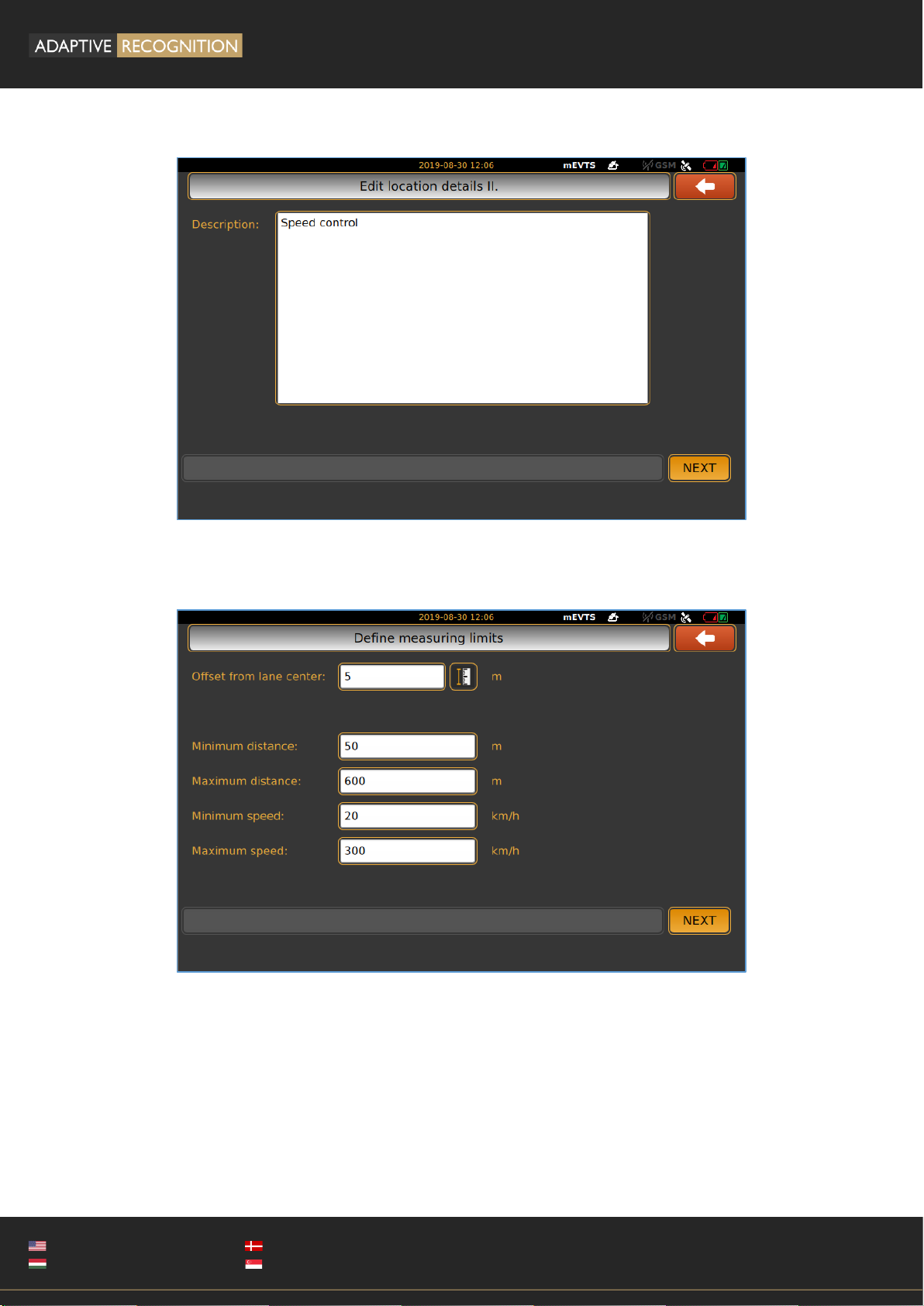
“Description” can be given to the measurement, after it is done, press “Next” icon.
In the “Define measuring limits” window, set measurement limits, then tap “Next” icon.

Page 8/31
S1 User Manual
Adaptive Recognition America
Adaptive Recognition Hungary
Adaptive Recognition Nordic
Adaptive Recognition Singapore
REQUESTINFO@ADAPTIVERECOGNITION.COM
WWW.ADAPTIVERECOGNITION.COM
Enforcement” floating menu will appear, where “Enforcement parameters” can be chosen, click on that
icon to go further.
In the “Enforcement parameters”, optional control function can be chosen (selected functions appear
green highlight), clicking on “Next” button to step on “Speed limits”. Description of each functions will
be discussed later.

Page 9/31
S1 User Manual
Adaptive Recognition America
Adaptive Recognition Hungary
Adaptive Recognition Nordic
Adaptive Recognition Singapore
REQUESTINFO@ADAPTIVERECOGNITION.COM
WWW.ADAPTIVERECOGNITION.COM
Actual speed limit values can be given with virtual keyboard by click into the numeric field or tapping
the up and down button next to numeric field, when it is done, press “Next”.
3 options are available to choose from: use one of the 2 sensors in the camera separately or using 2
sensors at the same time. In the second case, you are able to choose between the sensors during
measurement.
2 sensor operating mode only available at “automatic speed control”!

Page 10/31
S1 User Manual
Adaptive Recognition America
Adaptive Recognition Hungary
Adaptive Recognition Nordic
Adaptive Recognition Singapore
REQUESTINFO@ADAPTIVERECOGNITION.COM
WWW.ADAPTIVERECOGNITION.COM
In case of 2 sensors enforcement, it needs to setup 1. and 2. sensor individually. Zoom and Focus can
be easily adjusted for the proper setting.
“Locking camera” will appear to remind tighten tilt lock knob and tap “Next”.
Tabla de contenidos
Otros manuales de Cámara digital de Adaptive Recognition

Adaptive Recognition
Adaptive Recognition Vidar Manual de usuario

Adaptive Recognition
Adaptive Recognition Vidar Manual de usuario

Adaptive Recognition
Adaptive Recognition Einar Manual de usuario

Adaptive Recognition
Adaptive Recognition Vidar Manual de usuario

Adaptive Recognition
Adaptive Recognition Vidar Container Manual de usuario

Adaptive Recognition
Adaptive Recognition Vidar Manual de usuario

Adaptive Recognition
Adaptive Recognition Einar Manual de usuario

Adaptive Recognition
Adaptive Recognition Vidar Speed Manual de usuario

Adaptive Recognition
Adaptive Recognition Vidar Manual de usuario