Yenkee YKB 3700 Manual de usuario

Low profile mechanical RGB keyboard

EN Low profile mechanical RGB keyboard USER´S MANUAL
CZ Nízkoprofilová mechanická RGB klávesnice NÁVOD K OBSLUZE
SK Nízkoprofilová mechanická RGB klávesnica NÁVOD NA OBSLUHU
PL Niskoprofilowa klawiatura mechaniczna RGB INSTRUKCJA OBSŁUGI
HU Alacsonyprofilú mechanikus RGB játék billentyűzet HASZNÁLATI ÚTMUTATÓ
RS Mehanička RGB tastatura niskog profila UPUTSTVO ZA UPOTREBU
HR Niskoprofilna mehanička RGB tipkovnica KORISNIČKI PRIRUČNIK
ΕΛ Μηχανικό πληκτρολόγιο RGB χαμηλού προφίλ ΕΓΧΕΙΡΙΔΙΟ ΧΡΗΣΤΗ
YKB 3700

Keyboard connection
Wired
• Move the left switch on the right side of the keyboard back to the middle position.
• Plug the included charging and data cable into the keyboard with the USB-C connector end and into your
computer with the USB-A end.
• Wait for the computer to automatically install the necessary drivers, and the system will inform you when the
installation is complete.
•Now the keyboard is ready for use.
Bluetooth
• Move the left switch on the right side of the keyboard back to the left position.
• On the device you want the keyboard to connect to, open the Bluetooth device menu.
• The keyboard has the ability to pair up to three devices at the same time, but it is first necessary to pair the
keyboard with the devices. The device can be switched using the keyboard shortcut FN + Q/W/E. These are
indicated by a red/green/blue LED in the top left corner of the keyboard. Put the keyboard into pairing mode –
select one of the options shown and the LED will flash rapidly with the appropriate LED colour.
• Now hold the selected shortcut for 3 seconds and the LED will start to flash much slower.
• The keyboard is now visible on the device it is to be paired with. Successful pairing is indicated by a static LED.
• The keyboard remembers the device. If you have Bluetooth enabled on the paired device, just press the
appropriate shortcut again (FN + Q/W/E) and the keyboard will automatically connect.
• If the keyboard is idle for 5 minutes, the backlight is deactivated to save battery power. When you press any
key, the keyboard will regain the backlight. If you do not use the keyboard for 30 minutes, a sleep mode is tri-
ggered that disconnects the keyboard from the active device. After pressing any button, the keyboard reco-
nnects to the last device.
2.4GHz
• Move the left switch on the right side of the keyboard back to the right position.
• Remove the included USB receiver from the package and insert it into an available USB slot on your computer.
• Press the FN+G keyboard shortcut for 3 seconds until the indicator on the top left side of the keyboard starts
to flash yellow slowly.
• Wait for the automatic connection to the receiver and the installation of the drivers, the system will notify you
when it is complete.
• Now the keyboard is ready for use, the success of the connection is confirmed by a static yellow indication.
• If the keyboard is idle for 5 minutes, the backlight is deactivated to save battery power. When you press any
key, the keyboard will regain the backlight. If you do not use the keyboard for 30 minutes, a sleep mode is
triggered that disconnects the keyboard from the active device. After pressing any button, the keyboard
reconnects to the last device.
USER´S MANUAL
EN

Charging
• The keyboard shortcut FN + Spacebar alerts you to the battery status in the form of green backlit buttons on a sca-
le from F1–F10. Each key indicates 10% of the battery level.
• If the battery is low, the corresponding LED in the top left corner of the keyboard will flash.
• If you use the keyboard in wired mode, the keyboard is also recharged. The low battery indicator in the top left cor-
ner will glow a static red until it turns green. This indicates the keyboard is fully charged.
USER´S MANUAL
EN

USER´S MANUAL
Keyboard shortcuts and functions
Decrease the effect speed
Increase the effect speed
Windows shortcuts
For Windows mode, move the right switch on the
right side of the top back of the keyboard to the left
position
Previous track
Pause/Run
Next track
Mute
Decrease volume
Increase volume
Snippet
Eject CD/DVD drive
Lock the Windows button
MacOS features
For macOS mode, move the right switch on the
right side of the top back of the keyboard to the
right position
The software for further keyboard settings is available to download at www.yenkee.eu, joined by its detailed user
manual.
Decrease brightness
Increase brightness
Mission Control / show running applications
Keyboard language (OS Win) / Siri –
Dictation (MacOS)
Option
Command
Decrease the effect brightness
Increase the effect brightness
Change the backlight effect
Change effect colour
Factory settings
(hold for 3 seconds)
EN

Using the software
The program greatly simplifies the use of the keyboard, whether for gaming or office use. It allows you to
conveniently set not only the backlight, but also program useful functions or complex macros for maximum
efficiency.
Working with the program
EN

The program tries to find the connected ROGUE keyboard.
If you are in mode:
Cable (switch on the back of the keyboard): please make sure the cable is properly connected to the computer
and keyboard, or try disconnecting and reconnecting the cable.
2.4G: please check that the wireless USB receiver is properly connected to the computer, or try unplugging and
plugging the receiver back in. Next, please make sure that the keyboard is charged using the indicator LED in
the top left corner.
Bluetooth: please make sure the keyboard is connected to your device in your computer‘s Bluetooth settings.
Next, please make sure that the keyboard is charged using the indicator LED in the top left corner.
Working with the program
EN

Main section
Here you can set special functions for individual keys, including combinations with Ctrl, Alt, Shift or Win, set
your own macro functions, let the keys move the mouse, or turn off the key altogether and not use it. To set all
this up, click on the desired key and then select it, see the instructions below. Deactivating a key can be done
simply by clicking on the desired key and checking the Deactivate key checkbox. On any of the tabs, you can
always select reset keyboard to factory settings in the bottom bar, or in case of multiple connected devices,
select which one you want to manage.
Working with the program
EN

The menu in the first section offers the possibility of combining two buttons. For example, if you use one
specific combination of two buttons very often, this is a faster way to trigger the combination. Simply select
one of the 4 most used buttons on the left side of the window and then select any button to be pressed in
combination with the first button. Confirm the changes using the blue “Confirm” button.
To configure a key, select one and left-click it.
Working with the program
EN

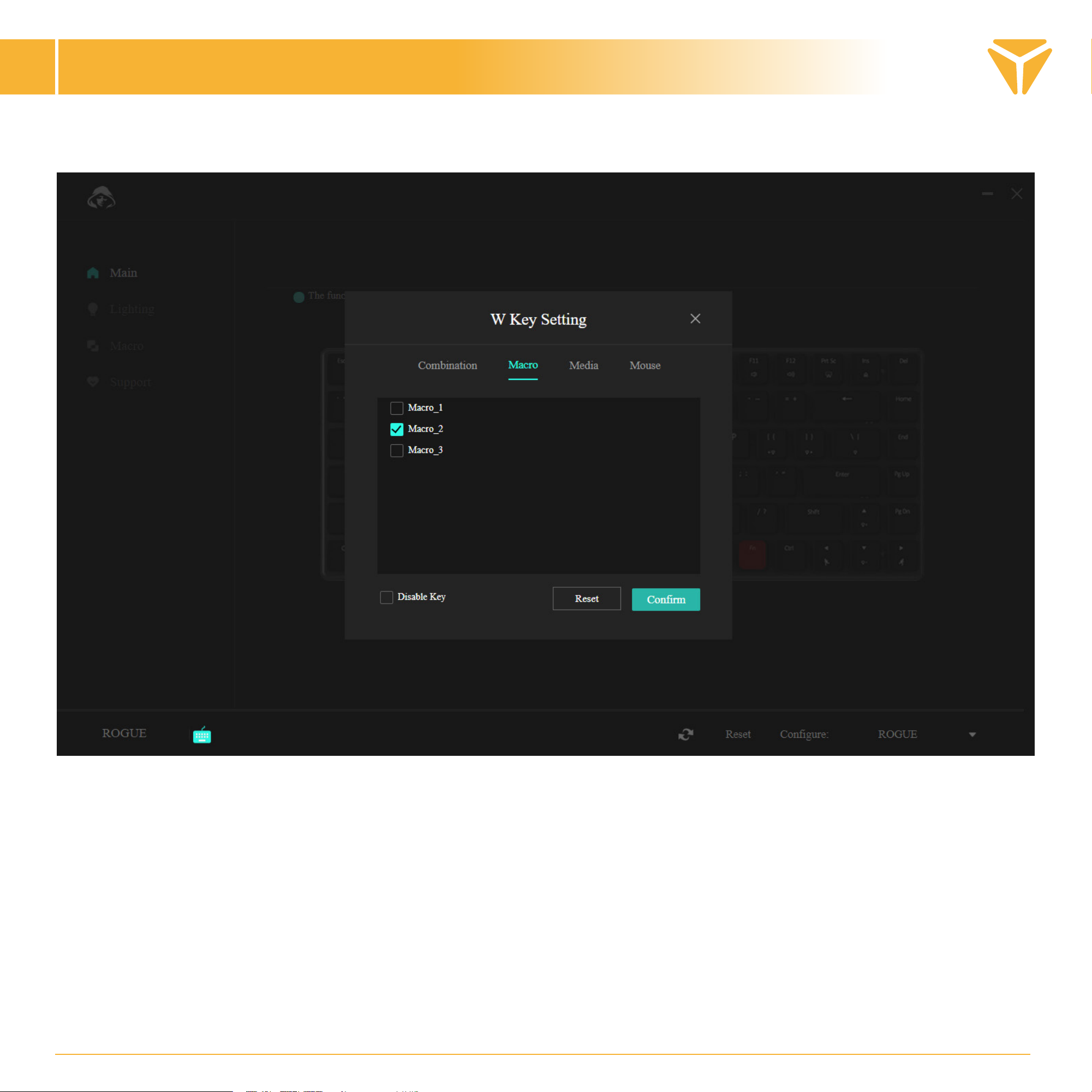
Thanks to the second section, you can easily assign a macro to the desired button.
Simply select the correct macro from the menu and confirm.
Working with the program
EN
Tabla de contenidos
Idiomas:
Otros manuales de Teclado de Yenkee