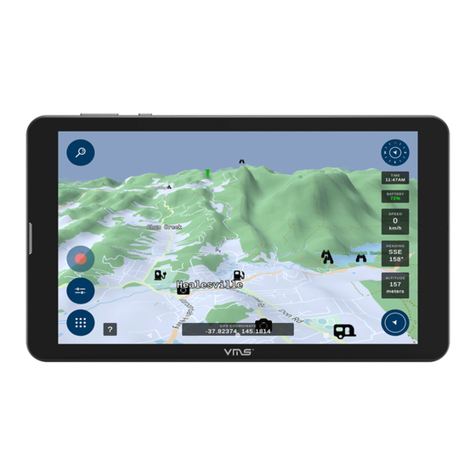
VMS T7500 Manual de usuario

gsfgdsgsf
GPS Navigation User Guide
TM

CONTENTS
NAVIGATION
Selecting on or off road modes.............................................................................. 3
OFF-ROAD NAVIGATION (Available to street and off-road units only)
Your choice of off road software............................................................................ 4
MAIN MENU
Main Menu Options............................................................................................... 5
VIEW MAP SCREEN
Viewing the map.................................................................................................... 6
On screen controls................................................................................................ 6-7
ROUTES
What is a route?.................................................................................................... 8
Creating a route.................................................................................................... 8-9
Viewing and Navigating along a route.................................................................. 10
Modifying a route.................................................................................................. 12
WAYPOINTS
What is a waypoint?.............................................................................................. 13
Adding a waypoint on the map.............................................................................. 13-14
Adding a waypoint by coordinates........................................................................ 15
Adding a waypoint at current location................................................................... 16-17
SEARCHING MAPS
Searching for a location........................................................................................ 18
TRACKLOGS
What is a tracklog?................................................................................................ 19
Creating a tracklog................................................................................................ 19-20
Accessing and modifying a tracklog...................................................................... 21
MAP LIST
Browsing the Map list............................................................................................ 22
SETTINGS
Accessing and modifying the settings................................................................... 23
ABOUT
Accessing About............................................... .................................................... 23
EXIT
Exiting VMS OFF ROAD GPS................................................................................ 23

3
To start any of the navigation applications, turn on your GPS and select the navigation or GPS icon.
VMS Portable GPS VMS In Dash GPS
Select the following options
(a) Street navigation
(b) Off road GPS
The default Off Road application is
VMS Off Road.
(c) Change Off road GPS software.
If you wish to select another Off Road
application, you can do so here (d).
c
b
a
d
NAVIGATION
Selecting on or off road modes

4
OFF-ROAD NAVIGATION
Your choice of off-road navigation software
The VMS Touring range are preloaded with two Off-Road GPS apps
VMS Off Road GPS OR OziExplorer CE (demo version)
Both apps perform the same job, that is to aid in Navigation in Off Road conditions.This Quick Navigation
Manual is compact and portable. It focuses on the VMS app, which is the recommended Off RoadApp. If
you prefer to use Ozi CE, sales, help & support is provided by OziExplorer directly from www.oziexplorer.
com
VMS Off Road GPS
The VMS app is developed inAustralia with easy of use and great features in mind. Therefor, it performs
very well on touch screen enabled devices which is a popular feature on all VMS GPS products. The app
is great for novice and experienced operaters of Off Road software. It provides a no fuss, intuitive user
experience and is packed with great features.
VMS Off Road GPS app technical support
Tutorials, Hints & Tips: can be found on our website http://kb.vms4x4.com
Ozi Explorer CE
A demo version of Ozi Explorer CE is preloaded on this device for convenience and by request from
customers who are experienced with the software, and are familiar with it’s operations. OziExplorer iVMS
does not provide technical support Ozi Explorer CE. For help and support, please contact Ozi Explorer
directly.
The demo version does require an activation key. Although all features can be accessed in the demo
version, the application will time out after 30 minuntes of use. To register Ozi Explorer, a registration code
can be purchased through the Ozi Explorer website. www.oziexplorer3.com/eng/aussiepurchase.html
Ozi Explorer technical support & user guides
www.oziexplorer.com
Please Note: Off-Road Navigation is not available to “street only” navigation purchases.

5
MAIN MENU
Main Menu Options
View Map
Displays the map screen with the last open map and position. See pages 5-6 for more information.
Routes
Create a new route or modify an existing route. See pages 7-11 for more information.
Waypoints
Create a new waypoint or modify an existing waypoint. See pages 12-16 for more information.
Find Place
Key in the name of place or destination to then go to or view on the map. See page 17 for more
information.
Tracklogs
Track where you have been. Start / stop or view your track log. See pages 18-20 for more
information.
Map List
Easy access to a complete list of maps. See page 21 for more information.
Settings
Access to a variety of common settings that can help tailor the application to suit your needs.
See pages 22 for more information.
About
Check the current version and build of the app. See pages 23 for more information.
Exit
Exits the app.

6
When you launch the VMS app you will
be presented with the main menu. To start
tracking your current position, the simplest
way is to tap on the “View Map” button.
Zoom Out Speed
Menu Lock GPS PositionCurrent GPS Position
Map
Heading Position
Altitude
Map Name
Zoom In
On screen controls
VIEW MAP SCREEN
Viewing the map

7
VIEW MAP SCREEN
Current GPS position
Only if you have acquired a GPS position will you see this current position arrow. The current position
arrow pinpoints your location precisely on the map. The arrow points in the direction you are heading
and rotates accordingly as you change your course.
Heading
Heading displays the angle of the direction in which you are travelling. 0 (true north) to 360 degrees.
Lock position
Use the “Lock GPS” button to display your current GPS position centred on the map. This can be
helpful for when you are browsing around any map and wish to quickly revert back to your current
position.
Map
Shows the current map on screen. To browse around the map, simply tap and drag the map in the
desired direction you wish to move the map.
Menu
Brings up the main menu options (see page 4)
Position / Altitude / Map Name
By tapping in this location you can rotate between the three different displays available to you, they are:
Position: Displays your current / live gps position in a coordinate format.
Formats available are: longitude latitude: Degrees, Minutes, Seconds.
Decimal Minutes, Decimal Degrees.
Altitude: Displays current altitude in metres.
Map Name: Displays the name of the current visible maps.
Speed
Displays your current speed. Formats available: Metric, Imperial or Nautical.
Zoom in
Tap the “Zoom in” button to view the current map in more detail. When the maximum zoom
level has been reached for a map, the next tap of the “Zoom In” button will automatically load the next
available map scale.
Zoom out
Tap the “Zoom out” button to view the current map in less detail. When the maximum zoom
level has been reached for a map, the next tap of the “Zoom In” button will automatically load the next
available map scale.

8
A route is a series of waypoints linked together to provide more accurate navigation information along
a route. Each waypoint on the route is a via point. When each via point is reached, the next waypoint in
the route is automatically called.
Prior to accessing the routes menu, please
locate the region or map you wish to plot the
route.
When ready, access the main menu and
press on “Routes”
Press the “New Route” button
ROUTES
What is a route?
Creating a route

9
A crosshair will be displayed on the centre
of the map. Position the map so that the
crosshair is in the position you wish the
begin route from. Press the icon with the A+
symbol to drop the rst point.
The beginning of the route will be labelled
with an (A) marker. (As in going from point
A to B.)
After the starter point has been placed,
continue to add as many more points as you
desire to draw your route.Again simply move
the map to line up the position of the next
checkpoint and press the A+ symbol to drop
each via point as illustrated.
When you have nished the route press the
green tick button. Your last via point dropped
will become the end of the route and be
labelled by a (b) marker.
ROUTES

10
If you plan to navigate along the route
you have just created, please return to
the main menu, select “Routes”, and
select “Route” list.
Here we can see the route we have just
created. We can see the title of the route
with its date, the distance of the route,
and it’s starting coordinates. Please
select the route for more information
and options.
From this screen here we have a large
range of options to choose from.
(a) If you wish to simply get going and
navigate to this route, simply press the
“Follow Route” button.
This will bring take you to your current
position on the map and create a
heading guidance line to assist in
navigating you to the beginning of the
route, or the nearest via point.
(b) If you wish to start from the other
end, select “Reverse route”
a
b
ROUTES
Viewing and Navigating along a route
Tabla de contenidos
Otros manuales de GPS de VMS

VMS
VMS AVNC Manual de instrucciones

VMS
VMS 3DX Manual de usuario

VMS
VMS Touring 600 Manual de usuario

VMS
VMS Touring X Series Manual de usuario

VMS
VMS Touring 500S Manual de usuario

VMS
VMS TOURING 7500 SERIES Manual de instrucciones

VMS
VMS TOURING 7000 SERIES Manual de instrucciones

VMS
VMS Touring 700HDs II Manual de usuario

VMS
VMS Touring 430 Manual de usuario