Texecom CEJ0000 Manual de usuario

Installation Manual
Premier Elite ComlP
INS273-7

INS273-7 2/28
Content
1.0 Overview 3 ..................................................................................................................................
1.1 Introduction 3 ............................................................................................................................
1.2 Supported Control Panels 5 .....................................................................................................
1.3 General 6 .....................................................................................................................................
1.4 PCB Layout 6 ..............................................................................................................................
1.5 Installation 7 ..............................................................................................................................
2.0 Assigning an IP address 7 ........................................................................................................
2.1 IP Address Information 8 ..........................................................................................................
2.2 Automatically Assigned IP Address (DHCP) 9 .......................................................................
2.3 Accessing The Router 9 ............................................................................................................
2.4 DHCP Reservation 11 ................................................................................................................
3.0 Control Panel Programming 11 ...............................................................................................
3.1 Premier Elite 11 .........................................................................................................................
3.2 Premier 412/816/816Plus & 832 12 ........................................................................................
4.0 Port Forwarding 13 ....................................................................................................................
5.0 Wintex setup 14 .........................................................................................................................
6.0 Texecom mobile app's 16 .........................................................................................................
6.1 Local Connection 16 ..................................................................................................................
6.2 Remote connection & Push Notifications 17 .........................................................................
6.3 Premier Elite 19 .........................................................................................................................
6.4 Premier Elite App Encryption 23 .............................................................................................
6.5 Premier 412/816/816Plus & 832 23 ........................................................................................
7.0 Disclaimer 25 ..............................................................................................................................
7.1 Operation 25 ...............................................................................................................................
7.2 Push Notifications 25 ................................................................................................................
7.3 Public, Shared. Corporate & Company Network Use 25 ......................................................
7.4 Technical Support 25 ................................................................................................................
8.0 Troubleshooting 26 ...................................................................................................................
8.1 Specifications 27 ........................................................................................................................
8.2 Standards 27 ..............................................................................................................................
8.3 Warranty 28 ................................................................................................................................

INS273-7 3/28
1.0 Overview
An additional label is provided with this product which must be attached
visibly inside the control panel housing.
1.1 Introduction
The ComIP module allows the Premier & Premier Elite control panels to be
connected to either a Local Area Network (LAN) or Wide Area Network (WAN). The
internet is considered to be a WAN. Once the control panel is connected to a
network the following functions can be achieved:
Upload/Download via Wintex UDL
Receive Push Notifications, Arm, Disarm, Part Arm & Reset via Texecom
mobile app's
Signal alarms to an Alarm Receiving Centre
High security polling by Alarm Receiving Centre
Typical LAN configuration

INS273-7 4/28

INS273-7 5/28
1.2 Supported Control Panels
The ComIP module is supported on the following Premier & Elite Series control
panels, this manual assumes use with Premier Elite panels:
Premier 412/816 816 Plus & 832 V16 or later
Premier Elite 12/24/48/88/168 & 640
Premier 48/88/168 & 640 V7 or later

INS273-7 6/28
1.3 General
The installation of the ComIP module requires a basic understanding of networking
and TCP/IP protocol. If you are not familiar with these concepts, you may require
assistance from an IT professional before attempting to install the module.
The ComIP module is designed to be fitted inside the control panel and is powered
via the harness connection supplied.
1.4 PCB Layout

INS273-7 7/28
1.5 Installation
Introduction
This step by step guide will allow you to achieve the following and should be
carried out in the order detailed in the manual.
Installation
Assign an IP address manually
O Reserve the IP address
O Set the DHCP Pool
Setup port forwarding on the router
Setup push notifications
Programme the control panel
2.0 Assigning an IP address
Before proceeding you should ensure you can access the router as changes will
need to be made to ensure the ComIP will function as expected, and so that you
can configure the router to allow access from the outside world (WAN) should you
require.

INS273-7 8/28
You will need to know the following; the default information should be available
from the router documentation:
The IP address of the router
The router name
The router password
Before assigning an IP address it is important to understand how IP addresses work
and the impact this can have on the performance of the system and the ComIP.
2.1 IP Address Information
Each TCP/IP node on a network host has a unique IP address. This address provides
the information needed to forward packets on the local network and across
multiple networks if necessary.
IP addresses are specified as x.x.x.x, where each x is a number from 1 to 254; for
example, 192.168.0.200. The ComIP must be assigned a unique IP address to use
on a TCP/IP network. If the address is left blank or is programmed as 0.0.0.0 the
ComIP module will try to automatically obtain an IP address from a DHCP server (if
one is running on the network).
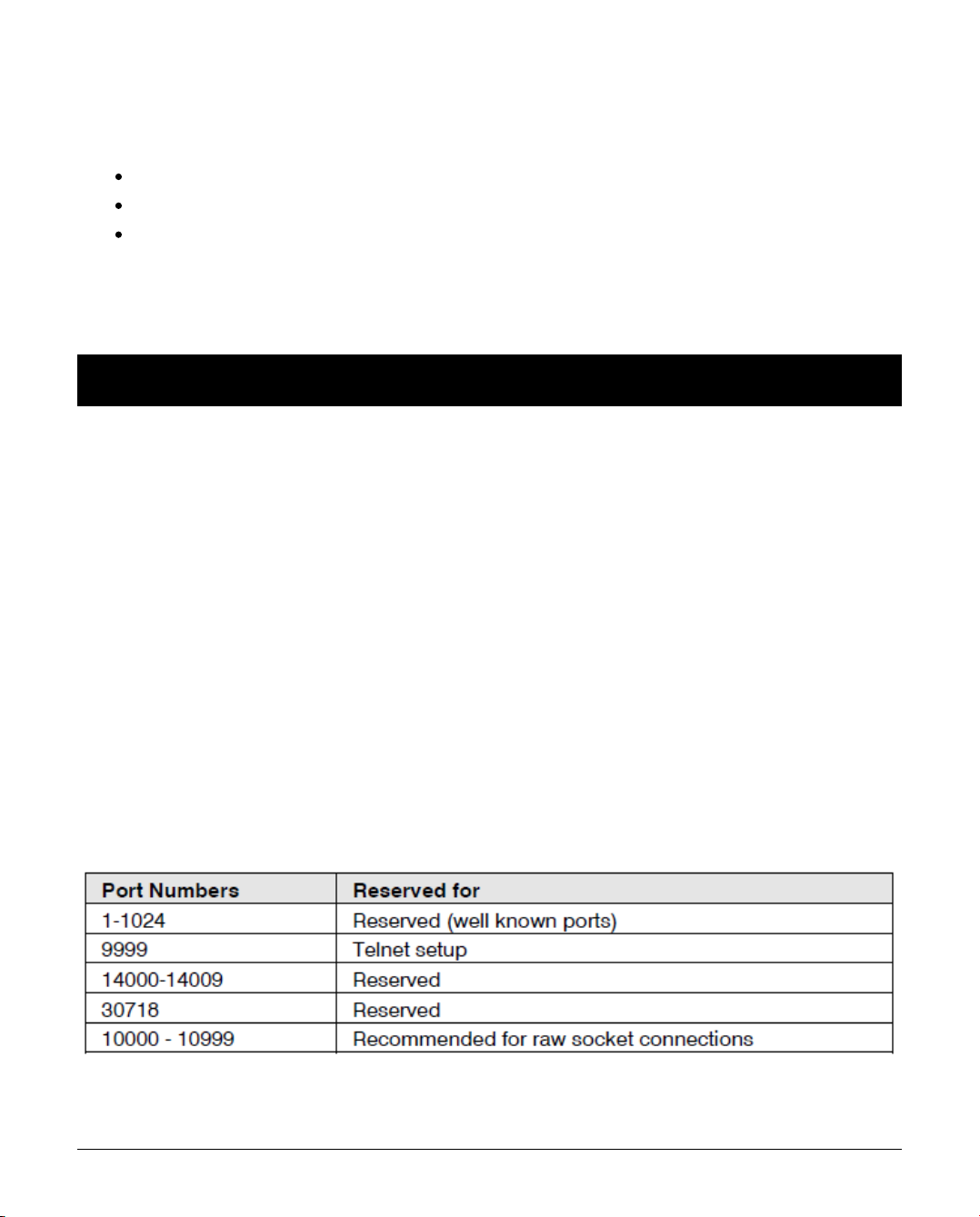
Port Numbers
The port number used to identify the channel for remote initiated connections. The
default setting is 10001. The range for port settings is: 1-65535 except for the
following reserved ports:
Gateway

INS273-7 9/28
The gateway address, or router, allows communication to other LAN/WAN
segments. The gateway address should be the IP address of the router connected
to the same LAN segment as the ComIP. The gateway address must be within the
local network.
Netmask (Subnet Mask)
A netmask defines the number of bits taken from the IP address that are assigned
for the host section. The default mask is 255.255.255.0 (8 bits).
2.2 Automatically Assigned IP Address
(DHCP)
DHCP (Dynamic Host Configuration Protocol) is by far the most common method
for routers to assign devices IP addresses so that they can use connections to
access the Internet and other resources on the network.
IP addresses will be assigned, from a "pool" for a "lease" time, and can change
from device day to day;
If you allow the router to automatically assign an IP address to the ComIP you may
encounter problems with IP conflicts if:
Another device on the network has ever used the address (and could do so
again)
The ComIP is off line and another device is given the address by the router.
To overcome these potential issues it is advised that the IP address is either
reserved for the ComIP, or the IP address used for the ComIP is outside of the
DHCP Pool.
2.3 Accessing The Router
On the PC open the web browser and type the routers IP address into the address
bar as shown and press enter. Values used are typical only; they may be or may

INS273-7 10/28
not the same as the router.
When prompted enter the router user name & password and press Enter.
Once you have access to the router you are looking for DHCP Settings, the
example shown may or may not be the same as the router. You will see a Start &
End IP address, this is the DHCP pool or the range of addresses used by the router
when assigning an address automatically.
You now know the address range being used by the router. The Default Gateway is
the actual router itself.
So you can now decide how you want to configure the ComIP.
If assigning an address within the DHCP pool you should reserve the IP
address for the ComIP.
If assigning an address outside of the DHCP pool, there is no need to reserve
the address.
Tabla de contenidos
Otros manuales de Unidad de control de Texecom

Texecom
Texecom Premier Elite Com GSM Manual de usuario

Texecom
Texecom INS656-3 Manual de usuario

Texecom
Texecom Premier Elite Manual de usuario

Texecom
Texecom Speech Module Manual de usuario

Texecom
Texecom GSM MODULE Manual de usuario

Texecom
Texecom premier 60ixd Manual de usuario

Texecom
Texecom Premier Elite iProx Manual de usuario
Manuales populares de Unidad de control de otras marcas

Festo
Festo Compact Performance CP-FB6-E Manual de lista de piezas

Elo TouchSystems
Elo TouchSystems DMS-SA19P-EXTME Manual de usuario

JS Automation
JS Automation MPC3034A Manual de usuario

JAUDT
JAUDT SW GII 6406 Series Guía rápida

Spektrum
Spektrum Air Module System Manual de usuario

BOC Edwards
BOC Edwards Q Series Manual de usuario