Spromise S100 Manual de usuario

Trail Camera User’s Manual
(for S100/S108/S120/S128)
PLEASE READ CAREFULLY BEFORE USING CAMERA

1
Package Contents
Camera Body and Ports
Mounting Strap 1 Trail Camera 1
Antenna(wireless
camera only) 1 USB Cable 1
User’s Manual 1
A
ntenna Port

2

3
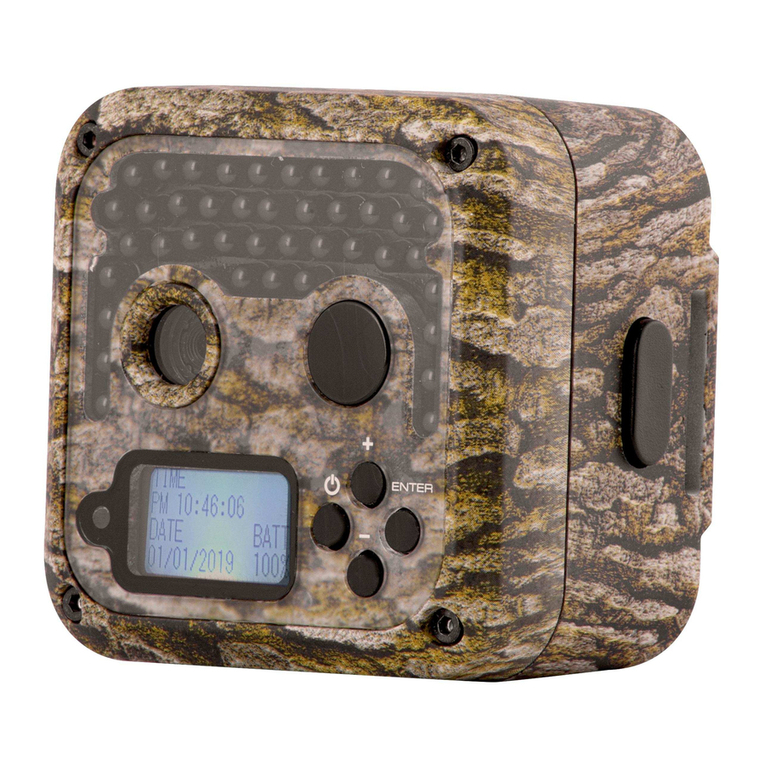
Keys & Buttons
•MENU: Enter the program menu in preview mode
•▲▼◄►: Move between the menu items and change the value
•OK:
oSave parameter settings in menu mode
oPlay videos in playback mode
•Playback button : In live preview window, switch between
playback and preview mode
•DEL: delete an image in playback mode,detele character when edit the
phone number and email address or other settings.
•Use Shortcuts: In live preview window,
o▲is the shortcut to choose Video mode, and
o▼is the shortcut for the Camera mode
oOK is for capture photos or record a video manually
•Mode (Power) Switch: OFF in the bottom. SETUP in the middle. ON in
the top.

4
Quick Start
1. Make sure the power switch is at OFF position. Load the batteries into
the battery compartment according to the polarities indicated. Load a
set of 12 (recommended), 8 or 4 (emergency, left 2 columns) batteries.
Or connect 6 V external power supply to the camera by using the
correct cable and external battery.
The following batteries can be used:
•High-performance alkaline batteries
•Lithium batteries
•Rechargeable Ni-MH batteries
2. Insert a SD card (32GB or smaller). Open the camera and insert the SD
card into the card slot. Refer to the card symbol on the case for proper
orientation. The camera supports up to 32 GB SD card. Please note that
the SD-card should not be locked.
3. Insert a SIM card.
4. Screw the antenna onto the antenna jack on the top of the camera.
Make sure it’s all the way in but DO NOT over tight it.
5. Slide the power switch to the SETUP position. The camera will enter the
live preview mode and start searching the network.
6. Wait until the camera finds the network. If the wireless carrier is not
found, you will need to go to the Advanced Wireless Setup section on
Page 10. If the wireless carrier is found, please go to the next step.

5
7. Press button to enter into the menu, then press ◄or ►buttons
to move between the tabs (submenu) which contains different group of
items. Press the ▲or ▼buttons to activate the submenu and edit
different items. Press ◄► to change the value. Press the OK button to
save.
8. Navigate to the Wireless tab; scroll down to enter the submenus.
Change the Send Mode to Instant. Leave the Send To on Phone mode if
you are sending the email to a cell phone number. Or change to Email
mode if you are sending to your email address. Scroll down to Phone or
Email and input the phone number or email address of the recipient
there.
9. Press button to exit from the submenu. Press the MENU again
to exit from setup menu and enter the live preview mode.
10. Press the OK button to capture image or record video manually.
11. Press the playback button to playback. Use the ◄or ►buttons to go
through the images. Press ▲or ▼button to choose magnification
times. Press OK and and press ◄or ►,▲or ▼to move the
magnified area.
12. Press Playback button to exit. Magnification mode.
13. While reviewing the image, press button to delete the current
image, or press button to delete the current one or all the
images.
14. Press Playback button to exit the playback mode.
15. Place the camera at the target area and turn on the camera (slide the
power switch to ON). The camera will take pictures or videos as
programmed. The height from the ground for placing the camera should
vary with the object size appropriately. In general, 3-6 feet is preferred.
16. Push the power switch to the OFF position to power off the camera.

6
Please note that even in the OFF mode, the camera still consumes a
small amount of battery power. Therefore, please remove the batteries
if the camera is not in use for an extended time.
MenuSettings
Switch the camera to SETUP mode & press MENU. Press ▲▼◄► to
select the desired value, And then press OK to save.
Setting Items Description
CAM
Mode Choose to take Photo / Video.
Photo Size Choose the image size, e.g. 5MP, 8MP or
3MP.
Photo Burst Choose the number of images taken after
each trigger (1-3).
Burst
Interval
Choose the interval time length between the
images taken in burst mode (Long / Short).
Video Size Choose the video resolution.
Video
Length Set the video length to the desired duration.
Trigger Sensitivity Select between High, Low, Normal and
OFF.
Trigger
Interval The sleeping time after each trigger.

7
Time Lapse
The camera can be triggered by timer at a
preset time interval. Please note that even
in Time Lapse mode, the camera still can
be triggered unless the Sensitivity is set to
OFF.
Start-Stop
1/2
The camera can be set to operate only at
specific time period. To enable this function
select ON and press ok. The start-stop
menu will then appear. This menu contains
the settings for times to start and stop as
well as the trigger interval and time lapse
interval. The start-stop setting will override
all other general camera settings. Since
there are 2 periods available, make sure to
not program times that overlap.
SYS
Set Clock Enter to set the Date and Time.
Time Stamp ON /Off. Choose if the image stamp is to be
shown or not.
Flash Power High / Low. Infrared Flash Power:
Format Format the SD card. This will erase all data
on the SD card. This cannot be undone.
Default Restore all settings to factory default
values.
Information Show Module Number, HW Version, FW
version and IMEI of the camera.

8
Password This option allows a 6 digits password to be
set.
Language Choose the menu language.
Wireless
(wireless
camera only)
Send Mode
Choose to send the image Instantly, just
send the Daily report or just turn the
wireless function Off.
Send To Send the images to Phone, Email or Both.
Send Via Choose to send the image via MMS (MMS
plan) or Internet (Data plan).
SMS
Control
Turning the SMS command function On or
Off. Turning the SMS command function On
will increase the power usage.
Update Para
If your wireless carrier’s network
parameters are not pre-programmed into
the camera from the factory, you will need
to use the Setup Tool to program in
manually. After you use the Setup Tool, a
MMSCFG.bin file will be generated and put
on the SD card. You will need to run Update
Para to write the settings to the camera.
Phone Input or revise the recipient Phone number.
Email Input or revise the recipient Email address.

9
Setup Tool
Download the Setup Tool to your SD card
so you can set up the carrier’s network
parameters if they are not pre-programmed
to the camera. It will also allow user to set
up some advanced functions.
Copy Para Copy the current network parameter
settings to the SD card.
Playback Button (Viewing Photo or Video)
•Switch to SETUP mode.
•Press Playback button to view the latest picture (or video).
•Press OK button to start playing the video clips.
•Press OK button to stop playing and return to playback mode.
•Press ◄button to view the previous image and press ►button
for the next.
•Press ▲or ▼button to choose magnification times. Press OK
and and press ◄or ►,▲or ▼to move the magnified area.
•Press the Playback button playback button again to exit the
playback mode.
Delete Photo or Video
•Press Playback button to view the image (or video) which
to be deleted.
•Press DEL button.
•Press LEFT or RIGHT to select Yes to execute or No to Exit.
•Please note that after deleting a picture or a video file, the deleted
files can’t be restored!
Este manual sirve para los siguientes modelos
3
Otros manuales de Cámara de exploración de Spromise