
Spark HG531s V1 Manual de usuario

GET YOUR MODEM
UP AND RUNNING
LET’S GO
HG531s V1 MODEM USER GUIDE
GET YOUR MODEM
UP AND RUNNING
LET’S GO
HG531s V1 MODEM USER GUIDE
SPA0959 HG531s QSG v1.indd 1 28/05/15 9:14 am

SPA0959 HG531s QSG v1.indd 2 28/05/15 9:14 am

Preparation 2
Connect it together 4
Connect to the internet 6
Troubleshooting 8
Useful information 10
CONTENTS
1
2
3
4
5
SPA0959 HG531s QSG v1.indd 1 28/05/15 9:14 am

2
1.1 WHERE TO PUT YOUR MODEM
• Place the modem on a at surface and ensure the modem is not covered by
anything and has adequate ventilation at all times.
• Always keep the back of your modem out of public view as the sticker on the back
of the modem has your WiFi network and password details.
1.2 OPTIMISE YOUR WiFi SIGNAL
• WiFi signal strength and range is dependent on physical and environmental
factors outside of Spark’s control. The following tips will help you optimise your
WiFi signal:
Tips on modem placement:
1. PREPARATION
• Dense obstacles such as walls, oors, ceilings, hot water cylinders, aquariums etc.
limit WiFi performance and range.
• Do not place the modem near electronic devices such as microwave ovens,
cordless phones or wireless transmitters like baby or room monitors.
MULTI STORY
SINGLE STORY
SPA0959 HG531s QSG v1.indd 2 28/05/15 9:14 am

3
1 x
Spark HG531s V1 Modem
1 x
ADSL Cable (Grey)
1 x
LAN Ethernet
Cable (Yellow)
1 x
ADSL line fi lter
1 x
Power Supply
1 x
User Guide
1 x
Safety Information
GET YOUR MODEM
UP AND RUNNING
LET’S GO
GET YOUR MODEM
UP AND RUNNING
LET’S GO
HG531s V1 MODEM USER GUIDE
1.3 EQUIPMENT CHECK
Let’s check everything is here. You should have:
• Do not place the modem in an enclosed space such as a cupboard,
under or behind a desk or large item of furniture.
• Where possible place your modem up high for better WiFi performance.
• If you have WiFi coverage issues, you can opt to purchase products such
as WiFi range extenders.
SPA0959 HG531s QSG v1.indd 3 28/05/15 9:14 am

4
2. CONNECT IT TOGETHER
Download Spark
Broadband Assist
to your computer,
a free tool to
help set up and
manage your
modem and your
Yahoo! Mail.
See page 6 for
more information
Want to connect your mobile/tablet/WiFi device
to your modem? See page 7 for more information
On/Off
On/Off
Look for this
symbol on your
computer.
Power Supply
Yellow
Want to connect your mobile/tablet/WiFi device
to your modem?
7
First, connect it all together. Then, wait 5 minutes
for all the connections to be established. You can read the next pages while you wait.
SPA0959 HG531s QSG v1.indd 4 28/05/15 9:14 am
5
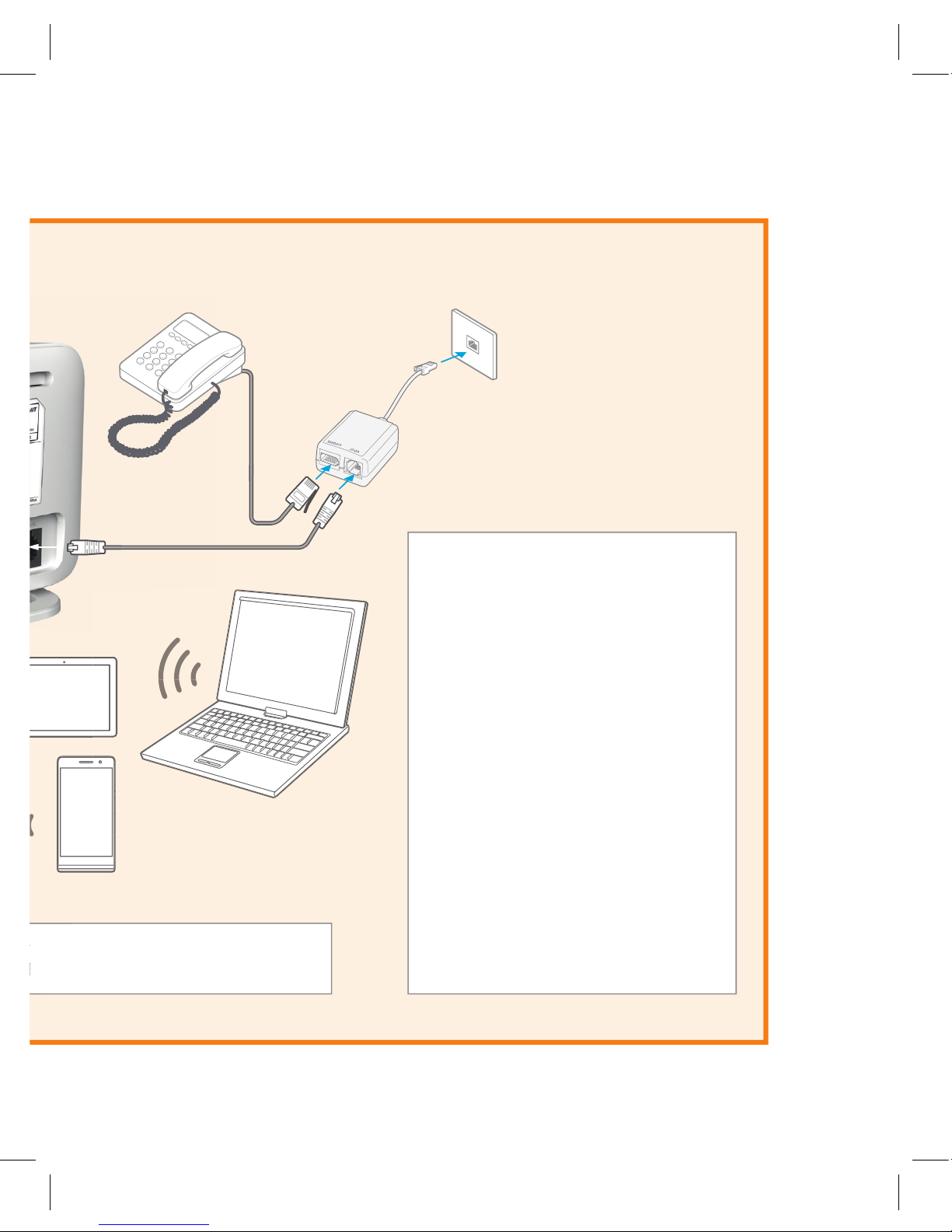
USE A FILTER
ADSL lters are required for every phone
socket in use, including phone lines, faxes
or digital TV decoders. Filters remove
interference on your phone lines and
improve your broadband service (even if
you don’t have a home phone plugged
in). Use the ADSL lter supplied with this
modem when setting up as old lters
can cause speed and stability problems.
Don’t use telephone extension cables
with the modem as these cause speed
and stability problems.
If you use 4 or more phone sockets in
your home, or have a monitored security
or medical alarm, Spark recommends
you have an ADSL Splitter installed by
a technician.
Want to connect your mobile/tablet/WiFi device
to your modem?
See page 7 for more information
Grey
Want to connect your mobile/tablet/WiFi device
to your modem?
7
First, connect it all together. Then, wait 5 minutes for all the connections to be established. You can read the next pages while you wait.
SPA0959 HG531s QSG v1.indd 5 28/05/15 9:14 am

6
Wait 5 minutes after plugging it all together then check the lights.
3.1 WHAT DO THE LIGHTS MEAN?
Internet light should be GREEN and blinking, WLAN light should be GREEN and steady
or blinking. ADSL and Power and a LAN light (if using yellow LAN port) should be
GREEN and steady.
If the lights don’t look like this, and you have waited 5 minutes since plugging it all
together, look at ‘Troubleshooting’ on page 8.
Once the lights are displaying correctly, open a web browser (such as Internet Explorer,
Firefox, Safari or Chrome) and go to spark.co.nz/broadbandsetup or any other web
page to test your connection.
3.2 WHY USE SPARK BROADBAND ASSIST?
Spark Broadband Assist is a free tool you can download from
spark.co.nz/broadbandsetup for your computer that lets you:
• Set up your home WiFi
• Help troubleshoot your internet connection
• Change your WiFi name & password to make it more secure or easier to remember
• Change your WiFi channel which may help WiFi performance
• Help link your Yahoo! Mail to the email on your computer
Broadband Assist currently works on your computer or Mac with the following operating
systems (Windows Vista, Windows 7, Windows 8, OS X Mountain Lion, OS X Yosemite).
It is up to 20MB to download and will count towards your monthly data allowance.
Broadband Assist also
gives you access to free
Premium services such as:
Check out spark.co.nz/myspark/myinternet/premiumservices/ for more information.
3. CONNECT TO THE INTERNET
Power ADSL Internet WLAN WPS LAN1 LAN2 LAN3 LAN4 USB
SPA0959 HG531s QSG v1.indd 6 28/05/15 9:14 am

7
1. Go to ‘Settings’ and turn
on WiFi on your device.
2. Select the WiFi network
that matches the sticker on
the back of your modem.
3. Enter the password.
TIP: If you select the ‘remember me’ or ‘connect automatically’ option, your device
will automatically connect to this WiFi network when you’re in range.
3.4 HOW TO CONNECT USING WPS
You can also connect to WiFi using WPS (WiFi Protected Setup) enabled devices.
Check out the instructions for your modem at spark.co.nz/help.
3.3 HOW TO CONNECT A MOBILE, TABLET OR OTHER WiFi CAPABLE DEVICE
After you make sure you can connect
to the internet via your modem (see
previous page), then you can connect
your other devices via WiFi.
SPARK – ABC123
Secured with WPA/WPA2
(WPS available)
SSID . SPARK-ABC123
WLAN Key : a1b2c3d4
SPARK – ABC123
a1b2c3d4
Password
Security
Signal strength
Show password
Cancel Connect
Show advanced options
SPARK – ABC123
SPA0959 HG531s QSG v1.indd 7 28/05/15 9:14 am

8
4. TROUBLESHOOTING
PROBLEM POSSIBLE REASONS HOW TO FIX
ADSL light is blinking No connection from your
modem to your phone line.
There could be a problem with
the broadband equipment or
your line.
Check the modem and phone line are
connected.
Turn the modem off for 30 seconds
then on again (and wait 5 minutes for
connection to establish).
If you have a landline, check that
it is working. If not you may have
a line fault and need to contact Spark.
Internet light is off
or I can’t browse the
internet
There is no access from your
modem to the internet – this
could be because:
• Provisioning of your
service may not have
been completed.
• There is a problem with the
broadband network.
• Incorrect password
on your modem.
• There is a problem
with your account.
Check the date Spark has advised that
your service will be connected.
Check you have waited 5 minutes
since plugging it all together.
Turn the modem off for 30 seconds
then on again (and wait 5 minutes for
connection to establish).
Check you have correctly input your
modem password, including upper or
lower case letters.
I can’t nd the WiFi
network name on my
mobile or tablet
The WLAN light on
my modem is off
The modem WiFi is turned off. To turn WiFi on, press
the WLAN button on
the side of the modem
for 2-3 seconds (until
the light comes on).
My connection or WiFi
was working but it
keeps dropping
There could be a problem with
your line.
There could be a problem with
the WiFi drivers on the device
you are using. (e.g. computer
or laptop).
Turn the modem off for 30 seconds
and then on again (and wait 5 minutes
for the connection to establish).
Check your device manufacturer’s
website for any updates to WiFi drivers.
My WiFi is slow Many factors can affect WiFi
performance – such as:
• Speed of internet connection.
• Number and speci cations
of WiFi devices connected.
• Your home layout.
• Location of modem.
• Interference from
other devices.
Check out spark.co.nz/wifi athome for
more information on WiFi performance
and how to improve it.
If you’ve tried these fi xes and the problem persists visit
spark.co.nz/help or call Spark on 0800 225 598
To turn WiFi on, press
the side of the modem
SPA0959 HG531s QSG v1.indd 8 28/05/15 9:14 am
Otros manuales para HG531s V1
1
Tabla de contenidos
Otros manuales de Módem de Spark

Spark
Spark Smart Modem 3 Manual de usuario

Spark
Spark HG659b Manual de usuario

Spark
Spark HG659b Manual de usuario

Spark
Spark MF730M Manual de usuario

Spark
Spark HG531s V1 Manual de usuario

Spark
Spark HG630b Manual de usuario

Spark
Spark 5G Smart Modem Manual de usuario

Spark
Spark VRV9517UWAC34 Manual de usuario
Manuales populares de Módem de otras marcas


US Robotics
US Robotics 3453C Manual de usuario

MaxTech
MaxTech Plug & Play Internal Voice/FAX/Data/SVD... Manual de usuario

Zte
Zte MF823 Manual de usuario

Four-Faith
Four-Faith F1403 Manual de usuario

Sierra Wireless
Sierra Wireless AIRLINK MP595W Manual de usuario

Gemtek
Gemtek WiMAX WIXFBR-103 Manual de usuario