
Sonos S14 Manual de usuario

Play:1
Play:3S14
Product Guide

THIS DOCUMENT CONTAINS INFORMATION THAT IS SUBJECT TO CHANGE WITHOUT NOTICE.
No part of this publication may be reproduced or transmitted in any form or by any means, electronic or mechanical, including but not
limited to photocopying, recording, information retrieval systems, or computer network without the written permission of Sonos, Inc.
Sonos and all other Sonos product names and slogans are trademarks or registered trademarks of Sonos, Inc. Sonos Reg. U.S. Pat. &
Tm. Off.
Sonos products may be protected by one or more patents. Our patent-to-product information can be found here:
sonos.com/legal/patents
AirPlay®, Apple Music™, FairPlay®, iPad®, iPhone®, iPod®, Tunes®, and OS X®, are trademarks of Apple Inc., registered in the U.S.
and other countries.
Windows® is a registered trademark of Microsoft Corporation in the United States and other countries.
Android™ is a trademark of Google, Inc.
Manufactured under license from Dolby Laboratories. Dolby and the double-D symbol are trademarks of Dolby Laboratories.
Amazon, Kindle, Kindle Fire, Echo, Alexa, and all related logos are trademarks of Amazon.com, Inc. or its affiliates.
Bluetooth® is a registered trademark of Bluetooth SIG, Inc.
Sonos uses MSNTP software, which was developed by N.M. Maclaren at the University of Cambridge.
© Copyright, N.M. Maclaren, 1996, 1997, 2000; © Copyright, University of Cambridge, 1996, 1997, 2000.
All other products and services mentioned may be trademarks or service marks of their respective owners.
October 2017
©2004-2017 by Sonos, Inc. All rights reserved.

Sonos S14
The S14 adds full-theater sound to all your movies, TV shows, sports and games—and wirelessly streams
your favorite music, too.
• Slim tabletop design blends beautifully in any decor.
• Wall-mountable above or below a wall-mounted TV.
• Simple two-cord setup—one for power, one for your TV.
• Connects wirelessly to Sonos speakers throughout your home.
• Syncs wirelessly with SUB and two Sonos speakers, such as two PLAY5s, for 5.1 surround sound.
It takes just a few minutes to get your S14®up and running. Once you’ve set it up, you can add more Sonos
speakers any time.
What’s in the box?
•SonosS14
•Powercord
• HDMI cable
•QuickStartGuide
• Important Product Information booklet
What’s required?
Television
The S14 is compatible with any TV that has an HDMI ARC or optical digital audio output connector.
Home network
To use the Sonos app, your device must be on the same network as Sonos. If you need help, please go to
http://faq.sonos.com/notfound.
Requirements
To access music services, Internet radio, and music stored on your computer or Network-Attached Storage
(NAS) device, make sure your network meets these requirements.
Note: Make sure your network has a high-speed Internet connection because Sonos is designed to provide
you with free, online software updates. Your Sonos system must be registered to receive these updates
so be sure to register during the setup process. We do not share your e-mail address with other
companies.
• High-speed DSL/cable modem, or fiber-to-the-home broadband connection for proper playback of
music services. (If your Internet service provider only offers satellite Internet access, you may experience
playback issues due to fluctuating download rates.)
• If your modem isn’t a modem/router combination and you want to take advantage of Sonos’ automatic
online updates or use a streaming music service, you’ll need to install a wireless router before setting up

Product Guide
2
Sonos.
Note: Sonos communicates over a 2.4GHz home network supporting 802.11 b/g/n wireless technology.
802.11n only network configurations are not supported—you can either change the router settings to
802.11 b/g/n or connect a Sonos product to your router.
• Connect a Sonos BOOST or speaker to your router if:
• You have a larger home where the Wi-Fi performance isn’t reliable and you want to strengthen the
wireless performance of your Sonos system.
• Your Wi-Fi network is already in high demand with streaming video and web surfing and you want to
create a separate wireless network exclusively for your Sonos speakers.
• Your network is 5GHz only (not switchable to 2.4GHz).
• You have configured your router to support only 802.11n and can’t change the settings to support
802.11 b/g/n.
• For best results, you should connect the computer or NAS drive that contains your personal music library
collection to your network router using an Ethernet cable.
Download the Sonos App
An easy way for you to listen to all your music - in bold Sonos sound. Just get the app from the app store on
your mobile device and follow the setup instructions. Play music right away, start adding your music and voice
services, or add a music library.
Note: Get the app for your computer at www.sonos.com/support/downloads.
For the latest system requirements and compatible audio formats, go to http://faq.sonos.com/specs.

Sonos S14 3
S14 front
Swipe right for next track
Volume Down Swipe left for next track
Play/Pause Volume Up
Touch Controls
On/Off Sonos uses minimal electricity when not in use.
Turn off the sound using the app or the buttons.
• Stop sound in just one room—touch Play/Pause on the S14.
• Stop music everywhere—Use the app to pause the music.
Play/Pause Touch to play and pause sound.
• When TV is on, touch once to mute the sound.
• When TV is off, touch once to restart the music that was playing before
the TV was turned on. Press and hold to add the music playing in another
room.
Speaker Status Light Indicates the status of your speaker.
• Normal operation: dimly lit.
• Listening or replying: full white brightness.
•Thinking:flashing white (dim to full).
For more information, see http://faq.sonos.com/led.
Microphone Indicator Touch to turn the microphone on and off.
• When the light is on, voice control is on and you can use voice
commands.
• When the light is off, voice control is off.
• When the light is off, you can still use voice commands. Just press and
hold the microphone button to talk to Alexa. Release the button to turn
voice control off.
Volume Up (+)
Volume Down (-)
Touch to adjust volume. Touch and hold to quickly change volume.
•Volume Up (right)
•Volume Down (left)

Product Guide
4
S14 back
HDMI connector
Ethernet port
AC power (mains) Join
Ethernet Port
HDMI connector
AC Power (Mains) Input
Join button
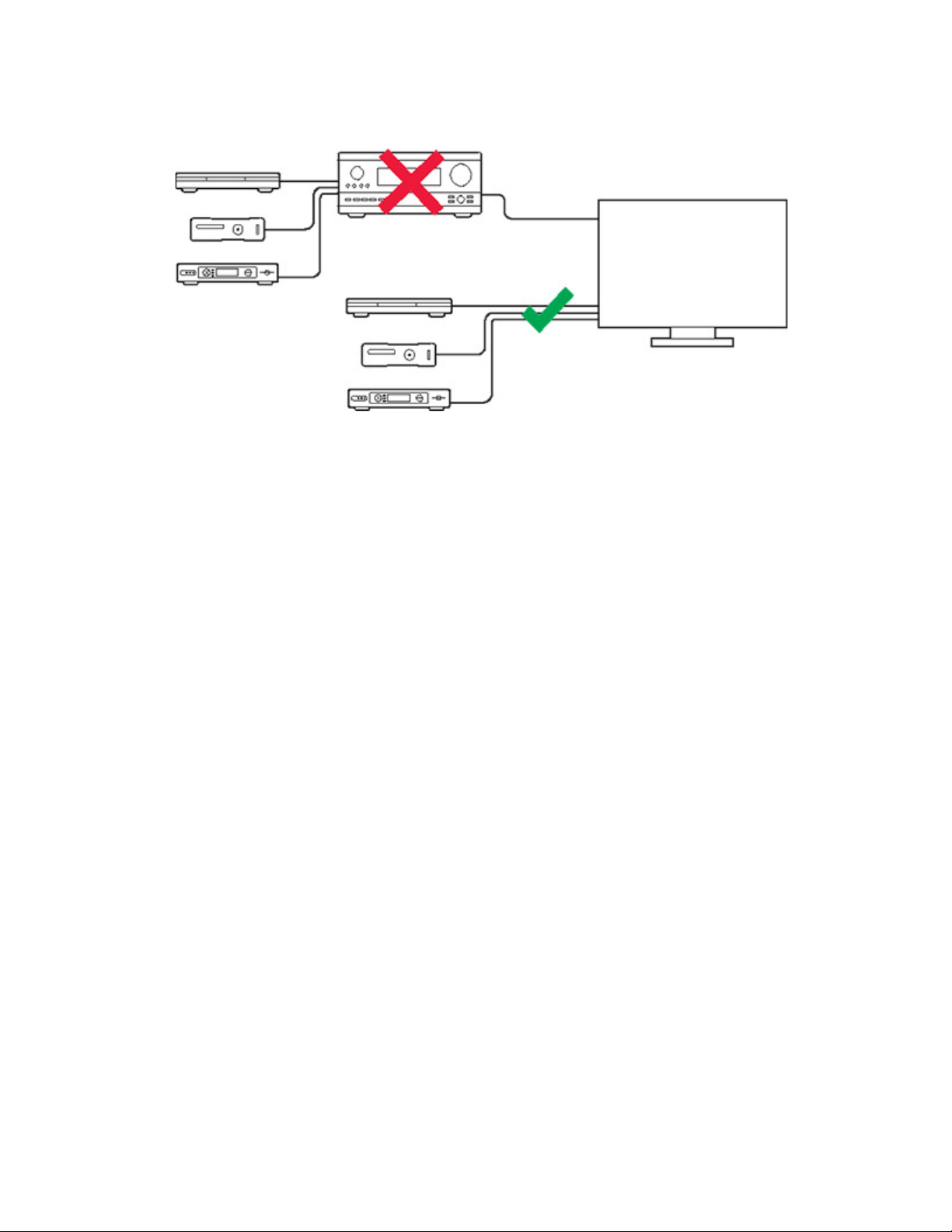
Before you start
1. Make sure external components, such as a cable box or DVD player, are connected directly to your TV.
Next track
Previous track
Swipe left to right between the touch controls to get to the next track; swipe
right to left to hear the previous track.
(Next/Previous touch controls don’t work when you’re listening to a radio
station.)
IR (InfraRed) Sensors / Signal
Lights
The IR sensor receives the signals sent by a remote control.
When the S14 receives a volume or mute command, the IR signal light displays
momentarily.
Use an Ethernet cable to connect the S14 to your Wi-Fi. Only use this port
to plug in either the S14 or a Sonos BRIDGE or BOOST.
Connect the HDMI cable from the S14 to your TV’s HDMI ARC connector.
Note: If your TV does not have an HDMI ARC connector, use an optical
adapter (see page 6).
Use only the supplied power cord to connect to a power outlet. Using a
third party power cord voids the warranty.
Press Join to connect to Sonos.
Sonos S14 5
2. Disconnect any existing home theater or surround sound equipment from your TV.
Select a location
Place the S14 on a tabletop or mount it on a wall above or below a wall-mounted TV. See Mount the S14 on a
wall.
Tabletop placement guidelines
• Place the S14 horizontally and flat on its feet.
• Do not place the S14 vertically or on its side.
• Keep the connector panel toward the TV to preserve audio quality. The Sonos logo should be closer to
your TV.
• Do not block the TV’s IR sensor.
Note: The S14’s IR repeater is designed for at least 2” (50mm) distance, but may work at a closer
distance.

Product Guide
6
• Do not place the S14 in a cabinet or on a walled shelf. Make sure both ends of the S14 are at least 1 ft.
(30cm) from a wall or other obstruction.
Set it up
S14 is compatible with Sonos software versions 7.2 and later. If you are adding the S14 to an existing Sonos
system, check for software updates first.
1. Carefully unpack the box.
2. Choose a location for the S14 (see Select a location).
3. Connect the HDMI cable (supplied) from your TV’s HDMI ARC connector to the S14’s HDMI connector.
Note: If you TV does not have an HDMI ARC connector, you need an optical adapter
Connect using a optical adapter
If your TV doesn’t have an HDMI ARC connector, you need to purchase an optical adapter and connect it to
the HDMI cable.
1. Remove the protective cap from the optical adapter.
2. Attach the optical adapter to the HDMI cable.

Sonos S14 7
3. Connect the optical adapter end of the cable to the TV’s digital audio out (optical) connector
Note: Be careful not to twist or bend the cable. The optical adapter’s connector is ’D-shaped’—make
sure it aligns correctly into the connector.
4. Connect the HDMI end of the cable to the S14’s HDMI connector.
IMPORTANT: Remove
the protective cap from
the optical adapter.
5. Insert the power cord fully into the S14’s power connector and plug it into power.
The speaker status light flashes.
6. (OPTIONAL) If you are setting up your S14 with a SUB and/or surround speakers, put them where you
want them and plug them in.
(You’ll be prompted to add these after you’ve got the S14 set up.)

If you purchased a pair of Sonos speakers, such as two PLAY:5s, to use as surrounds,
place the speakers to the left and right of your main viewing position, level with or behind
the main viewing position. Some speakers can be placed either horizontally or vertically—
make sure both speakers have the same orientation.
If placing Sonos SUB, place it
wherever it best fits your room—
standing up or lying flat. You can
place it in a corner, against the
wall, behind, under, or next to any
piece of furniture on any kind of
floor surface.
Product Guide
8
Note: Expandable S14 home theater setup
For a 3.1 home theater experience, pair a SUB with your S14.
For a 5.0 home theater experience, set up two speakers, such as two PLAY:5s, as surround speakers
with your S14.
For a 5.1 home theater experience, pair a SUB and two speakers, such as two PLAY:5s, with your S14.
7. Open the Sonos app (see 2).
Note: Sonos recommends you use the Sonos app on a mobile device instead of a computer to set up your
S14.
If you’re setting up a new Sonos system, add your Sonos products in the following order:
a. If you have a Sonos product connected to your router, add it first.
b. Add the S14.
c. Add any additional Sonos products you purchased.
Tabla de contenidos
Otros manuales de Oradores de Sonos

Sonos
Sonos PLAYBASE Manual de usuario

Sonos
Sonos Beam Manual de usuario

Sonos
Sonos PLAY:5 Manual de usuario

Sonos
Sonos One Manual de usuario

Sonos
Sonos Roam Manual de usuario

Sonos
Sonos Roam Manual de usuario

Sonos
Sonos Roam Manual de usuario

Sonos
Sonos BOOST Manual de usuario

Sonos
Sonos PLAY:1 Manual de usuario

Sonos
Sonos ARC Manual de usuario

Sonos
Sonos One Manual de usuario

Sonos
Sonos PLAY:1 Manual de usuario

Sonos
Sonos PLAY:1 Manual de usuario

Sonos
Sonos Five Manual de usuario

Sonos
Sonos PLAY:5 Manual de usuario

Sonos
Sonos PLAY:5 Manual de usuario

Sonos
Sonos PLAY:5 Manual de usuario

Sonos
Sonos Move Manual de usuario

Sonos
Sonos One Manual de usuario

Sonos
Sonos PLAY:5 Manual de usuario


