
SIGLENT SDG1000X Series Manual de usuario
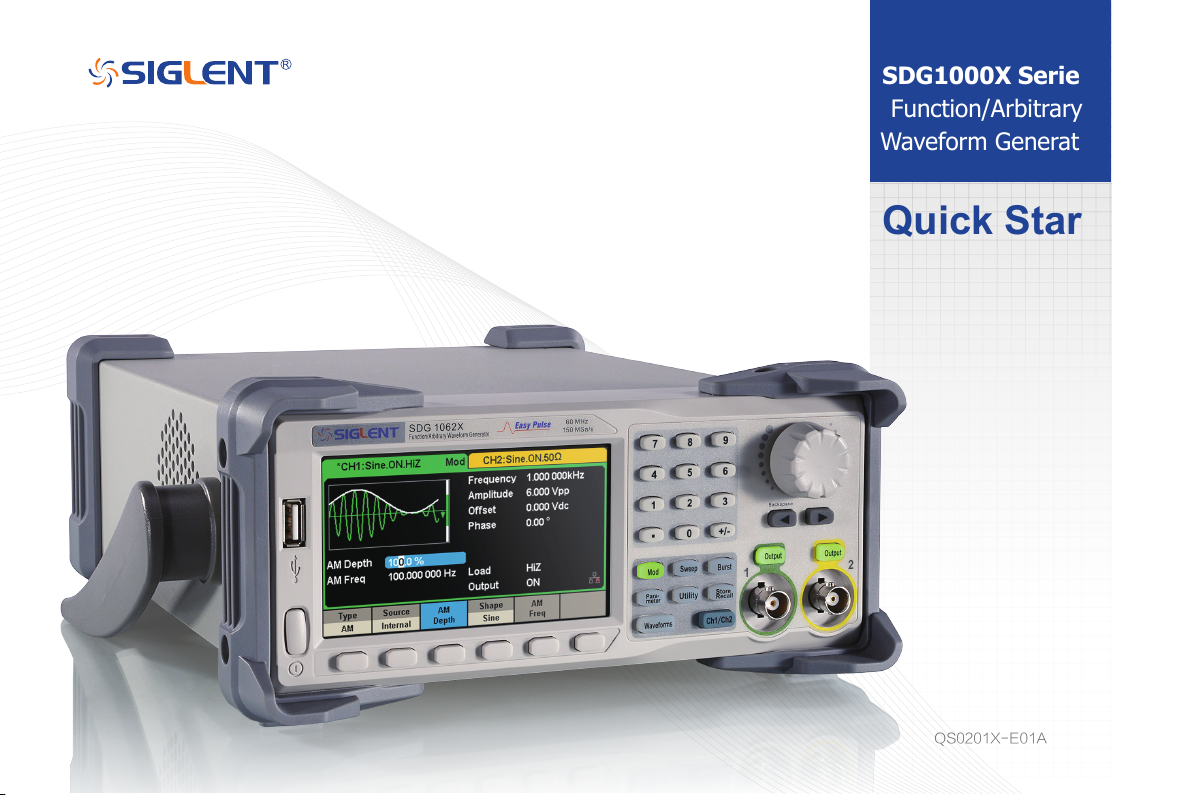
SDG1000X Series
Function/Arbitrary
Waveform Generator
Quick Start
QS0201X-E01A

I-SDG1000X Quick Start
SIGLENT TECHNOLOGIES CO., LTD. All rights reserved.
Information in this publication replaces all previous corresponding material.
SIGLENT reserves the rights to change the specications and the price.
Contents of this manual are not allowed to be copied, extracted, or translated without the permission of Siglent
Technologies.
Copyright
c

SDG1000X Quick Start-II
Carefully read the following safety precautions to avoid any personal injuries or damages to the instrument and any product connected to it. To avoid potential
hazards, please use the instrument as specied.
Any service on this instrument should be performed by qualied repair personnel only.
Avoid exposing this instrument to re.
Always use a proper power line voltage.
Power this instrument only with the specied power line voltage approved by local regulations.
Ground the Instrument.
The instrument is grounded through the protective ground conductor of the power line. To avoid electric shock, the ground conductor must be connected to the
ground. Make certain the instrument is grounded correctly before connecting its input or output terminals.
Connect the signal wire correctly.
The potential of the signal wire ground is equal to the earth potential, Remove do not connect the signal wire to a high voltage. Do not touch the exposed contacts
or components.
Observe all terminal ratings.
To avoid re or electric shock, please observe all ratings and labels on the instrument. Before connecting the instrument, please read the manual carefully to gain
more information about the ratings.
Do not operate any instrument that is suspected of being defective.
If you suspect that the product is damaged, please have it checked by qualied technical personnel.
Avoid contact with exposed circuits or wires.
Do not touch exposed contacts or components when thethe instrument is powered on.
Do not operate in wet/damp conditions.
Do not operate in an explosive atmosphere.
Keep the surface of the instrument clean and dry.
Safety Terms and Symbols
Terms used on the instrument. Terms may appear on the instrument:
DANGER: Indicates an injury or hazard that may immediately happen.
WARNING: Indicates an injury or hazard that may not immediately happen.
CAUTION: Indicates that a potential damage to the instrument or other property might occur.
General
Safety
Summary
Hazardous
Voltage
Warning Protective
Earth Ground
Chassis
Ground
Power
Switch
Symbols used on the instrument. Symbols may appear on the instrument:

1-SDG1000X Quick Start
Content
Copyright..............................................................
General Safety Summary.......................................
Adjust the Handle.................................................
The Front Panel....................................................
The Rear Panel....................................................
User Interface......................................................
Using the Built-in Help System...............................
Introduction to EasyWave.....................................
Contact SIGLENT.................................................
I
II
2
3
9
12
14
15
16

SDG1000X Quick Start-2
Adjust
the Handle
When using the instrument, users can adjust the handle to a desired position for optimum use.
Horizontal Position
Carrying Position
Figure 1 Adjust the Handle

3-SDG1000X Quick Start
1
2
3
11
10 8
9
4
5
6
7
The Front
Panel
1. Power Switch
2. USB Host
3. User Interface
4. Numeric Keyboard
5. Knob
6. Arrow Keys
7. CH1/CH2 Control/
Output Port
8. Channel Select Key
9. Function Keys
10. Waveform Option Key
11. Menu Softkeys
Figure 2 SDG1000X Front Panel
The gure below shows the SDG1000X’s front panel layout:

SDG1000X Quick Start-4
1.Power Switch
This switch is used to turn on/off the SDG1000X. When the power switch is off, SDG1000X is in the power off state.
2.USB Host
SDG1000X supports U-Disk using FAT format. It is used to read waveforms or state les from a U-Disk or store the current state of the instrument to the U-Disk.
Users can update the rmware through a U-Disk.
3.User Interface
SDG1000X has a 4.3 inch TFT-LCD screen, which displays current function menu, parameter settings, system state, prompts, etc. For detailed information, please
refer to “User Interface”.
4.Numeric Keyboard
Consists of numbers from 0 to 9, radix points “.” and symbol keys “+/-”, which are used to input parameters.
Note: To enter a negative number, please enter a symbol “-” .
5.Knob
Used to increase (clockwise) or decrease (counterclockwise) the current numerical value when setting parameter values.
The knob is also used to switch characters in the soft keyboard when inputting a le name.
When saving or reading les, rotate the knob to choose a position to save a le or choose a le to be read; press the knob to open a selected folder or le.
When choosing Waveforms → Page 1/2 → Arb → Arb Type rotate the knob to select a desired built-in or stored waveform.
6.Arrow Keys
When using knob to set parameters, the arrow keys are used to select the digit to be modied.
When using the numeric keyboard to set parameters, the left arrow key is used as a Backspace function.
When inputting a le name, the arrow keys are used to move the position of the cursor
5-SDG1000X Quick Start
7.Channel Control Area
CH1 Control/Output Key
The Output key on the left is used to turn on/off CH1 output.
The nominal output impedance of the BNC connector is 50 Ω.
When pressing Output (the key backlight turns on), the connector outputs the waveform according to the current conguration of CH1.
CH2 Control/Output Key
The Output key on the right is used to turn on/off CH2 output.
The nominal output impedance of the BNC connector is 50 Ω.
When pressing Output (the key backlight turns on), the connector outputs the waveform according to the current conguration of CH2.
8.Channel Select Key
This key is used to toggle the currently selected channel between CH1 and CH2.
CAUTION:
Overvolltage protection of CH1 and CH2 will take effect once any of the following conditions is met. When overvoltage protection occurs, a warning
message will be displayed and the output is disabled.
• The absolute value of the input voltage is higher than 11 V ± 0.5 V when the amplitude of the generator is higher than or equal to 2 Vpp or the DC
offset is higher than or equal to |3 VDC| (under HighZ load).
• The absolute value of input voltage is higher than 4 V ± 0.5 V when the amplitude of the generator is lower than 2 Vpp and the DC offset is lower than
|3 VDC| (under HighZ load).
Choose Utility →Page 1/2 →OverVoltage Protection to turn on/off the function.

SDG1000X Quick Start-6
9.Function Keys
Mod ----Modulation
This key is used to enable the modulation screen and allow for several types of modulation. Types include AM, DSB-AM, FM, PM, ASK, FSK, PSK and PWM modulated
signals.
• Both “Internal” and “External” modulation sources are supported.
• The corresponding key backlight will turn on when this function is selected.
Sweep ----Sweep
This key is used to generate sweeping frequency signals of Sine, Square, Ramp and Arbitrary functions.
• The Sweep mode supports “Linear” and “Log” sweep proles.
• Sweep supports “Internal”, “External” and “Manual” trigger sources.
• The corresponding key backlight will turn on when this function is selected.
Burst ----Burst
This key is used to generate burst signals of Sine, Square, Ramp, Noise and Arbitrary functions.
• The Burst mode supports “NCycle”, “Gated” and “Innite” burst modes.
• Noise can only be used to generate gated burst.
• This mode supports “Internal”, “External” and “Manual” trigger sources.
The corresponding key backlight will turn on when this
Parameter ----Parameter Setting
Users can switch directly to the parameter setting interface by pressing this key.
• The corresponding key backlight will turn on when this function is selected.

7-SDG1000X Quick Start
Utility ----Utility Functions and System Settings
This key is used to set system parameters and check version information.
•Press this key and then press the help softkey to obtain built-in help information about the product.
•The corresponding key backlight will turn on when this function is selected.
Store/Recall ----Store and Recall
Store/recall the instrument’s state or arbitrary waveform data edited by users.
• Supporting the le management system, users can perform general le operations.
• In addition to the built-in nonvolatile memory (C disk), an external U-Disk (D disk) can also be used.
• The corresponding key backlight will turn on when this function is selected.
10.Waveform Option
The backlight of Waveforms will turn on when this function is selected. The user can choose Sine, Square, Ramp, Pulse, Noise, DC and Arb.
Waveforms ---- Sine
Provides sine waveform output which ranges from 1 μHz to 60 MHz.
• “Frequency/Period”, “Amplitude/High level”, “Offset/Low level” and “Phase” of the sine waveform can be modied.
• The Harmonics function can also be accessed.
Waveforms ---- Square
Provides square waveform output which ranges from 1 μHz to 60 MHz.
• “Frequency/Period”, “Amplitude/High level”, “Offset/Low level”, “Phase” and “DutyCycle” of the square waveform can be modied.
Otros manuales para SDG1000X Series
1
Tabla de contenidos
Otros manuales de Inversor de SIGLENT

SIGLENT
SIGLENT SSG5000 Series Manual de usuario

SIGLENT
SIGLENT SDG2000X Series Manual de usuario

SIGLENT
SIGLENT SDG800 Series Manual de usuario

SIGLENT
SIGLENT SSG3000X Manual de usuario

SIGLENT
SIGLENT UM0202X-E02C Manual de usuario

SIGLENT
SIGLENT SDG5000 series Manual de usuario

SIGLENT
SIGLENT SDG2042X Manual de usuario

SIGLENT
SIGLENT SDG6000X Series:SDG6022X Manual de usuario

SIGLENT
SIGLENT SDG5000 series Manual de usuario


