
RGBlink VENUS X1PRO-E Manual de usuario

VENUS X1PRO-E Quick Start
4K input support in DP, HDMI and Dual Link DVI
Support 8K x 1K, 4K x 2K Seamless Splicing
EDID management
Modular 2K input: Three slots for 2K input options
2K-2K and/or 4K-2K matrix with cross conversion
of any input signal to 2K DVI output
Support remotely configured and control by XPOSE
and XPOSE mobile.
Support backup/Loop function for each output
port.

Address:S601-607, S504 Weiye Building Torch Hi-Tech Industrial Development Zone Xiamen, Fujian Province, P.R.C
Tel: 00865925771197 Fax: 00865925788216
1
CONTENT
Product Introduction...................................................................................................................................................2
Packing Configuration................................................................................................................................................. 3
Hardware Orientation................................................................................................................................................. 4
Front Panel.......................................................................................................................................................... 4
Back Panel........................................................................................................................................................... 6
Using Your Product...................................................................................................................................................... 7
Menu Structure................................................................................................................................................... 7
Standard Mode....................................................................................................................................................8
Split Mode......................................................................................................................................................... 12
Preview Mode................................................................................................................................................... 16
Stand Alone Mode.............................................................................................................................................21
Advanced Setting...............................................................................................................................................22
语言/Language Setting..................................................................................................................................... 26
Factory Setting...................................................................................................................................................26
Using Black Out................................................................................................................................................. 27
Saving Views......................................................................................................................................................28
Recall Saving Settings........................................................................................................................................ 29
Contact Information.................................................................................................................................................. 30
Address:S601-607, S504 Weiye Building Torch Hi-Tech Industrial Development Zone Xiamen, Fujian Province, P.R.C
Tel: 00865925771197 Fax: 00865925788216
2
Product Introduction
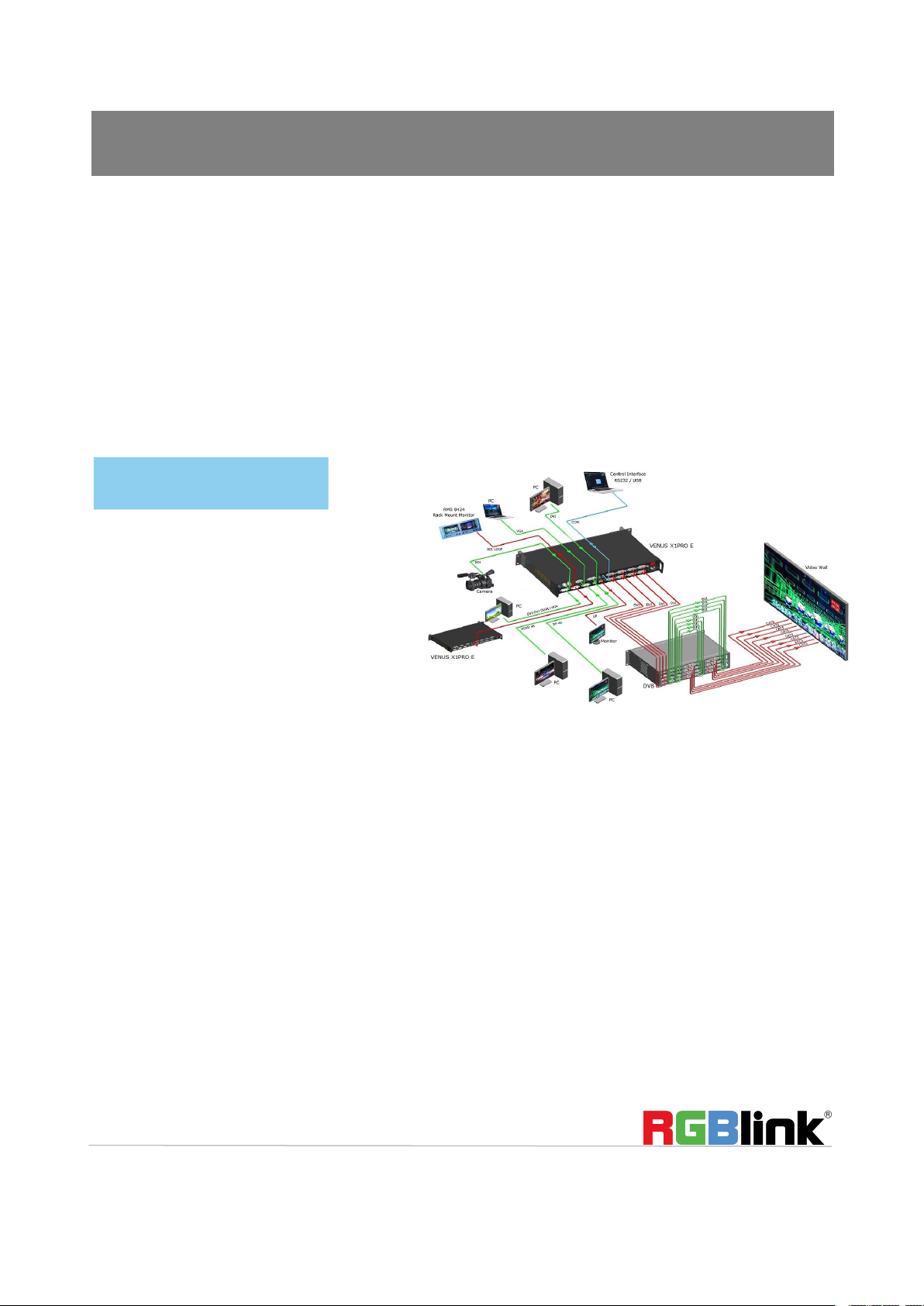
VENUS X1PRO-E enables 4K switching, scaling and signal distribution to 2k display devices. Supports up to 4K
input signals with Dual Link DVI, HDMI and Display Port. With independent scaling for each output, support
Matrix for input and output, up to 8K1K or 4K2K pixel-to- pixel output.
VENUS X1PRO-E with features like LOGO capture and standard test pattern built in, EDID management.
Seamless switching between the inputs. Support remotely configured and control by XPOSE and XPOSE mobile.
Modular design is based on replaceable input optional modules structure, provide 3 slots for input option
modules, you can reach more possibility and application range.
System Connection
RGBlink offers solutions to
demanding technical problems.
Any application questions, or
required further information,
please contact with our
customer Support Engineers.
VENUS X1PRO-E System Connection Diagram

Address:S601-607, S504 Weiye Building Torch Hi-Tech Industrial Development Zone Xiamen, Fujian Province, P.R.C
Tel: 00865925771197 Fax: 00865925788216
3
Packing Configuration
Note:
AC Power Cable supplied as standard according to destination market.
USB is contained on the Warranty/Registration Card. Please keep.
AC Power Cord
Antistatic Bag
DVI Cable
Screw Driver
DB9 to RJ11
Cable

Address:S601-607, S504 Weiye Building Torch Hi-Tech Industrial Development Zone Xiamen, Fujian Province, P.R.C
Tel: 00865925771197 Fax: 00865925788216
4
Hardware Orientation
Front Panel
Display
1
OLED Display: Displays current status of the product, and for feature selections provides interactive
choices in conjunction with buttons on the front panel.
Multi-Function Buttons
2
Rotary Button: Confirm and adjust OLED menu.
Illuminated Buttons
3
MENU Button
Menu and back button.
Push the button twice to enter the effect switch function menu.
Push the button for 3 seconds will lock the front panel, and push the button for 5 seconds to unlock.
Push the MENU and TAKE button for 3 seconds will switch the language.
4
SCALE Button
This button used for size and position adjusting.
It reused as the stop and play button for the USB signal.
5
SAVE Button
Save all current settings with the VENUS X1PRO E to 1 of the 36 available slots.
Additionally, this button is used for direct numeric entry for numbers 1.
6
Dedicated Signal Buttons
For each of inputs on the back panel a dedicated backlit buttons are provided. When lit, the signal is
selected for use, when red light is flashing, signal is in preview or the signal is not available.
Additionally, each button is numbered and can be used as direct number entry when values such as
resolution and size.
7
LOGO Button

Address:S601-607, S504 Weiye Building Torch Hi-Tech Industrial Development Zone Xiamen, Fujian Province, P.R.C
Tel: 00865925771197 Fax: 00865925788216
5
LOGO load LOGO Capture shortcut button.
8
OUT BRIGHT
Shortcut button for output Setting, output Brightness Setting, and 4K Input Signal
switch.
9
SPLIT Button
Split function button.
It reused as the next track button for USB signal.
10
LOAD Button
Restores/Loads all current settings with the VENUS X1PRO-E from 1 of the 24 available slots.
Additionally, this button is used for direct numeric entry for numbers 6.
11
MODULE Buttons
If optional input module is fitted, then these three operate as per Dedicated Signal Buttons above.
Additionally, these buttons are used for direct numeric entry for numbers 7/8/9.
12
BLACK Button
Black button.
Additionally, this button is used for direct numeric entry for numbers 0.
13
TAKE Button
To preview the selected signal and take it to output.
14
USB Interface
Use for system upgrade.

Address:S601-607, S504 Weiye Building Torch Hi-Tech Industrial Development Zone Xiamen, Fujian Province, P.R.C
Tel: 00865925771197 Fax: 00865925788216
6
Back Panel
Input Connectors
13
DVI Input DVI-I Port
11
4K DVI2 Input (Compatible HDMI)
10
4K DP Input
Input Option Slots
1.2.3
Input Option Slots, Support SDI, VGA, DVI, HDMI, DP, CVBS, USB input.
Output Connectors
5
DVI1-4 output Backup
8
DVI1-4 output
9
DP Loop Output
12
DVI Loop Out
Control Connectors
4
RS232
Power Connection
6
Power Switch
7
Main power input AC 85-264V Max 65W, IEC-3

Address:S601-607, S504 Weiye Building Torch Hi-Tech Industrial Development Zone Xiamen, Fujian Province, P.R.C
Tel: 00865925771197 Fax: 00865925788216
7
Using Your Product
Menu Structure
The menu structure is shown in the figure below:

Address:S601-607, S504 Weiye Building Torch Hi-Tech Industrial Development Zone Xiamen, Fujian Province, P.R.C
Tel: 00865925771197 Fax: 00865925788216
8
->Standard >>
Split >>
Preview >>
Stand Alone Mode >>
->Standard >>
Custom >>
Output Resolution
*1920x1080x60
Standard >>
->Custom >>
->Advanced >>
语言/Language English
Factory Reset >>
Standard Mode
In standard mode, four output channels output the same signal and resolution. Each input signal can be zoomed
and scaled separately.
This is the default mode following a reset.
Output Resolution Setting
1. Push the [MENU] button, enter to menu items, and turn the rotary knob, select <Standard>.
2. Turn the rotary knob to select <Output Resolution>, can be selected as <Standard> or <customs>.
3. Default <STANDARD> option, push the knob to confirm. Turn the rotary knob, and select the output format
according to actual needs.
4. Turn the rotary knob, and select <Customs>, push the knob to confirm, and enter to the menu items as
follows:
5. Turn the rotary knob on each digital position, and change the value of the digital by the digital buttons on the
front panel. For example, input 1536 as following:

Address:S601-607, S504 Weiye Building Torch Hi-Tech Industrial Development Zone Xiamen, Fujian Province, P.R.C
Tel: 00865925771197 Fax: 00865925788216
9
Customs:
*1536×
Customs:
*1536×1536@
Customs:
->1536×1536@60
->Standard >>
Customs >>
Output Resolution >>
->Image Select >>
->Image Select Mode 1
Image 1 Source DVI1
Width 1300
Height 1080
6. After the digital, push the knob will add *, means before the * is the horizontal size. Same operation for
vertical size, for example input1536 as following:
7. After the digital, push the knob will add @, means before the @ is the vertical size, and after the @ is the
refresh rate. Only digital 50 or digital 60 supports for the refresh rate. Use the digital buttons to finish the
settings. For example, input refresh rate 60:
8. After input all the values, push the knob to enable VENUS X1PRO -E to output this resolution. VENUS
X1PRO-E will take 1~2 seconds to enable this output resolution.
Image Select
1. Push the [MENU] button, default to <Standard> menu,
2. Push the knob to confirm, turn the rotary knob and select the <Image Select>, push the knob to confirm.
3. Turn the rotary knob to set the follows parameters as needed.
Tabla de contenidos
Otros manuales de Cambiar de RGBlink

RGBlink
RGBlink FLEXMINI Manual de usuario

RGBlink
RGBlink VSP 168HD Manual de usuario

RGBlink
RGBlink VENUS X1 PRO-E Manual de usuario

RGBlink
RGBlink VENUS X3 Manual de usuario

RGBlink
RGBlink D Series Manual de usuario

RGBlink
RGBlink C1US Manual de usuario

RGBlink
RGBlink Mini Manual de usuario

RGBlink
RGBlink Mini Manual de usuario

RGBlink
RGBlink mini pro Manual de usuario

RGBlink
RGBlink Mini Manual de usuario


