Planet DrView Manual de usuario

DVC Remote Utility
DrVeiw
User’s Manual
Ver.:1.0

ii
Content
CONTENT...................................................................................................................II
1、PREFACE ...................................................................................................................................1
2、INSTALLATION.........................................................................................................................2
2-1、Install DrView ..................................................................................................2
3、PROFILE MANAGER...............................................................................................................3
3-1、Create a New User Profile................................................................................3
3-2、Delete Profile....................................................................................................5
3-3、Edit Profile........................................................................................................5
3-4、Import profile....................................................................................................6
3-5、Export Profile ...................................................................................................6
3-6、Login.................................................................................................................7
4、MAIN SCREEN..........................................................................................................................9
4-1 Main Screen.......................................................................................................10
4-2 Display mode.....................................................................................................12
4-3 Setup..................................................................................................................15
4-4 Snapshot.............................................................................................................26
4-5 Full Screen.........................................................................................................27
4-6 Motion to Zoom.................................................................................................27
4-7 Playback.............................................................................................................29
4-8 E-MAP...............................................................................................................31
4-9 Quick Select Tag ...............................................................................................39
4-10 Log System Status Window ............................................................................40
4-11 Central Backup................................................................................................42
4-12、Use Local Playback......................................................................................50
5、APPENDIX...........................................................................................................53
5-1、Maintenance....................................................................................................53
5-2、FAE Support...................................................................................................53

1、Preface
With DrView, Central Management System allows administrator to manage several
DVR systems through network located in different sites from one point of control.
Each DrView system can manage up to 64 sets of 16CH DVR. You can monitor the
DVR through network at any time. You can also proceed to set up the remote system
configuration.
With user friendly GUI, administrator can monitor the DVRs very easily.

2
2、Installation
DrView can serve up to 64 DVR (1024 channels) at the same time. Before the
installation, make sure your computer meets the following minimum requirement.
DrView Requirement
OS Windows 2000, Windows XP
CPU P4 2.6G above
Display Card 64MB above
(nVIDIATNT2/ GeForce2/ GeForce4 are
most optimal), 1024*768 screen resolution
RAM 256MB above
Hard Disk 20 GB above
Network Card 10/100Mbs
Mouse PS/2 or USB compatible
CD-ROM General
USB Interface 1.1 / 2.0
DirectX V7.0 & above
2-1、Install DrView
1. Insert the installation CD.
2. Then go to the directory E:\utility\DrView (suppose E:\ is your CD-ROM drive) to
run the Setup.exe and follow the steps.
When finishing the setups, it will show up the message.
Then, you can find the application from the Windows Start menu.

3
3、Profile Manager
After the installation, start the application by clicking the icon on the desktop
or in the folder of “DrView” from the Windows Start menu. The “Profile Manager”
will show up to let the user to Create, Delete, Edit, Import, Export or Open “User
Profile”.
First time to use DrView, user has to create a new “User Profile” to save the
configuration of DVRs. You can create different Profiles for different configurations
at the same time. Next time when you start the DrView, you don’t need to create a
new User Profile any more and you just open one of Profile you prefer.
3-1、Create a New User Profile
Click “ New” on the Profile Manager, it will show the Profile Setup
Dialog as following

4
Key in the “Profile Name”, “Supervisor Password”(R/W Password), and “ User
Password”(Read only Password) in the Profile Setup Dialog.
After the new profile has been created successfully, the new profile icon will be
shown on the Profile Manager screen as following. Refer to 3-1-6 to enter the new
profile.
Note:
z“Profile” name can’t exceed 50 characters.
z“ Profile name only supports Chinese & English words and does not support
special marks.
zPassword can’t to exceed 30 characters.
zPassword only support numbers& English character.

5
3-2、Delete Profile
If you want to delete the User Profile, click “Delete” button. Then, the system will
request you to enter the Supervisor password. Only supervision has the authority to
delete the Profile.
3-3、Edit Profile
If you want to edit the Profile, just select it and click the “Edit”. The system will
request you to enter the Supervisor password.Only supervision has the authority to
edit the Profile. Therefore, enter the Supervisor password.

6
3-4、Import profile
You can import the backup profile to system. It’s easy for copying the settings
between computers.
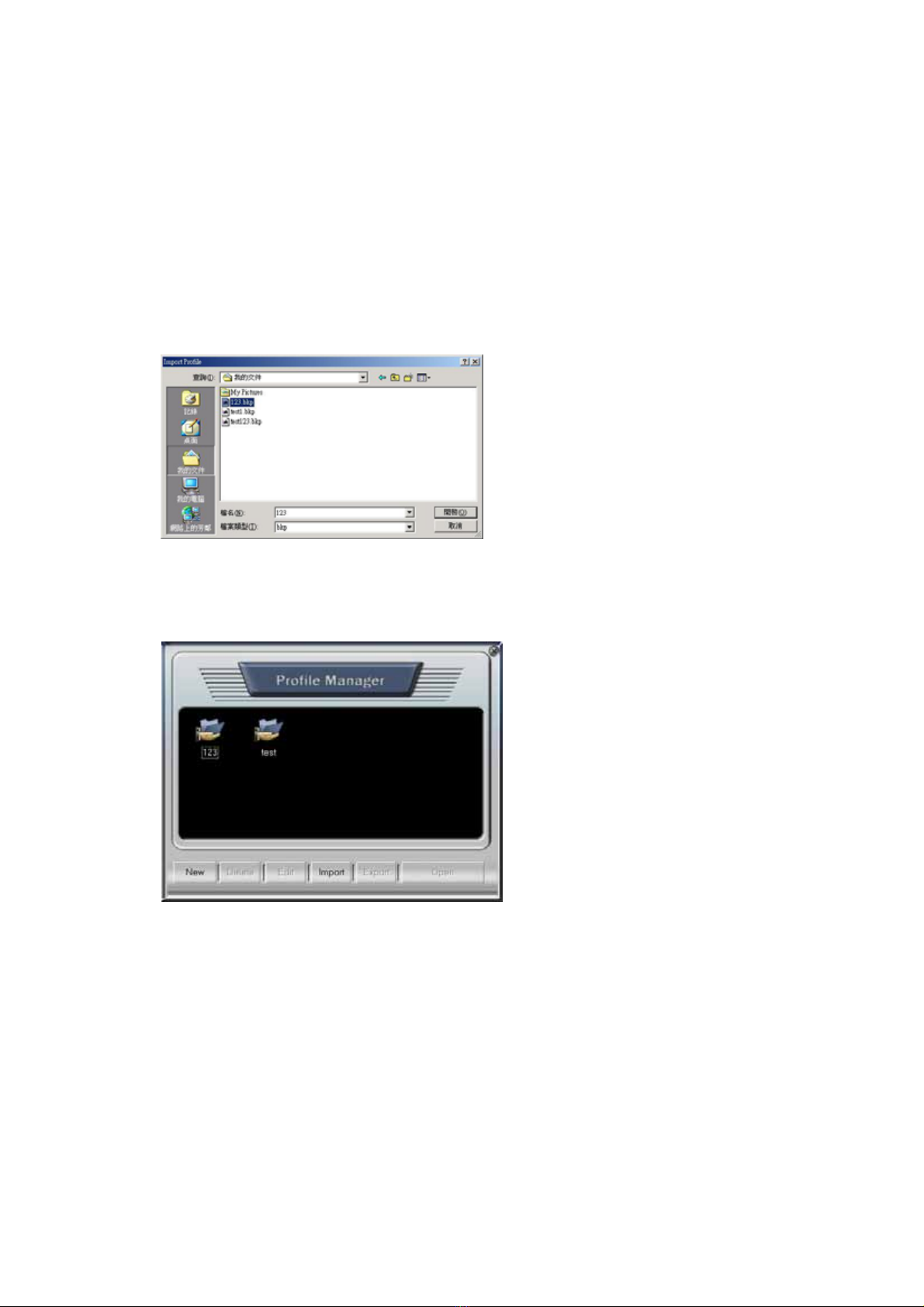
Click “Import” button, and select the *.bkp file which you want to import. (the file
you have exported before)
After importing file, the imported file will be added in the Profile Manager screen as
following,
3-5、Export Profile
If you want to back up the profile or execute DrView on another computer but use
the same profile, you can export the “ Profile”.
Please choose the profile you want to export and click “Export” button.

7
The system will request you to enter “Supervisor” password. Enter the password and
the address of the saved profile will show up. You can select the path to save the .bkp
file which has just been exported, and it will appear on the appointed address.
3-6、Login
The user can choose the created Profile, enter the password and then start to login.
There are two kinds of password identification-Supervisor and User password. Each
one has different authority in DrView. The following is comparison tables of the
authority.

8
Profile Manager
New Delete Edit Import Export Login Sequencer Monitor
Options
Supervisor ○ ○ ○ ○ ○ ○
User ╳ ╳ ╳ ○ ○ ╳
Quick Select TagSave Delete Rename Full
Screen Snapshot Setup S
y
stem
Status Playback
Supervisor ○ ○ ○ ○ ○ ○ ○ ○
User ╳ ╳ ╳ ○ ○ ╳ ○ ○
Este manual sirve para los siguientes modelos
1
Tabla de contenidos
Otros manuales de Software de Planet
Manuales populares de Software de otras marcas

PS Audio
PS Audio PowerPlay Manual del propietario

Brady
Brady LOCKOUT PRO 3.0 Manual de servicio

Avaya
Avaya Interaction Center Manual de usuario

Texas Instruments
Texas Instruments TI-83 Plus Silver Edition Manual

Novell
Novell GROUPWISE 8 - INTERNET AGENT Manual de usuario

Oracle
Oracle Application 9i Manual de usuario

Acer
Acer RDM Manual de usuario

Canon
Canon Vixia HF21 Manual de usuario

Canon
Canon ZR950 Manual de usuario

Samsung
Samsung Auto Backup Manual de usuario

Polycom
Polycom Vortex EF2201 Instrucciones de instalación y funcionamiento

Brocade Communications Systems
Brocade Communications Systems Brocade 8/12c Manual de usuario