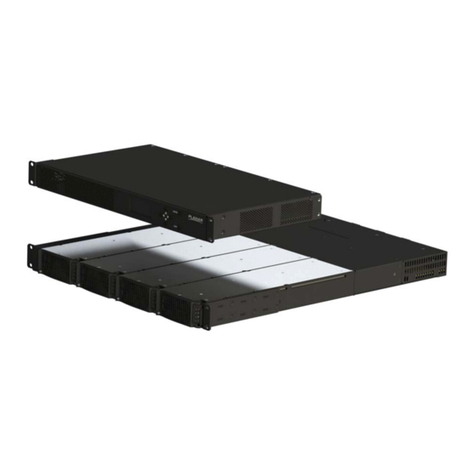
Planar Dome Md2/PCI Manual de usuario

Dome
®
Md2/PCI
Display Controller
INSTALLATION GUIDE
www.planar.com
Windows 2000
Windows NT 4.0
Solaris 2.5.1 or later

Copyright © DOME®imaging systems, inc., 2001. All rights reserved.
This document contains proprietary information of DOME imaging systems, inc. It is
DOME’s exclusive property. It may not be reproduced or transmitted, in whole or in
part, without a written agreement from DOME. No patent or other license is granted
to this information.
The software, if any, described in this document is furnished under a license
agreement. The software may not be used or copied except as provided in the
license agreement.
DOME imaging systems, inc. provides this publication as is without warranty of any
kind, either express or implied, including but not limited to the implied warranties of
merchantability or fitness for a particular purpose. DOME may revise this document
from time to time without notice. Some states or jurisdictions do not allow disclaimer
of express or implied warranties in certain transactions; therefore, this statement may
not apply to you.
Information in this document about products not manufactured by DOME is provided
without warranty or representation of any kind, and DOME will not be liable for any
damages resulting from the use of such information.
DOME imaging systems, inc.
400 Fifth Avenue
Waltham, MA 02451-8738
(781) 895-1155 phone
(781) 895-1133 fax
Internet address for documentation:
Internet address for product information:
i
Internet address for sales:
Internet address for technical support:
World Wide Web site:
www.dome.com
Part No. 40-MD2PCI-15
Product Nos. 55-MD2PCI1 and 55-MD2PCI2
October 2001
DOME, the DOME logo, Calibration TQA, DIMPL, DimplX, DimFileX, Luminance
Calibration System, Md2/PCI, Md4/PCI, Md5/PCI, and Md8/PCI are either regis-
tered trademarks or trademarks of DOME imaging systems, inc. Microsoft, ActiveX,
DirectDraw, MS-DOS, Windows, and Windows NT are either registered trademarks
or trademarks of Microsoft Corporation in the United States and/or other countries.
Number Nine and Imagine 128 are trademarks of Number Nine Visual Technology.
Sun, OpenWindows, and Solaris are trademarks or registered trademarks of Sun
Microsystems, Inc. in the United States and other countries. SPARC is a registered
trademark of SPARC International, Inc. Products bearing SPARC trademarks are
based upon an architecture developed by Sun Microsystems, Inc. UNIX is a registered
trademark of The Open Group in the United States and other countries. VGA is
a trademark of International Business Machines Corporation. X Window System is
a trademark of The Open Group.

iii
FCC Compliance Statement
This equipment generates, uses, and can radiate radio frequency energy and,
if not installed and used in accordance with the instruction manual, may
cause interference to radio communications. It has been tested and found to
comply with the limits of a Class A computing device pursuant to Subpart J
of Part 15 of FCC Rules, which are designed to provide reasonable protection
against interference when operated in a commercial environment. Operation
of this equipment in a residential area is likely to cause interference, in which
case the user will be required at his or her own expense to take whatever
measures may be required to correct the interference.
If the equipment does cause interference to radio or television reception,
which can be determined by turning the equipment on and off, one or more
of the following measures may reduce or eliminate the problem.
• Move the equipment and the receiver to different branches of your
AC electrical system.
• Move the equipment away from the receiver with which it is
interfering.
• Reposition the equipment or receiver. Reposition the receiver’s
antenna.
• Be sure that the equipment is plugged into a grounded outlet and that
the grounding has not been defeated with a cheater plug.
If none of the measures resolves your interference problems, write to
the U.S. Government Printing Office, Washington, DC, 20402, for the
Interference to Home Electronic Entertainment Equipment Handbook
, Stock
Number 004-000-000498-1.
This equipment is a Class A digital apparatus that complies with the Radio
Interference Regulations CRC C.1374.
In addition, this equipment has been tested and found to comply with the
limits for a Class B digital device, pursuant to Part 15 of the FCC rules. These
limits are designed to provide reasonable protection against harmful inter-
ference in residential installations.

iv
FCC Class B
This equipment has been tested and found to comply with the limits
for a Class B digital device, pursuant to Part 15 of the FCC Rules. These
limits are designed to provide reasonable protection against harmful
interference in a residential installation. This equipment generates, uses
and can radiate radio frequency energy and, if not installed and used in
accordance with the instruction manual, may cause harmful interference to
radio communications. However, there is no guarantee that interference will
not occur in a particular installation. If this equipment does cause harmful
interference to radio or television reception, which can be determined by
turning the equipment off and on, you are encouraged to try to correct the
interference by one or more of the following measures:
• Reorient or relocate the receiving antenna.
• Increase the separation between the equipment and receiver.
• Connect the equipment into an outlet on a circuit different from that
to which the receiver is connected.
• Consult the dealer or an experienced radio/TV technician for help.
Changes or modifications to this equipment not expressly approved by the
party responsible for compliance could void the user’s authority to operate
the equipment.
FCC labeling instructions (Class B)
This device complies with Part 15 of the FCC Rules. Operation is subject to
the following two conditions:
• This device may not cause harmful interference.
• This device must accept any interference received including
interference that may cause undesired operation.

v
EU Declaration of Conformity
The Md2/PCI board (model 55-MD2PCI) meets the essential health and
safety requirements, is in conformity with and the CE marking has been
applied according to the relevant EU Directives listed below using the
relevant section of the following EU standards and other normative
documents;
EU EMC Directive 89/336/EEC
EN 60601-1-2 1993 Medical
Electrical Equipment Part 1: General requirements for safety
Section 1.2 collateral standard
electromagnetic compatibility
requirements
EN 55011 Class B Limits and methods of measurements
for Radio interference characteristics of
industrial, scientific, and medical
equipment
IEC 801-2 Electrostatic discharge requirements
for industrial process measurement
and control equipment
IEC 801-3 Radiated electromagnetic field
requirements for industrial process
measurement and control equipment
IEC 801-4 Electrically fast transients for
industrial process measurement and
control equipment
IEC 801-5 Surge requirements


vii
Contents
About This Guide
xi
Purpose
xi
Audience
xi
Conventions
xii
What’s in this guide
xiii
Related documentation
xiii
Chapter 1: Planning the Md2/PCI Board Installation 1
About the Md2/PCI Board 2
Installation Requirements 4
Cross-platform requirements 4
Platform-specific requirements 4
Installation order 5
Chapter 2: Installing the Board and Driver in a PC 7
Preparing for Board Installation 8
Unpacking the board 8
Disabling VGA mode 8
Installing the Md2/PCI Board 10
Connecting a Monitor 13
Installing the PCI Windows 2000 Driver 14
Configuring Display Settings on Windows 2000 23
Determining screen assignments 23
Using the DOME tab to change display properties 23
Changing the resolution and refresh rate 25
Setting monitor preferences 26
Setting driver options 26
Setting palette options 26
Setting custom syncs 30
Uninstalling DOME Devices 34

viii
| Contents
Troubleshooting for Windows 2000 38
Uninstalling initial device 38
Uninstalling single-headed display board 38
Unsigned driver load error 39
Impaired screen resolution 39
Additional Components for Windows 2000 40
Dynamic-link library 40
DIMPL library 40
DimplX control 40
Calibration TQA 41
Installing the PCI Windows NT 4.0 Driver 42
Configuring Display Settings on Windows NT 4.0 44
Using the DOME tab to change display properties 48
Using the DOME tab online help 49
Changing the resolution and refresh rate 49
Setting the screen configuration 49
Setting monitor preferences 49
Setting driver options 50
Setting palette options 51
Additional Configuration Options for Windows NT 4.0 54
DOME large fonts 54
DOME DlgFix 58
DOME DPMS screen saver 60
Additional Components for Windows NT 4.0 64
Dynamic-link library 64
DIMPL library 64
DimplX control 64
Calibration TQA 65

Contents |
ix
Chapter 3: Installing the Board and Driver in a
Sun PCI Workstation 67
Preparing for Board Installation 68
Unpacking the board 68
Disabling VGA mode 68
Installing the Md2/PCI Board 69
Connecting a Monitor 72
Installing the PCI Solaris Driver 74
Configuring Display Settings 76
Using the Default Monitor Mode 77
Checking the default mode 77
Programming the default mode 78
Overriding the Default Monitor Mode 79
Editing the OWconfig file 79
Modifying the OWconfig file 80
Selecting video pedestal 82
Using Visual Classes 83
Emulating a PseudoColor visual class 83
Checking the default visual 84
Configuring the Windowing Environment 87
Running OpenWindows 87
Configuring CDE 88
Using the DPMS screen saver with CDE 89
Changing the Console 92
Appendix: Board Resolutions and Refresh Rates 93
Resolutions and Refresh Rates for PCs 94
Customizing Sync Parameters for Windows NT 95
Resolutions and Refresh Rates for Sun PCI Workstations 97
Index 99

Otros manuales para Dome Md2/PCI
1
Tabla de contenidos
Otros manuales de Controladores de Planar

Planar
Planar DOME Md5/DFP Manual de usuario

Planar
Planar DOME Md4/PCX Manual de usuario

Planar
Planar Dome M2/PCI Manual de instrucciones

Planar
Planar RX/PCI Manual de usuario

Planar
Planar PU-16 Manual de usuario

Planar
Planar DX/PCI Manual de usuario

Planar
Planar DOME Md5/PCX Manual de usuario

Planar
Planar DOME Md4/PCV Manual de usuario

Planar
Planar Dome Md2/PCI Manual de instrucciones

Planar
Planar Dome Md5/PCI Manual de usuario