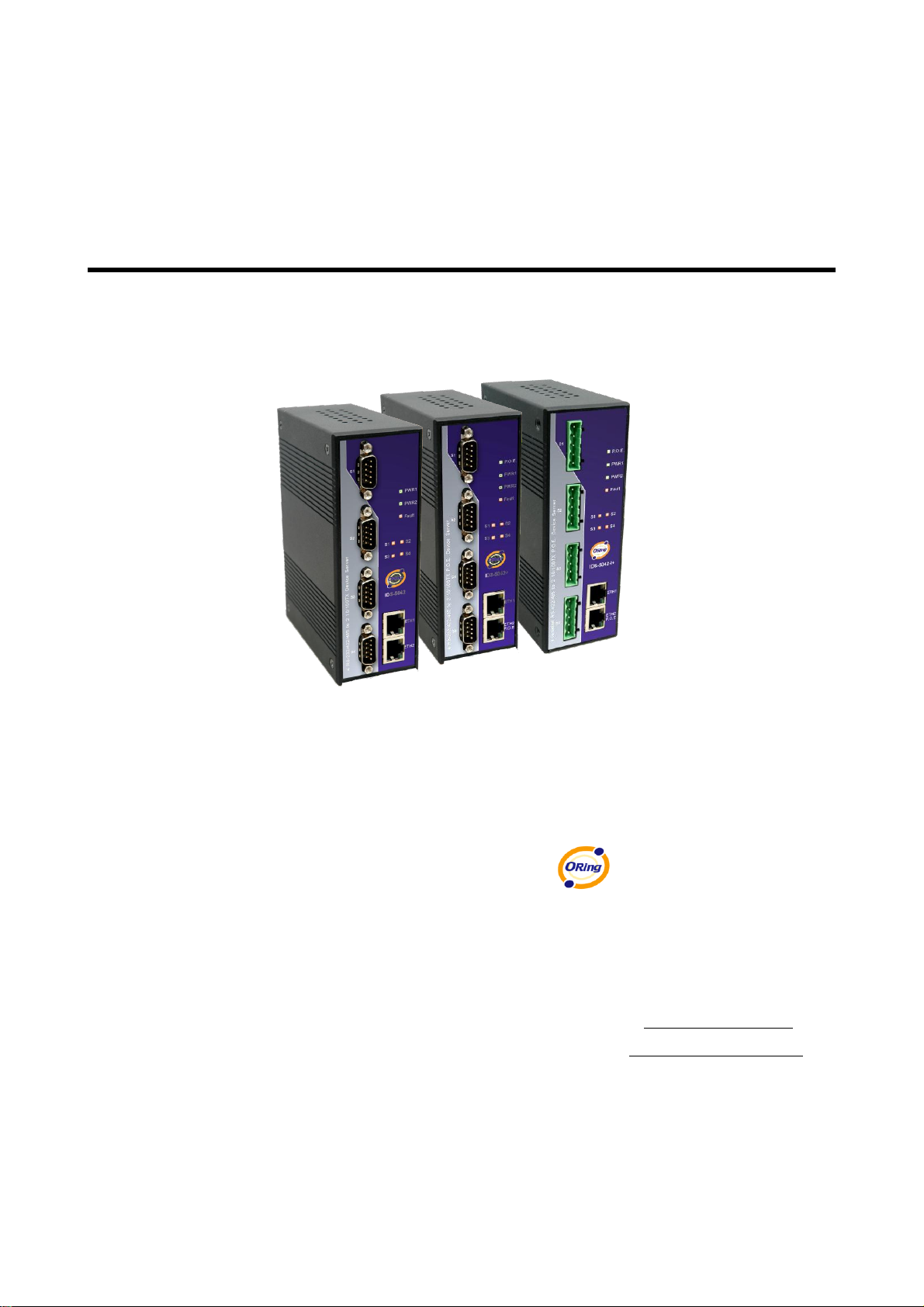
ORiNG IDS-5042 Series Manual de usuario

Industrial Device Server User’s Manual
IDS-5042 Series
Version 1.00
Aug 2010.
ORing Industrial Networking Corp.
4F., NO.3, Lane235, Baociao Rd.Sindian City,
Taipei County 23145 Taiwan, R.O.C.
Tel: + 886 2 2918 3036
Fax: + 886 2 2918 3084
Website : www.oring-networking.com
E-mail : support@oring-networking.com

Table of Content
GETTING TO KNOW YOUR DEVICE SERVER...........................................................................................1
1.1 About the IDS-5042 Serial Device Server.................................................................................... 1
1.2 Software Features...................................................................................................................... 1
1.3 Hardware Features.....................................................................................................................2
HARDWARE INSTALLATION ..................................................................................................................3
2.1 Install IDS-5042 on DIN-Rail.......................................................................................................3
2.1.1 Mount IDS-5042 on DIN-Rail...............................................................................................................3
2.2 Wall Mounting Installation ...........................................................................................................4
2.2.1 Mount IDS-5042 on wall......................................................................................................................5
HARDWARE OVERVIEW.......................................................................................................................8
3.1 Front Panel ................................................................................................................................ 8
3.2 Front Panel LEDS....................................................................................................................... 9
3.3 Serial Ports .............................................................................................................................. 10
3.4 Bottom Panel.............................................................................................................................11
3.5 Rear Panel............................................................................................................................... 12
CABLES..........................................................................................................................................13
4.1 Ethernet Cables........................................................................................................................ 13
MANAGEMENT INTERFACE ................................................................................................................15
5.1 DS-Tool.................................................................................................................................... 15
5.1.1 Install IDS-Tool.................................................................................................................................. 15
5.1.2 Using DS-Tool ................................................................................................................................... 17
5.1.2.1 Explore device servers.............................................................................................................. 17
5.1.2.2 Configure device servers........................................................................................................... 18
5.1.2.3 Configure serial port................................................................................................................. 28
5.2 Configuration by Web Browser.................................................................................................. 37
5.2.1 Connect to the Web page..................................................................................................................... 37
5.2.1.1 System..................................................................................................................................... 39
5.2.1.2 Port serial setting...................................................................................................................... 45
5.2.1.3 Management ............................................................................................................................ 53

IDS-5042 Series User’s Manual
5.2.1.4 Save/Reboot............................................................................................................................. 58
5.3 Configuration by SSH Console.................................................................................................. 59
5.3.1 Connect to DS.................................................................................................................................... 59
TECHNICAL SPECIFICATIONS .............................................................................................................61


IDS-5042 Series User’s Manual
1 ORing Industrial Networking Corp.
Getting to Know Your Device Server
1.1 About the IDS-5042 Serial Device Server
IDS-5042 / 5042+ / 5042-l+ is an innovative 4 ports RS232/422 /485 to
2 ports LAN device server with optional isolation RS-422 / 485 serial
ports and one P.O.E PD Ethernet port.. Users are able to configure
IDS-5042 by DS-Tool via LAN port. IDS-5042 offers many powerful
features for HW & SW redundant functions. When the connection
between master-link and LAN fails, the IDS-5042 can automatically
switch to another LAN port within 10mS, and still guarantee a non-stop
connection.
IDS-5042 also supports switch mode, users can use Daisy Chain to
reduce the usage of Ethernet switch ports. Secondly, the IDS-5042 can
simultaneously transfer data into 5 host PCs. Thisfeature can assure all critical data that saved
in different host PCs to avoid Ethernet break or host PCs failure. Device also supports the data
encryption with SSL, so it can assure the data transfer safely.
Thirdly, the IDS-5042 provides dual redundant power inputs on terminal block. IDS-5042 also
provides NAT pass through function so that users are able to manage IDS-5042 inside or
outside the NAT router. It is easy for different IP domain users to use IDS-5042. Therefore,
IDS-5042 is the best communication redundant solution for current application of serial
devices.
1.2 Software Features
High Speed Air Connectivity: WLAN interface support up to 54Mbps link speed

IDS-5042 Series User’s Manual
ORing Industrial Networking Corp 2.
Highly Security Capability: WEP/WPA/WPA2/802.1X/Radius/TKIP supported
NAT-pass through: User can manage IDS-5042 through NAT router
PPPoE for internet connection.
Data Encryption with SSL for Security data transfer.
DDNS for domain name service.
Redundant Power Inputs: 12~48VDC on power jack and terminal block
Redundant multiple host devices: 5 simultaneous in Virtual COM, TCP Server, TCP Client
mode, UDP
Secured Management by HTTPS and SSH,
Versatile Modes: Virtual Com, Serial Tunnel, TCP Server, TCP Client, UDP
Event Warning by Syslog, Email, SNMP trap, and Beeper
Various Windows O.S. supported: Windows NT/2000/ XP/ 2003/VISTA
1.3 Hardware Features
Redundant Power Inputs: 12~48 VDC on terminal block and power jack
Operating Temperature: -10 to 60oC
Storage Temperature: -40 to 85oC
Operating Humidity: 5% to 95%, non-condensing
Casing: IP-30
2 10/100Base-T(X) Ethernet port
1 optional P.O.E PD port (IDS-5042+ and IDS-5042-I+)
4 isolated serial port (IDS-5042I+)
Dimensions(W x D x H) : 52 mm(W)x 106 mm( D )x 144 mm(H)

IDS-5042 Series User’s Manual
3 ORing Industrial Networking Corp.
Hardware Installation
2.1 Install IDS-5042 on DIN-Rail
Each IDS-5042 has a Din-Rail kit on rear panel. The Din-Rail kit helps IDS-5042 to fix on the
Din-Rail. It is easy to install the IDS-5042 on the Din-Rail:
2.1.1 Mount IDS-5042 on DIN-Rail
Step 1: Slant the IDS-5042 and mount the metal spring to Din-Rail.
Figure 2-1
Metal Spring

IDS-5042 Series User’s Manual
ORing Industrial Networking Corp 4.
Step 2: Push the IDS-5042 toward the Din-Rail until you heard a “click” sound.
Figure 2-2
2.2 Wall Mounting Installation
Each IDS-5042 has another installation method for you. A wall mount panel can be found in
the package. The following steps show how to mount the IDS-5042 on the wall:

IDS-5042 Series User’s Manual
5 ORing Industrial Networking Corp.
2.2.1 Mount IDS-5042 on wall
Step 1: Remove Din-Rail kit.
Figure 2-3

IDS-5042 Series User’s Manual
ORing Industrial Networking Corp 6.
Pozidrive
Step 2: Use 6 screws that can be found in the package to combine the wall mount panel.
Just like the picture shows below:
Figure 2-4
The screws specification shows in the following two pictures. In order to prevent IDS-5042
from any damage, the size of screws should not be larger than the size that used in
IDS-5042.
Figure 2-5
Este manual sirve para los siguientes modelos
3
Tabla de contenidos
Otros manuales de Servidor de ORiNG

ORiNG
ORiNG IDS-1112 Manual de usuario

ORiNG
ORiNG IDS-181A Manual de usuario

ORiNG
ORiNG IDS-5612 Series Manual de usuario

ORiNG
ORiNG IDS-312L Manual de usuario

ORiNG
ORiNG IDS-5011F Series Manual de usuario

ORiNG
ORiNG IDS-5042-WG Series Manual de usuario

ORiNG
ORiNG IDS-4312+ Manual de usuario

ORiNG
ORiNG IDS-5012 Manual de usuario

ORiNG
ORiNG IDS-342GT Manual de usuario

ORiNG
ORiNG IDS-342GT+ Manual de usuario