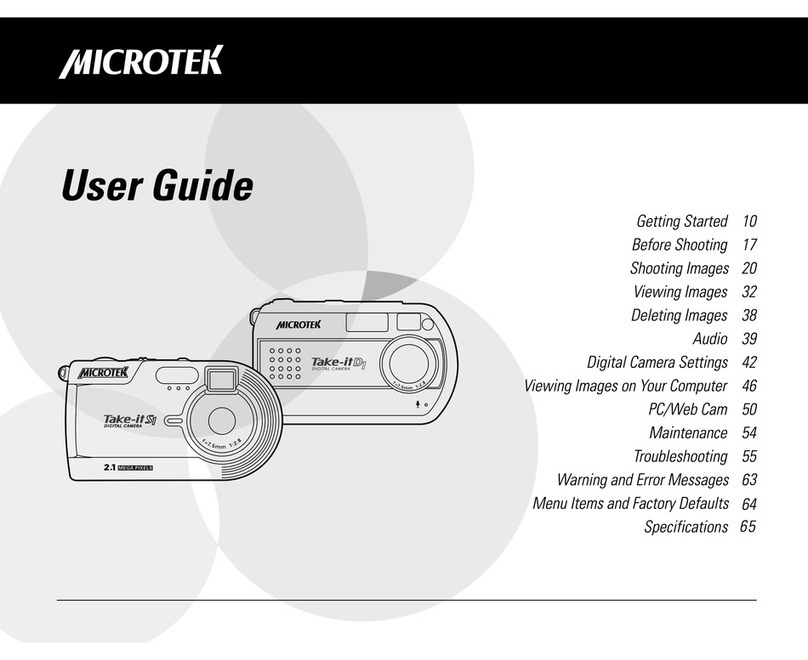
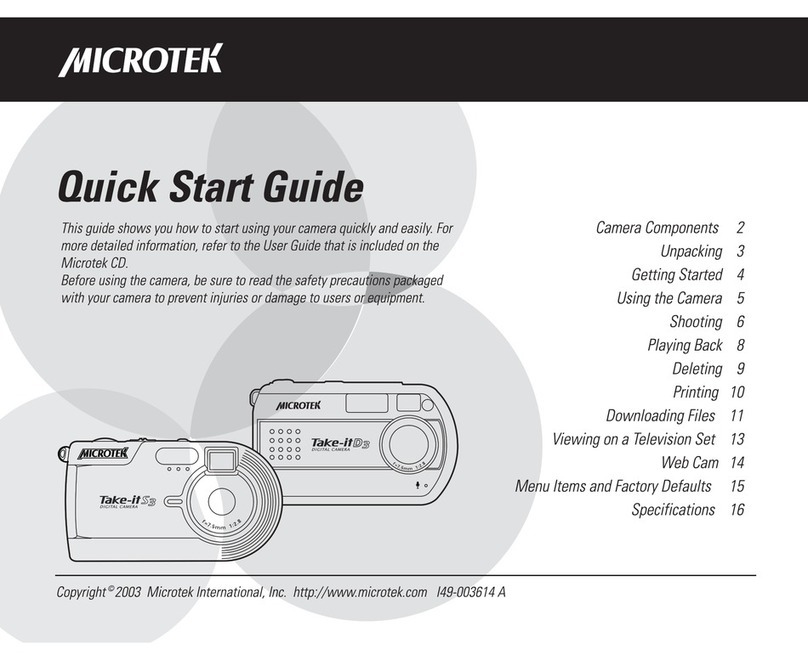
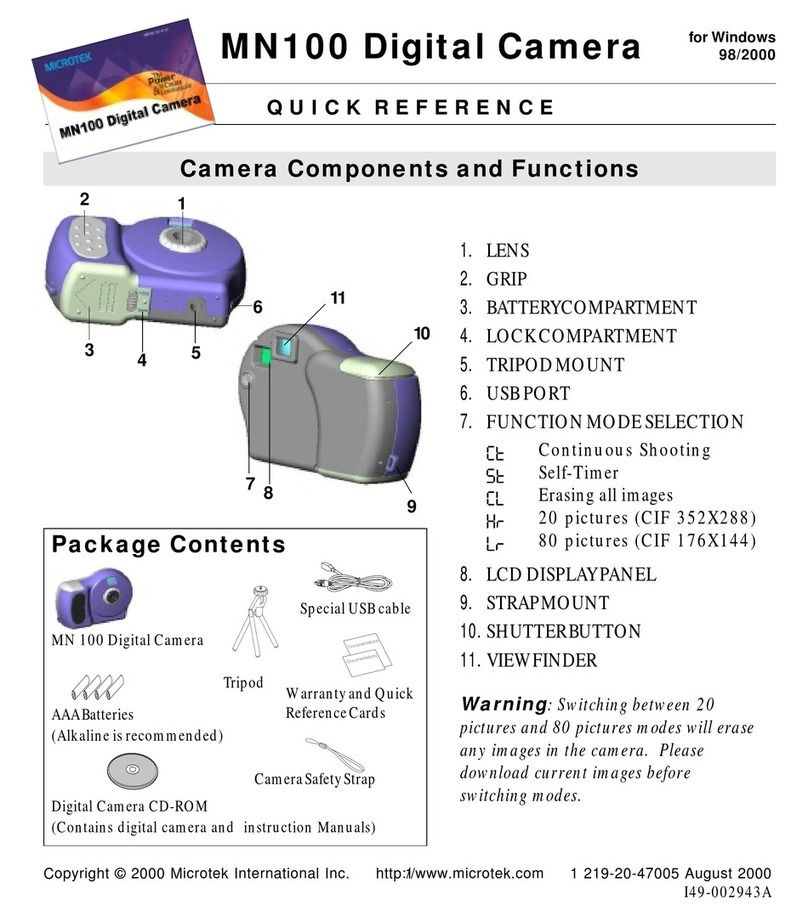
Microtek Take-it 350 Manual de usuario


Copyright © 2000 Microtek International Inc.Copyright © 2000 Microtek International Inc.
Copyright © 2000 Microtek International Inc.
Allrightsreserved.
November 2000
TT
TT
Trademarksrademarks
rademarksrademarks
rademarks
MicrotekTM is aregistered trademarks ofMicrotekInternational Inc. Macintosh®,
andApple® areregisteredtrademarksofAppleComputerInc. Windows®isa
trademarkofMicrosoftcorporation. Adobe ® ,Acrobat®,andPhotoshopare
registeredtrademarkof AdobeSystemsIncorporated.Ulead®,PhotoExpress®,
PhotoImpact®, and PhotoExplorer ®are registered trademarks of Ulead Systems Inc.
BridgewellTMandPageabc®aretrademarksof BridegwellIncorporated.TrellixTM and
Trellix WebTM are trademarksofTrellix Corporation. Allotherproductsor name
brandsaretrademarksoftheirrespectiveholders.
ImportantImportant
ImportantImportant
Important
Pictures youmayacquirefromanyofthebundledsoftwareand/orPictures,or
Documents youscanmaybeprotectedundercopyrightlaw. Theunauthorizeduse
ofsuchmaterials couldbea violation oftherights ofthecopyright holder.Microtek
bearsnoresponsibilityfortheunauthorizeduseofcopyrightedmaterials.

Table of Contents
PackageContentsPackageContents
PackageContents..........................................................................................................................................................
..........................................................................................................................................................
............................................................................. 11
11
1
FeaturesFeatures
FeaturesFeatures
Features ....................................................................................................................................................................................
....................................................................................................................................................................................
.......................................................................................... 22
22
2
Camera ComponentsCamera Components
Camera Components ..............................................................................................................................................
..............................................................................................................................................
....................................................................... 33
33
3
GettingReadyGettingReady
Getting Ready ..............................................................................................................................................................
..............................................................................................................................................................
............................................................................... 4-54-5
4-54-5
4-5
A. Loading the Battery ....................................................................................4
B. BasicPictureTaking Operation ....................................................................5
Other Modes of OperationOther Modes of Operation
Other Modes of Operation ........................................................................................................................
........................................................................................................................
............................................................ 6-96-9
6-96-9
6-9
A. 107Shots Mode.........................................................................................6
B. 26 Shots Mode...........................................................................................7
C. ContinuousShooting Mode........................................................................8
D. Self-Timer Mode ........................................................................................9
Erasing All Images from CameraErasing All Images from Camera
Erasing All Images from Camera............................................................................................................
............................................................................................................
......................................................1010
1010
10
Connecting the Camera to your MacConnecting the Camera to your Mac
Connecting the Camera to your Mac ................................................................................................
................................................................................................
................................................1111
1111
11
Camera Driver InstallationCamera Driver Installation
Camera Driver Installation ............................................................................................................................
............................................................................................................................
..............................................................1212
1212
12
A. Installing Camera Driver .......................................................................... 12
AppendicesAppendices
Appendices..............................................................................................................................................................
..............................................................................................................................................................
...............................................................................13-1513-15
13-1513-15
13-15
AppendixA:Take-it350DigitalCameraSpecifications ................................... 13
AppendixB: FCCStatement .......................................................................... 14
AppendixC:DeclarationofConformity ......................................................... 15

1
Package Contents
Take-it 350
Digital Camera Special USB cable
Warranty and Quick
Reference Cards
Digital Camera CD-ROM
(Contains digital camera driver,
and user's manual)
Camera Safety Strap
Mini-Tripod
4 AAA Batteries
(Alkaline is recommended)
Camera Pouch

2
Features
••
••
•Compact and lightweightCompact and lightweight
Compact and lightweightCompact and lightweight
Compact and lightweight
Size:::::102 x 71 x 35 mm Weight:::::84g (without batteries)
••
••
•Easy to operateEasy to operate
Easy to operateEasy to operate
Easy to operate
Fixedfocuswithonlytwo-button(modeselectandshutter)operation
•••••Three choices of picture taking modesThree choices of picture taking modes
Three choices of picture taking modesThree choices of picture taking modes
Three choices of picture taking modes
Continuousshooting mode 26or 107shotsmaximum)
Self-timermode(10secondsdelay)
VGA(26) QVGA(107)shots; imagerecording mode(640x480 &
320x240pixelsrespectively)
•••••AAAAAVI Image ConversionVI Image Conversion
VI Image ConversionVI Image Conversion
VI Image Conversion
Easilytransfer "Still" imagesinto"Moving pictures"using the AVI
(AudioVideoInterlead)formatapplication.
••
••
•Instant image frames erasureInstant image frames erasure
Instant image frames erasureInstant image frames erasure
Instant image frames erasure
All imagescanbeclearedinstantlytostartanew picturetaking session.
••
••
•Low power consumption with auto energy-save modeLow power consumption with auto energy-save mode
Low power consumption with auto energy-save modeLow power consumption with auto energy-save mode
Low power consumption with auto energy-save mode
New batteries can take up to 1000 shots. Camera automatically enters into
"sleep"(energy-saving)modewhenitremainsinactivefor30seconds.
••
••
•Supports USB interfaceSupports USB interface
Supports USB interfaceSupports USB interface
Supports USB interface
WithUSB,downloadofimagestoyourMacisaccomplishedathigherspeed.
••
••
•Camera DriverCamera Driver
Camera DriverCamera Driver
Camera Driver
ForMacintoshusers, the utilityCDthat accompanies yourcameraonly
includestheMacintoshcameradriver.

3
Camera Components
SHUTTER
BUTTON
LENS
BATTERY
COMPARTMENT
TRIPOD MOUNT
VIEWFINDER
GRIP
POWER AND FUNCTION MODE
SELECTION BUTTON STRAP MOUNT
BATTERY
COMPARTMENT
LOCK
USB
PORT
LCD DISPLAY
PANEL

4
A. Loading the Battery
(4AAAsizebatteries,Alkalinerecommended)
1Unlock the battery compartment cover by
slidingitslocktoward"OPEN"position.
2Slidecompartment coveroutward (as
indicatedbythearrowshownontopofthe
cover)andopenthecover.
3Inserteachof the4AAA batteries intoits
chambersmakingsure thatthepositive (+)
andnegative(-)endsareproperlyoriented
withthepolarityindicatedon topofeach
chamberandat the back ofthecover.
4Close and slide the battery compartment
coverback toits originalposition andlock
thecover.
WARNING
: When the LCD Panel display
starts to blink, it indicates that the batteries
power is low. Stop taking pictures and transfer the
images data to your PC within a week before the
batteries completely lose its power. Otherwise, all
the images will be erased.
Getting Ready
Correct battery polarity at outer end of
the compartment are indicated at the
back of cover or as illustrated above.
Slide toward
arrow
direction to
open
BATTERY
COMPARTMENT
LOCK
++
++
+
__
__
_
++
++
+__
__
_
LIFT away
from the
camera to
unlock

5
B.Basic Picture Taking Operation
NOTENOTE
NOTENOTE
NOTE
: The camera is designed without a power switch. It uses energy-saving or "sleep"
mode to control its power. If the camera is off, press the Function Mode button to turn the
camera back on.
11
11
1Withthecamerastraploopedaroundyour wrist,holdthecameraby itsgrip.
Lookthroughtheviewfinderandsetupyourpicture.Adjustsizeofyour
compositionbyincreasingordecreasingdistancebetweencameraandsubjectbut
notnearerthanonemeter.
22
22
2Press the Shutter button to take a picture of
yoursubject.Ashortbeepsoundemitsat
each click of the shutter to confirm that a
shothasbeentakenandthecameraisready
to take the next picture.
NOTE
: 26 or 107shots mode is available with
erase capability (see next page for details). After
each shot, the LCD Panel will show the number
of remaining shots available.
WARNING
: A warning beep (longer and lower
tone compared to normal beep) will emit if
exposure is too dark for a normal picture taking.
No image is taken when this condition occurs.

6
A.107 Shots mode
Thismodeofoperationallowsyoutotake107shotsoflower-resolutionimagesin
(320 x 240) QVGA format. Toset your camera into 107shot mode-
11111RepeatedlypresstheFunctionModebuttonuntilthe"Lr
L"iconisdisplayedonthe
LCDDisplayPanel.
22222PresstheShutterbuttonandthe"Lr"iconbecomes"99"whichwouldindicate
that the 107Shot mode is ready.
For the "Lr" mode, the LCD screen will only show “99” pictures. However, when you
start to take the first 8shots -- the no. of pictures taken (in between these 8shots)
will not be deducted from “99” until you take the 9th shot.
NOTE:
Switching from 107pictures mode to 26 pictures modes will not erase any images in
the camera. If you attempt to continue shooting at the end of 107th shot, a repetitive beep
will emit when you press the Shutter button.
Other Modes of Operation
Repeatedly press this
Function Mode button
until the "r
" icon is
Lrdisplayed
107Shots mode is
ready only when the
LCD Panel displays
the "99" icon
When the "
Lr" icon
appears on the LCD
Panel, press Shutter to
display the "99" icon
99

7
B. 26 Shots Mode
Thismodeof operationallowsyou totake26 shotsofimages athigherresolution
(640 x 480) VGA format. To set your camera back to 26 Shot mode after operating
in107shotsmode-
1RepeatedlypresstheFunctionModebuttonuntilthe"HrHr
HrHr
Hr"iconisdisplayedonthe
LCDDisplayPanel.
2PresstheShutterbuttonandthe"HrHr
HrHr
Hr"iconbecomes"2626
2626
26"whichwouldindicate
that the 26 Shot mode is ready.
WARNING:
Switching from 26 pictures mode to 107pictures modes will not erase any
images in the camera.
If you attempt to continue shooting at the end of 26th shot, a repetitive beep will emit when
you press the Shutter button.
Repeatedly press this
Function Mode button
until the "HrHr
HrHr
Hr" icon is
displayed
26 Shots mode is
ready only when the
LCD Panel displays
the "2626
2626
26" icon
When the "HrHr
HrHr
Hr" icon
appears on the LCD
Panel, press Shutter to
display the "2626
2626
26" icon
26
Otros manuales para Take-it 350
1
Tabla de contenidos
Otros manuales de Cámara digital de Microtek

Microtek
Microtek Take-it D1 Manual de usuario

Microtek
Microtek Take-it D3 Manual de usuario

Microtek
Microtek MN100 Manual de usuario

Microtek
Microtek Take-it D3 Manual de usuario

Microtek
Microtek Take-it D3 Manual de usuario

Microtek
Microtek MKT-1300a Manual de usuario

Microtek
Microtek Take-it D1 Manual de usuario

Microtek
Microtek Take-it 350 Manual de usuario

Microtek
Microtek Take-it D3 Manual de usuario

Microtek
Microtek Take-it S1 Manual de usuario