LA Audio DLX200 Manual de usuario


2 www.laaudio.com
Contents.
Welcome. ................................................................................................................... 3
Support 3
Conventions 3
Help 3
Ways to connect......................................................................................................... 4
RS232 4
BVNet 4
Installation Guide. ..................................................................................................... 5
System Requirements 5
[Install Your Adapter] 5
Insert the PodWare CD 6
Connect Your Processor 6
First Use..................................................................................................................... 7
Authorisation Code 7
COM Port 7
Go Online 7
Firmware Check 7
Wink 7
In Use. ........................................................................................................................ 8
Gain Tab 9
Mono/Stereo Mode 9
Crossover 10
EQ 12
Presets. .................................................................................................................... 13
Storing a Preset 13
Recalling a Preset 13
Deleting a Preset 13
Device Settings. ....................................................................................................... 14
Storing Device Settings 14
Recalling Device Settings 14
Device Firmware...................................................................................................... 15
Firmware for BVNet Enabled Devices 15
Updating Device Firmware 15

3 www.laaudio.com
Welcome.
This guide will get you up to speed with 's remote control and networking capabilities and
introduce PodWare, the PC software used to control processors. Please read the installation
section of this manual thoroughly before trying to install software or connect devices.
SUPPORT
If, after consulting this manual, you're still thwarted, stuck or otherwise bamboozled by a problem,
them to your rescue.
CONVENTIONS
This is a warning. Dire consequences will befall those who do not heed them.
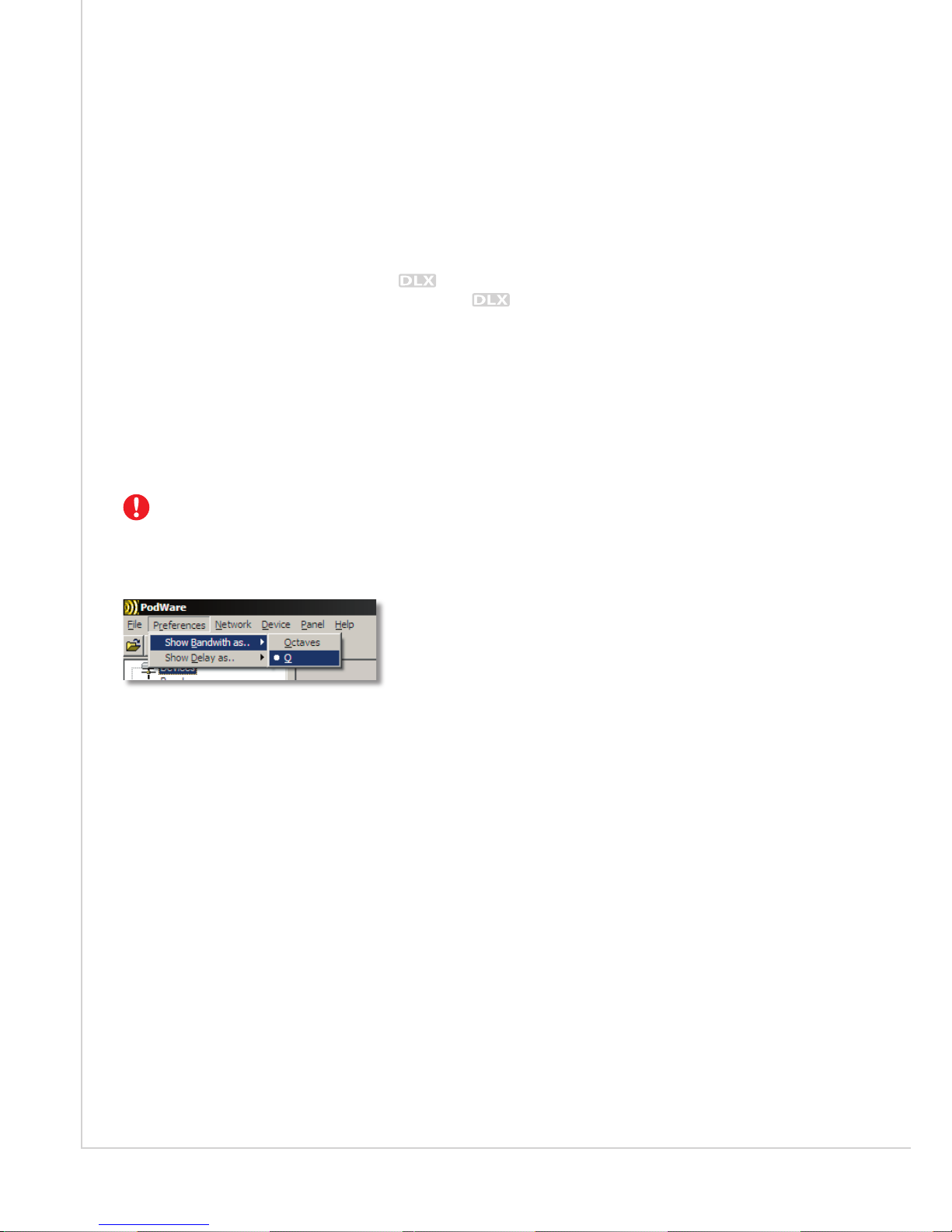
Menu selections are denoted using a different font, separated by the | character. The following
example would be written as: Preferences|Show Bandwidth As...|Q
HELP
To get help on anything to do with PodWare, go to Help|Help topics. This opens an HTML file
containing help information.

4 www.laaudio.com
Ways to connect.
There are two ways of connecting a PC to units:
RS232
Connection to a single unit is made over RS232. If your computer has a serial port, you can connect
directly to the device. If your computer does not have an RS232 port, you will need to use the USB-
RS232 adapter supplied with your processor. Ensure that this is installed, using the supplied
disc, before beginning your PodWare installation.
BVNET
BVNET is a way of networking multiple devices using the RS485 standard, carried over a CAT5-
type cable. While the physical appearance of BVNet components may be familiar, it is important
to use approved BVNet devices when assembling your network. This will ensure the easy set up of
your system and afford you the security of LA Audio support should you need it.
units equipped with BVNet cards can be connected in networks of up to 100 devices. Use an
approved BVNet adapter to connect your computer to the network. A device with a BVNet card
can still be controlled via its RS232 port, although not simultaneously.

5 www.laaudio.com
Installation Guide.
SYSTEM REQUIREMENTS
PodWare requires a PC running Windows 2000, or XP. PodWare also requires the Microsoft .NET
framework. In the event that you do not have the .NET Framework installed on your computer, you
will be prompted to do so by PodWare’s installer. Version 2.0 is included on the installation package,
entitled dotnetfx.exe. It is recommended that you check for and install any available updates using
Microsoft Update.
Your PC will also need a serial port to connect to your processor. If your computer does not
have a serial port, you can use the supplied USB-RS232 adapter in a free USB socket. The adapter
will have its own software, which must be installed first, as shown below.
[INSTALL YOUR ADAPTER]
If you require a USB-RS232 adapter, you will first need to install it onto your computer using the
disc supplied with the ATen adapter (not the PodWare disc!). Follow the on-screen instructions
to install the adapter. When doing so, make a note of the COM port assigned to your device; you
will need this shortly. To discover the COM port used for your device, you will need to check the
device manager. From the Windows Control Panel, select System, then on the Hardware tab, click
to open the Device Manager. Under the ‘Ports (COM & LPT)’ heading, you should find your device
with its COM Port in brackets.

6 www.laaudio.com
INSERT THE PODWARE CD
Upon insertion, the PodWare installer should start automatically. If it does not, navigate to your
computer’s CD ROM drive and run Setup.exe. Select a suitable installation directory and click
‘Next’. Then view and agree to the software license and click ‘Next’. You should then see the
‘Installation Complete’ screen. PodWare is now ready for you to use.
CONNECT YOUR PROCESSOR
Connect your processor to your PC. The method of connection will vary depending on
whether or not you are using BVNet networking.
For non-networked systems, your cables will look like this:
PC Serial (RS232) Cable Processor
USB to RS232
Adapter
(If Necessary)
For systems using BVNet, your cables will connect like this:
RS232 to RS485
Converter
9-pin to EtherCon
Adapter
USB to RS232
Adapter
(If Necessary)
PC
CAT5E Cable
You're now ready to run PodWare for the first time...

7 www.laaudio.com
First Use.
AUTHORISATION CODE
When PodWare starts, it will ask you to enter an Authorisation code. This code can be found on
your installation CD.
COM PORT
If you require a USB-RS232 adapter, by this point you will have installed its software and noted the
COM port used. To enable communications between PodWare and the adapter, you will have to
tell PodWare which COM Port to use. To do this go to Network|COM Port and select the correct
port.
GO ONLINE
Press the Go Online button. The software then searches the network for any connected
processors. During this time, the loading bar in the bottom-right corner of the
screen will display progress. Once online, the triangle in the button turns green and all connected
devices are displayed in the left-hand pane.
FIRMWARE CHECK
The first time a processor is connected to the network, it will be scanned to see if it has the latest
version of the device firmware. If not, you will be prompted to update your processor's firmware.
For more information on this, see the 'Device Firmware' section on page 15.
WINK
The wink button can help you test communications and find your way through a large network of
devices. Select a device in the sidebar by clicking on its name once. Clicking the Wink button
will cause the selected device to show “RECEIVING” for a few seconds.

8 www.laaudio.com
In Use.
To begin controlling a device, double click its icon in the left-hand pane. To create settings offline,
go to Device | Add Device Panel. This will open a MonIcon, a quick display showing monitor
levels and mute status. MonIcons are ideal for keeping an eye on systems with multiple devices, as
the critical elements of a system can be viewed on a single screen. The MonIcon is purely a display
window and does not allow you to control parameters.
A MonIcon
To alter the parameters of a device, press the Expand button. The panel will now expand
showing a number of tabs for each of the available control pages. To shrink a full panel back to a
MonIcon, press the Contract button.

9 www.laaudio.com
DEVICE NAME
The text box in the bottom-left corner of the full panel allows you to enter a name for a device. This
allows easy identification of devices within a networked system. The name will also be stored in the
device's memory and stay with it for future set-ups.
GAIN TAB
The gain page allows the adjustment of input and output gains, mutes and the Mono/Stereo mode.
MONO/STEREO MODE
To toggle between Mono and Stereo mode, press the Mono / Stereo button. In Stereo
Mode, channels are paired as shown in the tables below. When switching to Stereo Mode, settings
from the left side of the unit are copied to the corresponding channel on the right. The controls will
then be paired, so that any adjustments will be reflected in the opposite channel.
Switching to Stereo Mode will overwrite settings on the Right side of the unit.
Left Input A Output 1 Output 2
Right Input B Output 3 Output 4
Left Input A Output 1 Output 2 Output 3
Right Input B Output 4 Output 5 Output 6

10 www.laaudio.com
CROSSOVER
The crossover page allows you to adjust routing, crossover points and filter shapes for each of the
unit’s outputs. It also displays EQ information for all channels, to give you an excellent overview of
the system’s frequency response.
Each of the output channels can define a source input. This can be either Input A or B, or the Sum of
A+B. In Stereo Mode routing is fixed and the routing controls will be shown in dark grey. For more
information on Stereo Mode, see above.
Otros manuales para DLX200
1
Tabla de contenidos
Manuales populares de Software de otras marcas

PS Audio
PS Audio PowerPlay Manual del propietario

Brady
Brady LOCKOUT PRO 3.0 Manual de servicio

Avaya
Avaya Interaction Center Manual de usuario

Texas Instruments
Texas Instruments TI-83 Plus Silver Edition Manual

Novell
Novell GROUPWISE 8 - INTERNET AGENT Manual de usuario

Oracle
Oracle Application 9i Manual de usuario

Acer
Acer RDM Manual de usuario

Canon
Canon Vixia HF21 Manual de usuario

Canon
Canon ZR950 Manual de usuario

Samsung
Samsung Auto Backup Manual de usuario

Polycom
Polycom Vortex EF2201 Instrucciones de instalación y funcionamiento

Brocade Communications Systems
Brocade Communications Systems Brocade 8/12c Manual de usuario