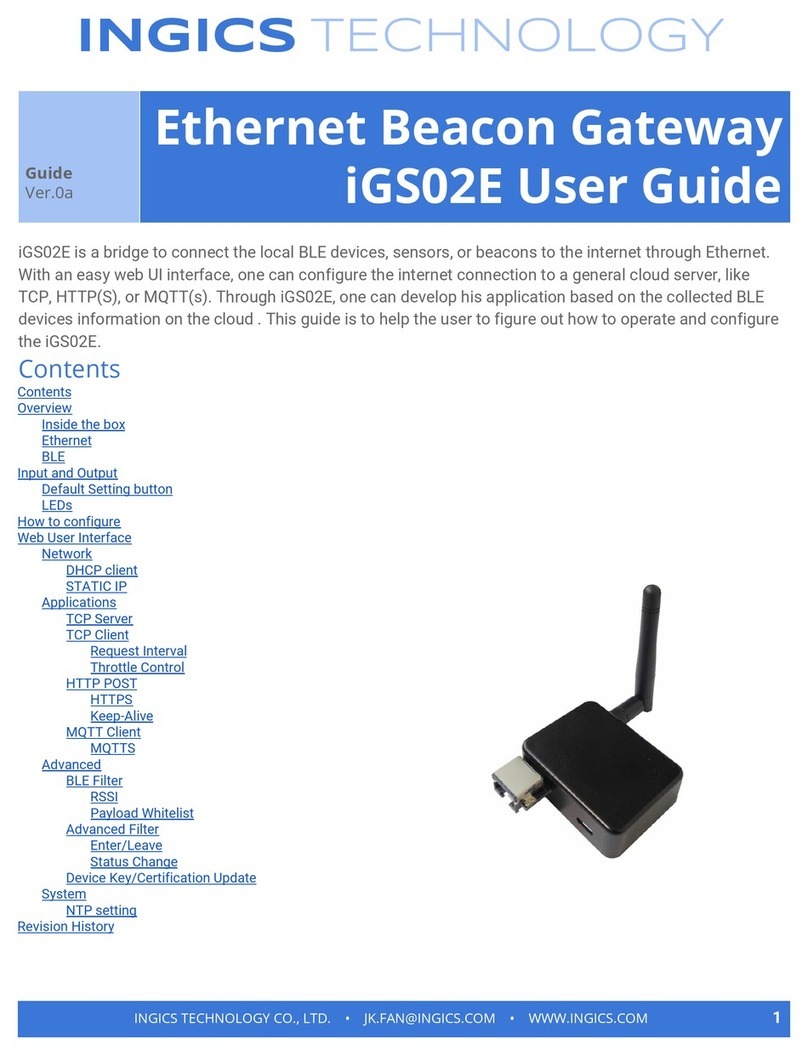
Ingics iGS03W Manual de usuario

INGICS TECHNOLOGY
Guide
Ver.01
Beacon Gateway
iGS03W/M User Guide
iGS03W/M is a gateway to bridge the local BLE tags, sensors, or beacons to remote server/cloud by WiFi,
or LTE-M. Through an easy web UI interface, user can configure the Internet access to upload reports to
cloud server by TCP, HTTP(S), or MQTT(S). This guide is to help the user to figure out how to operate and
configure the iGS03.
Contents:
Overview
Block Diagram
SIM
WiFi
BLE
GNSS
Example case 1: The device is in fixed position:
Example case 2: The device is moving:
Payload Format
BLE
GPS
Buttons
Get default button
OTA
LEDs
Configuration
Web User Interface
System
Wi-Fi
INGICS TECHNOLOGY CO., LTD. • [email protected] • WWW.INGICS.COM 1

INGICS TECHNOLOGY
AP Mode
Station Mode
Network
Applications
TCP Server
TCP Client
HTTP Client
HTTPS
MQTT Client
MQTTS
Common Settings
Content Type
Keep Alive
Append Timestamp
Request Interval
Throttle Control
Advanced
BLE Configuration
BLE-5 PHY Mode
Active Scan Mode
BLE Filter
RSSI Threshold
Payload Whitelist
BLE MAC Whitelist
Security
Device Key/Certification/Server CA Upload
LTE
LET Settings
APN
Auth
Username/Password
GNSS Settings
NTP Setting
Revision History
INGICS TECHNOLOGY CO., LTD. • [email protected] • WWW.INGICS.COM 2

INGICS TECHNOLOGY
Overview
The iGS03 BLE gateway scans beacons(like iBeacon or Eddystone), proprietary tags, or BLE sensors
then sends the payload to TCP, HTTP or MQTT server. Users can configure the transmit period and server
endpoint through a simple web UI. There are two models, iGS03W and iGS03M, representing different
uploading interfaces, WiFi and LTE-M.
Block Diagram
INGICS TECHNOLOGY CO., LTD. • [email protected] • WWW.INGICS.COM 4

INGICS TECHNOLOGY
SIM
To use iGS03M (LTE-M Model), you have to put a Cat-M1 micro SIM card into the socket of iGS03M.
Please open the bottom cover to insert the SIM card.
WiFi
The 2.4G WiFi AP connection is used to configure the unit through web UI. iGS03 works as an WiFi
Access Point(AP) supporting DHCP. Users must connect to this AP to configure the unit.
BLE
The BLE subsystem operates in listening mode. It collects the messages advertised by BLE devices.
These messages are then sent to the cloud server configured by the user.
iGS03 supports two BLE modes
1. 1M Phy: including BLE4.2(Legacy)/BLE 5 1M in 100% duty cycle
2. Coded Phy: BLE 5 long range in 100% duty cycle
User can use following command to set BLE mode: (telnet console)
BLE PHYMODE (1: 1M Phy only, 2: Coded Phy only)
The default PHYMODE is 1, 1M Phy
INGICS TECHNOLOGY CO., LTD. • [email protected] • WWW.INGICS.COM 5

INGICS TECHNOLOGY
GNSS
GNSS function is off by default. User can below commands to manage the GNSS behavior:
GNSS ENABLE Enable/Disable GNSS, default off
GNSS FIXCOUNT Number of attempts for positioning, 0 indicates continuous positioning. default
0
GNSS FIXRATE The interval time between the first and second time positioning, default 1 (1
second)
GNSS RPTRATE The interval time for sending GPSR report, default 600 (10 minutes)
GNSS INFO To get latest GPS status
Example case 1: The device is in fixed position:
e.g.
GNSS ENABLE 1
GNSS FIXCOUNT 5
GNSS FIXRATE 60
GNSS RPTRATE 60
Then GNSS will be enabled and get position for 5 times with 60 seconds interval.
GNSS will be off automatically after getting position for 5 times.
Example case 2: The device is moving:
e.g.
GNSS ENABLE 1
GNSS FIXCOUNT 0
GNSS FIXRATE 1
GNSS RPTRATE 60
Then GNSS will be enabled and continuously get position with 1 second interval, and it will send a
GPSR report every 60 sec.
You can also use the "GNSS INFO" command to get the latest coordinates.
INGICS TECHNOLOGY CO., LTD. • [email protected] • WWW.INGICS.COM 6

INGICS TECHNOLOGY
Payload Format
There are several kinds of payload format iGS03 will send to the server.
BLE
General format:
$<report type>,<tag id>,<gateway id>,<rssi>,<raw packet content>,*<unix epoch timestamp>\r\n
<report type>
Different report type to distinguish the source of the report.
<tag id>
MAC address or ID of tag/beacon
<gateway id>
MAC address of gateway
<rssi>
RSSI of tag/beacon
<raw packet content>
Raw packet received by the gateway
<unix epoch timestamp>
Optional timestamp configured in applications page
Report Type:
$GPRP BLE4.2 General Purpose Report
$SRRP BLE4.2 Scan Response Report
$LRAD BLE5 Long Range ADV
$LRSR BLE5 Long Range Scan Response
$1MAD BLE5 1M ADV
$1MSR BLE5 1M Scan Response
Examples:
$GPRP,CCB97E7361A4,CB412F0C8EDC,-49,1309696773206D65736820233220285445535429020106,1574921085
$GPRP,E5A706E3923A,CB412F0C8EDC,-
87,0201041AFF590002150112233445566778899AABBCCDDEEFF0000100C3BB,1574921085
$LRAD,51A88AD374B7,CC4B73906F96,-87,02010212FF0D0083BC280100AAAAFFFF000010030000,1574921085
$GPRP,0C61CFC1452E,E7DAE08E6FC3,-44,0201061AFF4C000215B9A5D27D56CC4E3AAB511F2153BCB9670001452ED6
(iBeacon, UUID: B9A5D27D56CC4E3AAB511F2153BCB967, Major: 0001, Minor: 452E)
GPS
General format:
$GPSR,<tag_mac>,<reader_mac>,<rssi>,yymmdd,hhmmss.ss,latitude,longitude,speed,hdop(,timestamp)
INGICS TECHNOLOGY CO., LTD. • [email protected] • WWW.INGICS.COM 7

INGICS TECHNOLOGY
The "$GPSR,<tag_mac>,<reader_mac>,<rssi>" fields are for compatibility with other reports.
For $GPSR, the tag_mac is always the same as reader_mac and the rssi is always -127.
yymmdd,hhmmss.ss is the UTC time of position acquired.
speed: unit is knots.
hdop: Horizontal dilution of position
Example:
$GPSR,CC4B73906F96,CC4B73906F96,-127,191127,233821.00,24.993631,121.423264,0.0,2.4,1574897900
Buttons
Get default button
One reset(default) button is located on the back side of iGS03 as shown in the figure below.
In case you need to go back to the original settings, keep pressing the reset/default button in your
device for over 3 secs no matter in which mode the device is. The network status LED will be turned off
and when you release the button, the iGS03 will reboot to its default settings.
OTA
Reset(default) button can be used as Over-The-Air(OTA) firmware upgrade. This firmware upgrade
is through WiFi interface only. To use it, press it then power on, keep pressing till network status LEDs
flashes.
INGICS TECHNOLOGY CO., LTD. • [email protected] • WWW.INGICS.COM 8

INGICS TECHNOLOGY
LEDs
There are two LEDs to indicate current status as the right figure. The left one is BLE status LED and
the right one is Network status. Below are their behaviors.
On
Flash
BLE Status
LED
find tag/beacon in range
BLE transmission
happening
Network
Status
LED
WiFi/Ethernet/LTE-M
connection success
(This only implies the network
is connected. It doesn’t mean
the server is connected)
Green: WiFi/Ethernet/LTE-
M network transmission
happening
Orange:
If IGS03M does not insert
SIM card and being used
as WiFi device
Network Status LED behavior
Description
Status
ORANGE LED on (500ms)
Boot start
Booting
RED LED blink (100ms on/off)
Joining AP (If WiFi in STA mode)
Booting
RED LED blink (500ms on/off)
LTE connecting carrier
Booting
GREEN/ORANGE LEDs blink interleaved
(100ms)
WPS enrollee
WPS
GREEN LED on
Network ready
Ready/Idle
GREEN LED blink (200ms on/off)
Network is transfering data
Busy
ORANGE LED on
Network ready (If SIM card is not inserted)
Ready/Idle
ORANGE LED blink (200ms on/off)
Network is transfering data
(If SIM card is not used)
Busy
RED LED ON (1sec)
Connect failure
Error
RED LED blink (5sec on/off)
Misconfiguration
Error
RED LED ON (5sec)
LTE init failure
Error
RED LED ON (1sec)
Button pressed
Indication
INGICS TECHNOLOGY CO., LTD. • [email protected] • WWW.INGICS.COM 9

INGICS TECHNOLOGY
Configuration
To configure the unit, you have to connect it through WiFi interface. When it is powered on, you
could scan its native AP and connect it with the WiFi of your NB/PC/Mac/Tablet/Smartphone. It’s SSID is
just like the above figure with part of the mac address. The default key to connect with it is “12345678”.
You can change it later when you get into the web UI.
After connection, enter IP address 192.168.10.1 in your browser. The default account/password are
both “admin”.
You can change the password later. In web UI, any change need to be saved first ( ). After all changes
made, click reboot to make the changes effective. The following sections describe details of the web UI.
Web User Interface
System
Firmware and device information, including MAC address and IP address in station mode are shown
here.
Wi-Fi
Users can configure iGS03 through connecting
to its AP. The related settings can be managed
on this page.
AP Mode
SSID: The default name is IGS03 plus the
last digits of the mac address.
Security: Open, WPA-PSK, WPA2-PSK
and WPA-PSK/WPA2-PSK are supported.
WPA2-PSK is recommended.
INGICS TECHNOLOGY CO., LTD. • [email protected] • WWW.INGICS.COM 10
Otros manuales para iGS03W
3
Este manual sirve para los siguientes modelos
1
Tabla de contenidos
Otros manuales de Puerta de Ingics
Manuales populares de Puerta de otras marcas

LST
LST M500RFE-AS Manual de usuario

Kinnex
Kinnex Media Gateway Manual de usuario

2N Telekomunikace
2N Telekomunikace 2N StarGate Manual de usuario

Mitsubishi Heavy Industries
Mitsubishi Heavy Industries Superlink SC-WBGW256 Manual de usuario

ZyXEL Communications
ZyXEL Communications ZYWALL2 ET 2WE Manual de usuario

Telsey
Telsey CPVA 500 - SIP Manual de usuario