
Hisense HM626R Manual de usuario
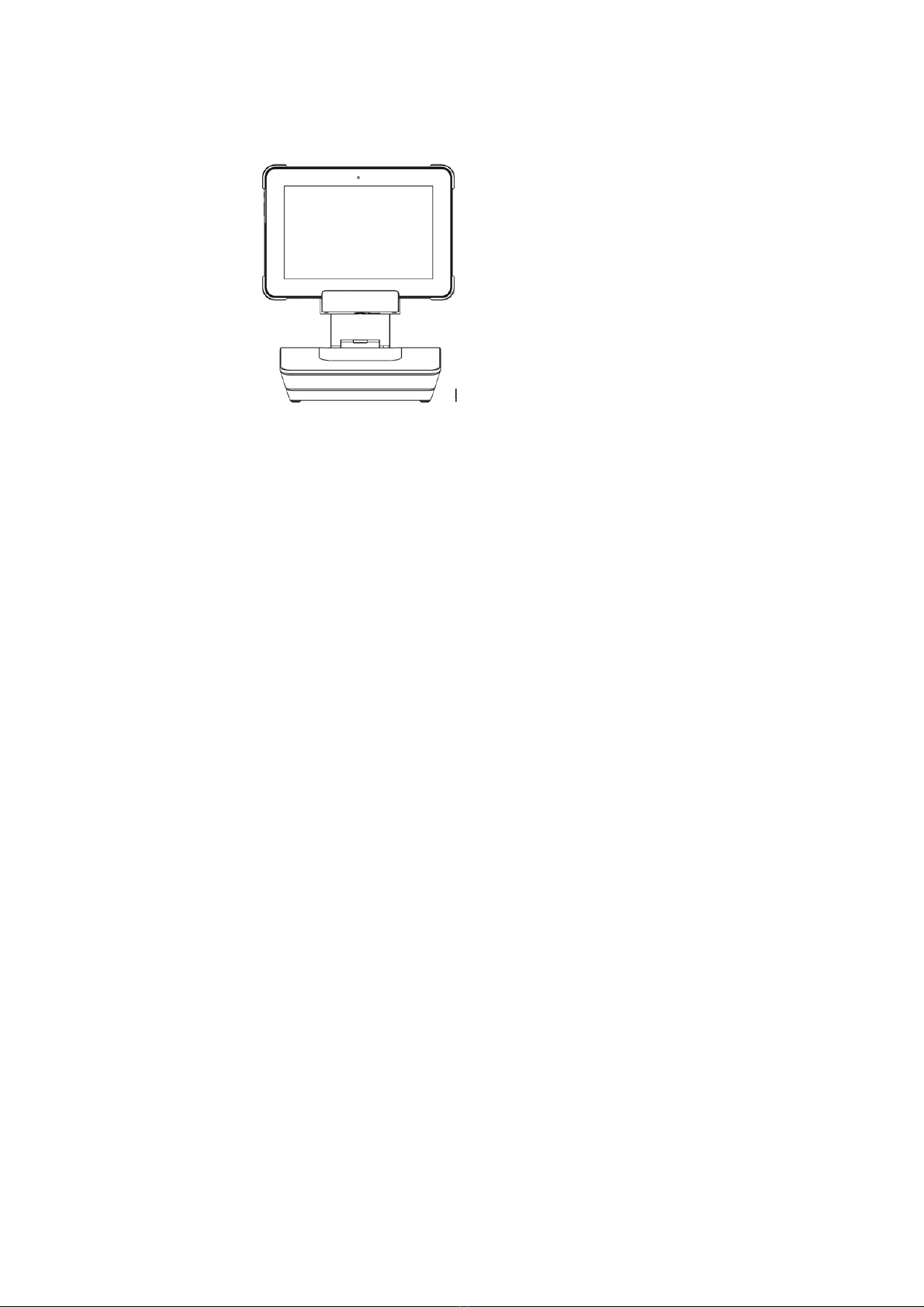
HM626R
Tablet POS
User Guide

Warning
This device has been tested and found to comply with the limits for a
Class B digital device, pursuant to Part 15 of the FCC Rules. These
limits are designed to provide reasonable protection against harmful
interference in a residential installation. This device generates, uses and
can radiate radio frequency energy and, if not installed and used in
accordance with the instructions, may cause harmful interference to
radio communications.
However, there is no guarantee that interference will not occur in a
particular installation. If this device does cause harmful interference to
radio or television reception, which can be determined by turning the
device off and on, the user is encouraged to try to correct the
interference by one or more of the following measures:
--Reorient or relocate the receiving antenna.
--Increase the separation between the device and receiver.
--Connect the device into an outlet on a circuit different from that to
which the receiver is connected.
--Consult the dealer or an experienced radio/TV technician for help
Changes or modifications not expressly approved by the party
responsible for compliance could void the user's authority to operate the
equipment

Safety Precautions
Do not subject the device to severe impact or drop it from heights.
Do not use the device in extreme hot or cold, dusty or damp conditions. Do not expose it
to direct sunlight.
Avoid using the device near strong magnetic fields.
Normal functioning of the product may be disturbed by ESD. If so, simply reset and restart
the device following the instruction manual. During file transmission, please handle with
care and operate in a static-free environment.
Keep the device away from water and other liquids. In the event that water or other liquids
enter the device, power off the product immediately and clean the device.
Do not use chemicals to clean the device in order to avoid corrosion. Clean it with a dry
cloth.
Do not click the charging tablet on Charging dock which is only used for charging. Doing
so may cause abnormal combination of tablet and dock.
Do not pull the table adjusting the rotation angle of Smart dock.
Do not adjust rotation angle frequently and extremely.
Do not install this equipment in a confined space such as a book case or similar unit. The
ventilation should not be impeded by covering the ventilation openings with items such
as newspaper, table-cloths, curtains etc.
No naked flame sources, such as lighted candles, should be placed on the apparatus.
Attention should be drawn to environmental aspects of battery disposal.
Use the apparatus in moderate climates.
We are not responsible for damage or lost data caused by malfunction, misuse,
modification of the device or battery replacement.
Do not attempt to disassemble, repair or modify the product. This will invalidate the
warranty.
If the device will not be used for an extended period of time, please charge the battery at
least once per month to maintain battery life.
Charge the battery if:
a) The battery level icon displays (An empty battery)
b) The device powers off automatically when restarted.
c) There is no response when pressing keys with keys unlocked and battery full.
Do not interrupt the connection when the device is being formatted or transferring files.
Otherwise, data may be corrupted or lost.
When the device is used as a portable HD, please use only per the instructions. Otherwise,
permanent data loss could occur.
Please use and install data using the attachments/accessories provided and only according
to the manufacturer’s instruction.
Please refer to the information on the bottom of the device for electrical and safety
information before installing data or operating the device.
To reduce the risk of fire or electric shock, do not expose this device to rain or moisture.
The device should not be exposed to dripping or splashing. Never place objects filled with
liquids, such as vases, on the device.

4
There is danger of explosion if the battery is replaced incorrectly. Replace only with the
same or equivalent type.
The battery (battery or batteries or battery pack) should not be exposed to
excessive heat such as sunlight, fire or the like.
Please follow responsible procedures for battery disposal.
If the power adaptor disconnected from the device, the device will remain operable as
long as the battery has sufficient charge.
The power adaptor is a CLASS II apparatus with double insulation, and no external
ground is provided.
Safety symbol explanation:
- The lightning flash with arrowhead symbol within an equilateral triangle is intended
to alert the user to the presence of non-insulated “dangerous voltage” within the
product’s enclosure that may be of sufficient magnitude to constitute a risk of
electric shock.
- To reduce the risk of electric shock, do not remove the cover (or back) as there are
no user-serviceable parts inside. Refer servicing to qualified personnel.
- The exclamation point within an equilateral triangle is intended to alert the user to
the presence of important operating and maintenance instructions in the literature
accompanying the device.
- Correct Disposal of this product. This marking indicates that this product
should not be disposed of with other household waste in the EU. To prevent possible
harm to the environment or human health from uncontrolled waste disposal, recycle
it responsibly to promote the sustainable reuse of material resources. To dispose of
your used device, please use the return and collection systems available in your area
or contact the retailer where the product was purchased. They can take this product
for safe environmental recycling.
This equipment should be installed and operated with minimum distance 20cm between
the radiator & your body.
CE in which countries where the product may be used freely: Germany, UK, Italy,
Spain, Belgium, Netherlands, Portugal, Greece, Ireland, Denmark, Luxembourg,
Austria, Finland, Sweden, Norway and Iceland.
Remarks:
This manual introduces the common functions of many models, your product may not
have some functions in the manual, or the manual does not introduce some functions of
your product.
The illustration or introduction may be different from the actual product. The
instruction manual is for reference only.

5
Features & Functionality
Tablet
Front view
1. Power indicator Indicates the battery-charge status.
2. Front camera Capture a front view picture or record videos.
3. Tounch screen Support with multi-touch .
6
Tablet
Top view
1. Combo audio jack Connect to headsets.
2. Built-in microphone Capture voice which can provide sound input to
make calls using web-based apps, audio recording.
3. Scanner 1 D barcode scanner or 2 D scanner(optional).
Tablet
Left-side view
1. AC power apdapter jack Connects to the AC power adapter.
2. USB 2.0 port Connects to USB devices.
3. Micro USB port Connects to USB devices.
4. Nano card slot Accommodate Nano card.
5. Micro SD card slot Accommadate micro SD card.
6. Volum button Adjust the volum level.
7. Power button Press and hold on to turn on or turn
off the devices.

7
Tablet
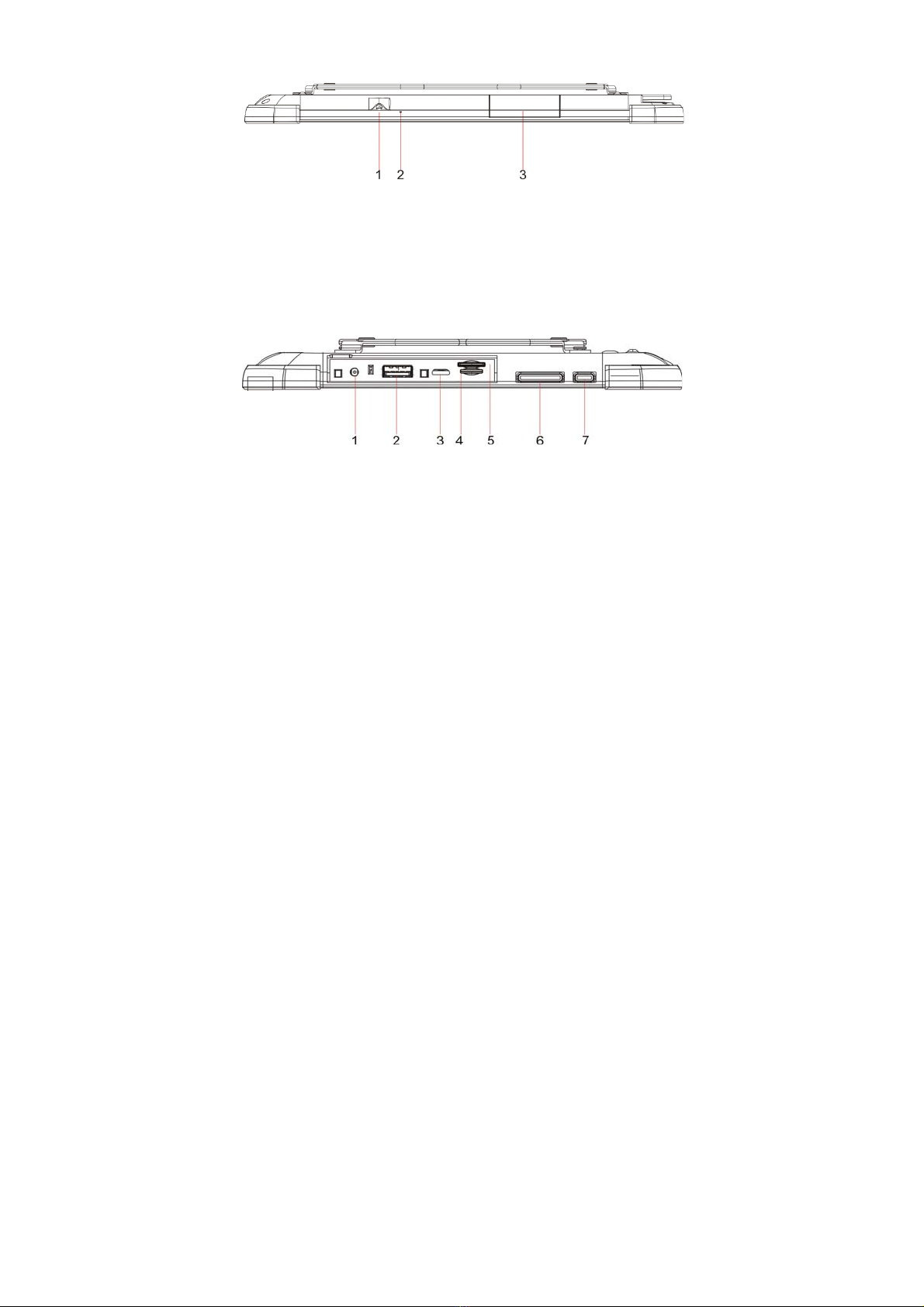
Bottom view
1. Dock latch Attaches the table to the dock keeping the tablet
fixed in place.
2. Pogo pin connector Connects the tablet to the dock .
3. Micro HDMI port Connects the tablet to a TV or an external display .
Tablet
Rear view

8
1. Magnetic card reader Swipes Magnetic cards.
2. Non-contact card reader Contactless integrated circuit card (optional).
3. Scan button Press the button to scan.
4. Rear camera Captures pictures or videos.
5. Ports cover Built-in ports.
6. Speaker Provides audio output.
7. Lock latch Lock the tablet on the smart dock.
Notes: Stander models do not support RFID ,please refer to the actual product.
Charging Dock (Standard)
Attach the tablet to the dock Top view Rear view
1. Charging Dock
2. Dock latch Attaches the table to the dock.
keeping the tablet.fixed in place.
3. Pogo pin connector Connects the tablet to the dock
4. AC power apdapter jack Connects to the AC power adapter.
5. USB 2.0 port Connects to USB devices.

9
Smart dock (optional)
Attach the tablet to the dock Top view Rear view
1. Smart dock
2. Printer cover Cover when no printer.
3. Keyhole Inserts a key to lock the tablet.
4. Dock latch Attach the tablet to the dock
keeping the tablet fixed in place
5. Pogo pin connector Connects the tablet to the dock.
6. Lock-tongue Lock the tablet on the Smart dock.
7. Cash Drawer port Access CashDrawer.
8. AC power adapter jack Connects to the AC power adapter.
9. COM RS232 COM.
10. Ethernet port Connects to cable.
11. USB 2.0 port
Connects to USB devices.

21
Basic Connections
Charging the tablet
Notes:
If using the tablet for the first time, or after a long period of idle time, charge the battery for
more than half an hour before turning it on, to ensure system stability.
The tablet has a built-in rechargeable battery. Charge the device when the battery level is
low.
1. Plug the power adapter into the DC-In socket.
2. Open the port cover on the left.
3. Connect the power adapter to an electrical outlet and charge the tablet until the battery is fully
charged.
Caution:
Charge the battery in an ambient temperature of 0 °C to 35 °C.
Use only the supplied power adapter to charge your tablet. Using unauthorized power
adapters may severely damage your tablet.
Inserting a micro SD card
Tabla de contenidos
Otros manuales de Terminal táctil de Hisense

Hisense
Hisense HK560M Manual de usuario

Hisense
Hisense HK316 Manual de usuario

Hisense
Hisense HK950 Manual de usuario

Hisense
Hisense HK900A Manual de usuario

Hisense
Hisense HK570 Manual de usuario

Hisense
Hisense HK560 Manual de usuario

Hisense
Hisense HK870 Series Guía de configuración rápida

Hisense
Hisense HK950 Manual de usuario

Hisense
Hisense HK800 SERIES Manual de usuario

Hisense
Hisense HK800 SERIES Manual de usuario


