Gyration GP3200 Manual de usuario

Gyration™Full-Size Keyboard
User Manual

PRODUCT SPECIFICATIONS
Spec Full-Size KeyboardRF Receiver
System
Requirements
Full functionality on IBM compatible PCs running Windows
2000, ME, XP, or higher
Limited functionality on MAC OS 8.0 and higher and Windows
98 (Second Edition)*
Available USB port
Size 8.5"L x 19.5"W x 1.4"H (21.5cm
x 49.5cm x 3.6cm)
3.15"L x 2.85"W x .73"H (8cm
x 7.2cm x 1.8cm)
Weight 35 ounces (1000g) with
batteries (not including wrist
rest)
2.16 ounces (67.2g)
Radio 49 MHz (U.S.) with 8 channels
and 36,800 security addresses
N/A
Batteries 4 AA for up to 4 months of
typical use
N/A
Connector N/A USB with 5' (1.5m) cable
Operating Temp +10 to 40 C (+50 to +104 F)
Storage Temp -30 to +70 C (-86 to +158 F)
*Internet and Multimedia hot keys not supported by Macintosh or Windows 98
(Second Edition). Standard keyboard keys are functional.

i
TABLE OF CONTENTS
Full-Size Keyboard ..............................................................1
Setting Up and Synchronizing ............................................ 1
Determining the Channel................................................... 3
Changing the Channel....................................................... 4
Powering On and Off ........................................................ 4
Special Keyboard Media Keys............................................. 5
Keyboard Usage Tips ........................................................ 6
RF Receiver .........................................................................8
Learn Button ................................................................... 8
Status Light..................................................................... 8
Keyboard LEDs ................................................................ 9
Installing 3 or More Devices............................................... 9
Troubleshooting Tips .........................................................11
Regulatory Information .....................................................12
FCC Statement .............................................................. 12
Canadian Radio Interference Regulations........................... 13
Contacting Gyration...........................................................14

1
Gyration Full-Size Keyboard
Ergonomically-designed, the Full-Size Keyboard has a
sleek, refined look with an exceptional feel. Due to Gyration’s
powerful radio frequency technology, this keyboardisideal for
your desk, the office conference room, and even your home
office.
Setting Up and Synchronizing the Keyboard
and the Gyration RF Receiver
When installing the Full-Size Keyboardfor the first time or
when adding additional Gyration devices to the system, it is
necessary to perform a Teach/Learn sequence to synchronize
thedevices. Toset up andsynchronize theFull-Size Keyboard
and the RF Receiver:
1. Connect the receiver cable into an available USB port and
power on your computer. Your operating system should
detect the new hardware device and initiate the installa-
tion procedure. Continue to follow the standard USB
device installation screens until installation is complete.

2
2. Insert four AA batteries into the keyboard.
3. Press and hold the Learn button on the receiver for two
seconds, and then release it. The Status light will blink
slowly, indicating the receiver is in “Learn Mode.”
4. Press and release the Teach button located on the back
of the keyboard (see below). The Status light on the
receiver will blink rapidly for four seconds, then begin to
blink slowly.
Note: At this time, press the Teach button on any additional devices
(such as a second keyboard, an Ultra Mouse, or a GyroRe-
mote).
5. To exit Learn Mode, press the Learn button on the
receiver for two seconds. Otherwise, Learn Mode will
automatically time out after five minutes.
If more than one Gyration device is being installed on the
same system, place the receiver into Learn Mode (step 3

3
above) and then press the Teach button on each device before
exiting Learn Mode. However, do not press the Learn button
on the receiver for each device to be added (see “Installing 3
or More Devices” on page 9).
When the receiver is put into Learn Mode, it erases its mem-
ory of previously learned devices and looks for new devices.
Therefore when adding a new device to a system, it is neces-
sary to put the receiver into Learn Mode and then press the
Teach button on all the devices that will be used on the sys-
tem.
After the Teach/Learn sequence is performed, the receiver
and device(s) will remain synchronized after powering down
and/or changing channels. It is only necessary to perform the
Teach/Learn sequence when setting a device up for the first
time or when adding additional devices to the system.
Determining Which Channel the Keyboard is
Using
The Full-Size Keyboard has eight individual channels avail-
able to it. To determine which channel a device is currently
using:
1. Press and quickly release the Channel button on the back
of the keyboard.
2. Count the number of times the green LED light on the
front (or back) of the keyboard flashes. The number of
flashes indicates the channel the keyboard is using.
Note: If the keyboard’s channel is changed when the computer is
powered down or the receiver is not connected, the devices
will become unsynchronized. When the system is running,
click and release the Channel button as described above to
confirm the channel. The keyboard broadcasts a message
across all eight channels that informs the receiver what chan-
nel it is currently operating on. The receiver then automati-
cally restores synchronization.

4
Changing the Channel the Keyboard is Using
When two devices are being used in the same proximity, each
device should be set to operate on a unique channel. For the
best reception, space the channels apart by one or more chan-
nels. For example, setting the channels to “2” and “4” is rec-
ommended over setting the channels to “2” and “3”.
If you are installing three or more devices on a single receiver,
see “Installing 3 or More Devices” on page 9. Remember if a
Teach/Learn sequence has already been performed, it is not
necessary to re-synchronize the devices after a channel
change.
To change the channel:
1. Press and hold the Channel button on the back of the
keyboard for two seconds.
2. When you release the Channel button, the keyboard will
change to the next sequential channel and the green LED
light on the front (or the back) of the keyboard will flash.
The number of flashes indicates the new channel the key-
board is using.
Powering the Keyboard On and Off
It is not necessary to power down the keyboard when it is idle.
However, it is recommended you power down when traveling
to avoid inadvertent key presses that may occur.
To power on:
Simultaneously press and release the Channel and
Teach buttons on the back of the keyboard for three
seconds. It will confirm it is powering on by flashing its
LED light for one second.
To power off:
Simultaneously press and release the Channel and
Teach buttons on the back of the keyboard. It will
immediately power off and be unresponsive to button
clicks. It will confirm it is powering off by flashing its LED
light three times.

5
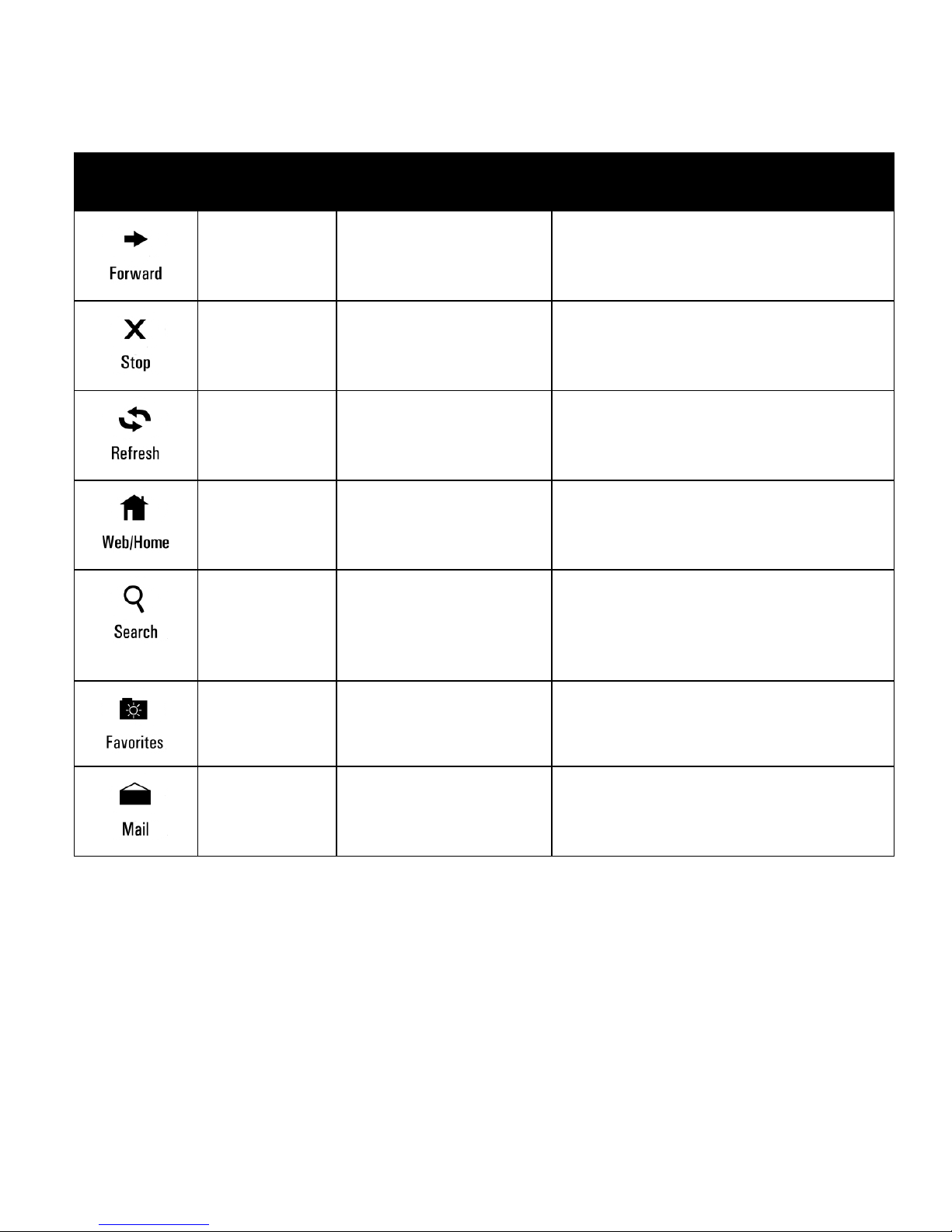
Special Keyboard Media Keys
Key OS
Support
Program
Support
Function
Win 2000,
ME, XP
Windows CD
Player, Default
Media Player
CD or Media player scans for
previously played track
Win 2000,
ME, XP
Windows CD
Player, Default
Media Player
Toggles player between Play
and Pause modes
Win 2000,
ME, XP
Windows CD
Player, Default
Media Player
CD or Media player scans for
next track on CD or music file
Win 2000,
ME, XP
Windows CD
Player, Default
Media Player
Puts player into Stop mode
Win 2000,
ME, XP
Windows sound
control
Decreases Windows volume
setting
Win 2000,
ME, XP
Windows sound
control
Increases Windows volume
setting
Win 2000,
ME, XP
Windows sound
control
Mutes Windows sound
volume
Win 2000,
ME, XP
Microsoft
Internet Explorer
Loads the last page you
viewed in the browser
window

6
Keyboard Usage Tips
Some studies suggest that long periods of repetitive motion,
improper workstation set-up, or incorrect body position may
be linked to serious injury. If you experience any discomfort in
your hands, wrists, arms, neck or back (such as pain, numb-
Win 2000,
ME, XP
Microsoft
Internet Explorer
Re-loads a page you viewed
before clicking the Back
button
Win 2000,
ME, XP
Microsoft
Internet Explorer
Stops the loading process in
the browser window
Win 2000,
ME, XP
Microsoft
Internet Explorer
Re-loads the currently
displayed page in the
browser window
Win 2000,
ME, XP
Microsoft
Internet Explorer
Launches Brower (if closed)
and loads your Home page in
the browser window
Win 2000,
ME, XP
Microsoft
Internet Explorer
Opens the Search frame in
the browser window or, if
closed, launches Windows
search
Win 2000,
ME, XP
Microsoft
Internet Explorer
Opens the Favorites frame in
the browser window
Win 2000,
ME, XP
Default e-mail
client
Launches your default e-mail
client
Special Keyboard Media Keys (Continued)
Key OS
Support
Program
Support
Function

7
ness, weakness), consult a qualified health professional.
To reduce the risks of such injuries, follow these precautions:
Take breaks frequently. Experts suggest taking at least
one 5-10 minute break every hour.
Avoid prolonged, repetitive tasks. Vary your tasks
throughout the day.
Assess your workstation and position frequently used
items closest to you.
Maintain proper shoulder, elbow and wrist alignment.
Shoulders should be relaxed with elbows at your side and
wrists should be kept straight.
Avoid using wrist or palm rests while typing.
Tabla de contenidos
Otros manuales de Teclado de Gyration