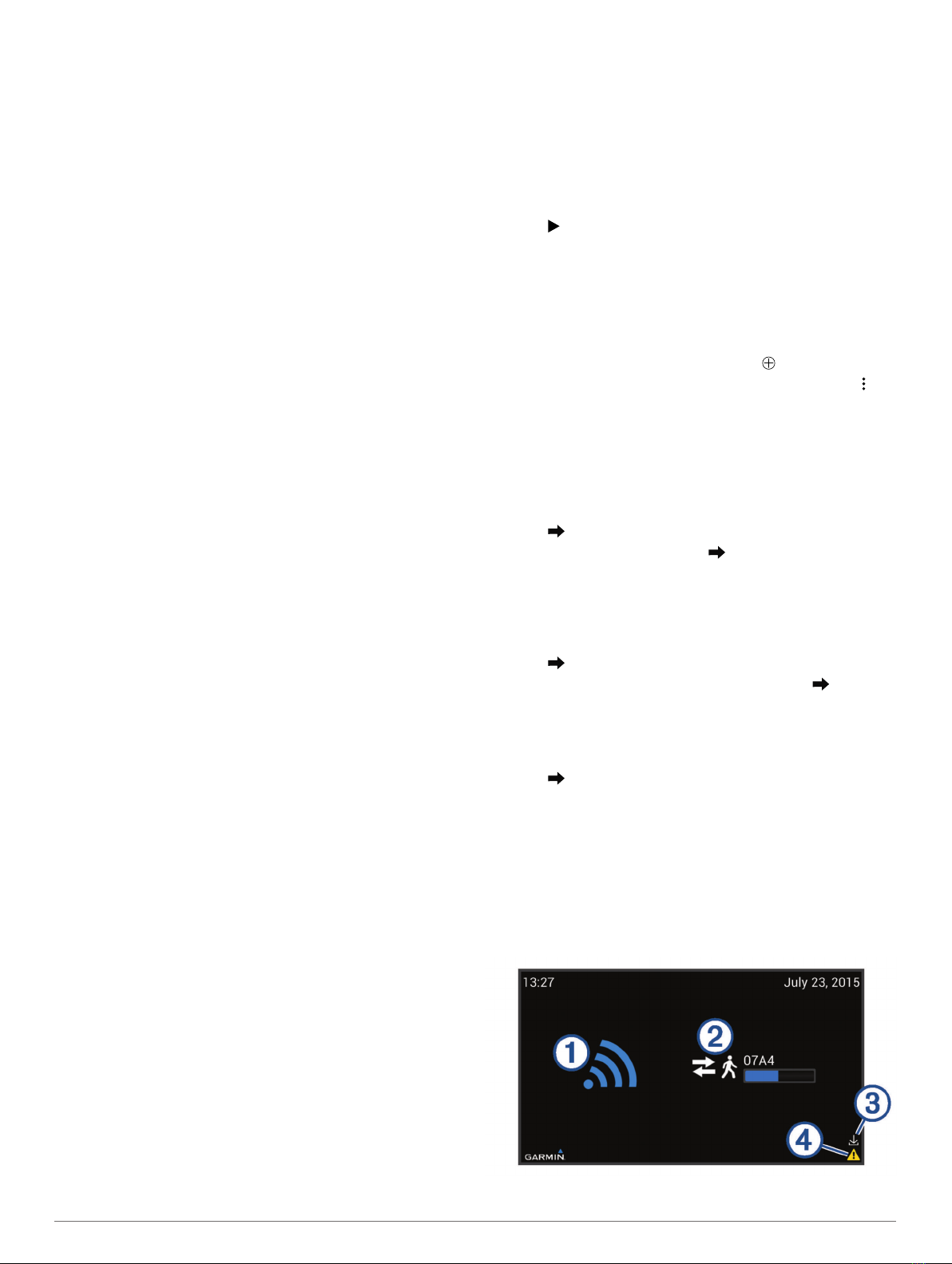
ÀScanning status Indicates that the device is actively searching
for compatible activity trackers.
ÁSynchronization
status
Indicates the progress of synchronization with
a connected, compatible activity tracker.
Includes the identification number of the
activity tracker (Data Transfers, page 3).
ÂSoftware update is
available
Indicates that a software update is available
(Setting Software Update Preferences,
page 4).
ÃAlert Indicates that the device needs administrator
attention (Using the Diagnostics for
Troubleshooting, page 5).
Customizing the Status Screen
You can customize the status screen to show the default status
screen information, custom images and webpages, or both.
1Unlock the device (Unlocking the Device, page 3).
2Select SETTINGS > Display Layout and Content.
3Select an option:
• To show the status screen information alongside custom
content, select Sidebar.
• To fill the screen with custom content, select Fullscreen.
• To show the status screen information with no custom
content, select No Custom Content.
4Select the custom content (Adding Custom Content,
page 3).
Adding Custom Content
You can customize the status screen to show custom
webpages, images, or both.
If you want to include more than one webpage or image, you
can set the time that each webpage or image appears before
switching to the next webpage or image.
1Unlock the device (Unlocking the Device, page 3).
2Select SETTINGS > Display Layout and Content > Manage
Custom Content.
3Add a custom webpage (Adding a Custom Webpage,
page 3) or custom image (Adding a Custom Image,
page 3).
4Repeat step 4 to add additional webpages or images.
5Select Finish.
Adding a Custom Webpage
1Unlock the device (Unlocking the Device, page 3).
2Select SETTINGS > Display Layout and Content > Manage
Custom Content > Add Webpage.
3Enter a nickname for the webpage (optional).
4If you are adding multiple webpages, enter the time in
seconds to show the webpage on the status screen.
NOTE: If only one custom webpage is added, this value does
not apply.
5Enter the URL for the webpage.
A preview of the webpage appears in the window. You can
use this preview to confirm the accessibility of the webpage.
6Select Finish.
Adding a Custom Image
Before you can show custom images on the status screen, you
must load images onto a microSD memory card (not included),
or transfer them to the internal storage of the device using the
Android system (Transferring Files from a microSD Memory
Card to the Device, page 5).
The device supports images in the PNG, JPG, JPEG, GIF,
WEBP, and BMP file formats.
1Unlock the device (Unlocking the Device, page 3).
2Select SETTINGS > Display Layout and Content > Manage
Custom Content > Add Picture.
3If you are adding multiple images, enter the time in seconds
to show the image on the status screen.
NOTE: If only one custom image is added, this value does
not apply.
4Select Select Location.
5Select an option:
• To locate an image on the memory card, select
external_storage > sdcard1 to view the root of the
memory card.
• To locate an image on the internal storage, select , if
necessary, to view the root of the internal storage.
6Select Select next to the filename for a custom image.
A preview of the image appears in the window. You can use
this preview to confirm the image.
7Select Finish.
Managing Custom Content
You can adjust the order and length of time each webpage or
image appears on the status screen.
1Unlock the device (Unlocking the Device, page 3).
2Select SETTINGS > Display Layout and Content > Manage
Custom Content.
A list of all custom webpages and images appears, in the
default order.
3Select an option:
• To reorder the items, select or next to the webpage or
image you want to move.
• To change the time shown or other information about the
webpage or image, select , and adjust the value you
want to change.
• To remove a webpage or image from the list, select .
4Select Finish.
Data Transfers
The device receives data from compatible activity trackers using
ANT low power wireless technology. The device scans for the
periodic beacons of nearby compatible activity trackers.
When a compatible activity tracker is detected, the device
establishes a connection and sends updated time and settings
data to the activity tracker. The device downloads activity files
from the activity tracker and transfers the files to Garmin
Connected Services over a wireless network. The device
disconnects from the activity tracker automatically after the data
transfer is complete, and it resumes scanning for other
compatible activity trackers. If the device is connected to a TV or
monitor for normal use, the status screen displays the
synchronization progress.
NOTE: When the device is connected to a TV or monitor, for
confidentiality purposes, a connected activity tracker appears on
the screen using an automatically assigned code. If a user
wants to identify the code associated with their activity tracker,
the user should initiate a connection when no other activity
trackers are in the area, and observe the status screen.
Advanced Configuration
After the initial device setup is complete, it is locked and can be
accessed only by an administrator using the device lock
password.
Unlocking the Device
Before you can unlock the device, you must connect the device
to a TV or monitor.
3