
Fusion Apollo MS-SRX400 Manual de usuario

FUSION®
Apollo™MS-SRX400
O W N E R ’ S M A N U A L
ENGLISH

© 2019 Garmin Ltd. or its subsidiaries
All rights reserved. Under the copyright laws, this manual may not be copied, in whole or in part, without the written consent of Garmin. Garmin reserves the right to change or
improve its products and to make changes in the content of this manual without obligation to notify any person or organization of such changes or improvements. Go to
support.garmin.com for current updates and supplemental information concerning the use of this product.
Garmin®, Fusion®, and the Fusion logo are trademarks of Garmin Ltd. or its subsidiaries, registered in the USA and other countries. Apollo™, Fusion-Link™, Fusion PartyBus™, and
True-Marine™ are trademarks of Garmin. These trademarks may not be used without the express permission of Garmin.
Apple®, AirPlay®, and App StoreSM are trademarks of Apple Inc. Android™ and Google Play™ are a trademarks of Google Inc. Bluetooth® word mark and logos are owned by the
Bluetooth SIG, Inc. and any use of such marks by Garmin is under license. Wi‑Fi® is a registered mark of Wi-Fi Alliance Corporation. Other trademarks and trade names are those of
their respective owners.

Table of Contents
Getting Started 1
Stereo Controls 2
Entering Text 3
Using the Dial to Select Items 3
Stereo Screen 3
Naming the Device 4
Selecting a Source 4
Adjusting the Backlight Brightness 4
Audio Control 4
Adjusting the Volume 4
Muting all Connected Stereos 4
Adjusting the Subwoofer Level 5
Adjusting the Tone 5
Disabling the Loud Setting 5
DSP Settings 5
Configuring the DSP Settings 5
Bluetooth Device Playback 6
Connecting a Compatible Bluetooth
Device 6
Bluetooth Range Information 6
Selecting a Different Bluetooth
Device 6
Bluetooth Source Menu and Settings 7
Disabling Bluetooth Auto
Connection 7
Radio 7
Setting the Tuner Region 7
Changing the Radio Station 7
Apple AirPlay® 8
Connecting an Apple Device Using
AirPlay 8
Setting an AirPlay Password 8
UPnP Playback 8
Connecting a UPnP Device 8
Fusion PartyBus Networking 9
Creating a Group 9
Editing a Group 9
Leaving a Group 9
Grouped Stereo Functions 10
Grouped Stereo Source
Considerations 10
Group Synchronization 11
Enabling Group Synchronization 11
General Settings 11
Speaker Zone Settings 12
Disabling the Internal Amplifier 12
Setting the Home Zone 12
Adjusting the Power-On Volume
Limit 12
Maintaining Individual Zone Volume
Levels 12
Setting a Zone Name 12
Adjusting the Subwoofer Filter 13
Adjusting Additional Audio Settings for
a Zone 13
Power Options 13
Source Settings 13
Network Settings 13
Connecting the Fusion PartyBus
Device to a Wireless Access Point 14
Connecting the Device to a Wireless
Access Point Using Wi‑Fi Protected
Setup 14
Connecting the Device to a Wireless
Access Point Using Apple Wireless
Accessory Configuration 14
Setting the Fusion PartyBus Device as
a Wireless Access Point 15
Wireless Access Point Settings 15
Advanced Network Configuration 16
Setting the Fusion PartyBus Device
as the DHCP Server 16
Configuring the Stereo for use with
a Garmin® Marine Network 16
Setting a Static IP Address 17
Resetting Network Settings 17
Additional Stereo Control
Options 17
Fusion-Link Wireless Remote Control
App 17
FUSION-Link™ Network
Technology 18
Appendix 18
Table of Contents i

Registering Your Fusion Device 18
Cleaning the Device 18
Software Updates 18
Updating the Software Using the Fusion Link App 19
Troubleshooting 19
The stereo does not respond to key presses 19
My Bluetooth audio is interrupted by short breaks 19
The stereo does not display all song information from my Bluetooth source 19
Network Troubleshooting 20
Network Status Icons 20
The stereo keeps locking up when connected to an Apple device 20
The stereo is not finding my connected Apple device 20
My Apple AirPlay audio is interrupted by short breaks 21
Specifications 21
Stereo Dimension Drawings 22
Side Dimensions 22
Top Dimensions 23
Index 24
ii Table of Contents

Getting Started
WARNING
See the Important Safety and Product Information guide in the product box for product warnings and other
important information.
Getting Started 1
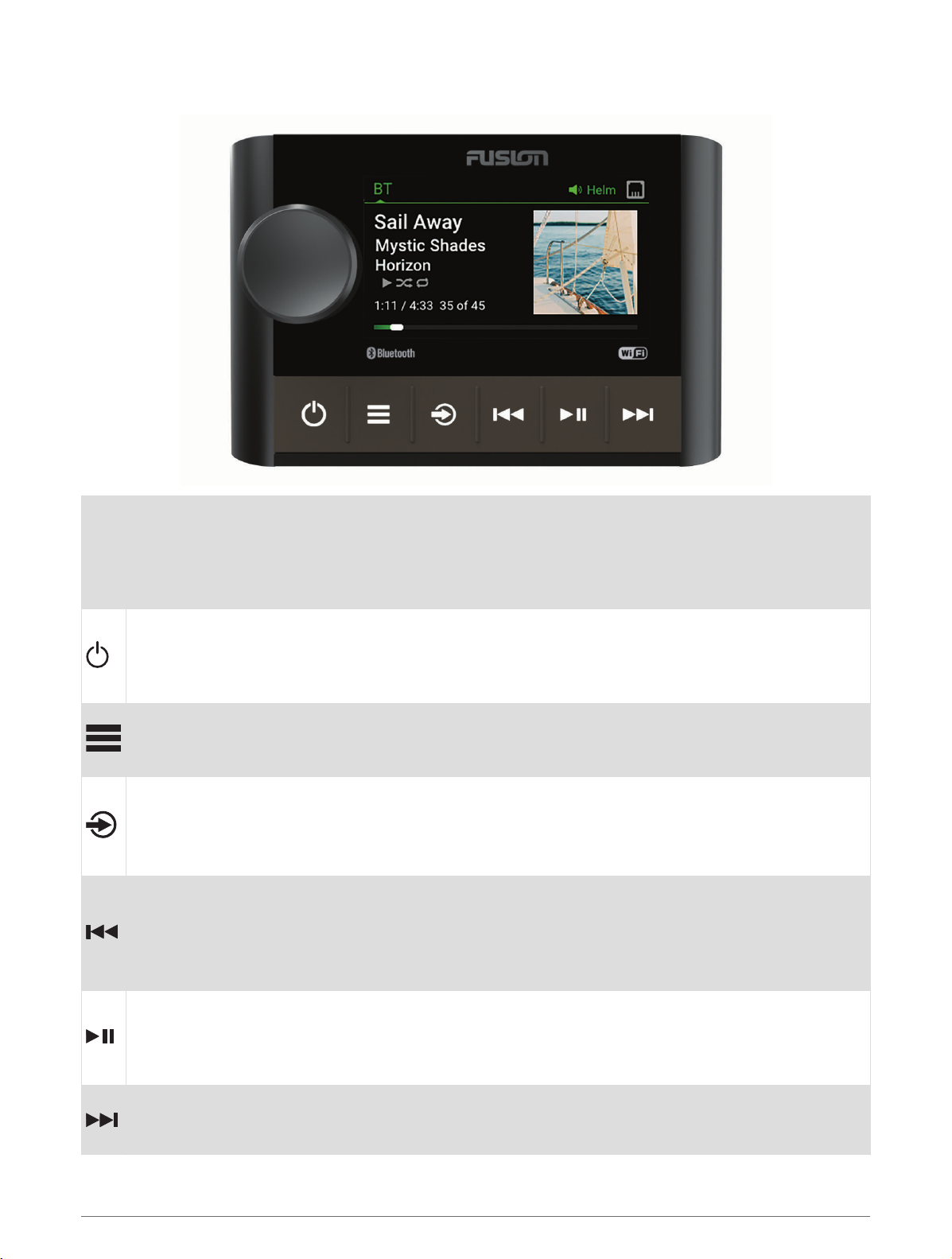
Stereo Controls
Dial
• Turn to adjust the volume.
• Turn to move through the menus or adjust a setting.
• When in a menu, press to select the highlighted option.
• Press and hold to activate certain functions such as opening the radio presets or muting all connected
stereos from the mute screen (Muting all Connected Stereos, page 4).
• Press to turn on the stereo.
• Press to mute the audio.
• Press and hold to turn off the stereo or all stereos on the network.
• Press and hold for longer than 10 seconds to reset the stereo.
• Press to open the menu.
• Press to return to the previous screen from the menu.
• Press and hold to exit the menu.
Press to change the source.
TIP: You can turn the dial to browse, and press the dial to select the source.
Press and hold to open the GROUPS menu when connected to a Fusion PartyBus™ network (Fusion
PartyBus Networking, page 9).
• Press to skip to the beginning of the track or to the previous track, when using an applicable source.
• Press and hold to rewind the track, when using an applicable source.
• AM/FM:
◦ Press to tune to the previous station or preset.
◦ Press and hold for faster tuning (manual mode only).
• Press to pause or resume the current track, when using an applicable source.
• AM/FM:
◦ Press to cycle through the tuning modes (auto, manual, and presets).
◦ Press and hold to save the current station as a preset.
• Press to skip to the next track, when using an applicable source.
• Press and hold to fast-forward the track, when using an applicable source.
• AM/FM:
2 Getting Started

◦ Press to tune to the next station or preset.
◦ Press and hold for faster tuning (manual mode only).
For information about controlling sources from a grouped stereo, see that stereo's owner's manual.
Entering Text
1In a field that allows you to enter text, select to erase the existing characters.
2If necessary, select or to use numerals, symbols, or lower-case letters when available.
3Turn the dial to choose a character, and press the dial to select it.
4Select to save the new text.
Using the Dial to Select Items
You can use the dial to highlight and select items on the screen.
• Turn the dial to highlight an item on the screen.
• Press the dial to select the highlighted option.
Stereo Screen
The information displayed on the screen varies depending on the source selected. This example shows a track
playing on a device connected using Bluetooth® wireless technology.
Source name
Active zone and status icons (Network Status Icons, page 20)
Track details (if available)
Album art (if available from a compatible source)
Elapsed time, track duration, and the current track number out of the total number of tracks in the playlist
(if available)
Getting Started 3

Naming the Device
You should enter a unique name for this device so you can easily identify it when viewing devices on the Fusion
PartyBus network.
NOTE: You should provide unique names to all of the devices and zones on the network to avoid confusion
when grouping, controlling, and setting up stereos and zones.
For further customization, you can provide unique names for the sources on each stereo and turn off unused
sources (General Settings, page 11).
1Select > SETTINGS.
2Select DEVICE NAME, and enter a unique name for the device.
Selecting a Source
1Select .
2Turn the dial to highlight a source.
NOTE: If the device is part of a group, continue turning the dial to access the sources on other devices in the
group (Creating a Group, page 9).
If a source cannot be shared with the group, it will appear gray and you cannot select it.
3Press the dial to select the source.
Adjusting the Backlight Brightness
NOTE: If you connected the dim wire on the wiring harness to the boat's illumination wire, the backlight dims
automatically when the boat lights are on. This may affect how you adjust the brightness setting.
1Select > BRIGHTNESS.
2Adjust the brightness level.
Audio Control
Adjusting the Volume
Using this stereo, you can control the volume of any zone on any stereo connected to the Fusion PartyBus
network.
1Turn the dial to adjust the volume for the home zone on the stereo.
2If necessary, press the dial to switch between zones.
NOTE: If this stereo is part of a group, you can adjust the volume of all stereos in the group or individual
zones on each stereo (Creating a Group, page 9).
Muting all Connected Stereos
You can quickly mute the audio from this stereo or from all stereos connected to the Fusion PartyBus network
(Fusion PartyBus Networking, page 9).
1From any source, press .
The mute symbol appears and audio from this stereo is silenced.
NOTE: If the stereo is part of a group, the audio from all grouped stereos is silenced.
2Press and hold the dial to select MUTE SYSTEM.
Audio from all connected stereos is silenced.
3Press and hold the dial to select UNMUTE SYSTEM.
Audio is restored to all connected stereos.
4 Audio Control

Adjusting the Subwoofer Level
You can adjust the subwoofer level for each zone.
1Press the dial, and select a zone with a connected subwoofer.
2Press and hold the dial.
The SUB LEVEL adjustment for the zone appears.
3Adjust the subwoofer level and press the dial to set it.
Adjusting the Tone
1Select > AUDIO > ZONE 1.
2Press the dial to select a tone.
3Adjust the tone level and press the dial to set it.
Disabling the Loud Setting
The LOUD setting maintains frequency response at low volumes and increases perceived loudness at high
volumes. This setting is enabled by default.
1Select > AUDIO > ZONE 1.
2Select LOUD to clear the check box.
DSP Settings
This stereo features digital signal processing (DSP). You can select pre-configured DSP settings for Fusion®
speakers and amplifiers to optimize audio reproduction in their installed locations.
The stereo uses the same DSP setting for the speakers connected to the internal amplifier and for the line out
connection. If you connected speakers to the internal amplifier and are using the line out, the DSP setting might
cause the speaker output to be more limited than necessary.
All DSP settings are configured using the Fusion-Link™ remote control app (Fusion-Link Wireless Remote
Control App, page 17).
Configuring the DSP Settings
You must download and install the Fusion-Link remote control app on your compatible Apple® or Android™
device before you can configure the DSP settings (Fusion-Link Wireless Remote Control App, page 17).
You can configure the DSP settings to optimize the sound on each zone with the installed speakers, amplifiers,
and environment.
1From the settings menu on your Apple or Android device, connect to the stereo using Bluetooth technology,
or connect to the same wireless network as the stereo.
2Open the Fusion-Link remote control app on your compatible Apple or Android device.
3If necessary, select the stereo you want to configure.
4Select .
5If necessary, select the MUSIC tab.
6Select a zone.
7Select DSP SETTINGS.
8Configure the DSP settings as needed, depending on the models of Fusion speakers and amplifiers
connected to the zone.
9Repeat these steps for each zone.
10 After you have finished configuring the DSP settings for all zones, select an option:
• On an Apple device, select > SEND DSP SETTINGS
• On an Android device, select > Zone > SEND DSP SETTINGS.
Audio Control 5

Bluetooth Device Playback
You can pair the stereo to up to eight Bluetooth media devices.
You can control the playback using the stereo controls on all Bluetooth devices, and on some devices you can
browse the music collection from the menu on the stereo.
On Bluetooth devices that do not support media browsing, you should select the song or playlist on the media
device.
The availability of song information such as song title, artist name, track duration, and album art depends on the
capability of the media player and music application.
Connecting a Compatible Bluetooth Device
You can play media from a compatible Bluetooth device using the Bluetooth wireless connection.
You can control the music playback with the media app on a Bluetooth device or using the Fusion-Link remote
control app (Fusion-Link Wireless Remote Control App, page 17).
1Select the BT source.
2Select > BT > CONNECTIONS > DISCOVERABLE to make the stereo visible to your compatible
Bluetooth device.
3Enable Bluetooth on your compatible Bluetooth device.
4Bring the compatible Bluetooth device within 10 m (33 ft.) of the stereo.
5On your compatible Bluetooth device, search for Bluetooth devices.
6On your compatible Bluetooth device, select the stereo from the list of detected devices.
NOTE: The stereo appears in the Bluetooth device list as the device name (the default name is MS-SRX400
unless it was changed in the settings).
7On your compatible Bluetooth device, follow the on-screen instructions to pair and connect to the discovered
stereo.
When pairing, your compatible Bluetooth device may ask you to confirm a code on the stereo. The stereo
does not display a code, but it does connect correctly when you confirm the message on the Bluetooth
device.
8If your compatible Bluetooth device does not immediately connect to the stereo, repeat steps 1 through 7.
NOTE: If another Bluetooth device is already playing music on the stereo, connecting a new device will not
interrupt playback. You must select the newly-added device if you want to use it instead (Selecting a
Different Bluetooth Device, page 6).
The DISCOVERABLE setting is disabled automatically after two minutes.
NOTE: On some Bluetooth devices, adjusting the volume on the device affects the volume level on the stereo.
Bluetooth Range Information
The stereo and Bluetooth wireless devices have a range of 10 m (33 ft.). For optimal performance, the Bluetooth
wireless device should also have a clear line of sight to the stereo.
NOTE: Wi‑Fi® signals may interfere with Bluetooth device connections. You should turn off the Wi‑Fi setting on
your stereo if you are not using it.
Selecting a Different Bluetooth Device
When you have more than one Bluetooth device paired to the stereo, you can select a different device when
needed. You can pair the stereo with up to eight Bluetooth devices.
1With the BT source selected, select > BT > CONNECTIONS > PAIRED DEVICES.
2Select a Bluetooth device.
6 Bluetooth Device Playback
Otros manuales para Apollo MS-SRX400
5
Tabla de contenidos
Otros manuales de Sistema estéreo de Fusion

Fusion
Fusion MS-RA210 Manual de usuario

Fusion
Fusion Stereo Retrofit Kit Manual de usuario

Fusion
Fusion Apollo MS-SRX400 Manual de instrucciones

Fusion
Fusion MS-88300 Guía

Fusion
Fusion STEREOACTIVE Manual de instrucciones

Fusion
Fusion Apollo RA770 Manual de instrucciones

Fusion
Fusion Panel-Stereo Manual de instrucciones

Fusion
Fusion MS-RA55 Manual de usuario

Fusion
Fusion MS-BB100 black box Manual de usuario

Fusion
Fusion MS-RA205 Manual de usuario


