
Fargo CD Color Printer Manual de usuario
971015-510225-(01)
UserÕs Manual
© 1997 by FARGO Electronics, Incorporated
CD Color Printer
510225 Fargo/CD Color Prtr 7/29/98 2:39 PM Page i

Notices
The information in this document is subject to change without notice.
NO WARRANTY OF ANY KIND IS MADE WITH REGARD TO THIS MATERIAL, INCLUDING, BUT
NOT LIMITED TO, THE IMPLIED WARRANTIES OF MERCHANTABILITY AND FITNESS FOR A
PARTICULAR PURPOSE.
No liability is assumed for errors contained herein or for incidental damages in connection with the
furnishing, performance, or use of this material.
This document contains proprietary information which is protected by copyright. All rights are
reserved. No part of this document may be photocopied, reproduced, or translated into another
language without the prior written consent.
Trademark Acknowledgments
IBM is a registered trademark of International Business Machines Corporation. Windows is a
trademark of Microsoft Corporation. Apple and Macintosh are registered trademarks and QuickDraw
and AppleTalk are trademarks of Apple Computer, Inc. All other trademarks are the property of their
respective owners.
Printing History
Edition 1.1, #971015
© Copyright 1997 by FARGO Electronics, Incorporated
All rights reserved.
For Users in the United States:
This equipment has been tested and found to comply with the limits for a Class B digital device,
pursuant to Part 15 of the FCC Rules. These limits are designed to provide reasonable protection
against harmful interference in a residential installation. This equipment generates, uses, and can
radiate radio frequency energy and, if not installed and used in accordance with the instructions, may
cause harmful interference to radio communications. However, there is no guarantee that interference
will not occur in a particular installation. If this equipment does cause harmful interference to radio or
television reception, which can be determined by turning the equipment off and on, the user is
encouraged to try to correct the interference by one or more of the following measures:
¥ Re-orient or relocate the receiving antenna.
¥ Increase the separation between the equipment and receiver.
¥ Connect the equipment into an outlet on a circuit different from that to which the receiver is
connected.
¥ Consult the dealer or an experienced radio/TV technician for help.
Use of a shielded cable is required to comply with the Class B limits of Part 15 of the FCC Rules.
You are cautioned that any changes or modifications not expressly approved in this manual could void
your authority to operate and/or obtain warranty service for this equipment.
For Users in Canada:
This digital apparatus does not exceed the Class B limits for radio noise for digital apparatus set out on
the Radio Interference Regulations of the Canadian Department of Communications.
Le present appareil numerique nÕemet pas de bruits radioelectriques depassant les limites applicables
aux appareils numeriques de la class B prescrites dans le Reglement sur le brouillage radioelectrique
edicte par le ministere des Communications du Canada.
CAUTION!
TO PREVENT FIRE OR SHOCK HAZARD, DO NOT EXPOSE THE UNIT TO RAIN OR MOISTURE.
TO REDUCE THE RISK OF ELECTRIC SHOCK, DO NOT REMOVE EXTERIOR PANELS. NO USER-
SERVICEABLE PARTS INSIDE. REFER SERVICING TO QUALIFIED SERVICE PERSONNEL. OPERATE
THE UNIT ONLY ON 100-120 VAC, 50/60 HZ. FOR PRINTERS THAT HAVE BEEN SHIPPED
OUTSIDE OF THE UNITED STATES AND CANADA, OPERATE THE UNIT ONLY ON
220-250 VAC, 50/60 HZ. USE PRINTER ONLY WITH THE POWER SUPPLY LABELED FOR USE WITH
THE CD COLOR PRINTER.
ii
510225 Fargo/CD Color Prtr 7/29/98 2:39 PM Page ii

Table of Contents
Section 1: Getting Started
A. Choosing a Good Location...............................................................................1
B. Unpacking and Inspection ...............................................................................1
C. Identifying the Parts..........................................................................................2
D. Applying Power.................................................................................................3
Section 2: Ink Cartridges and Printable CD-R’s
A. About Ink Cartridges and Printable CD-RÕs .................................................4
B. Installing an Ink Cartridge ..............................................................................4
C. Loading Blank CD-R Media.............................................................................6
D. Printing a Self Test.............................................................................................8
E. Replacing or Switching Ink Cartridges..........................................................9
Section 3: Using the CD Color Printer with Windows
A. Connecting the Printer to Your Computer ..................................................12
B. Installing the the Printer Driver....................................................................13
C. Installing the 32-Bit Spooler for Windows 95 .............................................15
D. Setting Up the Printer Driver ........................................................................17
E. Printing a CD-R ...............................................................................................25
Section 4: Using the CD Color Printer with Macintosh
A. Connecting the Printer to Your Computer ..................................................27
B. Installing the Printer Driver...........................................................................28
C. The Chooser......................................................................................................29
D. Setting Up the Printer Driver ........................................................................30
E. Printing a CD-R ...............................................................................................35
Section 5: Using the Print Backgrounder for Macintosh
A. Installing the Backgrounder...........................................................................37
B. Printing with the Backgrounder....................................................................37
C. The Backgrounder Status Window ...............................................................38
D. Backgrounder Menus......................................................................................39
E. Problems During a Background Print..........................................................41
Section 6: Interpreting the Printer Indicator Lights...............................................42
Section 7: Maintaining the Printer
A. Cleaning the Ink Cartridge Nozzles.............................................................43
B. Cleaning the CD Tray and Printer Casing...................................................44
C. Clearing a CD Media Jam ..............................................................................44
D. Technical Support ............................................................................................44
Section 8: Technical Specifications ...........................................................................45
Appendix A: Interfacing Information
A. Introduction......................................................................................................46
B. Centronics-Type Parallel Interface................................................................46
C. Mini 8-Pin Serial Interface..............................................................................47
D. 6-Pin Minicircular Auxiliary Interface..........................................................48
Index................................................................................................................................49
iii
510225 Fargo/CD Color Prtr 7/29/98 2:39 PM Page iii

Getting Started 1
Section 1: Getting Started
THANK YOU…
...for choosing the CD Color Printer. This printer is the perfect
way for you to label all of your custom CDÕs quickly, easily,
and with a touch of class. The CD Color Printer lets you print
razor-sharp text, vibrant spot colors, and even stunning photo-
realistic photographs directly onto the surface of printable
CDÕs. Operation is simple, quality is high, and printed images
are durable and highly smudge-resistant.
To begin using the printer, please refer to the remainder of this
manual. This UserÕs Manual is your complete step-by-step
guide to quickly and easily setting up and printing with your
new CD Color Printer!
A. CHOOSING A GOOD LOCATION
¥ Place the printer in a location with adequate air circulation
to prevent internal heat build up.
¥ Do not place the printer near heat sources such as radiators
or air ducts or in a place subject to direct sun-light,
excessive dust, mechanical vibration or shock.
¥ Allow for adequate clearance in front of the printer to
accommodate the length of the unit with its CD Tray open.
B. UNPACKING AND INSPECTION
While unpacking your printer, inspect the carton to ensure that
no damage has occurred during shipping. Make sure that all
supplied accessories are included with your unit. The
following items should be included:
¥ Printer
¥ Power Cord
¥ Printer Driver Software
¥ 32-Bit Print Spooler Software for Windows¨95
¥ Windows CD Creation Software
¥ Color Ink Cartridge
¥ Spare Ink Cartridge Holder
¥ Cardboard CD Templates (5)
510225 Fargo/CD Color Prtr 7/29/98 2:39 PM Page 1

2 Getting Started
¥ Warranty Statement and Registration Card
¥ This manual and other printed information
Save the carton and packing materials. They will come in
handy when transporting the printer.
C. IDENTIFYING THE PARTS
This illustration shows the extended CD Tray and all of the
control buttons and LED indicator lights found on the printer.
The Power Button turns the printerÕs power ON and OFF.
This button also serves to cancel the current print job if a print
error occurs and to reset the printer for the next print job.
The CD Tray Button opens or closes the CD Tray for
loading and ejecting CDÕs.
The Ink Cartridge Button positions the Cartridge Carrier for
easy ink cartridge replacement.
The Power Light indicates that power is ON. The Busy
Light indicates that the printer is printing, processing, or is in
some way busy. Both of these lights can also indicate several
other printer conditions. For complete information on these
lights, please refer to Section 6.
Front Cover
Power Button
Power Light
Busy Light
CD Tray Button
Ink Cartridge Button
CD Tray
510225 Fargo/CD Color Prtr 7/29/98 2:39 PM Page 2

Getting Started 3
This illustration shows the input ports found on the rear panel
of the printer. Both a parallel and a serial interface port are
provided. If using the printer with Windows, you will use its
Parallel Interface Port. If using the printer with an Apple¨
Macintosh, you will use its Serial Interface Port. Note that the
printerÕs auxiliary port is for factory use only unless otherwise
directed. For more information on each of the interface ports,
please refer to Appendix A.
D. APPLYING POWER
1. Locate the power cord supplied with your printer.
2. Place one end of the cord into the power port on the rear
panel of the printer.
3. Place the other end of the power cord into an available
wall outlet.
4. Once the power cord is connected, press and release
the Power button to turn the printer power ON.
Power Port
Auxiliary Port
Serial Interface Port
Parallel Interface Port
510225 Fargo/CD Color Prtr 7/29/98 2:39 PM Page 3
4 Ink Cartridges and Printable CD-R’s
Section 2: Ink Cartridges and
Printable CD-R’s
A. ABOUT INK CARTRIDGES AND PRINTABLE CD-R’S
For full-color printing, a 3-color ink cartridge is available. This
cartridge contains the three process-color inks of yellow,
magenta, and cyan, which combine to produce up to 16.7
million printable colors. A monochrome ink cartridge is also
available for fast, inexpensive black and white printing.
With either of these ink cartridges, you can print directly onto
virtually any brand of printable-surface CD-R media. Since
different brands of CD-RÕs have different printable coatings,
however, you may need to adjust the printer driver settings to
accommodate your specific brand of CD-R media. Refer to
Section 3 or 4 for further printer driver information.
Due to the wide variety of printable-surface CD-R media, you
may find that certain brands of CD-RÕs provide higher print
quality than others. For maximum print quality, use CD-R
media authorized by the printer manufacturer. Contact your
local CD Color Printer reseller or contact the printer
manufacturer directly for selection and pricing on all printer
supplies and accessories.
B. INSTALLING AN INK CARTRIDGE
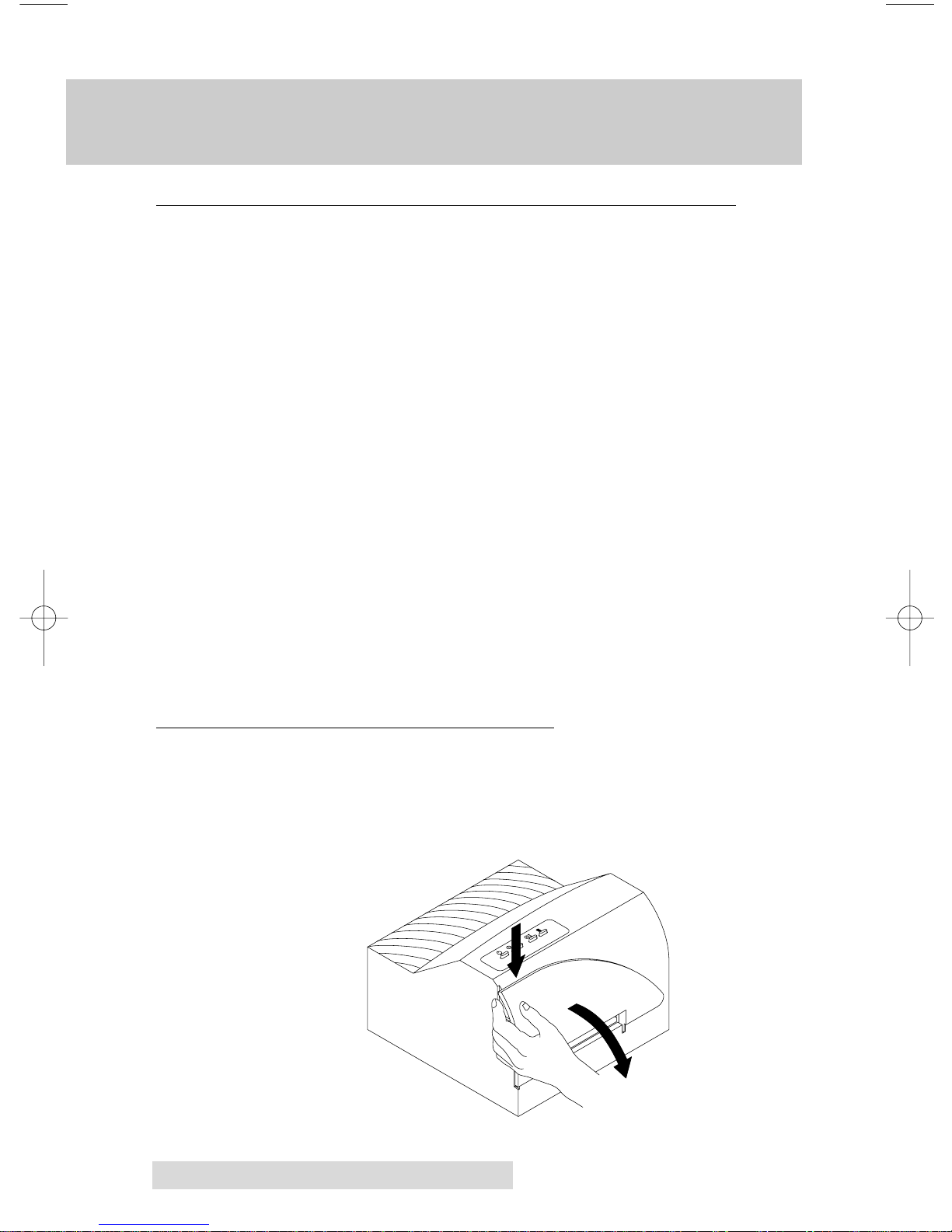
1. With the CD Tray closed, open the printerÕs front cover by
pulling down on its top-left corner.
510225 Fargo/CD Color Prtr 7/29/98 2:39 PM Page 4

Ink Cartridges and Printable CD-R’s 5
2. Remove the ink cartridge from its packaging.
3. Remove the tape covering the cartridgeÕs printhead.
DO NOT TOUCH THE COPPER AREA!
4. Press and release the Ink Cartridge button to move the
carrier to the load position.
5 Insert the ink cartridge into the cartridge carrier, copper-
end first.
6. Push the cartridge back until it snaps into place.
7. Press and release the Ink Cartridge button again to reset
the cartridge carrier.
8. Close the printerÕs front cover.
NOTE:
A Spare Ink Cartridge Holder is included with your printer. This
holder provides a convenient place to store an extra ink cartridge and
also prevents an opened ink cartridge from drying out. To use this
holder, simply insert an Ink Cartridge into the holder, copper-end
first, until it snaps into place.
510225 Fargo/CD Color Prtr 7/29/98 2:39 PM Page 5

6 Ink Cartridges and Printable CD-R’s
C. LOADING BLANK CD-R MEDIA
The CD Color Printer is capable of printing onto a variety of
CD-R related media including printable CD-RÕs, cardboard CD
templates, and jewel case booklets and inserts. Each of these
items is loaded one at a time, before the start of each print job.
Loading a Blank CD-R
1. With the printerÕs front cover shut, press and release
the CD Tray button.
2. Once the CD Tray is fully extended, place the blank CD-R
onto the tray with the printable side facing upward.
Handle the CD-R only along its edges and DO NOT touch
its printable surface.
3. Press and release the CD Tray button to close the CD
Tray. If you wish, you may also leave the CD Tray open
and it will automatically close at the start of the print job.
Once the CD-R has been printed, the CD Tray will
automatically re-open so the next blank CD-R can be
loaded.
NOTE:
Blank Cardboard CD templates are available for printing inexpensive
test prints and can be printed on both sides. Load in the exact same
fashion as an actual CD-R.
510225 Fargo/CD Color Prtr 7/29/98 2:39 PM Page 6

Ink Cartridges and Printable CD-R’s 7
Loading a Blank Jewel Case Booklet or Insert
Blank CD-R jewel case booklets and inserts are available for
creating custom jewel case labels. The jewel case booklet is
what slips into the top lid of the jewel case. The jewel case
insert is what is enclosed along the spine and back of the jewel
case. To load either, refer to the following:
1. With the printerÕs front cover shut, press and release
the CD Tray button.
2. Once the CD Tray is fully extended, place the blank jewel
case media into the CD TrayÕs securing clips as shown
below. Be sure to read the instructions printed on the
media for a description of which tear-off sections of the
media to remove before and/or after printing.
First insert leading edge into printer.
Then, pull back and secure beneath securing clips.
510225 Fargo/CD Color Prtr 7/29/98 2:39 PM Page 7
Este manual sirve para los siguientes modelos
5
Tabla de contenidos
Manuales populares de Duplicadora de discos de otras marcas


Kanguru
Kanguru U2-DVDDUPE-S Manual de usuario

StarTech.com
StarTech.com 8STSATDUP11 Manual de usuario

DUPLO SEIKO CORPORATION
DUPLO SEIKO CORPORATION Duprinter DP-460 Manual de usuario

Addonics Technologies
Addonics Technologies UDFH7 Manual de usuario

Vinpower Digital
Vinpower Digital MiniLoader VDX-1 Manual de usuario

Addonics Technologies
Addonics Technologies CFASTD5 Manual de usuario