
EverFocus ECMS Manual de usuario
ECMS
User’s Manual
Copyright © EverFocus Electronics Corp,
Release: Oct. 2009 Rev.0

2
About this document
This manual should be retained for future reference. The information in this manual
was current when published. The manufacturer reserves the right to revise and
improve its products. All specifications are therefore subject to change without
notice.
Terms and Trademark
Ethernet, Internet Explorer, Linux, Microsoft, Windows, WWW are registered
trademarks of the respective holders. Other product names appearing in this User's
Guide may be trademarks or registered trademarks of their respective holders.
Java™ and all Java-related logos and trademarks are trademarks or registered
trademarks of Sun Microsystems, Inc. in the United States and other countries.

3
TABLE OF CONTENTS
1. INTRODUCTION………………………………………………………………..4
2. FEATURES……………………………………………………………………….4
3. SYSTEM REQUIREMENTS…………………………………………………….6
3.1 Minimum System requirements………………………………………………6
3.2 Recommended System requirements…………………………………………6
3.3 Notes about using CMS………………………………………………………7
4. MAIN WINDOW MENU TREE…………………………………………………8
5. SETTING UP……………………………………………………………………..9
5.1 Log in………………………………………………………………………….9
5.2 Live Monitor………………………………………………………………….10
5.3 System………………………………………………………………………..14
5.3.1 Authority……………………………………………………………….15
5.3.2 E-Map…………………………………………………………………..23
5.4 Video Surveillance……………………………………………………………28
5.4.1 DVR……………………………………………………………………28
5.4.2 Search & Playback……………………………………………………..32
5.4.3 Display & Live…………………………………………………………39
6. SPECIFICATIONS………………………………………………………………43

4
1. INTRODUCTION
ECMS is the sate-of-the-art network video management software that supports
EverFocus Paragon, Paragon264, ECOR, ECOR264 and EDR/EDVR series DVRs.
Its web browser based architecture and built-in database engine deliver powerful
video management functions such as unlimited device tree entries, customizable user
access rights, and advanced event search. It also features an advanced E-map function
that allows users to visualize all devices on a geographic region at different zoom
levels. Working with the included EverFocus TV Wall software, it can control a
monitor wall (local or remote) containing multiple video displays. With powerful and
flexible function sets, the ECMS software delivers the most comprehensive remote
video management applications to meet your surveillance needs.
2. FEATURES
zOverview
1. Compatible with MPEG-4 and H.264 video formats
2. Support Paragon, Paragon 264, ECOR, ELR and EDR/EDVR DVR
3. Unlimited devices / maps / Monitors / live view screens / playback screens
supported
4. Internet Explorer Browser based
zLive Video
1. Support configurable view layout and display presets for custom split screens
with assigned DVR
2. Support remote viewing
3. User grouping tree, device tree and map tree with filtered views
4. Support device drag and drop function on layout setting and device
configuration
5. Support PTZ control, including control of presets and patterns, tours
zLive Monitor
1. Multi-monitor support Video TV Wall via display terminal setting
2. Support multiple monitors to display separate information
3. View real-time alarms and alarm history
zPlayback and Search

5
1. Support multiple concurrent video and audio playback from DVR
2. Searching can be queried based on channel; date and time and event type
3. Support several playback speeds in fast forward and fast reverse playback.
4. Support multiple video and audio archive
zE-Map
1. Support Google Map and E-map function
2. Insert Map-Link and DVR
zUser Management
1. User database with login, password and contact details
2. Support user authentication and permission
3. Support user grouping. One user can be assigned to one group and inherit the
privileges of the group.
4. User privileges can be assigned per DVR, per E-map and function.

6
3. SYSTEM REQUIREMENTS
3.1 Minimum System requirements
• No existing SQL server system installed
• Intel Pentium 4 531 3.0 GHz, 1 MB Cache, 800 MHz FSB
• Microsoft Windows XP Professional SP2, Microsoft Windows Vista. Window7
• Microsoft Internet Explorer Version 7.0.
• 1.0 GB of RAM
• 10 GB of free hard disk space or more
• Display adapter with 256 MB or better
• 1024 x 768 or higher screen resolution
• 10/100/1000 Ethernet Network adapter
• Microsoft DirectX 9.0c or better
• AppServ 2.5.10 (Apache 2.2.8, PHP 5.2.6, MySQL 5.0.51b,
phpMyAdmin-2.10.3) or later
3.2 Recommended System requirements
a) When more than 16 channels are enabled in live view and playback mode together,
it is recommended that the client PC meets below system requirements for optimal
performance.
• Intel Core2 Duo E7400 2.8 GHz or higher, 3 MB Cache, 1066 MHz FSB
• Microsoft Windows XP Professional SP3, or Microsoft Windows Vista.
• Microsoft Internet Explorer Version 7.0.
• 2.0 GB of RAM
• 10 GB of free hard disk space or more
• Graphics card with 512 MB memory or better
• 1024 x 768 or higher screen resolution
• 10/100/1000 Ethernet Network adapter
• Microsoft DirectX 9.0c or better
• AppServ 2.5.10 (Apache 2.2.8 ,PHP 5.2.6 ,MySQL
5.0.51b ,phpMyAdmin-2.10.3) or later

7
b) When more than 64 channels are enabled in live view and playback mode together,
it is recommended that the client PC meets below system requirements for optimal
performance.
• Intel Core2 Quad Q9400 2.66 GHz or higher, 6 MB Cache, 1333 MHz FSB
• Microsoft Windows XP Professional SP3, or Microsoft Windows Vista.
• Microsoft Internet Explorer Version 7.0.
• 4.0 GB of RAM
• 10 GB of free hard disk space or more
• Graphics card with 1 GB memory or better
• 1024 x 768 or higher screen resolution
• 10/100/1000 Ethernet Network adapter
• Microsoft DirectX 9.0c or better
• AppServ 2.5.10 (Apache 2.2.8, PHP 5.2.6, MySQL 5.0.51b,
phpMyAdmin-2.10.3) or later
3.3 Notes about using CMS
1. Client PC’s performance (mostly CPU speed, size of RAM, and graphics card) and
network bandwidth may affect live view and playback quality and the amount of time
it takes to archive video.
2. Please use a dedicated or clean PC to install CMS.

8
4. MAIN WINDOW MENU TREE
9
5. SETTING UP
5.1 Log in
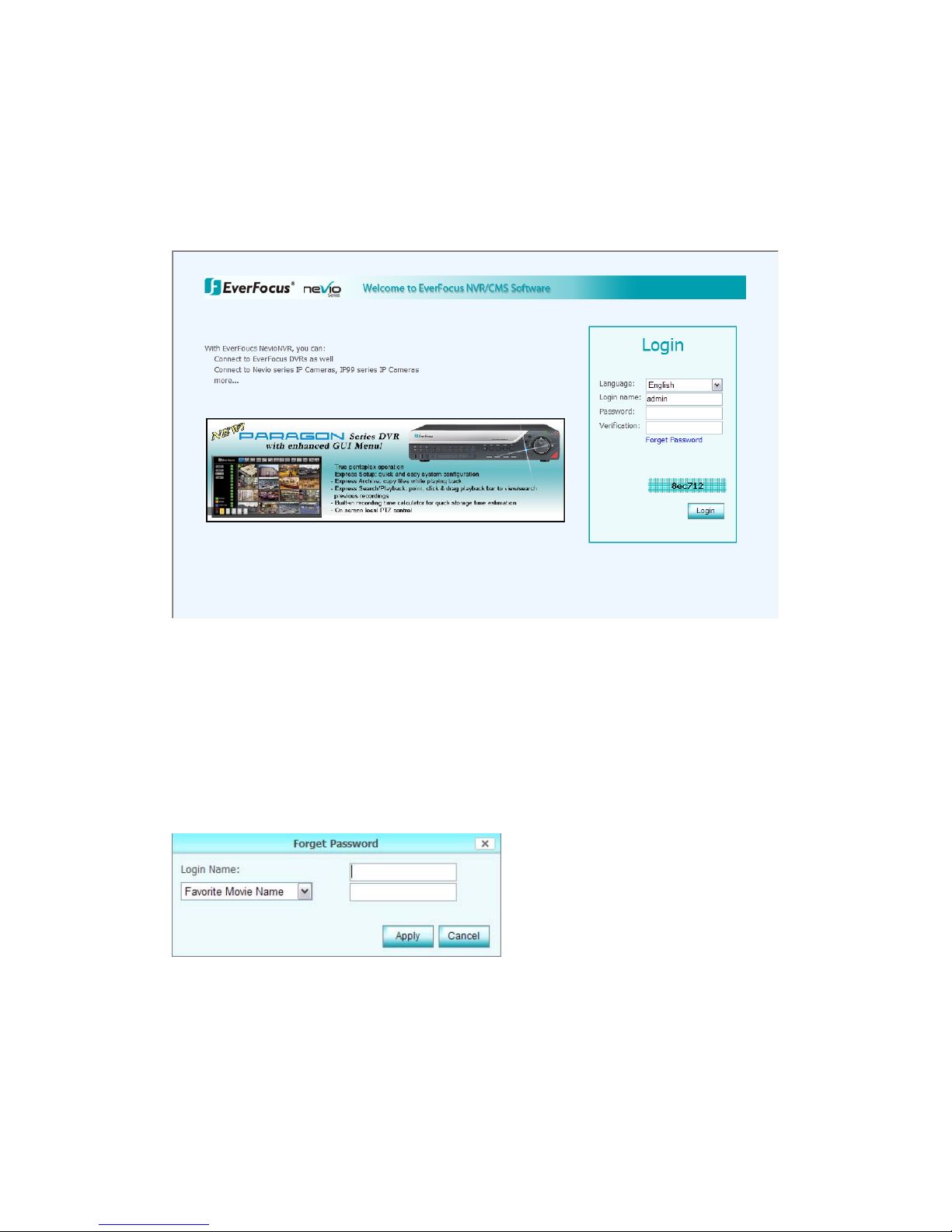
Enter the IP address and you will see the login page.
1. Language: select the language
2. Login name: type in Login name. (Default Login name: Admin)
3. Password: type in the password. (Default Password: 11111111)
4. Verification: type in the verification code.
5. Forget Password: If user forgot the password, click on “Forget Password” to
display the hint set in “Authorities=>My Account=>User Setting”.

10
5.2 Live Monitor
The default login page is Live Monitor.
The Live Monitor configuration page contains the following tabs:
The CMS-DVR contains three sections: Live Monitor, System and Video
Surveillance.
In live monitor, the main page is divided into 7 sections:
1. Click to draw back the left panel. Click again to unfold it.
2. Device list:
Select device group first, all the devices will be shown under device group.
2
3
5
6
7
1
4
Tabla de contenidos
Otros manuales de Software de EverFocus


Manuales populares de Software de otras marcas


PS Audio
PS Audio PowerPlay Manual del propietario

Brady
Brady LOCKOUT PRO 3.0 Manual de servicio

Avaya
Avaya Interaction Center Manual de usuario

Texas Instruments
Texas Instruments TI-83 Plus Silver Edition Manual

Novell
Novell GROUPWISE 8 - INTERNET AGENT Manual de usuario

Oracle
Oracle Application 9i Manual de usuario

Acer
Acer RDM Manual de usuario

Canon
Canon Vixia HF21 Manual de usuario

Canon
Canon ZR950 Manual de usuario

Samsung
Samsung Auto Backup Manual de usuario

Polycom
Polycom Vortex EF2201 Instrucciones de instalación y funcionamiento

Brocade Communications Systems
Brocade Communications Systems Brocade 8/12c Manual de usuario