
E-matic EM200VID Manual de usuario

EM200VID
Designed in the United States V1

i
TABLE OF CONTENTS
Introduction ........................................................................................................................................................................................................... 1
Important Safety Precautions............................................................................................................................................................................... 2
Features................................................................................................................................................................................................................. 3
Location of Controls............................................................................................................................................................................................. 4
Connecting with the Computer............................................................................................................................................................................ 5
System requirements .......................................................................................................................................................................................... 5
Installing the drive for windows 98 SE ................................................................................................................................................................ 5
Connecting player to computer ........................................................................................................................................................................... 6
Loading files to the player................................................................................................................................................................................... 7
Disconnecting the USB cable ............................................................................................................................................................................. 8
Charging the battery ........................................................................................................................................................................................... 9
Using microSD™ (TF) Card Slot to Add Memory ............................................................................................................................................. 10
Basic Operation....................................................................................................................................................................................................11
Turning on/off the player ....................................................................................................................................................................................11
Adjusting the volume..........................................................................................................................................................................................11
Resetting the player...........................................................................................................................................................................................11
Selecting main menu or mode ...........................................................................................................................................................................11
Listening to Music............................................................................................................................................................................................... 13
Turning on and playing ..................................................................................................................................................................................... 13
Display .............................................................................................................................................................................................................. 13
Pausing playback.............................................................................................................................................................................................. 14

ii
Skipping tracks ................................................................................................................................................................................................. 14
Searching backward or forward within a track .................................................................................................................................................. 14
A-B function ...................................................................................................................................................................................................... 14
Using the music menu ...................................................................................................................................................................................... 15
Displaying lyric synchronously .......................................................................................................................................................................... 18
Listening to the FM Radio .................................................................................................................................................................................. 19
Display .............................................................................................................................................................................................................. 20
Changing search mode..................................................................................................................................................................................... 20
Automatic searching and storing the frequencies ............................................................................................................................................. 21
Manual searching and storing a frequency ....................................................................................................................................................... 21
Selecting FM region.......................................................................................................................................................................................... 22
FM recording..................................................................................................................................................................................................... 22
Voice Recording and Playing............................................................................................................................................................................. 23
Recording the voice .......................................................................................................................................................................................... 23
Listening to the recordings................................................................................................................................................................................ 24
Setting the recording quality ............................................................................................................................................................................. 25
Watching Video ................................................................................................................................................................................................... 26
Pausing playback.............................................................................................................................................................................................. 26
Skipping video files ........................................................................................................................................................................................... 26
Searching backward or forward ........................................................................................................................................................................ 26
Using the video menu ....................................................................................................................................................................................... 27
Viewing Picture.................................................................................................................................................................................................... 29
Moving to previous/next picture ........................................................................................................................................................................ 29

iii
Using the picture menu..................................................................................................................................................................................... 30
Reading E-book................................................................................................................................................................................................... 31
Moving to previous/next page ........................................................................................................................................................................... 31
Managing the Files.............................................................................................................................................................................................. 32
Browsing all files ............................................................................................................................................................................................... 32
Deleting a file .................................................................................................................................................................................................... 32
Settings................................................................................................................................................................................................................ 33
Navigating the settings menu............................................................................................................................................................................ 33
Setting USB mode ............................................................................................................................................................................................ 34
Setting time....................................................................................................................................................................................................... 34
Setting power.................................................................................................................................................................................................... 35
Setting language ............................................................................................................................................................................................... 35
Setting display .................................................................................................................................................................................................. 36
System tools ..................................................................................................................................................................................................... 36
Storage ............................................................................................................................................................................................................. 37
Hold time........................................................................................................................................................................................................... 37
Converting Video to MTV or AVI Format ........................................................................................................................................................... 38
Troubleshooting.................................................................................................................................................................................................. 39
Specifications...................................................................................................................................................................................................... 40

1
Introduction
Congratulations on purchasing the MP3 Player.
Before using the player, read this manual thoroughly and keep it for future reference. This manual will help you use many of the exiting features to
make your player view more enjoyable.
This manual contains important safety information and correct operation instructions. Read the manual carefully before you use the player in
order to avoid any unexpected accident.
We assume no responsibility for the errors or omissions in this manual. We also have no
responsibility for damages or loss of data caused by improper operation.
The instruction manual is subject to change for improvement without notice.
Trademarks and trade names used in this instruction manual are owned by their respective
companies or organizations.
2
Important Safety Precautions
Always follow these basic safety precautions when using your player. This will reduce the risk of product damage and personal injury.
yDo not disassemble, repair or modify the player by yourself. Refer servicing to qualified personnel.
yDo not dispose of the player in fire to avoid explosion because the player has built-in battery.
yDo not touch the player with bare hands if the built-in battery is leaking. In this case, contact service center for help since the liquid may
remain in the player. If your body or clothes has contacted with the battery liquid, wash it off thoroughly with water. Also, if some of liquid
gets into your eyes, do not rub your eyes but immediately wash them with clean water, and consult a doctor.
yKeep the player away from direct sunlight and heat source.
yDo not expose the unit to rain or moisture to avoid any malfunction.
yDo not use the player in rather dry environment to avoid static.
yNever apply heavy impact on the player like dropping it or placing it on the magnet.
yRoute USB cable so that people and pets are not likely to trip over or accidentally pull on them as they move around or walk through the
area.
yDisconnect the USB cable from the computer when you do not use the player for a long time.
yClean only with dry cloth. Make sure the player is turned off before cleaning. Do not use liquid cleanser.
yBe sure to back up your files. We will not be liable for the loss of data due to improper operation, repair or other causes.
Precautions in using the earphone
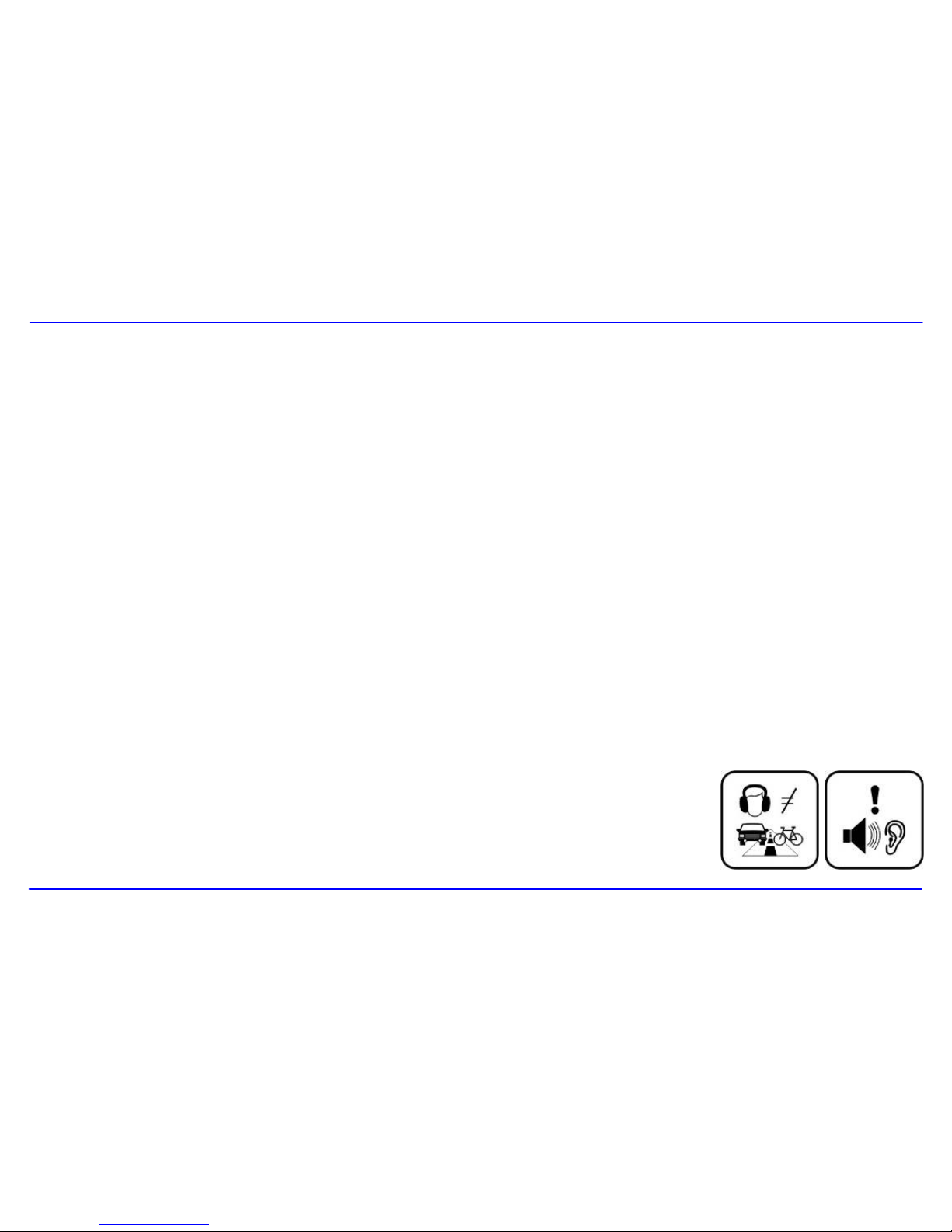
yDo not use the earphone while driving an automobile or riding a bicycle. It is not only dangerous, but
also against the law. To avoid an accident, do not turn up the volume of the earphones too high while
walking.

3
yIt’s not recommended that you use the earphones at a high volume for an extended time as this may cause hearing damage.
y
Features
y2.0 inch TFT color LCD (262K color, 176×220 pixel)
yBuilt-in rechargeable Li-polymer battery
yDual earphone jacks
yUSB 2.0 high speed transmission
yFeatures microSD™ expansion slot to add memory capacity
ySupports playback of MP3, WMA, WAV and DRM(Digital Rights Management)-protected WMA music files
ySupports multiple equalizer (EQ) and 3D sound effects
ySupports multiple playback mode: section repeat, file repeat, folder repeat and random
ySupports the basic information of titles, artists and albums of music files(ID3 tag) or lyrics synchronization show while music is playing
ySupports browse of JPG and BMP picture files
ySupports MTV video format; other formats of video can be played after conversion (file transformation tool included)
ySupports browse of e-book in TXT format
yFM stereo receiver with auto channel search and channel preset function.
ySupports FM and Voice recording via the built-in microphone
yMultiple language user’s interface

4
Location of Controls
1. [ ] Power On/Off
2. FUNC
3. microSDTM card slot
4. Screen display
5. [i] Up /Volume up
6. [h] Right
7. [j] Down / Volume down
8. [g] Left
9. [|] Play/Pause
10. Reset hole
11. Microphone
12. Dual earphone jacks
13. USB cable connection port

5
Connecting with the Computer
System requirements
You computer system must meet the following specifications:
yPentium 200MHz or above
yMicrosoft Windows 98SE/2000/ME/XP
y120MB of available hard disk space
yUSB port supported
yCD-ROM drive
Installing the drive for windows 98 SE
If your computer is running Windows ME/2000/XP, no driver is required to install.
If your computer is running Windows 98 SE, you must install the drive provided on the CD before connecting the player to your computer.
1. Insert the installation CD into the CD-ROM driver.
2. Execute the “USB Disk Win98 Driver Version xxx.exe” file in the CD and follow the instructions in window to complete the installation.
3. Restart the computer.
Note: Make sure the player is disconnected from the computer when installing the drive.

6
Connecting player to computer
Files can be transferred directly into the player using the USB data cable. Make sure that your computer is powered on. Below is the procedure of
connecting with computer:
1. Plug the larger USB connector of the USB cable into the USB port on the computer.
2. Plug the other end (the smaller end) of the USB cable to the player.
For Windows 98 SE/ME /2000
yWhen the MP3 player is connected to your computer, a “Removable Disk” will be created in the “My computer”. This is called the USB
standard mode, also the Media Storage Class mode (MSC mode).
For Windows XP with Media Player 10 or above
yIt is only in this configuration that the Media Transport Protocol mode (MTP mode) is available.
The player is recognized as an “Audio Player” and following is displayed:
To switch from the MTP mode to MSC mode, touch [|] on the player. The Player now exists as a
removable disc in the My Computer.
Tabla de contenidos
Otros manuales de Reproductor de MP3 de E-matic

E-matic
E-matic EM208VIDBL Manual de usuario

E-matic
E-matic EM144VID Manual de usuario

E-matic
E-matic EM318 Manual de usuario

E-matic
E-matic EM104VID Manual de usuario

E-matic
E-matic E6 Series Manual de usuario

E-matic
E-matic EM304CAM Manual de usuario

E-matic
E-matic E6 Series Manual de usuario

E-matic
E-matic eSport Clip Manual de usuario

E-matic
E-matic EM604VID Manual de usuario

E-matic
E-matic EM164VID Manual de usuario


