
CUE keyboardCUE 99 Manual de usuario

CUE spol. s r.o., Na Dolinách 6, 147 00 Praha 4, Czech Republic
fax: +420 241 432 446
www.cuesystem.com
e-mail: [email protected]
phone: +420 241 433 555
User Manual
keyboardCUE 99
Version 01

User Manual keyboardCUE 99
UM021_01, 01.04.2003
Copyright © CUE, spol. s r.o. Praha, Czech Republic 1990 - 2003.
All rights reserved. Specifications are subject to change without prior notice.

User Manual keyboardCUE 99
www.cuesystem.com
Page 3 of 16
Table of Contents
1. Introduction .................................................................................................................................... 4
1.1. Overview .......................................................................................................................................................................4
1.2. Models...........................................................................................................................................................................4
1.3. Features ........................................................................................................................................................................4
1.4. Programming.................................................................................................................................................................4
2. Front Panel ..................................................................................................................................... 5
3. Button Labels ................................................................................................................................. 6
4. Addressing ..................................................................................................................................... 7
5. Connecting ..................................................................................................................................... 9
6. Specifications and Mechanical Drawings ................................................................................. 10
7. Software and Firmware License................................................................................................. 11
8. Warranty Conditions ................................................................................................................... 12
9. CE Declaration of Conformity..................................................................................................... 13
10. FCC................................................................................................................................................ 14

User Manual keyboardCUE 99
www.cuesystem.com
Page 4 of 16
1. Introduction
1.1. Overview ....................................................................
There simply isn’t anything that compares with the beautiful, elegant and powerful wired keyboardCUE
99. This tabletop programmable control panel device features a solid wood and stainless steel
enclosure and is available in mahogany, birch, white birch and oak finishes. The keyboardCUE 99
provides 32 buttons supported with two-color backlight and user changeable button labels that can be
printed on a laser printer and inserted into the keyboard. The full-function console keyboard may be
used as dedicated wired controller for audio, video and environmental functions.
1.2. Models........................................................................
This User Manual describes products itemized in table below.
Model Product code Description
keyboardCUE 99 CS0145 Tabletop keyboard, (32) buttons
1.3. Features .....................................................................
•Backlight buttons with programmable feedback indication
•16-LEDs bar graphs
•User changeable button labels
•Stainless steel front panel
•Wooden enclosure
•Tabletop installation
•System connection by CUEwire
1.4. Programming .............................................................
The keyboard is programmed using Cue Director programming tool. Control commands are
described in the Programming Manual CPL References, chapter Keyboards.
User Manual keyboardCUE 99
www.cuesystem.com
Page 5 of 16
2. Front Panel
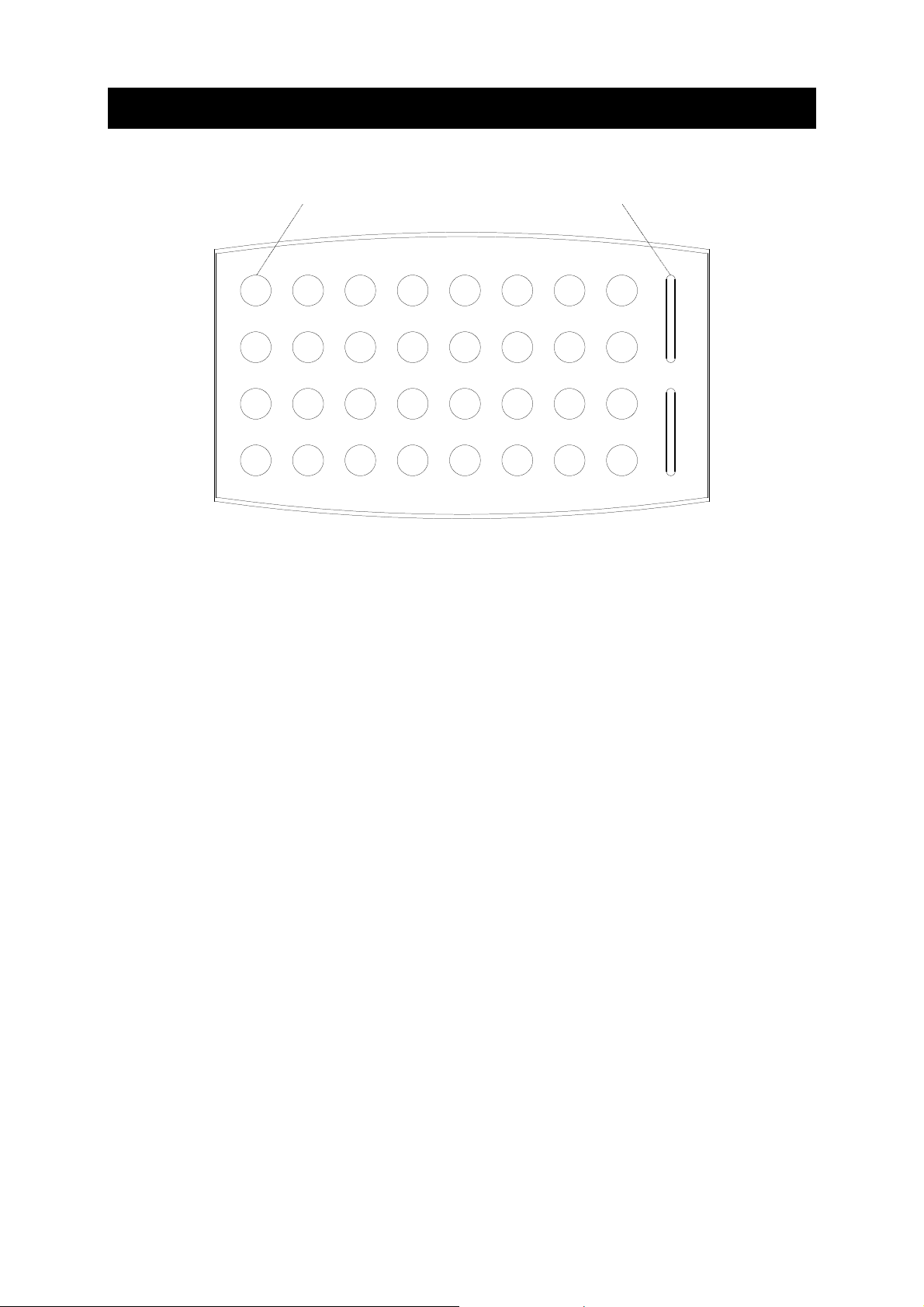
The front panel is equipped with (32) buttons and (2) bar graphs - see picture.
(32) buttons (2) bargraphs 16-LEDs
All buttons have red or green back light. All buttons are set to green back light after keyboard switch
on. Back light color can be change for each button independently from a control unit by a program
commands. Different colors are used for a status indication.
Bar graphs are equipped with (16) LEDs and they are controlled by special programming commands
from a control unit.

User Manual keyboardCUE 99
www.cuesystem.com
Page 6 of 16
3. Button Labels
The keyboard uses one big label foil for all buttons. The foil (manufacturer 3M, type CG3300 or
CG3360) can be printed on a standard printer and the layout can be prepared on a PC. For
preparation of the layout use AutoCAD file named CS0145.0001.3-Foil.dwg. This file is available on
www.cuesystem.com.
12345678
9 10111213141516
17 18 19 20 21 22 23 24
25 26 27 28 29 30 31 32
If the foil was printed it is necessary to change it in the keyboard. Steps are
1. Cut the foil into a shape according the picture (see above).
2. Put the keyboard on a table face down.
3. Unscrew (6) screws near girth - see picture.
(6) screws
4. Dismount the keyboard bottom with electronic board.
5. Insert new label foil.
6. Fix the label foil to the panel with two small pieces of both side adhesive tape (thickness 1
mm). Make sure that the label foil is not in collision with the wooden part of the keyboard.
7. Assembly the keyboard.

User Manual keyboardCUE 99
www.cuesystem.com
Page 7 of 16
4. Addressing
The BUTTON_ID transmitted by a keyboard and BARGRAPH_ID are numbers used in the
programming for button and bar graph identification. Both values depend on a button or bargraph
position and it depends on a keypad ADDRESS too. Both values are calculated according formulas
BUTTON_ID = Offset + Button Code
BARGRAPH_ID = Offset + Bar Graph Code
Offset = 32 * ADDRESS
The lowest BUTTON_ID is generated by a button in the upper left corner the highest BUTTON_ID is
generated by a button in the lower right corner. The top bargraph has higher BARGRAPH_ID the
bottom bargraph has lower BARGRAPH_ID - see example for ADDRESS = 0.
12345678
9 10111213141516
17 18 19 20 21 22 23 24
25 26 27 28 29 30 31 32
Bargraph Code = 2
Bargraph Code = 1
Button Code = 1
In the table below there are BUTTON_ID range and BARGRAPH_ID range for all addresses.
ADDRESS BUTTON_ID range BARGRAPH_ID range
0 1 32 1 2
1 33 64 33 34
2 65 96 65 66
3 97 128 97 98
4 129 160 129 130
5 161 192 161 162
6 193 224 193 194
7 225 256 225 226
8 257 288 257 258
9 289 320 289 290

User Manual keyboardCUE 99
www.cuesystem.com
Page 8 of 16
The ADDRESS of the keyboard is binary coded by DIP switch located on the bottom panel.
The ADDRESS can be set in the range 0 to 9.
Switch view Switch nr. Function
SW1 ADDRESS bit 0
SW2 ADDRESS bit 1
SW3 ADDRESS bit 2
SW4 ADDRESS bit 3
SW5 Not used
SW6 Not used
SW7 Not used
ON
17654328
SW8 Not used
ADDRESS SW1 SW2 SW3 SW4
0 OFF OFF OFF OFF
1 ON OFF OFF OFF
2 OFF ON OFF OFF
3 ON ON OFF OFF
4 OFF OFF ON OFF
5 ON OFF ON OFF
6 OFF ON ON OFF
7 ON ON ON OFF
8 OFF OFF OFF ON
9 ON OFF OFF ON

User Manual keyboardCUE 99
www.cuesystem.com
Page 9 of 16
5. Connecting
This model of the keyboard is connected to the system by CUEwire. The keyboard is equipped with 3
m length or 10 m length cable with 4-pin connector.
1 432
OUT RS-485INE
Assistant or Assistant-S
Pin connection of the CUEwire connector is described in the following table.
CUEwire, 4-pin connector
Pin 1 +24 VDC
Pin 2 GND
Pin 3 A+
Pin 4 B-
1 432
User Manual keyboardCUE 99
www.cuesystem.com
Page 10 of 16
6. Specifications and Mechanical Drawings
Buttons layout......................................(32) buttons
Buttons back-light ................................Two-color, programmable red or green
Bar graphs ...........................................(2) 16-LEDs red
System connection ..............................CUEwire (RS-485), 4-pin connector
Power supply .......................................24 VDC (+/- 20%), 10 W
Enclosure.............................................Wood - stainless steel panel
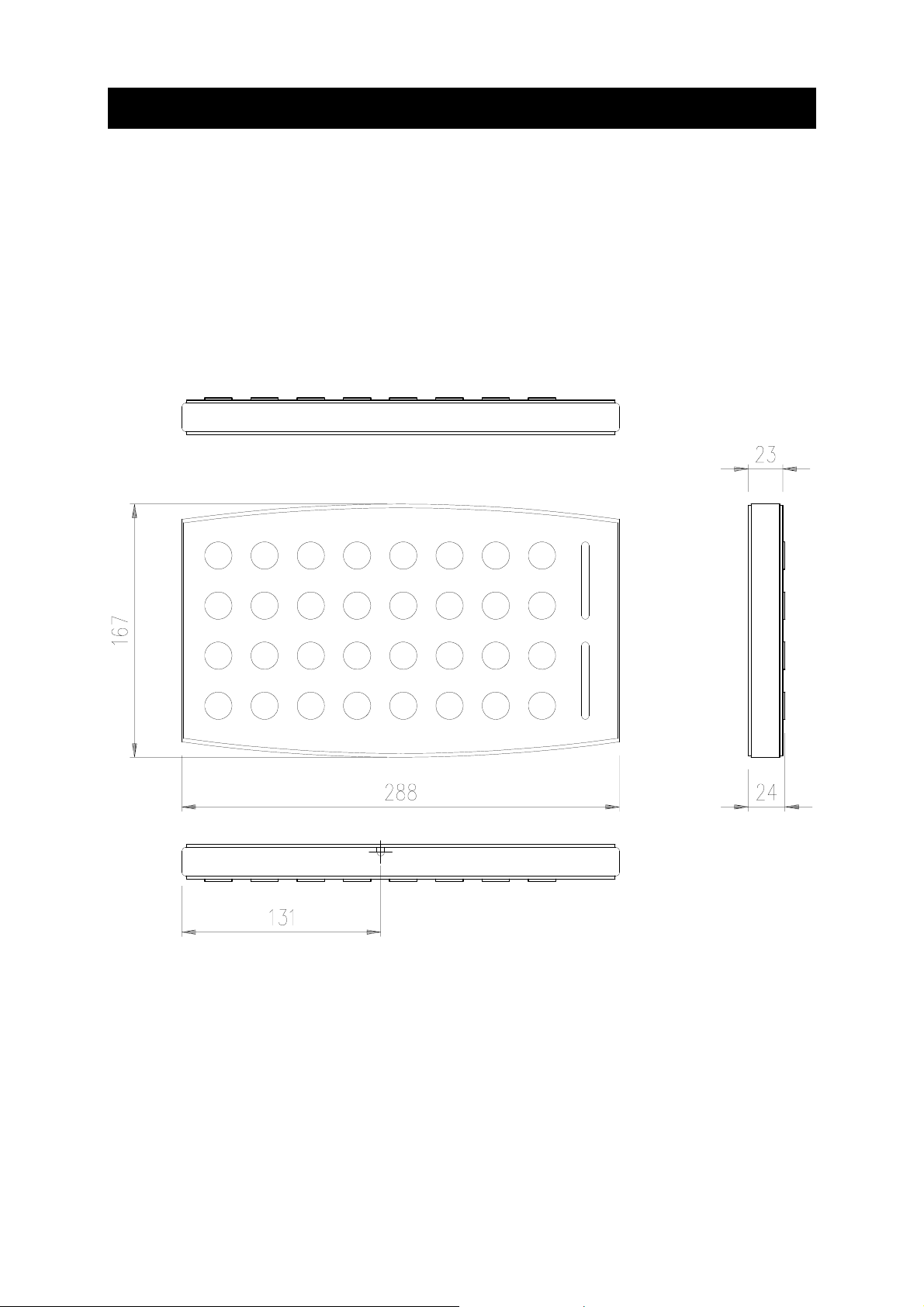
Dimensions (WxHxD) ..........................288 mm (11.3”) x 167 mm (6.6”) x 24 mm (0.9”)
Weight..................................................1.34 kg / 3.6 lb
Options ................................................Custom silk screen on request
All dimensions are in mm.
Este manual sirve para los siguientes modelos
1
Tabla de contenidos
Otros manuales de Teclado de CUE


