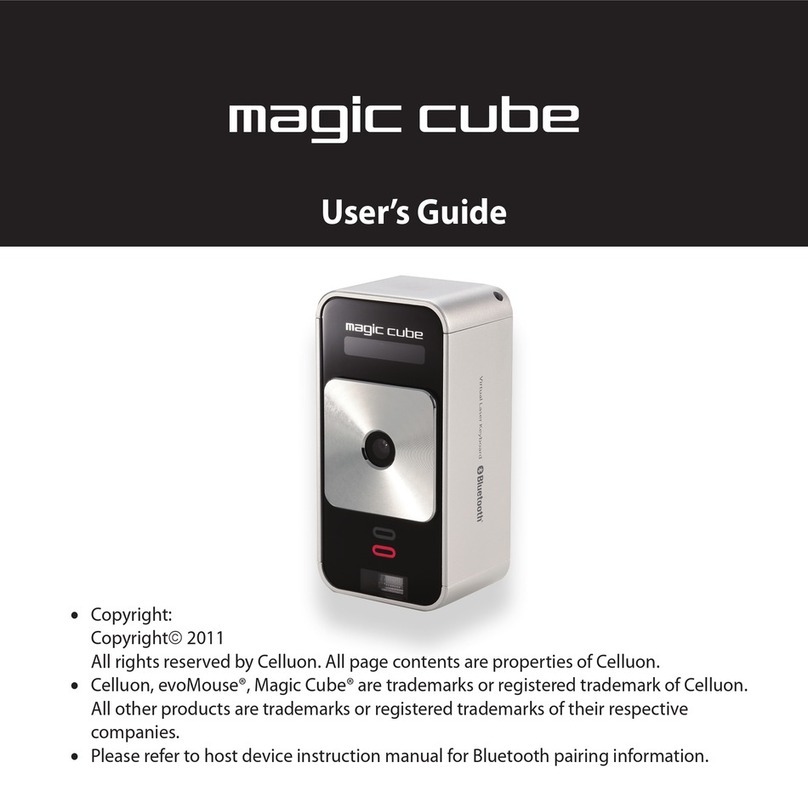
Celluon magic cube Manual de usuario

•Copyright:
Copyright2011
All rights reserved by Celluon. All page contents are properties of Celluon.
•Celluon, evoMouse®, Magic Cube™ are trademarks or registered trademark of Celluon.
All other products are trademarks or registered trademarks of their respective
companies.
•Please refer to host device instruction manual for Bluetooth pairing information.
User’s Guide

2 3
Safety Precautions
1. Avoid exposing this product to direct sunlight for extend-
ed periods of time, and keep it away from heat sources.
2. There is a risk of malfunction if product is used in places
where sudden or extreme temperature changes occur.
3. Applying excessive force or impact to this product may
result in product damage, and will void warranty.
4. To ensure safety and prevent damage, use only the dedi-
cated mini-USB to USB cable supplied with this product.
5. Never attempt to disassemble or service this product
yourself. Doing so can result in electrical shock and will
void the warranty.
6. This Class 1 laser product is certied by FDA safety regula-
tion. For your safety, please do not stare directly into the
laser source. Doing so could damage your eyes.
7. Avoid placing any object within the space between the
main unit and the laser projection keyboard layout.
8. Please do not use this product on uneven or irregular
surfaces. Place the product on a at surface. Avoid table
or surface that is as transparent or reective as glass or
mirror.
FCC Compliance Information
This device complies with Part 15 of the FCC Rules.
Operation is subject to the following two conditions:
1. This device may not cause harmful interference to another
device, and
2. This device must accept any interference received, includ-
ing interference that may cause undesired operation.

4 5
FCC Class B Notice
This equipment has been tested and found to comply within
the limits for a Class B digital device, pursuant to Part 15 of
the FCC Rules.
These limits are designed to provide reasonable protection
against harmful interference when the equipment is oper-
ated in a residential environment.
This equipment generates, uses, and radiates radio fre-
quency energy, and if not installed and used in accordance
with the instructions, may cause harmful interference to
radio communications.
However, there is no guarantee that interference will not
occur with special
installation. If this equipment does cause interference to
radio or television reception, which can be determined by
turning the equipment o and on, the user is encouraged to
correct the interference by one of the following measures:
- Reorient or relocate the receiving antenna.
- Increase separation between the equipment and receiver.
- Connect the equipment to an outlet on a circuit dierent
from which the receiver is connected.
- Consult the dealer or an experienced radio/TV technician
FCC Warning
This equipment generates and uses radio frequency energy.
If this equipment is changed or modied in any way except
for modications approved in this manual, it may cause
harmful interference. Any unauthorized changes or modica-
tions to this equipment could void the user’s authority to
operate this device.

6 7
RF Exposure Information
The antenna used for this transmitter must be installed to
provide a separation distance of at least 20 cm from all per-
sons and must not be co-located or operating in conjunction
with any other antenna or transmitter.
❏Caution : Battery may explode if replaced with an in-
compatible battery. Dispose the used batteries
according to the instructions. “ This transmitter
must not be co-located or operated in conjunc-
tion with any other antenna or transmitter.”
❏Caution : Antenna shall be mounted in such a manner
to minimize the potential for human contact
during normal operation. The antenna should
not be touched during operation to avoid the
possibility of exceeding the FCC radio frequency
exposure limit.
❏Laser Safety
IEC 60825 : CLASS I
FDA : CLASS II
Class 2 Laser Product
RoHS
compliant
KCC-CMM-CLK-
MagicCube

8 9
❏Environmentally Friendly Disposal and Recycling
This product does not contain any substances known to be
hazardous to human health. To protect the environment,
dispose of this product separately from household waste
once it has reached its end of life, or take it to your nearest
Celluon Service Center.
About the Built-in Battery
Rechargeable Lithium Polymer Battery:
Battery Operating Time: Approx. 150 minutes (with con-
tinuous use)
Capacity: 700mAh (Max)@3.7V
Charging the Battery: Use supplied USB cable to begin
charging the battery. When the charging is complete, bat-
tery status LED turns green.
Charging Time: Approx.240 minutes
Note
Charging time increases if product is used while charging.

10 11
Cautions
1. For safety reasons, be sure to use only the mini USB to
USB cable specied for this product.
2. Make sure to fully charge the battery before using the
product for the rst time.
3. Battery charging times may vary slightly depending on
the ambient temperature.
4. The battery may not be charge to 100 percent of its
rated cell capacity even when the battery status LED
indicates green light.
5. Using or storing the battery in high temperature,
humidity and pressure environments may cause the
battery to explode.
6. Since the battery is a consumable item, its storage
capacity decreases gradually as time passes.
Contents
1. Product Features........................................................12
2. Package Contents......................................................12
3. How this Product Works .........................................13
4. Identifying Parts and their Functions.................17
5. Using the Projection Keyboard.............................21
5.1 Connecting via USB HID..................................21
5.2 Connecting via Bluetooth HID......................22
Specication .....................................................................44

12 13
1. Product Features
•English QWERTY keyboard layout.
•Compact size for portability – perfect for on-the-go
•Function icons and shortcut keys for ease of operation
•Non-mechanical optical mechanism for superior
durability
•Built-in Lithium Polymer rechargeable battery for
mobility and
convenience
•Compatible with latest devices: Window XP/Vista/7,
Windows Phone 7, iOS4 (iPhone3GS/4, iPad), and
Android 2.2 or higher
2. Package Contents
•Projection Keyboard
•USB Cable
•User’s guide
3. How this Product Works
This product emits infrared light from the lower end
of the product to detect objects such as ngers. When
an object passes through the area illuminated by the
infrared light source, any infrared light reecting o the
object is detected by the sensor. Information on the
position and movement of the object is then analyzed to
perform the product’s role as a keyboard.
Sensitivity: dierence in thickness, shape, and color of
the user’s ngers or operating environment result in
dierences in the amount of reected infrared light. If
the amount of reected infrared light is appropriate, the
sensor will have no problem detecting objects such as
ngers. However, if the amount of reected infrared light
becomes low because of the causes mentioned above
or some other cause, the keystroke recognition rate may
decrease or your keystrokes may not be recognized at
all. On the other hand, if the amount of reected infrared

14 15
light is too high, the keystroke recognition may become
too sensitive or a“hovering”eect may occur.
(Hovering: keystroke is recognized before your nger
touches the projection surface.)
Therefore, it is necessary to compensate for dierences in
nger characteristics or operating environment, and this
can be accomplished by adjusting the sensitivity of your
projection keyboard.
Given the same amount of reected infrared light, in-
creasing the sensitivity will produce the eect of a higher
amount of reection, whereas decreasing the sensitivity
will produce the eect of a lower amount of reection.
With the sensitivity set to its minimum value, repeatedly
press a key that is relatively far from the sensor (Spacebar,
CTRL, etc.) to increase the sensitivity. As soon as your
keystroke is recognized, stop adjusting the sensitivity and
set the nal setting value to one or two notches above
original setting.
Conditions to Avoid:
1. Avoid direct sunlight
2. Avoid low color temperature light source, such as tung-
sten, halogen, or incandescent lamp is used.
3. Avoid uneven or irregular surfaces. Place the product on
at surfaces.
4. Avoid a table or surface that is as transparent or reec-
tive as glass or mirror.
5. Avoid placing any objects within the space between the
main unit and the laser projected keyboard layout.
Because this product uses infrared rays, strong infrared
radiation from direct or reected sunlight or from tungsten
(halogen or incandescent) lighting may cause operating error.
Note

16 17
Although this equipment is classied as Class 1 laser product,
for your safety, do not directly expose your eyes to pattern
projection beams or infrared rays.
Caution 4. Identifying Parts and their Functions.
(1) Projector: Uses a red laser to project the image of a
keyboard onto a at surface in front of the typist.
(2) Sensor: Picks up the infrared light reected o the
typist’s ngers and triangulates the location of the
reected light to determine which key was pressed.
This sensor provides a keyboard function.
(3) IR Light Window: Uses an infrared laser to emit an
invisible plane of light a few millimeters above the
projection surface so that the infrared light can be
reected o of the typist’s ngers to the sensor.
If one or more of the above modules are blocked by some
cause, the projected keyboard image may not be displayed
correctly or, the location and movement of the typist’s
ngers may not be recognize correctly.
Caution

18 19
Front View Rear View
Battery Lower LED
Charging Red
Full Green
Low Orange
HID Upper LED
Searching last device Bright Blue(blinking)
Searching new device Dark Blue(blinking)
Successful pairing Bright Blue
Disconnected
Blue and Green(alternating)
SPP Upper LED
Searching for device Dark Blue(blinking)
Successful pairing Bright Blue
Disconnected
Blue and Green(alternating)
USB USB Upper LED
Connected Green Green
Keyboard Upper LED
Connected via USB Green
Connected via HID Bright Blue
Connected via SPP Bright Blue
Mouse Mode Upper LED
Connected via USB Green (blinking)
Connected via HID Bright Blue(blinking)
Connected via SPP Bright Blue(blinking)
Battery / Bluetooth/
Keyboard/ Mouse/
Charging/ Operating
Status LED
Pattern Projector
Sensor
HID/SPP MODE
SWITCH
STRAP LOOP
MINI USB PORT
POWER SWITCH
Otros manuales para magic cube
3
Tabla de contenidos
Otros manuales de Teclado de Celluon