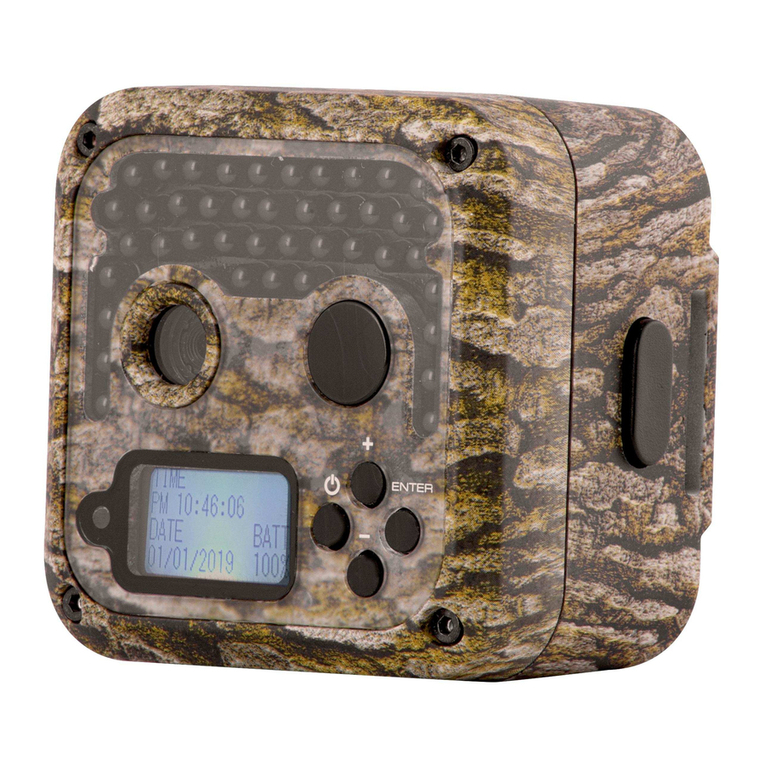
Braun Black400 WiFi Solar Manual de usuario

BRAUN Scouting Cam
Black400 WiFi 4K

Language
English---------------------------------------- 01~18
Deutsch--------------------------------------- 19~38
Française------------------------------------- 39~58
Italiana-----------------------------------------59~77
Española--------------------------------------78~96

-01-
EN
Table of Contents
1. Function Introduction------------------------------------------ 02
2. Instructions for Use---------------------------------------------02
3. Appearance, Button Function Introduction--------------- 03
4. System Settings-------------------------------------------------05
5. Playback Modes-------------------------------------------------11
6. Turn on WIFI by Bluetooth Remote------------------------ 12
7. Working Mode Description----------------------------------- 16
8. Image / Data Output------------------------------------------- 17
9. Specification----------------------------------------------------- 18

-02-
1. Function Introduction
Thank you for buying our BRAUN hunting camera. This product is
a dedicated high-definition digital camera that can record and
observe wildlife. This camera has passive infrared
sensing technology. It can automatically capture high- resolution
images and smooth video. This hunting camera will be in energy-
saving mode when there is no detection of the animal (body),
which can be for a long time. To operate the camera, please
read this manual carefully before using it. The contents
contained in this manual refer to the latest information at the time
the manual was written. Due to technical development and
production batches, it may be slightly different from your actual
use. Please refer to the actual product functions.
If you are in trouble or need help, please kindly contact our
2. Instructions for Use:
Before using this product, please find the battery container and
install eight 1.5VAA batteries, make sure the battery polarity is
correct.
When using a power adapter, please find the DC port at the
bottom of the camera and plug it in at the end of the power
adapter to supply power. (Note: Use the DC 6.0V/1.5A adapter.)
When using a newly purchased memory card for the first time,
make sure to format the memory card before using it.
This camera must use C10 or higher grade high-speed TF card.
The usage of the memory card is as follow:
According to the instruction next to the memory card slot (chipset
downward), push the TF card into the slot until the card is fully
inserted.

-03-
19
20
To remove the TF card, gently press the end of the memory card
inward, and the memory card will pop out.
If repeated or improper use too many times, the memory card
will reduce its performance or may damage the recorded data.
Please buy a new memory card.
Note: The memory card will become hot after long-term use,
which is normal.
3. Appearance, Button Function Introduction
1. UP Button
2. LEFT Button
3. DOWN Button
4. RIGHT Button
5. MENU Button
6. REPLAY Button
7. SHOT Button
8. OK Button
9. Speaker
10.TF Slot
11. AV Interface
12. USB Interface
13.ON SETUP
OFF Mode
14. LED Light
15. Lens
16. Main PIR
17. Left Secondary PIR
18. Right Secondary PIR
19. Side PIR Indicator
20. Main PIR Indicator

-04-
Buttons
Functions
UP Button
1.
Short press the UP button to up select setting
when in menu setting mode.
2.
Short press the UP button to switch to
recording mode when in picture mode.
3.
Set the time and power-on password, short
press the UP button to adjust the numbers or
letters upwards.
DOWN
Button
1.
Short press the DOWN button to down select
setting when in menu setting mode.
2.
Short press the DOWN button to switch to
picture mode when in recording mode.
3.
Set the time and power-on password, short
press the DOWN button to adjust the numbers
or letters downwards
LEFT/RIGHT
Button
1.
Short press the RIGHT button to switch the
menu mode in the main menu mode, and short
press the RIGHT button to right selection in the
menu setting mode.
2.
Short press the RIGHT button to right selection
in the replay interface.
3.
Set the time and power-on password, short
press RIGHT button to select the next option.
MENU
Button
1.
Open and Exit menu setup menu function.
2.
In the playback mode, short press can pop up
the delete menu function.
PLAY Button
Preview the image or video file.
SHOT Button
Video recording/capturing function.
OK
Button
1.
In the menu setting, short press to confirm the
function.
2.
In the playback mode, short press to play and
pause the video function.

-05-
4. System Settings
Power on and off /System settings
After you put the battery in, push the mode from "OFF" to
"SETUP" to start up, and you can set the function.
Press the MENU button to set the system menu settings, the
LEFT and RIGHT buttons to switch in various modes, the UP
and DOWN buttons to enter the menu function settings. Press
the MENU button again to return to the previous menu or exit to
the preview interface as pictured:
Press the UP or DOWN button to switch between photo and
video mode.
Switch it to the ON position for monitoring mode: when it is set to
the ON position in each mode of taking a photograph, video,
video+photograph, the output of each function will be executed.
Switch to OFF to shut down the state, the LCD can not display
any output.
1. Mode
The camera has three modes: Photo, Video, Photo + Video

-06-
Photo:
Select the image size settings, which include:
30MP, 24MP, 20MP, 16MP, 12MP, 8MP, 5MP, 3MP, 1MP.
The larger the size, the higher the image resolution is, the fewer
photos can be stored by the memory card, and vice versa. This
is available on the “Image Size” Setting interface.
Video:
Select the video resolution Settings, which include: 4K 30fps, 2K
30fps, 1296 30fps, 1080 30fps, 720 30fps, 480 30fps, 360 30fps.
The higher the resolution, the higher the definition, and the shorter
the video time that the memory card can store, and vice versa. This
is available on the “Resolution” Setting interface.
Photo + Video: In the ON mode, the camera takes pictures
and then records.
Note: when the camera is working on SETUP mode and hasn’t
been operated for more than a certain period of time, it will
automatically shut down in order to save energy. The user can
click any button to open the screen to restore the display.
2. PIR Interval
Set the PIR interval. When you choose different modes, the set
time period is different.
Photo: PIR interval setting time (between 5 seconds and 60
minutes)
Video and Photo: PIR interval setting time
(between 10 seconds and 60 minutes)
During the selected time interval, the camera will not record any
photos or videos, which can prevent the memory card from
saving too many files and occupying memory capacity.

-07-
3. PIR Sensitivity
Set the sensitivity of the main sensor.
When the indoor environment is very small, "Low" shall be
selected.
When the outdoor environment is normal, "Medium" shall be
selected.
When the external environment has a great impact on the
shooting, "High" shall be selected.
4. IR LED
Option: Auto, Economy, OFF
Auto: If it is shooting night environment, it will automatically
adjust the light brightness reasonably according to the current
battery power usage.
Economy: As long as the IR LED light is turned on, the light will
be in a weaker brightness to make the battery last longer;
OFF: When it is turned off, the IR light will not be turned on when
the light is dark or completely black.
Note: It is recommended to use the "Auto" option to automatically
adjust the brightness of the IR-LED light according to the battery
power status.
5. Time Lapse
Set the time lapse of the camera. For example, to observe the
flowering process of plants, using this function and setting the
interval between each shooting, you can record the whole process
of flowering. When choosing Time Lapse, press the “OK” button to
open this menu. Selecting "ON" will pop up an Hours/Minutes/
Seconds window to set. (When this function is on, the main/
secondary sensor does not work.)

-08-
6. Monitoring Period
Set camera time to work, select "Monitoring Period," then press
"OK" to select "ON," and you can set the start time and end time
of the camera. After setting up, the camera will only work within
the set time every day, and the other time will be in standby state.
(When this function is on, the main/secondary sensor does not
work.)
7. Side PIR Setup
The induction is wider when both sides of PIR is ON (for pre-
opening). When OFF, two sides of the induction do not start.
8. Image Size
Select the image size settings, which include:30MP,
24MP, 20MP, 16MP, 12MP, 8MP, 5MP, 3MP, 1MP. The larger the
size, the higher the image resolution is, the fewer photos can be
stored by the memory card, and vice versa.
9. Picture No
Burst Photo option: 1-10, meaning 1, 2, 3…10 continuous photo-
taking functions can be selected.
10. Shutter speed
Shutter speed option: 1/15, 1/20, 1/30. The night vision is different
in brightness.
11. Resolution
Select the video resolution Settings, which include: 4K 30fps, 2K
30fps, 1296 30fps, 1080 30fps, 720 30fps, 480 30fps, 360 30fps. The
higher the resolution, the higher the definition, and the shorter the
video time that the memory card can store, and vice versa.
Otros manuales para Black400 WiFi Solar
1
Tabla de contenidos
Idiomas:
Otros manuales de Cámara de exploración de Braun

Braun
Braun BLACK300phone Manual de usuario

Braun
Braun BLACK575 Manual de usuario

Braun
Braun BLACK800 Manual de usuario

Braun
Braun BLACK400phone Manual de usuario

Braun
Braun BLACK300phone Manual de usuario

Braun
Braun BLACK200 WiFi Mini Manual de usuario

Braun
Braun BLACK550 Manual de usuario

Braun
Braun Black400 WiFi Solar Manual de usuario

Braun
Braun BLACK300 Manual de usuario

Braun
Braun 57660 Manual de usuario