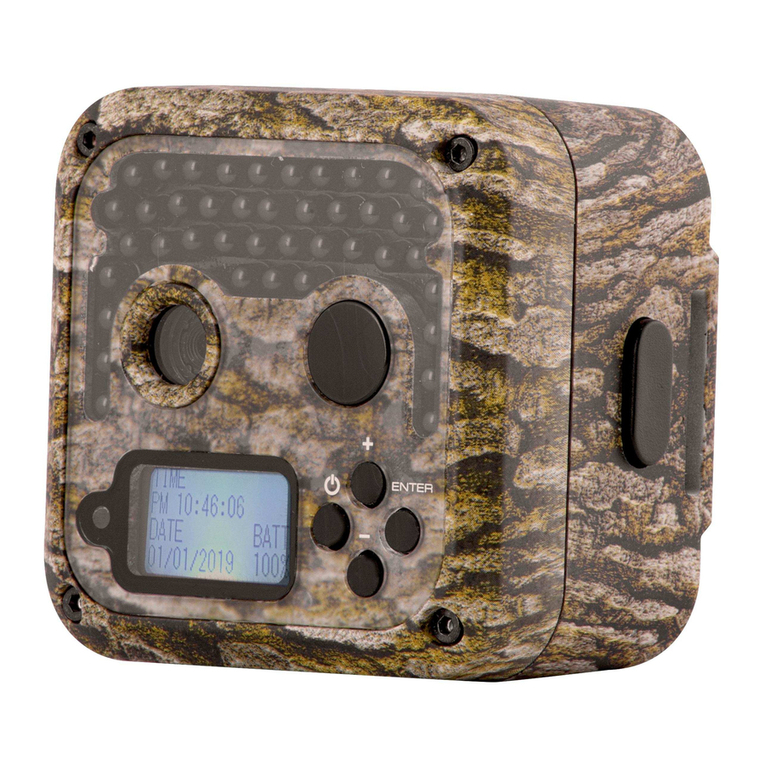
BlazeVideo A350W Manual de usuario

TRAIL CAMERA
MODEL#: A350W
INSTRUCTION MANUAL
V1.0

TABLE OF CONTENTS
1. IN THE BOX................................................................................................. 1
2. IMPORTANT NOTE.....................................................................................1
3. INTRODUCTION......................................................................................... 2
4. PARTS AND CONTROLS........................................................................... 3
5. INSTALLING THE BATTERIES AND SD CARD.....................................7
5.1. Loading Batteries............................................................................7
5.2. Inserting the SD Card..................................................................... 8
6. USING THE CAMERA.................................................................................9
7. THE OFF, ON, AND SURVEILLANCE MODES.......................................9
7.1. OFF Mode.....................................................................................10
7.2. ON Mode....................................................................................... 10
7.3. SURVEILLANCE Mode................................................................ 11
8. Wi-Fi CONNECTION................................................................................. 11
8.1. Download TrailCam Mobile APP.................................................11
8.2. Enable Wi-Fi and Bluetooth......................................................... 12
8.3. Add Your Camera..........................................................................12
8.4. Select Camera Type...................................................................... 13
8.5. Search Your Camera and Link......................................................14
8.6. APP Navigation.............................................................................16
8.7. Important Notes on APP Wi-Fi Connection................................. 18
9. ADVANCED SETTINGS........................................................................... 19
10. MOUNTING AND POSITIONING..........................................................23
10.1. Mounting..................................................................................... 23
10.2. Sensing Angle and Distance Test................................................ 24
10.3. Starting........................................................................................26
11. REVIEW PHOTOS OR VIDEOS............................................................. 26
12. TECHNICAL SPECIFICATIONS............................................................ 27
13. TROUBLESHOOTING.............................................................................29
14. WARRANTY.............................................................................................30

1
1. IN THE BOX
1 x Camera, 1 x Mounting Strap,
1 x Instruction Manual, 1 x Mini USB Cord, 1 x Antenna
Note: Memory card and batteries are not included (user supplied).
2. IMPORTANT NOTE
2.1. About Batteries
Require eight (8) 1.5V AA Alkaline or Lithium batteries. We
recommend the use of Energizer AA Lithium batteries in this
camera to obtain maximum battery life.
Do not mix old and new batteries.
Do not mix battery type.
Rechargeable NiMH AA batteries can be used, but are NOT
recommended as the lower voltage (generally 1.2V) they
produce can cause night recording issues, and you also may
have to replace them frequently.
Remove batteries when the camera is NOT in use.
2.2. About SD Card
Require a standard-size SDHC/SDXC memory card (max
capacity 512GB, Class 10). Recommend using SanDisk 32GB
SDHC/Class10 memory cards in the camera to obtain the best
cost-performance.
Before use, please gently remove the protective films on the
front of the camera to get the best performance, format your
SD card in the camera.

2
2.3. About APP Wi-Fi Connection
Please refer to Section 8 for details.
For better performance, we recommend that your phone is
within 15 meters (45 feet) of your camera. Since there may be
interference around, if the signal is not good, please move
closer to the camera gradually.
Legal attribution: Apple and the Apple Logo are trademarks of Apple Inc.,
registered in the U.S. and other countries. Google Play and the Google Play
logo are trademarks of Google LLC.
3. INTRODUCTION
3.1. About the Camera
The A350W is a new generation of Wi-Fi trail camera. The
camera has a built-in Wi-Fi and Bluetooth module, so that you
can connect and operate the camera through a dedicated APP
(“TrailCam Mobile”). The Bluetooth module, operating in low
power, is used for device discovery, and Wi-Fi is used for
preview, image transmission and settings.
The camera features the all-new innovative and ultra-clear
imaging technology, encompasses smart night vision, blur
reduction, and noise reduction technology to deliver high
resolution image quality.
3.2. Main Features
Bluetooth connection for device discovery
Wi-Fi connection for preview, playback, and settings
High quality pictures (up to 32MP still photos), 1296P 20fps
or 1080P 30fps H.264 video clips with audio

3
Clear night vision, flash range 100ft. The camera is
equipped with 36pcs high performance infrared no glow
940nm LEDs that function as a flash (invisible to human
and animal eyes)
Wide view angle - 70°
Easy to use/program with well-designed operation buttons
and built-in 2.4-inch color screen, easy to program, review
pictures and videos on the screen
Two working modes - Motion detection and Time lapse
Fast trigger time approx. 0.1~0.6 second (pre-activated
technology with 3 PIR sensors designed), Fast recovery time
of less than 0.5 second, Long trigger distance up to 90ft.
Info strip on each capture: Date, Time, Temperature &
Moon phase
Operation hours, Loop Recording, Time Lapse, Password
protected
Built for any climate - IP66, Operation Temperature:
-4~140°F
Support SD/SDHC/SDXC memory card, max capacity
512GB (user supplied)
Extremely long in-field battery life up to 8 months in a
stand-by state with 8 AA 1.5V batteries (user supplied)
4. PARTS AND CONTROLS
The camera is equipped with 36pcs high efficiency infrared
LEDs, LED Indicators, Lens, PIR Sensors, Lock Holes in front
view (Figure 1).
TIP: During use, the black PIR Lens may be dirty or have
scratches, however it does not affect the performance due to
the reliability design. If you must clean it, please try to blow it
off or pick out the dirt very lightly. Do not try to wipe it, which
may cause more scratches.

4
Figure 1: Front View
Install the antenna: The antenna is placed in the accessory slot on
the right side of the package box. Please screw the antenna into the
mounting base on the top of the camera and tighten it (Figure 1).
IR LEDs
Lock Hole
Optics
Lens
Central
PIR Lens
Light
Sensor
Indicator
Lock
Buckle
Antenna
Side
PIR Lens
Side
PIR Lens

5
The camera provides the following connections for external
devices: Mini USB port and SD card slot etc. (Figure 2).
Figure 2: Bottom View
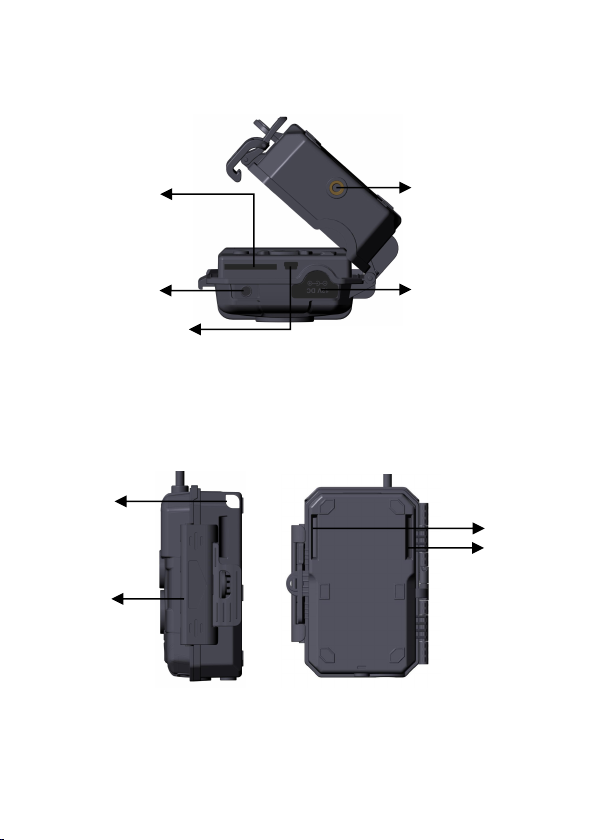
The camera has one security cable hole and two strap holes on
the back. The strap can be put through the strap holes and
fastened securely around a tree trunk by pulling the end of the
strap firmly (Figure 3).
Figure 3: Right / Back View
The camera has a 2.4-inch built-in LCD screen, which can be
used for reviewing pictures or videos and menu displaying, and
exclusive keypad design for easy program and operation, 8 AA
Tripod Base
1/4" - 20
SD Card
Holder
DC 12V/1A
Plug 5.5x2.1mm
Strap
Hole
Lock
Buckle
Mini USB Port
Microphone
Security
Cable Hole

6
batteries slot supported (Figure 4).
Figure 4: Inside View
Figure 5: Operation Buttons
A power switch is used to power on (ON mode) or off the
camera (OFF mode). A START button is used to quickly
make the camera into the surveillance mode (motion detection
or time lapse per your settings (Figure 5). When the camera is
in the surveillance mode, press the START button to wake up
the camera.
Power
Switch
Color
Screen
Battery
Compartment
and Cover
Operation
Buttons
Surveillance
Mode

7
5. INSTALLING THE BATTERIES AND SD CARD
Before you begin learning how to use your camera, you will
first need to install a set of batteries and insert an SD card.
Although that may only take you a minute, there are some
important notes about both batteries and SD cards you should
be aware of, so please take the time to read the following
directions and cautions:
5.1. Loading Batteries
After opening the cover of the battery compartment, you will
see that the camera has eight battery slots (Figure 6). A full
eight batteries must be installed for the camera to operate. Be
sure to insert each battery with correct polarity (negative or
"flat" end against the long spring of each battery slot).
In ON mode when battery power level gets low, the message
"Low Battery" will show on the screen, please replace the
batteries. If the battery indicator shows in RED, this does mean
the batteries are not able to drive IR LEDs flash at night,
however the batteries still work at daytime until "Low
Battery". If you want to continue night vision, please replace
the batteries.

8
Figure 6: Loading the Batteries
5.2. Inserting the SD Card
Insert the SD card (with the camera powered off), before
beginning to operate the camera. Don't insert or remove the SD
card when the camera is powered on or in the surveillance
mode. (Figure 7).
Figure 7: Inserting the SD Card
The following describes how to insert and remove the SD card:
Insert the SD card into the card slot with its label side
upwards.A "click" sound indicates that the card is installed
successfully. If the wrong side of the card is facing up, you
will not be able to insert it without force, there is only one
correct way to insert cards. If the SD card is not installed
correctly, the device will not display an SD card icon on the
+
一
Tabla de contenidos
Otros manuales de Cámara de exploración de BlazeVideo

BlazeVideo
BlazeVideo A252 Manual de usuario

BlazeVideo
BlazeVideo A280W Manual de usuario

BlazeVideo
BlazeVideo A262 Manual de usuario

BlazeVideo
BlazeVideo A323 Manual de usuario

BlazeVideo
BlazeVideo T326 Manual de usuario

BlazeVideo
BlazeVideo A350 Manual de usuario

BlazeVideo
BlazeVideo A323 Manual de usuario

BlazeVideo
BlazeVideo A390G Manual de usuario

BlazeVideo
BlazeVideo A252 Manual de usuario

BlazeVideo
BlazeVideo A323 Manual de usuario