
Blackbe;rry Mini Stereo Speaker Manual de usuario

BlackBerry Mini Keyboard
User Guide
Version: 1.0

SWD-1806106-0319113456-001

Contents
Getting Started................................................................................................................................................................................................... 2
Getting to know your BlackBerry Mini Keyboard............................................................................................................................................... 2
Pair your keyboard with your BlackBerry PlayBook tablet................................................................................................................................. 2
Using the BlackBerry Mini Keyboard.................................................................................................................................................................. 4
Using the touchpad as a mouse......................................................................................................................................................................... 4
Using the touchpad to navigate......................................................................................................................................................................... 5
LED notifications................................................................................................................................................................................................. 6
Typing accents and symbols............................................................................................................................................................................... 7
Using Documents to Go...................................................................................................................................................................................... 9
Copying and pasting........................................................................................................................................................................................... 9
Shortcuts............................................................................................................................................................................................................ 9
Troubleshooting................................................................................................................................................................................................. 10
I can't pair my BlackBerry Mini Keyboard.......................................................................................................................................................... 10
My keyboard isn't charging................................................................................................................................................................................ 10
My touchpad isn't working................................................................................................................................................................................. 10
My password doesn't work................................................................................................................................................................................ 10
Legal notice........................................................................................................................................................................................................ 11
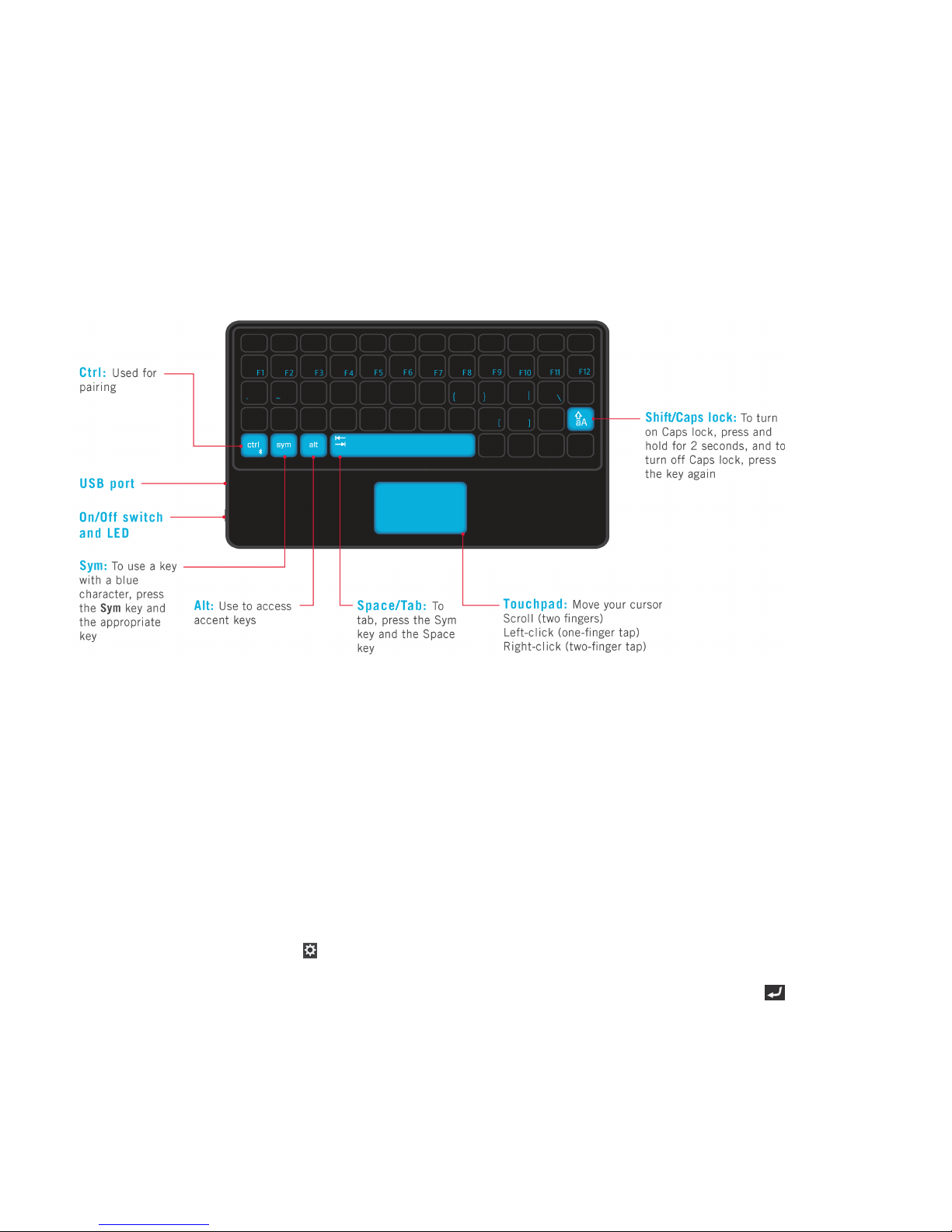
Getting Started
Getting to know your BlackBerry Mini Keyboard
Before using your keyboard, read the Safety and Product Information booklet that is provided in the product package. You can
also read the Safety and Product Information booklet by going to docs.blackberry.com > Manuals for BlackBerry Users >
Accessories.
The first time you pair your BlackBerry PlayBook tablet and BlackBerry Mini Keyboard, to help ensure maximum security, we
recommend that you pair them in a private environment (such as your home or office) and not a public place (such as a coffee
shop).
If you lose your BlackBerry Mini Keyboard, we recommend deleting its profile from your BlackBerry PlayBook tablet pairing list.
Pair your keyboard with your BlackBerry PlayBook tablet
1. Turn on your BlackBerry Mini Keyboard.
2. On the tablet status bar, tap the icon > Bluetooth. Set the Bluetooth switch to On. Tap Add New Device > Search.
3. Tap BlackBerry Mini Keyboard.
4. On your BlackBerry Mini Keyboard, type the pairing passkey that appears on the tablet screen. Press the key.
When the keyboard and the tablet are paired, the LED on the keyboard flashes blue.
User Guide Getting Started
2

To pair your keyboard with another BlackBerry PlayBook tablet, press and hold the Ctrl key while turning on your keyboard.
Release the Ctrl key when the LED flashes blue and red. Repeat steps 2 to 4.
User Guide Getting Started
3
Using the BlackBerry Mini Keyboard
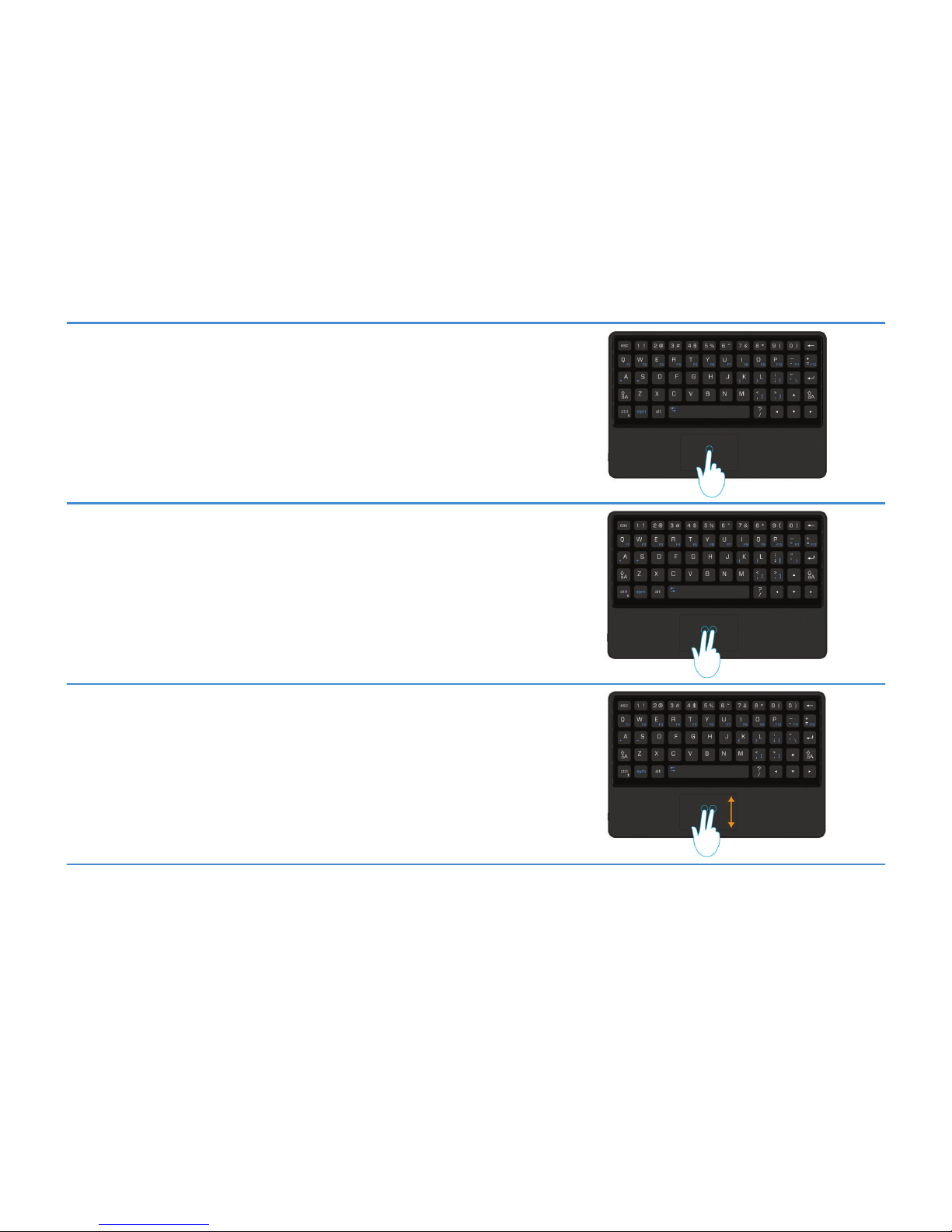
Using the touchpad as a mouse
Mouse left-click
Using one finger, tap the touchpad.
Mouse right-click
Using two fingers, simultaneously tap the touchpad.
Mouse scroll
Using two fingers, slide your fingers up or down on the touchpad to scroll up or
down a page.
The touchpad automatically turns off while you are typing, so you don't have to worry about tapping something by mistake.
User Guide Using the BlackBerry Mini Keyboard
4
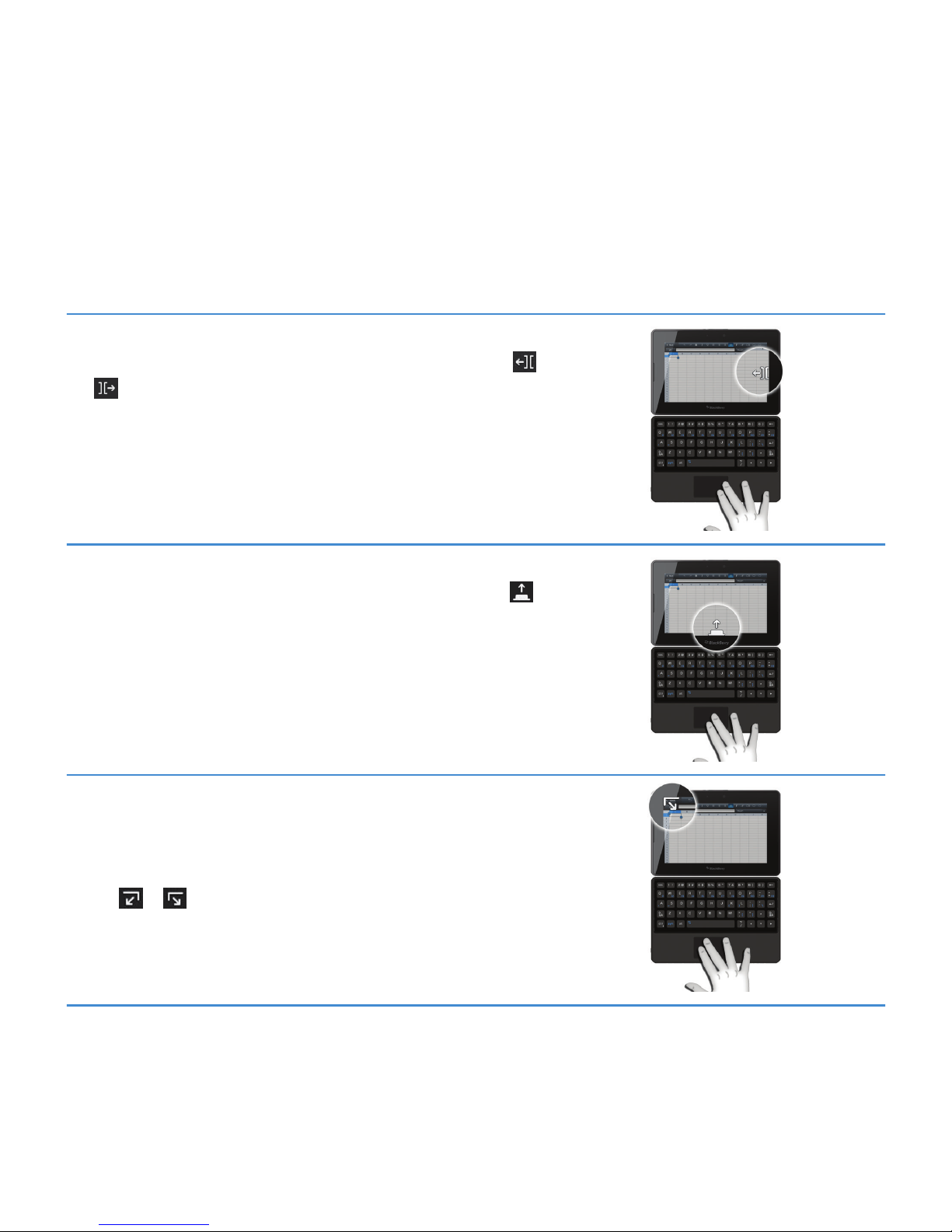
Using the touchpad to navigate
The touchpad lets you move between apps, open menus, and more.
Switch between open apps
Point to the right or left edge of the screen (the pointer changes to the
or icon), then left-click. Repeat until the app you want appears.
Open the home screen to switch apps
Point to the bottom edge of the screen (the pointer changes to the
icon), then left-click. The home screen appears where you can switch to
another app.
Show the status bar
You can quickly check your notifications, the clock, and status indicators
by opening the status bar.
Point to the top-right or top-left corner of the screen (the pointer changes
to the or icon), then left-click.
User Guide Using the BlackBerry Mini Keyboard
5
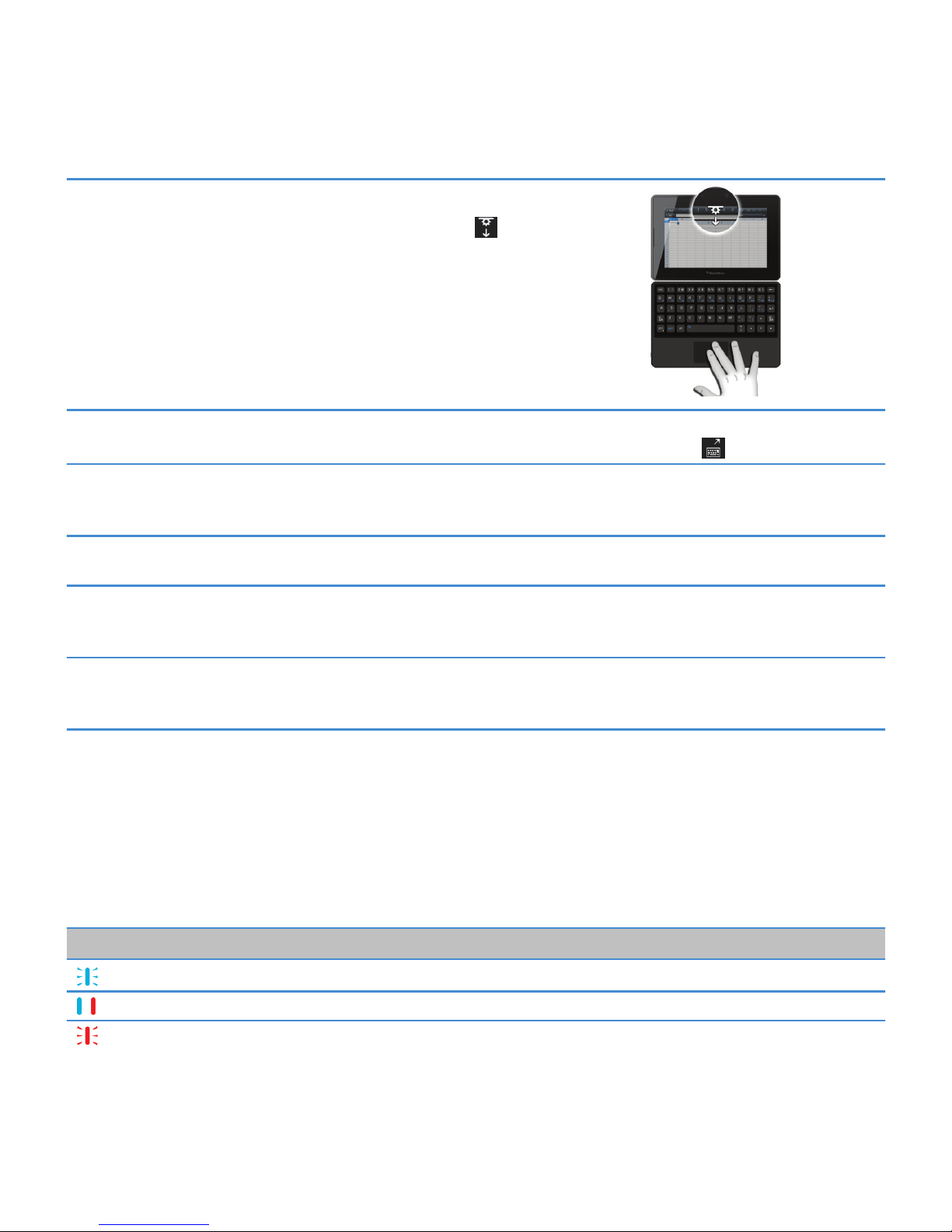
Show the menu or options
Point to the top edge of the screen (the pointer changes to the icon),
then left-click.
Open the virtual keyboard Point to the bottom-left corner of the screen (the
pointer changes to the icon), then left-click.
Move between pictures In the Pictures app, tap a picture to open it. Tap the
picture with one finger, then hold your finger on the
picture and drag to move to the next picture.
Switch between views on the home screen On the home screen, tap your finger, then tap and
hold to drag to the next view.
Move an app Double-tap the app icon, holding on the second tap.
When the icon starts to blink, drag the icon in any
direction.
Delete an app Double-tap the app icon, holding on the second tap.
When the icon starts to blink, click the trash can
icon.
LED notifications
The LED notification light on the On/Off switch on your BlackBerry Mini Keyboard flashes different colors to indicate different
statuses.
If your keyboard is in sleep mode, press any key to wake up the keyboard.
LED Notification
Blue Flashing: On and paired
Blue and red Solid: Pairing
Red Flashing: Battery level is low
User Guide Using the BlackBerry Mini Keyboard
6

LED Notification
Flashing: On and not paired
Green Flashing: Charging
Solid: Fully charged
Typing accents and symbols
Accents
Press the following keys, one at a time, to get these accents:
Accent Action Example
Acute Press the Alt key and ' and a letter. á, é, í, ó, ú, ý
Cedilla Press the Alt key and , and a letter. ç
Circumflex Press the Alt key and ^ and a letter. â, ê, î, ô, û
Diaeresis Press the Alt key and " and a letter. ä, ë, ï, ö, ü, ÿ
Grave Press the Alt key and ` and a letter. à, è, ì, ò, ù
Slash Press the Alt key and / and a letter. ø
Tilde Press the Alt key and ~ and a letter. ã, ñ, õ
Symbols
Press the following keys, one at a time, to get these symbols:
Symbol Action Example
Copyright sign Press the Alt key and C and 0. ©
Registered trademark sign Press the Alt key and R and O. ®
Inverted exclamation mark Press the Alt key and ! and !. ¡
Inverted question mark Press the Alt key and ? and ?. ¿
Cent sign Press the Alt key and C and /. ¢
Pound sign Press the Alt key and L and -. £
Yen sign Press the Alt key and Y and -. ¥
User Guide Using the BlackBerry Mini Keyboard
7

Paragraph sign Press the Alt key and P and !. 
User Guide Using the BlackBerry Mini Keyboard
8
Otros manuales para Mini Stereo Speaker
2
Tabla de contenidos
Otros manuales de Teclado de Blackbe;rry


