Asus L3C Instrucciones de montaje

1
Notebook PC
Software Reference
Product Name: Notebook PC Support CD
Manual Revision: 1.00 E992
Release Date: May 2002

2
Software Reference
Table of Contents
Support CD for Windows............................................................................. 5
Drivers for Windows ................................................................................................................ 5
ATI Mobility Radeon VGA Driver..................................................................8
Display Settings for Windows XP.......................................................................................... 10
Display Properties............................................................................................................ 10
Intel Application Accelerator..................................................................... 14
Overview .......................................................................................................................... 14
Operating Systems not supported ................................................................................... 14
General Features ............................................................................................................. 14
Component Overview ...................................................................................................... 14
Overview .......................................................................................................................... 16
Operating Systems not supported ................................................................................... 16
General Features ............................................................................................................. 17
Component Overview: Intel® Application Accelerator Driver .......................................... 18
Component Overview: Displaying Controller and Device Information ............................ 18
Controller Parameters:..................................................................................................... 18
Device Parameters: ......................................................................................................... 18
Synaptics TouchPad .................................................................................. 19
Overview of Synaptics® TouchPad Features........................................................................ 20
Tap on the Pad Instead of Pressing the Buttons.............................................................. 20
Drag Icons, Windows and Other Objects without Using Buttons ..................................... 20
Adjust the Overall Touch Sensitivity ................................................................................. 21
Customize Buttons and Taps ........................................................................................... 21
Prevent Accidental Pointing While Typing........................................................................ 22
Scroll ThroughA Document without Using Scroll Bars .................................................... 22
Zoom In/Out and Pan on Documents .............................................................................. 22
Move the Pointer Long Distances .................................................................................... 23
Fine Tune the Pointer Movement..................................................................................... 23
Accessories...................................................................................................................... 23
More About the TouchPad................................................................................................ 23
Property Pages ..................................................................................................................... 23
Scrolling Properties Page ................................................................................................ 24

3
Software Reference
Tap Zones Properties Pages............................................................................................ 25
More Features Properties Page....................................................................................... 26
Button Actions Properties Page ....................................................................................... 27
Touch Properties Page..................................................................................................... 28
Edge Motion Properties Page .......................................................................................... 29
Frequently Asked Questions ................................................................................................. 30
PC-cillin 2000.............................................................................................. 33
Welcome to PC-cillin ............................................................................................................. 34
What’s New in PC-cillin 2000........................................................................................... 35
What is a Computer Virus? .............................................................................................. 36
Test Virus ......................................................................................................................... 36
How Viruses Spread ........................................................................................................ 37
Virus Writers..................................................................................................................... 37
PC-cillin 2000 Screens..........................................................................................................38
Hotkey Utility .............................................................................................. 39
Hotkey Utility ......................................................................................................................... 40
Buttons............................................................................................................................. 40
Hotkey Actions ................................................................................................................. 41
Adding a Program to Run ................................................................................................ 44
Windows Flash Utility (WINFLASH).......................................................... 45
Updating Your BIOS......................................................................................................... 46
Resetting Your BIOS ........................................................................................................ 47
ASUS PC Probe .......................................................................................... 49
Welcome toASUS PC Probe ................................................................................................ 50
Starting ASUS PC Probe ................................................................................................. 50
Using ASUS PC Probe Monitoring................................................................................... 51
ASUS PC Probe Taskbar Icon ......................................................................................... 52
Power4 Gear ............................................................................................... 53
Benefits of Power4 Gear.................................................................................................. 54
Power4 Gear Interface..................................................................................................... 54
Power4 Gear Modes ........................................................................................................ 55
Power4 Gear Configuration ............................................................................................. 56

4
Software Reference
Check Mail Utility ....................................................................................... 59
Check Mail Quick Setup........................................................................................................ 60
Check Mail Startup........................................................................................................... 60
Using Windows Start Menu.............................................................................................. 60
Using MS Configuration ................................................................................................... 60
LAN Settings............................................................................................... 60
Joining a Domain or Workgroup (Windows XP)............................................................... 63
Viewing Your Network ...................................................................................................... 64
Configuring the BIOS................................................................................. 65
BIOS Setup Program ............................................................................................................ 66
Updating your BIOS ..............................................................................................................66
BIOS Menu Bar................................................................................................................ 67
BIOS Legend Bar............................................................................................................. 67
Main Menu ............................................................................................................................ 69
Primary Master (sub-menu) .................................................................................................. 71
Secondary Master (sub-menus)............................................................................................ 74
Advanced Menu .................................................................................................................... 75
I/O Device Configuration (sub-menu).................................................................................... 76
Security Menu ....................................................................................................................... 78
Power Menu .......................................................................................................................... 80
Boot Menu............................................................................................................................. 81
Exit Menu .............................................................................................................................. 82

5
Software Reference
Support CD for Windows
The Notebook PC you purchased may or may not be preloaded with an operating system. The support CD
included with this Notebook PC provides all the necessary drivers and utilities in order for you to use your
Notebook PC with Microsoft®Windows®XP (referred to as “Windows” in this User’s Manual).
The levels of hardware and software support may vary depending on the installed operating system. Operat-
ing systems not pre-installed on this Notebook PC may produce different results than the ones described in
the provided user’s manuals.
If your Notebook PC is not preloaded with any operating system, or you want to install another operating
system other than the preloaded one, the following pages will give step-by-step installation procedures for
typical system configurations under the Windows®operating system. For application usage, please see the
online help provided with each of the applications after installation. The following are contents of a typical
support CD. Variations may be found for each territory or language. If the autorun menu does not appear,
double clicking the CD-ROM disc drive icon in “My Computer” (may be the (D:) drive or (E:) drive on hard
drives with two partitions) or running SETUP.EXE (through Start menu “Run...”) located in the root of the
support CD, will bring up the autorun menu.
Drivers for Windows
Thefollowing are descriptionsof eachautorun menu item. Due toongoing improvementsin the supportCD,
there may be some differences between this User’s Manual and your support CD. The names in quotations
are the actual driver names displayed in the System Properties of MS Windows. Windows cannot contain all
the device drivers from every manufacturer, with every update; therefore the provided support CD will
contain the best driver for your built-in devices and should be used in place of any Windows default drivers.
Intel 845M INF Update (required) “Intel 828XX” Drivers
Shown under Windows “System devices.” This installs drivers for the Notebook PC’s specific chipset.
ATKACPI Driver (required) “ATK0100 ACPI UTILITY” Driver
Shownunder Windows “Systemdevices.”This installs driversfor the NotebookPC’sAdvanced Configura-
tion and Power Interface (ACPI) for features utilizing power management functions.
VGA Driver (required) “ATI Mobility Radeon M7” Driver
Shown under Windows “Display adapters.” This installs display drivers for your operating system in order
to properly use the Notebook PC’s built-in graphics controller and to provide optimal features. Once the
display driver is installed, you can change your display’s resolution and color through Display Properties.
Audio Driver (required) “Crystal WDM Audio Codec” Driver
Shown under Windows “Sound, video and game controllers.” This installs audio drivers for your operating
system in order to properly use the Notebook PC’s built-in sound controller.All audio functions are configured
through Windows and help can be located within Windows documentation or Windows help files.

6
Software Reference
IAA Utility (optional) Utility
The Intel®ApplicationAccelerator is a software package designed specifically to increase the performance
of applications and computer systems running Intel®Pentium®III or Pentium® 4 Processor.
Modem Driver (required-WinME) “HSP56 MR” Driver
Installs the necessary driver in order for your operating system to have the correct files for the Notebook PC
with built-in modem and drivers for integration with the internal audio. With third-party software, fax and
speaker phone capabilities are possible using this Notebook PC.
TouchPad (recommended) “Synaptics PS/2 TouchPad” Driver
Shown under Windows “Mice and other pointing devices.” Installs “Synaptics®TouchPad” utility. The
NotebookPC alreadysupports built-inor externallyconnected keyboardand PS/2mouse devices. However,
the provided device driver will provide enhancements and features to theTouchPad to increase the function-
ality of the TouchPad. For detailed information, see the Software Reference in the next section. To access
help, right-click the TouchPad icon on the taskbar and select Help.
Fast IR Driver (required) “IrDA Fast Infrared Port” Driver
Shownunder“Networkadapters”.Installsdriverandconfigures yourInfraredTransceiverAto“HPHSDL-
2300/3600” so that your Infrared port can work properly.
PC-cillin 2000 (optional) Utility
InstallsTrend’sPC-cillin2000, a world-class anti-virus protection software for the new Internetera, tokeep
yourPC virus-free.This verypowerfulanti-virus softwareisbundled witheach NotebookPCto protectyour
investment. As software become more and more a part of our daily lives, measures have to be taken to
protect them. You may skip this software if you have your own anti-virus software.
ATKACPI Utility (submenu) Link
Shows you a sub-menu with additional utilities. These utilities require that you first install the ATKACPI
driver. See next page for descriptions of the utilities.
LAN Driver (required) “Realtek RTL8139/810X Family PCI Fast Ethernet NIC” Driver
Located under Windows “Network Adapters.” Installs the required LAN driver for the Notebook PC’s
built-in PCI Fast-Ethernet controller. Fast-Ethernet supports both 10 Base-T or 100 Base-TX networks at
half or full duplex.
Read Me Text
Gives you notes concerning this support CD or the Notebook PC.
Browse this CD
Shows you the contents of this support CD using Windows Explorer.

7
Software Reference
Technical Support Form Text
Opens up a Technical Support Request Form so that you will understand what kind of information is needed
if you run into problems and require technical assistance.
Exit
Closes the support CD autorun screen.
ATKACPI Utility (Submenu)
Hotkey Utility (required) Utility
Installs Hotkeyutility. Hotkey utility is a program designed to intercept key strokes so that key assignments
can be made to run a program or script. This program cannot be used to change default keys or key combi-
nations used by other software, operating systems, or by the Notebook PC’s hardware.
Windows Flash Utility (recommended) Utility
Installs a BIOS update utility for Windows so that you can conveniently update your Notebook PC’s BIOS
without having to restart your Notebook PC in DOS mode.
ASUS PC Probe (optional) Utility
Installs PC Probe utility to monitor the Notebook PC’s CPU temperature and other resources. This is an
optional software to help you better manage your Notebook PC’s resources.
Power4 Gear Utility (optional) Utility
Power4 Gear is a custom utility designed for this Notebook PC that allows you to use predefined or user
defined values for multi-selectable power saving modes or “gears”. You can “shift” between the “gears”
using the taskbar icon or the “Power Gear” key above the keyboard.
Check Mail Utility (optional) Utility
Installs Check Mail Utility to monitor and notify you of incoming email messages waiting in your Mi-
crosoft®Outlook or Outlook Express Inbox. (This utility may or may not be compatible with other email
applications.)

8

9
Software Reference
ATI Mobility Radeon VGA Driver
Topics Covered:
Display Properties and Settings
Screens will vary depending on your operating system but the contents should be the same.

10
Software Reference
Display Settings for Windows XP
Display Properties
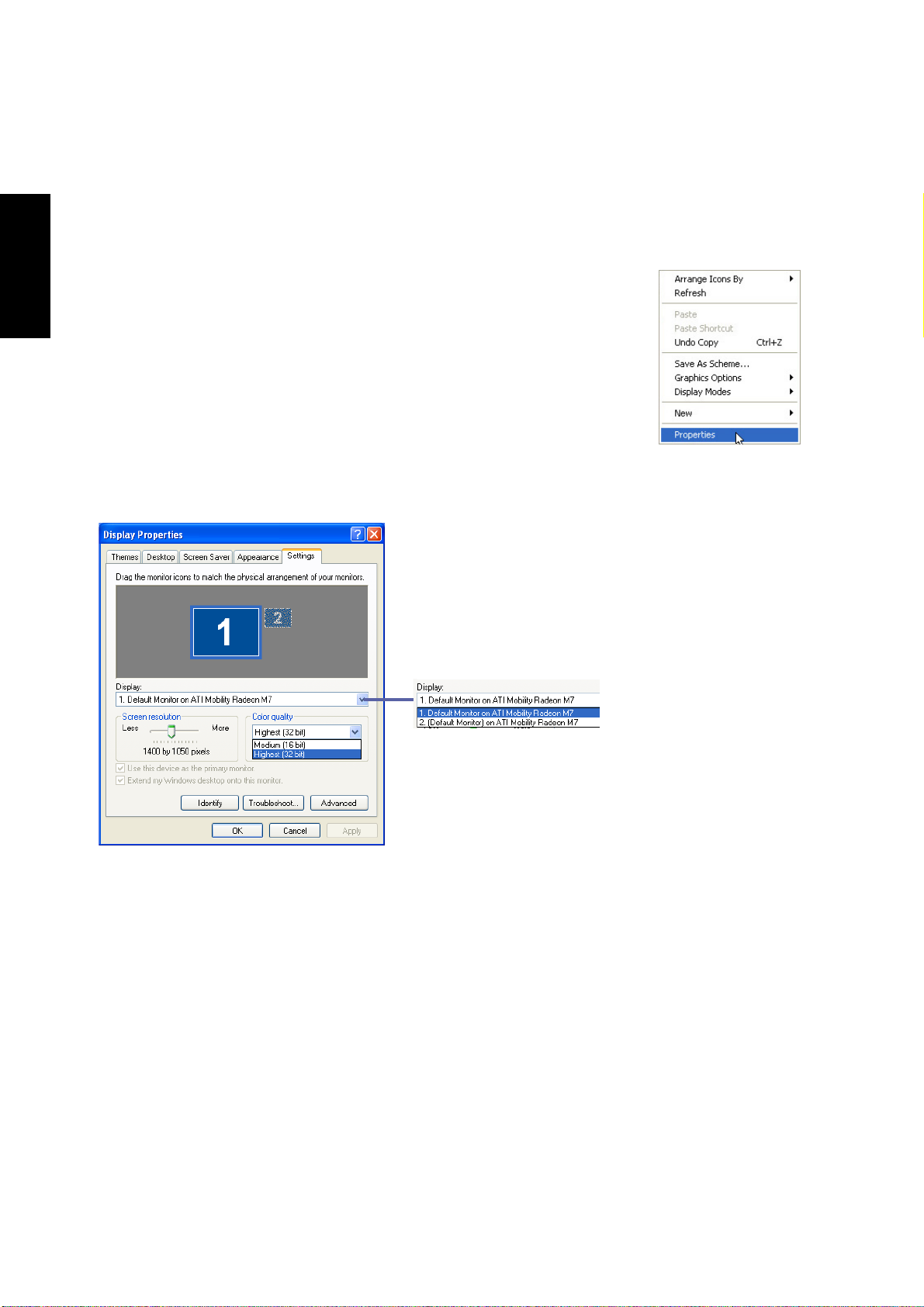
By right clicking your desktop and selecting Properties, you can view your dis-
play properties. For advanced graphics controller settings, click the Advanced
button.
Using Windows Display Properties
You can set each display in-
dependently by choosing
monitor 1 or 2 here.
Dual View Funtion
If you connect an external display, you can select Display 2
and extend your desktop onto the second display.
Otros manuales para L3C
1
Tabla de contenidos
Otros manuales de Computadora portátil de Asus

Asus
Asus ROG STRIX G532LWS Manual de usuario

Asus
Asus V1S Series Instrucciones de uso

Asus
Asus X540MA Guía

Asus
Asus M6N Manual de usuario

Asus
Asus E1701b Instrucciones de uso

Asus
Asus G55VW Manual de usuario

Asus
Asus E3480 Instrucciones de uso

Asus
Asus 1201PN-PU17-BK Manual de usuario

Asus
Asus X540L Guía

Asus
Asus U46E Manual de usuario

Asus
Asus DA10549 Guía

Asus
Asus PRO P3540FA Guía

Asus
Asus S96J Series Guía de instalación

Asus
Asus U38D Manual de usuario

Asus
Asus Essential P751JF Guía

Asus
Asus G56JR Manual de usuario

Asus
Asus G51Jx Manual de usuario

Asus
Asus M5A Manual de usuario

Asus
Asus S530FN-EJ313T Manual de usuario

Asus
Asus E406SA-BV028TS Guía