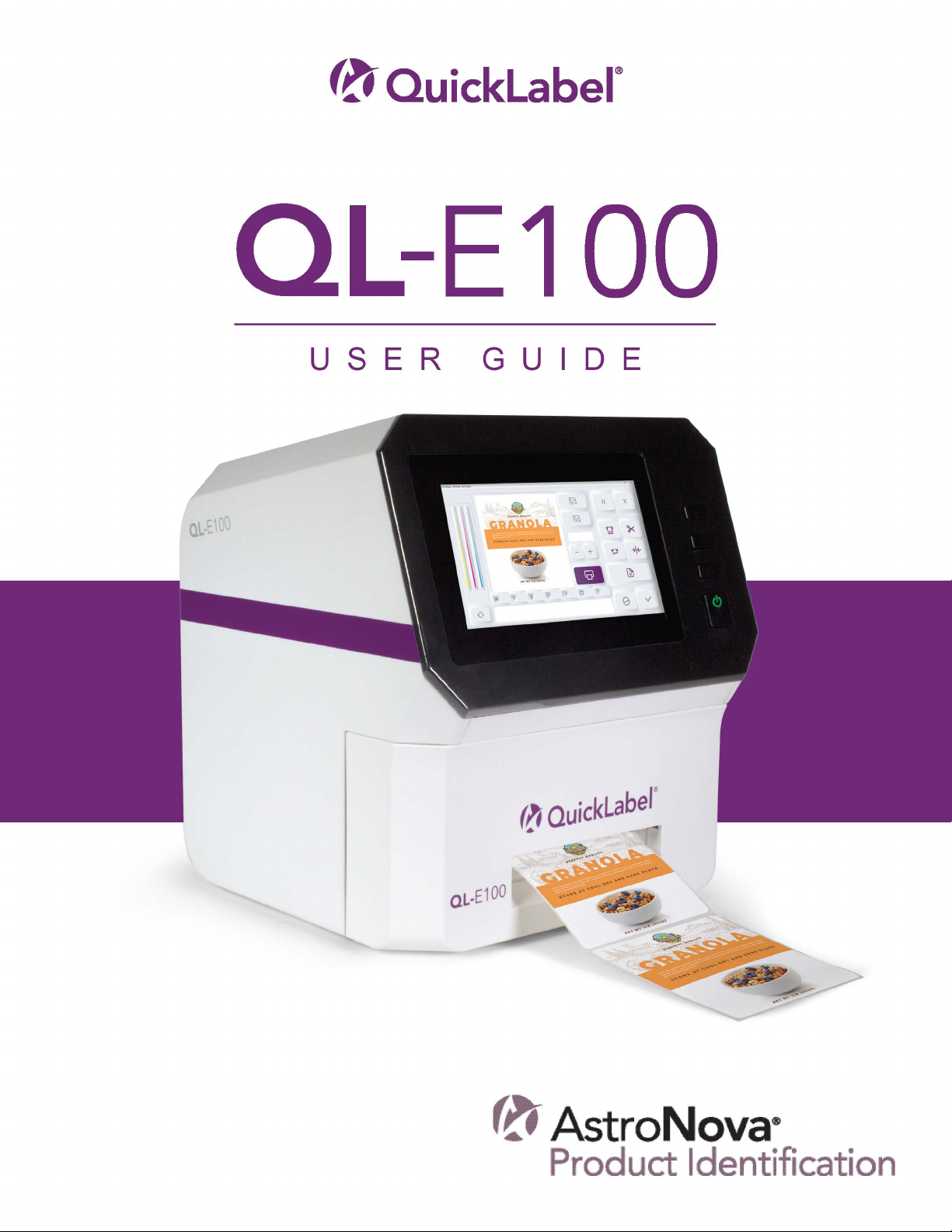
AstroNova QuickLabel QL-E100 Manual de usuario


QL-E100 User Guide
Part Number 22834710-EN-E
Revision 1.1
7/2023
AstroNova, Inc.®
600 East Greenwich Ave., West Warwick, RI 02893
Tel: (877) 757-7978 Fax: (401) 822-2430
www.AstroNovaProductID.com

Copyright © 2023 AstroNova ®, Inc.
This manual is copyrighted with all rights reserved. No part of this manual may be reproduced,
transmitted, transcribed, stored in a retrieval system, or translated into any language in any form
by any means without written permission of AstroNova.
Trademarks
QL-E100® and CQL Pro® are registered trademarks of AstroNova, Inc.
Adobe®, Photoshop®, and Illustrator® are registered trademarks of Adobe Systems, Inc.
Corel® is a registered trademark of Corel Corporation.
Microsoft® Windows® is a registered trademark of Microsoft Corporation.
FCC Part 15 Compliance
NOTE: This equipment has been tested and found to comply with the limits for a Class B digital
device, pursuant to part 15 of the FCC rules. These limits are designed to provide reasonable
protection against interference in a residential installation. This equipment generates, uses, and
can radiate radio frequency energy and, if not installed and used in accordance with the instruction
manual, may cause interference to radio communications. However, there is no guarantee that
interference will not occur in a particular installation.
If this equipment does cause interference to radio or television reception, which can be determined
by turning the equipment off and on, the user is encouraged to try to correct the interference by
one or more of the following measures:
• Reorient or relocate the receiving antenna.
• Increase the separation between the equipment and receiver.
• Connect the equipment into an outlet on a circuit different from that to which the receiver is
connected.
• Consult the dealer or an experienced radio/TV technician for help.
CAUTION: Changes or modifications to this equipment not expressly approved by the party
responsible for compliance could void the user's authority to operate the equipment.
RoHS Compliance
The QL-E100 Label Printer does not contain the substances specified within ANNEX II of
“Directive 2011/65/EU of the European Parliament and of the Council of 8 June 2011 on the
restriction of the use of certain hazardous substances in electrical and electronic equipment
(RoHS)”, that is, lead, mercury, cadmium, hexavalent chromium, polybrominated biphenyls (PBB)
and polybrominated diphenyl ethers (PBDE) exceeding their specified maximum concentration
values tolerated by weight in homogeneous materials, except for the exemptions set in ANNEX Ill
of the Directive and its amendments.
This information is offered in good faith to the best of our knowledge, but is subject to revision as
new information becomes available.

Declaration of Conformity
Declaration de Conformité
Ubereinstimmungserklärung
Dichiarazione di Conformità
ID DoC-22834710
Manufacturer’s name and address
Nom et adresse du fabricant
Hersteller
Nome del costruttore
AstroNova, Inc.
600 East Greenwich Avenue
West Warwick, RI 02893 USA
Brand Name(s)
Nom(s) de marque(s)
Markenname(n)
Nome/i dei marchi
QuickLabel ®
Model No.
Modele No.
Model Nr.
Modello No.
QL-E100
Description of Products
Description des produits
Produktbeschreibungen
Descrizione dei Prodotti
Color Inkjet Printer
Standards to which conformity is declared
Standards auquel la conformité appartient
Normen für welche Übereinstimmung erklärt wird
Norme per le quali si dichiara la conformità
EN 55032:2015/A11:2020 (Class A)
EN 55032:2015 (Class A)
EN 55035:2017/A11:2020
EN 55035:2017
EN IEC 61000-3-2:2019/A1:2021
EN IEC 61000-3-2:2019
EN 61000-3-3:2013/A2:2021
EN 61000-3-3:2013+A1:2019
FCC Part 15 Subpart B & Part 2, ICES-003 Issue 7
IEC 62368-1:2018
UL 62368-1 3rd Ed.
CAN/CSA C22.2 No. 62368-1-19
Application of Council Directives
Application des Decisions du Conseil
Anwendbar fur die Richtlinien
Applicazione delle Direttive del Comitato
2011/65/EU
2001/95/EC
2014/30/EU
2014/35/EU
I, the undersigned, hereby declare that the equipment specified above conforms to the above Directive and Standard.
Je, Soussigné, déclare que l’équipment spécifié ci-dessus est en conformité avec la directive et le standard ci-dessus.
Ich, der unterzeichnende erkläre hiermit, daß das oben beschriebene Gerät den vorgenannten Richtlinien und Normen entspricht.
Il sottoscritto dichiara che l’apparecchio sopra specificato è conforme alle Direttive e Norme sopra specificate.
Phillip Soares
Quality Systems Manager
AstroNova, Inc.
CE Label First Affixed Date: 23
Date of issue: 5/12/2023
Place of issue: West Warwick, RI
European Contact: Your local AstroNova, Inc. Sales and Service Office.
FRANCE - Parc Euclide, ZA la Clef de St Pierre, 10A Rue Blaise Pascal 78990 Elancourt, Tel: (+33) 1 34 82 09 00, Fax: (+33) 1 34 82 05 71
GERMANY - Waldstraße 70, D-63128 Dietzenbach, Tel. +49 (0) 6074 31 025-00, Fax: +49 (0) 6074 31 025-99
UNITED KINGDOM - Westacott Way, Maidenhead Berkshire, SL6 3RT Tel: +44 (0)1628 668836, Fax: +44 (0)1628 664994
INDIA - A-44 Phase 1 Madras Export Processing Zone (MEPZ), NH45, Great Southern Trunk Rd. Tambaram, Chennai 600045, India,
Tel: +91 44 2262 2690 2

Contents
QL-E100 User Guide 5
Contents
Chapter 1: Getting Started . . . . . . . . . . . . . . . . . . . . . . . . . . . . . . . . . . . . . . . . . . . . . . . . . . . . . . . . 7
Quick Setup Guide . . . . . . . . . . . . . . . . . . . . . . . . . . . . . . . . . . . . . . . . . . . . . . . . . . . . . . 7
Installation and Setup Overview . . . . . . . . . . . . . . . . . . . . . . . . . . . . . . . . . . . . . . . . . . . . 8
Choosing an Installation Location . . . . . . . . . . . . . . . . . . . . . . . . . . . . . . . . . . . . . . . . . . . 9
System Requirements. . . . . . . . . . . . . . . . . . . . . . . . . . . . . . . . . . . . . . . . . . . . . . . . . . . . 9
Unpacking and Inspection. . . . . . . . . . . . . . . . . . . . . . . . . . . . . . . . . . . . . . . . . . . . . . . . 10
Installing the Printer . . . . . . . . . . . . . . . . . . . . . . . . . . . . . . . . . . . . . . . . . . . . . . . . . . . . 11
Connecting the Power Cable . . . . . . . . . . . . . . . . . . . . . . . . . . . . . . . . . . . . . . . . . . 11
Preparing Roll Media . . . . . . . . . . . . . . . . . . . . . . . . . . . . . . . . . . . . . . . . . . . . . . . . 11
Installing the Initial Ink Cartridge and Powering On . . . . . . . . . . . . . . . . . . . . . . . . . 13
Installing the Printer Driver . . . . . . . . . . . . . . . . . . . . . . . . . . . . . . . . . . . . . . . . . . . . 14
Identifying Printer Parts. . . . . . . . . . . . . . . . . . . . . . . . . . . . . . . . . . . . . . . . . . . . . . . . . . 20
Printer Overview . . . . . . . . . . . . . . . . . . . . . . . . . . . . . . . . . . . . . . . . . . . . . . . . . . . . 20
Operation Panel . . . . . . . . . . . . . . . . . . . . . . . . . . . . . . . . . . . . . . . . . . . . . . . . . . . . 21
Rear Panel Connectors . . . . . . . . . . . . . . . . . . . . . . . . . . . . . . . . . . . . . . . . . . . . . . 22
Chapter 2: Media and Ink Cartridges . . . . . . . . . . . . . . . . . . . . . . . . . . . . . . . . . . . . . . . . . . . . . . . 23
Purchasing Media and Ink. . . . . . . . . . . . . . . . . . . . . . . . . . . . . . . . . . . . . . . . . . . . . . . . 23
Ink Cartridges . . . . . . . . . . . . . . . . . . . . . . . . . . . . . . . . . . . . . . . . . . . . . . . . . . . . . . . . . 24
Handling Ink Cartridges . . . . . . . . . . . . . . . . . . . . . . . . . . . . . . . . . . . . . . . . . . . . . . 24
Initial Ink Cartridge Installation . . . . . . . . . . . . . . . . . . . . . . . . . . . . . . . . . . . . . . . . . 24
Replacing the Ink Cartridge . . . . . . . . . . . . . . . . . . . . . . . . . . . . . . . . . . . . . . . . . . . 25
Recycling Empty Ink Cartridges . . . . . . . . . . . . . . . . . . . . . . . . . . . . . . . . . . . . . . . . 27
Media Rolls . . . . . . . . . . . . . . . . . . . . . . . . . . . . . . . . . . . . . . . . . . . . . . . . . . . . . . . . . . . 28
Supported Media Types and Sensing. . . . . . . . . . . . . . . . . . . . . . . . . . . . . . . . . . . . 28
Installing the Media Roll . . . . . . . . . . . . . . . . . . . . . . . . . . . . . . . . . . . . . . . . . . . . . . 30
Replacing a Media Roll. . . . . . . . . . . . . . . . . . . . . . . . . . . . . . . . . . . . . . . . . . . . . . . 31
Chapter 3: Installing and Setting Up the Printer Driver . . . . . . . . . . . . . . . . . . . . . . . . . . . . . . . . 34
Initial Driver Installation . . . . . . . . . . . . . . . . . . . . . . . . . . . . . . . . . . . . . . . . . . . . . . . . . . 34
Upgrading the Driver . . . . . . . . . . . . . . . . . . . . . . . . . . . . . . . . . . . . . . . . . . . . . . . . . . . . 34
Installing Multiple Printers . . . . . . . . . . . . . . . . . . . . . . . . . . . . . . . . . . . . . . . . . . . . . . . . 39
Setting up Printer Driver Preferences . . . . . . . . . . . . . . . . . . . . . . . . . . . . . . . . . . . . . . . 39
Setting up Label Options . . . . . . . . . . . . . . . . . . . . . . . . . . . . . . . . . . . . . . . . . . . . . 39
Setting up Custom Label Sizes. . . . . . . . . . . . . . . . . . . . . . . . . . . . . . . . . . . . . . . . . 41
Setting up Appearance Options . . . . . . . . . . . . . . . . . . . . . . . . . . . . . . . . . . . . . . . . 42
Setting up Layout Options . . . . . . . . . . . . . . . . . . . . . . . . . . . . . . . . . . . . . . . . . . . . 44
Viewing Status Information. . . . . . . . . . . . . . . . . . . . . . . . . . . . . . . . . . . . . . . . . . . . 45
Viewing Printer Driver Information . . . . . . . . . . . . . . . . . . . . . . . . . . . . . . . . . . . . . . 46
Chapter 4: Printing from a PC. . . . . . . . . . . . . . . . . . . . . . . . . . . . . . . . . . . . . . . . . . . . . . . . . . . . . 48
Preparing Label Artwork . . . . . . . . . . . . . . . . . . . . . . . . . . . . . . . . . . . . . . . . . . . . . . . . . 48
Choosing Design Software . . . . . . . . . . . . . . . . . . . . . . . . . . . . . . . . . . . . . . . . . . . . 48
Image Resolution . . . . . . . . . . . . . . . . . . . . . . . . . . . . . . . . . . . . . . . . . . . . . . . . . . . 48
Disabling Anti-aliasing . . . . . . . . . . . . . . . . . . . . . . . . . . . . . . . . . . . . . . . . . . . . . . . 48
Printing from Adobe or other Third-Party Software . . . . . . . . . . . . . . . . . . . . . . . . . . . . . 49
Printing from CQL Pro. . . . . . . . . . . . . . . . . . . . . . . . . . . . . . . . . . . . . . . . . . . . . . . . . . . 49

Contents
QL-E100 User Guide 6
Chapter 5: QuickPrint Printing from USB or Printer Memory . . . . . . . . . . . . . . . . . . . . . . . . . . . 50
About QuickPrint Printing . . . . . . . . . . . . . . . . . . . . . . . . . . . . . . . . . . . . . . . . . . . . . . . . 50
QuickPrint Requirements . . . . . . . . . . . . . . . . . . . . . . . . . . . . . . . . . . . . . . . . . . . . . . . . 50
Managing Files . . . . . . . . . . . . . . . . . . . . . . . . . . . . . . . . . . . . . . . . . . . . . . . . . . . . . . . . 50
Printing from QuickPrint . . . . . . . . . . . . . . . . . . . . . . . . . . . . . . . . . . . . . . . . . . . . . . . . . 53
Chapter 6: Touchscreen Controls and Functions . . . . . . . . . . . . . . . . . . . . . . . . . . . . . . . . . . . . 56
Main Screen Orientation . . . . . . . . . . . . . . . . . . . . . . . . . . . . . . . . . . . . . . . . . . . . . . . . . 56
Ink Level and Ink Change Controls. . . . . . . . . . . . . . . . . . . . . . . . . . . . . . . . . . . . . . 57
Main Area . . . . . . . . . . . . . . . . . . . . . . . . . . . . . . . . . . . . . . . . . . . . . . . . . . . . . . . . . 57
Printing Controls . . . . . . . . . . . . . . . . . . . . . . . . . . . . . . . . . . . . . . . . . . . . . . . . . . . . 57
Media Controls . . . . . . . . . . . . . . . . . . . . . . . . . . . . . . . . . . . . . . . . . . . . . . . . . . . . . 58
Maintenance Controls. . . . . . . . . . . . . . . . . . . . . . . . . . . . . . . . . . . . . . . . . . . . . . . . 59
Printer and Media Status . . . . . . . . . . . . . . . . . . . . . . . . . . . . . . . . . . . . . . . . . . . . . 59
Main Area Tabs. . . . . . . . . . . . . . . . . . . . . . . . . . . . . . . . . . . . . . . . . . . . . . . . . . . . . . . . 60
Home Tab. . . . . . . . . . . . . . . . . . . . . . . . . . . . . . . . . . . . . . . . . . . . . . . . . . . . . . . . . 60
QuickPrint Tab . . . . . . . . . . . . . . . . . . . . . . . . . . . . . . . . . . . . . . . . . . . . . . . . . . . . . 61
Offsets Tab . . . . . . . . . . . . . . . . . . . . . . . . . . . . . . . . . . . . . . . . . . . . . . . . . . . . . . . . 62
Media Settings Tab (QuickPrint Functions) . . . . . . . . . . . . . . . . . . . . . . . . . . . . . . . 64
Alignment Tab. . . . . . . . . . . . . . . . . . . . . . . . . . . . . . . . . . . . . . . . . . . . . . . . . . . . . . 66
System Settings Tab. . . . . . . . . . . . . . . . . . . . . . . . . . . . . . . . . . . . . . . . . . . . . . . . . 68
Help Tab . . . . . . . . . . . . . . . . . . . . . . . . . . . . . . . . . . . . . . . . . . . . . . . . . . . . . . . . . . 69
Chapter 7: Maintenance . . . . . . . . . . . . . . . . . . . . . . . . . . . . . . . . . . . . . . . . . . . . . . . . . . . . . . . . . 70
General Cleaning . . . . . . . . . . . . . . . . . . . . . . . . . . . . . . . . . . . . . . . . . . . . . . . . . . . . . . 70
Cleaning the Printhead . . . . . . . . . . . . . . . . . . . . . . . . . . . . . . . . . . . . . . . . . . . . . . . . . . 70
Cleaning Ink Cartridge Electrical Contacts . . . . . . . . . . . . . . . . . . . . . . . . . . . . . . . . . . . 71
Upgrading the Printer Firmware . . . . . . . . . . . . . . . . . . . . . . . . . . . . . . . . . . . . . . . . . . . 73
Chapter 8: Troubleshooting . . . . . . . . . . . . . . . . . . . . . . . . . . . . . . . . . . . . . . . . . . . . . . . . . . . . . . 74
Printing Issues and Solutions . . . . . . . . . . . . . . . . . . . . . . . . . . . . . . . . . . . . . . . . . . . . . 74
Incorrect Label Positioning . . . . . . . . . . . . . . . . . . . . . . . . . . . . . . . . . . . . . . . . . . . . 74
Ink Smears on Printed Labels. . . . . . . . . . . . . . . . . . . . . . . . . . . . . . . . . . . . . . . . . . 74
Label Media Tracking Issues . . . . . . . . . . . . . . . . . . . . . . . . . . . . . . . . . . . . . . . . . . 75
Labels Not Printing . . . . . . . . . . . . . . . . . . . . . . . . . . . . . . . . . . . . . . . . . . . . . . . . . . 75
Print Quality Issues. . . . . . . . . . . . . . . . . . . . . . . . . . . . . . . . . . . . . . . . . . . . . . . . . . 76
Resolving Media Jams . . . . . . . . . . . . . . . . . . . . . . . . . . . . . . . . . . . . . . . . . . . . . . . 76
Resolving Printer Driver Issues . . . . . . . . . . . . . . . . . . . . . . . . . . . . . . . . . . . . . . . . 78
Status and Error Messages. . . . . . . . . . . . . . . . . . . . . . . . . . . . . . . . . . . . . . . . . . . . . . . 79
Media Status and Error Messages . . . . . . . . . . . . . . . . . . . . . . . . . . . . . . . . . . . . . . 79
Printer Status Messages. . . . . . . . . . . . . . . . . . . . . . . . . . . . . . . . . . . . . . . . . . . . . . 79
Printer Error Messages. . . . . . . . . . . . . . . . . . . . . . . . . . . . . . . . . . . . . . . . . . . . . . . 81
Additional Product Support . . . . . . . . . . . . . . . . . . . . . . . . . . . . . . . . . . . . . . . . . . . . . . . 82
Chapter 9: Safety . . . . . . . . . . . . . . . . . . . . . . . . . . . . . . . . . . . . . . . . . . . . . . . . . . . . . . . . . . . . . . . 83
General . . . . . . . . . . . . . . . . . . . . . . . . . . . . . . . . . . . . . . . . . . . . . . . . . . . . . . . . . . . . . . 83
Location. . . . . . . . . . . . . . . . . . . . . . . . . . . . . . . . . . . . . . . . . . . . . . . . . . . . . . . . . . . . . . 84
Power Supply and Power Cord . . . . . . . . . . . . . . . . . . . . . . . . . . . . . . . . . . . . . . . . . . . . 85
Chapter 10: Technical Specifications . . . . . . . . . . . . . . . . . . . . . . . . . . . . . . . . . . . . . . . . . . . . . . . 86

Getting Started
QL-E100 User Guide 7
Chapter 1: Getting Started
Quick Setup Guide
This QL-E100 User Guide provides detailed information about setting up and using the printer. A
related publication, the QL-E100 Quick Setup Guide, is also available to help you set up the
printer. The QL-E100 Quick Setup Guide uses illustrations to show this process.
The QL-E100 Quick Setup Guide is included in the printer’s shipping carton.

Getting Started
QL-E100 User Guide 8
Installation and Setup Overview
This section provides a summary of all installation and setup steps. Refer to this information as
you prepare the printer for use. Each step in the overview has a link to more details later in this
user guide.
1. Before installing the printer, select an appropriate location and make sure that the system
requirements are met.
•See “Choosing an Installation Location” on page 9.
•See “System Requirements” on page 9.
2. Unpack the printer. Make sure that all parts are included and verify that no items were
damaged in transit. See “Unpacking and Inspection” on page 10.
3. Connect the power cable. See “Connecting the Power Cable” on page 11.
Note: Do not turn the printer’s power on at this time.
4. Load a roll of labels on the roll holder in the correct orientation, and then set the roll holder in
the printer. See “Preparing Roll Media” on page 11.
5. Unpack the supplied ink cartridge and then install it in the printer. Turn the printer power on to
check the ink status. See “Installing the Initial Ink Cartridge and Powering On” on page 13.
6. Install the printer driver. As part of the driver installation process, you will connect the printer to
your computer with the USB cable. See “Installing the Printer Driver” on page 14.
Important: Do not connect the printer to your PC with the USB cable at this time. The USB
cable will be connected later in this procedure when prompted.
7. Feed the label media into the printer and adjust the media guide to the required width. See
“Installing the Media Roll” on page 30.
8. Prepare your software and start a print job. This process will vary based on how you will be
printing.
• If you are using CQL Pro software from QuickLabel:
Set up CQL Pro based on your label and print specifications. Then start a print job. See
CQL Help for details.
• If you are using Adobe or other third-party software:
Set up the printer driver based on your label and print specifications. See “Setting up
Printer Driver Preferences” on page 39.
Start a print job. See “Printing from Adobe or other Third-Party Software” on page 49.
• If you are using QuickPrint printing:
Make your label files available to the printer with a USB flash drive. Then start a
QuickPrint print job. See “QuickPrint Printing from USB or Printer Memory” on page 50.

Getting Started
QL-E100 User Guide 9
Choosing an Installation Location
Select an installation location that meets the requirements described below. These requirements
will help ensure safe operation and optimal printing results.
• The printer power cable must be able to connect to an appropriate power outlet. This power
outlet must be easily accessible.
• Avoid installing the printer near water sources such as faucets, water heaters, humidifiers, or
refrigerators.
• The environment temperature must be within 59°F to 89°F (15°C to 32°C).
• The environment humidity must be within 20% to 80% RH (non-condensing).
• The environment must be well ventilated and free of dust.
• No printer feet should float. The printer must be held level constantly.
• The installation surface must be sturdy and stable enough to support the weight of the printer
and any accessories.
• A minimum of 4 inches (10 cm) of free space is required on each side of the printer.
System Requirements
Verify that your PC meets the following system requirements.
• Microsoft Windows® 11, 10, 64/32-bit Driver
• Microsoft .NET Framework 3.5 SP1
• 8 GB RAM
• 350 MB free hard drive space
• Internet access
• One available USB 2.0 port for USB installation

Getting Started
QL-E100 User Guide 10
Unpacking and Inspection
The printer is secured using cushioning materials to protect it against vibration and shock during
transportation. Use the following instructions to unpack and inspect the printer.
Note: Keep the packaging materials for future transportation.
1. Open the top of the shipping carton. Remove the accessory box.
Open the accessory box and verify the following parts are included.
• Power adapter
• AC power cables (North American and European)
• USB-C to USB-A cable
• Ink cartridge (CMY)
2. Lift the printer out of shipping carton. Remove the packaging inserts from the printer. Place the
printer on a sturdy table.
3. Inspect the printer and accessories. Verify that no items were damaged during transit.
Tabla de contenidos
Otros manuales de Etiquetadora de AstroNova

AstroNova
AstroNova QuickLabel Kiaro! QL-120 Manual de usuario

AstroNova
AstroNova QuickLabel QL-850 Manual de usuario

AstroNova
AstroNova QuickLabel QL-240 Manual de usuario

AstroNova
AstroNova QuickLabel QL-900 Manual de usuario

AstroNova
AstroNova QuickLabel QL-850 Manual de usuario

AstroNova
AstroNova QuickLabel QL800 Manual de usuario

AstroNova
AstroNova QuickLabel QL800 Manual de usuario

AstroNova
AstroNova Trojanlabel Trojan T2-C Manual de usuario