
U-Line BROTHER H-8754 Manual de usuario

PAGE 1 OF 27 0921 RH-8754
1-800-295-5510
uline.com
BROTHER®COMPACT
COLOR LABEL PRINTER
BROTHER MODEL NO. VC-500W
H-8754
SETUP
PARTS
PARTS
#DESCRIPTION QTY.
1WiFi Button 1
2 Cassette Button 1
3Swipe-to-Cut Panel 1
4Power Button 1
5Print Output Slot 1
6 AC Adapter Port 1
7 Micro USB Port 1
8 Roll Cassette Slot 1
9 1" Roll Cassette (Labels) 1
10 Cleaning Cassette 1
11 AC Power Adapter/Cord 1
12 Micro USB Cable 1
Download and install the free label editing software for
use with device.
• For software and direct WiFi connection to
iPhone, see Step 1 on page 2.
• For software and direct WiFi connection to
Android, see page 4.
• For software and direct WiFi connection to
computer, see page 6.
12
3
54
6
7
9
10
11
12
8
Para Español, vea páginas 10-18.
Pour le français, consulter les pages 19-27.

PAGE 2 OF 27 0921 RH-8754
SETUP CONTINUED
IPHONE: SOFTWARE SETUP AND DIRECT
WIFI CONNECTION
1. On printer, press and hold WiFi button (1) for two
seconds to activate Wireless Direct Mode. In
Wireless Direct Mode, WiFi button LED is white.
(See Figure 1)
NOTE: Wireless Direct Mode allows printer to
connect directly to WiFi-enabled devices.
2. Go to App Store and download Brother Color Label
Editor. When complete, open app. (See Figure 2)
3. Begin setup instructions. From VC-500W screen, click
OK. (See Figure 3)
4. On Power Cords screen, insert AC power adapter/
cord (11) in AC adapter port (6) and plug opposite
end into electrical socket. Click OK. (See Figure 4)
5. On Power On screen, press and hold power button
for two seconds, then release. When lights stop
flashing, click Next. (See Figure 5)
Figure 1
Figure 2
Figure 3
Figure 4
Figure 5

PAGE 3 OF 27 0921 RH-8754
6. On Load Cassette screen, open roll cassette (9) and
remove yellow tab. Click OK. (See Figure 6)
NOTE: Make sure to load roll cassette with
a pink sticker marked with 1", not cleaning
cassette (10) with a gray sticker marked with C.
7. Lock/Unlock screen explains that cassette button (2)
flashes until loading is complete. Click OK.
(See Figure 7)
8. WiFi Button screen explains that WiFi button (1) LED is
white and remains lit without flashing. If it is not, press
WiFi button once or twice until button is lit. Click Next.
(See Figure 8)
9. Minimize Brother Color Label Editor app and go
to Settings on device. In Settings, go to WiFi and
ensure it is turned on. Select Brother VC-500W ####
network. (See Figure 9)
NOTE: Last four digits of network name (####)
are the last four digits of serial number on
bottom of printer.
NOTE: Device has no internet access while
connected directly to printer.
10. Return to Brother Color Label Editor app. Once
device is connected, Connect Via Network WiFi will
turn green. Click Connect Via Network WiFi.
(See Figure 10)
SETUP CONTINUED
Figure 6
Figure 7
Figure 8
Figure 9
Figure 10
PAGE 4 OF 27 0921 RH-8754
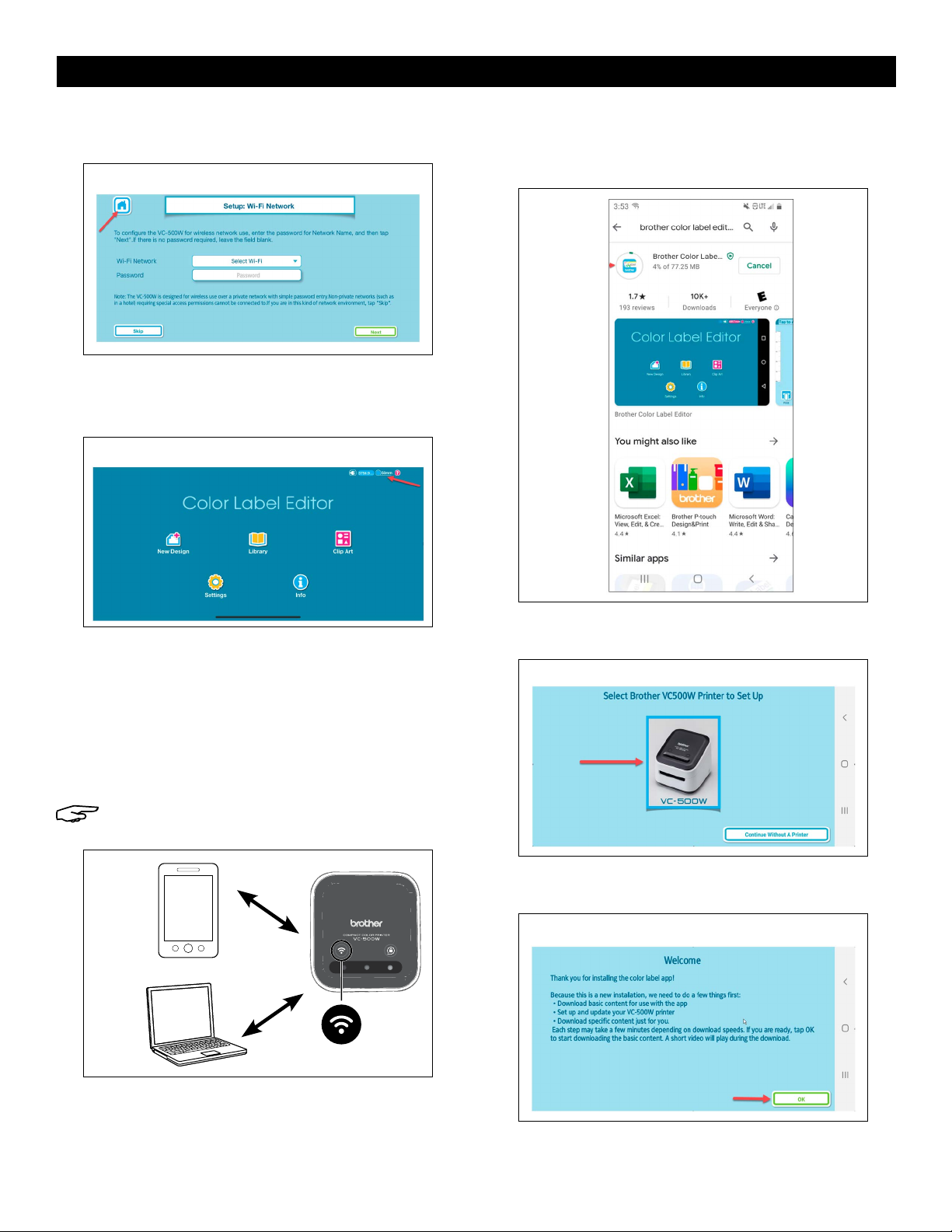
11. WiFi setup is complete. Click Home to start designing
labels. (See Figure 11)
12. On Home screen, check that label size is displayed
in top right corner to verify printer is connected. To
design a label, click New Design. (See Figure 12)
ANDROID: SOFTWARE SETUP AND
DIRECT WIFI CONNECTION
1. On printer, press and hold WiFi button (1) for two
seconds to activate Wireless Direct Mode. In
Wireless Direct Mode, WiFi button LED is white.
(See Figure 13)
NOTE: Wireless Direct Mode allows printer to
connect directly to WiFi-enabled devices.
2. Go to Google Play Store and download Brother
Color Label Editor. When complete, open app.
(See Figure 14)
3. Click VC-500W printer picture to begin setup
instructions. (See Figure 15)
4. On Welcome screen, read instructions. Click OK.
(See Figure 16)
SETUP CONTINUED
Figure 11
Figure 12
Figure 13
Figure 14
Figure 15
Figure 16

PAGE 5 OF 27 0921 RH-8754
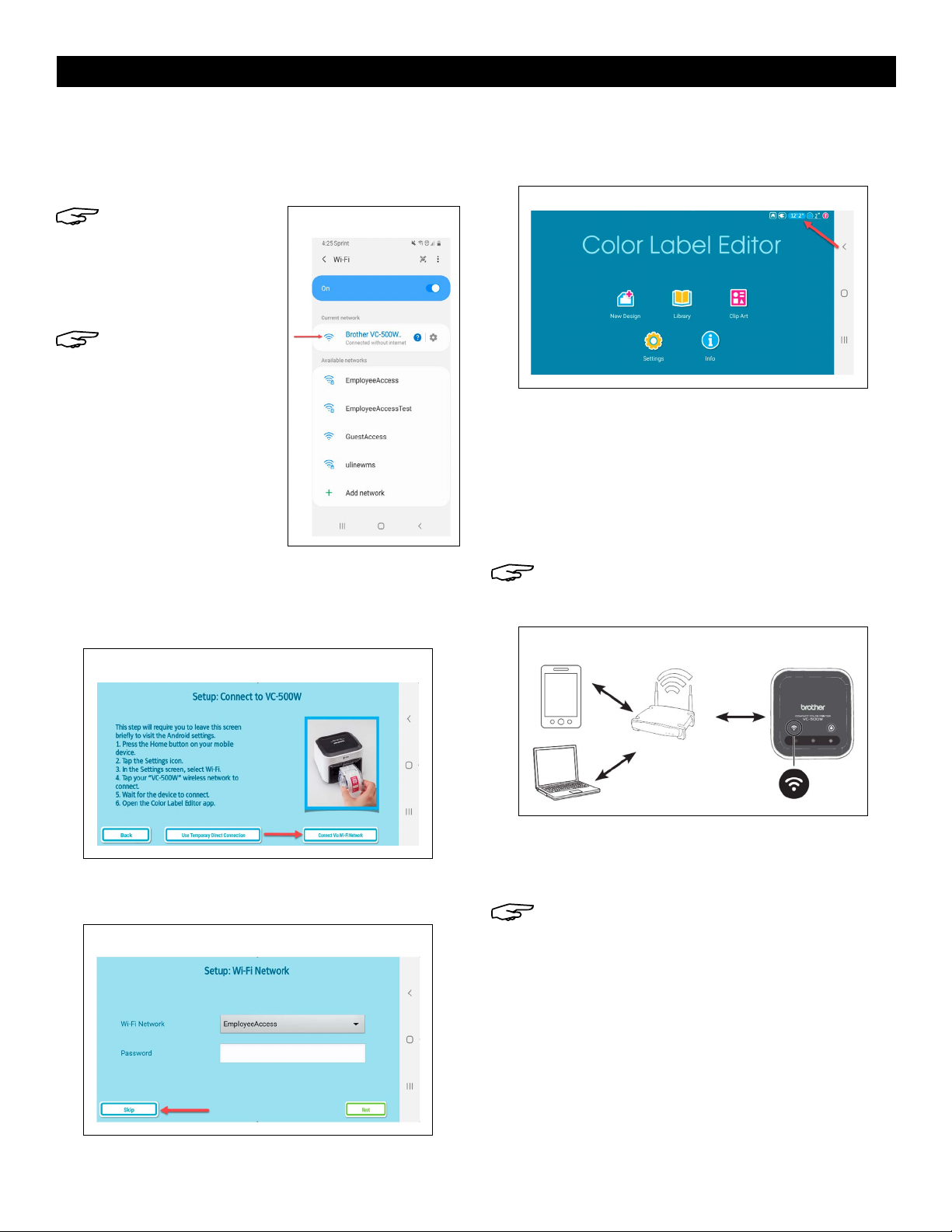
5. On VC-500W screen, read instructions. Click OK.
(See Figure 17)
6. On Power Cords screen, insert AC power adapter/
cord (11) in AC adapter port (6) and plug opposite
end into electrical socket. Click OK. (See Figure 18)
7. On Power On screen, press and hold power button
for two seconds, then release. When lights stop
flashing, click Next. (See Figure 19)
8. On Load Cassette screen, open roll cassette (9) and
remove yellow tab. Click OK. (See Figure 20)
NOTE: Make sure to load roll cassette with
a pink sticker marked with 1", not cleaning
cassette (10) with a gray sticker marked with C.
9. Lock/Unlock screen explains that cassette button (2)
flashes until loading is complete. Click OK.
(See Figure 21)
10. WiFi Button screen explains that WiFi button (1) LED is
white and remains lit without flashing. If it is not, press
WiFi button once or twice until button is lit. Click Next.
(See Figure 22)
SETUP CONTINUED
Fi gure 17
Figure 18
Figure 19
Figure 20
Figure 21
Figure 22
PAGE 6 OF 27 0921 RH-8754
SETUP CONTINUED
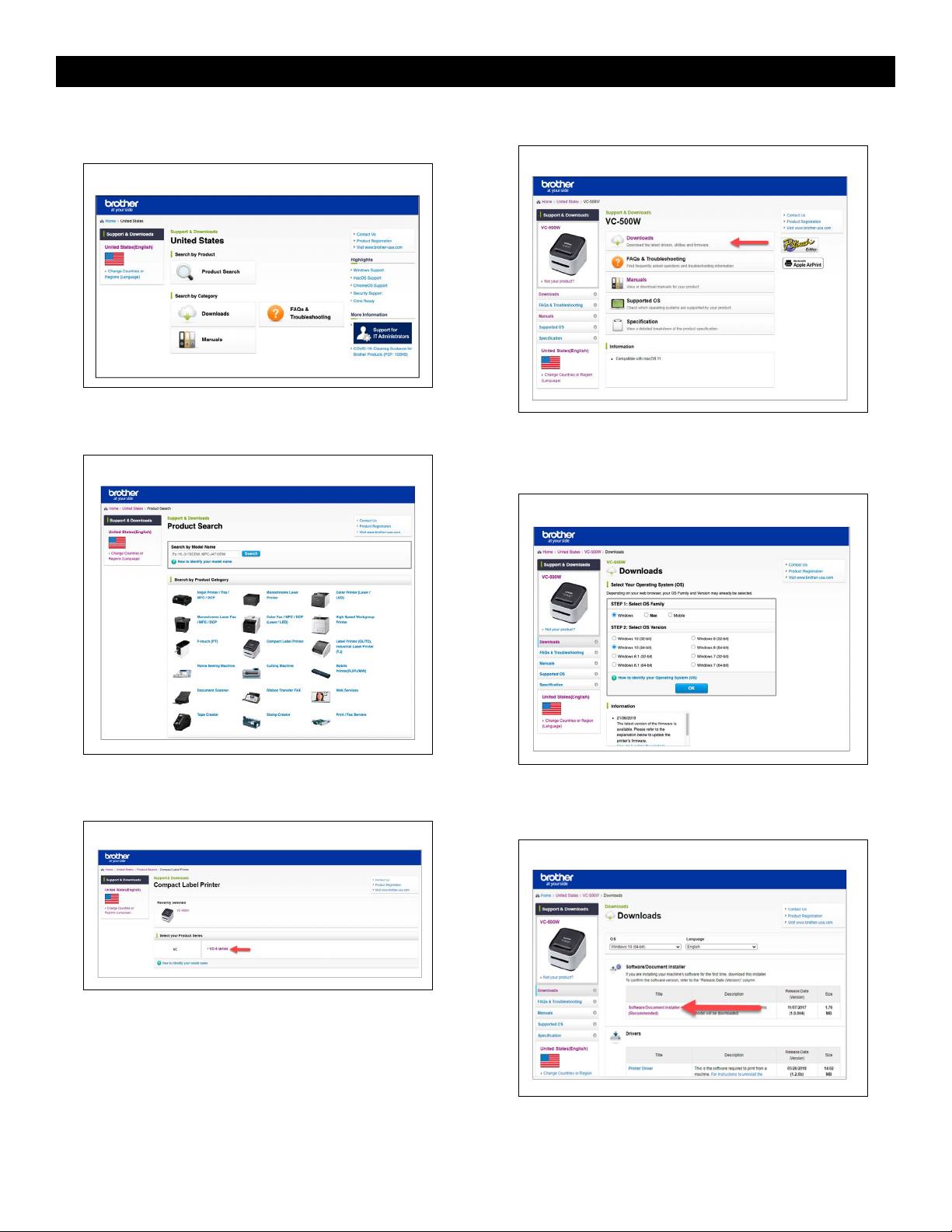
11. Minimize Brother Color Label Editor app and go
to Settings on device. In Settings, go to WiFi and
ensure it is turned on. Select Brother VC-500W ####
network. (See Figure 23)
NOTE: Last four digits
of network name
(####) are the last
four digits of serial
number on bottom of
printer.
NOTE: Device has no
internet access while
connected directly to
printer.
12. Return to Brother Color Label Editor app. Once
device is connected, Connect Via Network WiFi will
turn green. Click Connect Via Network WiFi.
(See Figure 24)
13. WiFi setup is complete. Click Skip to go to home
screen and start designing labels. (See Figure 25)
14. On home screen, check that label size is displayed
in top right corner to verify printer is connected. To
design a label, click New Design. (See Figure 26)
COMPUTER: SOFTWARE SETUP AND
NETWORK WIFI CONNECTION
1. On printer, press and hold WiFi button (1) for two
seconds to activate Infrastructure Mode. In
Infrastructure Mode, WiFi button LED is blue.
(See Figure 27)
NOTE: Infrastructure Mode allows printer to
connect to WiFi-enabled devices through
Network WiFi.
2. Connect printer to computer using micro USB
cable (12). Open web browser and go to
support.brother.com
NOTE: Website defaults to United States
(English). For other languages, click on Change
Countries or Regions (Language) in top left
corner.
Figure 23
Figure 24
Figure 25
Figure 26
Figure 27
PAGE 7 OF 27 0921 RH-8754
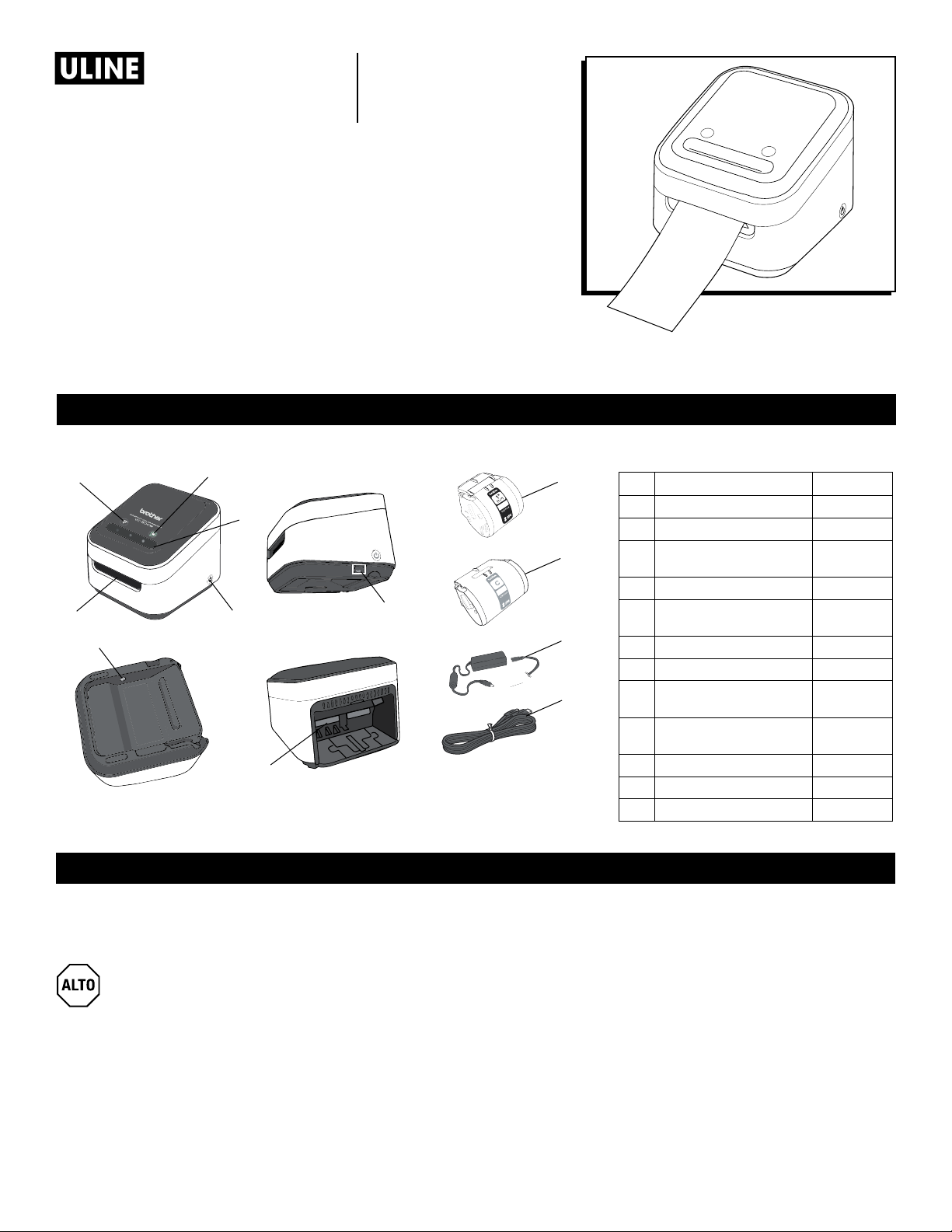
3. Verify preferred country/language. Click Product
Search. (See Figure 28)
4. On Product Search page, click Compact Label
Printer. (See Figure 29)
5. On Compact Label Printer page, click VC-5 series.
(See Figure 30)
On VC-500W page, click Downloads. (See Figure 31)
6. On Downloads page, indicate computer Operating
System (OS). Select OS Family and OS Version. Click
OK. (See Figure 32)
7. On next Downloads page, verify Operating System
(OS) and language. Click Software/Document
Installer. (See Figure 33)
SETUP CONTINUED
Figure 28
Figure 29
Figure 30
Figure 31
Figure 32
Figure 33

PAGE 8 OF 27 0921 RH-8754
SETUP CONTINUED
8. On Software/Document Installer page, read
End-User License Agreement (EULA). Click Agree to
the EULA and Download. (See Figure 34)
9. When software download is complete, unplug
printer from computer.
• If WiFi button (1) LED is blue and remains lit
without flashing, Infrastructure Mode is already
configured. In this case, do not continue. On
computer, open Brother P-Touch and start
designing labels.
• If WiFi button LED is flashing blue, press and
hold WiFi button for two seconds to activate
Wireless Direct Mode. In Wireless Direct Mode,
WiFi button LED is white and remains lit without
flashing. Go to step 12.
• If WiFi button is white and remains lit without
flashing, user is in Wireless Direct Mode.
Go to step 12.
10. Go to Settings on device. In Settings, select Brother
VC-500W #### network. (See Figure 35)
NOTE: Last four digits of network name (####)
are the last four digits of serial number on
bottom of printer.
Figure 35
11. Open web browser and go to 192.168.0.1.
NOTE: Website defaults to English. For other
languages, click drop-down list.
12. Verify preferred language. Click NETWORK WIFI
SETUP. (See Figure 36)
Windows: iOS/Android OS:
Figure 34
Figure 36

PAGE 9 OF 27 0921 RH-8754
OPERATING ISSUE RECOMMENDATIONS
Labels are not printing. Ensure the label roll cassette has been loaded in the back
of the printer and the cassette button is solid white.
NOTE: Printer comes with one 1" label roll cassette
and one 2" cleaning cassette. If the cleaning
cassette has been loaded, no labels will print.
Not connecting to computer. Refer to page 6 for computer connection.
Printer is not connecting via WiFi to my
phone/electronic device.
Refer to page 6 for Infrastructure Mode Connection.
Printer is not connecting via Infrastructure
Mode (connecting wirelessly through WiFi
network).
Refer to page 6 for Infrastructure Mode Connection.
Mexico (Spanish) is not an available
selection at support.brother.com
Select Latin America (Spanish) or United States (Spanish).
TROUBLESHOOTING
SETUP CONTINUED
13. On next screen, scroll through list and select WiFi
Network name. (See Figure 37)
14. On next screen, enter WiFi network password. Click
Connect. (See Figure 38)
15. Infrastructure Mode configuration is complete.
Close this window and continue with printer
installation. (See Figure 39)
1
-800-295-551
0
uline.com
Figure 37
Figure 38
Figure 39
PAGE 10 OF 27 0921 RH-8754
800-295-5510
uline.mx
BROTHER MODELO NO. VC-500W
BROTHER®IMPRESORA
COMPACTA A COLOR
H-8754
CONFIGURACIÓN
PARTES
PARTES
#DESCRIPCIÓN CANT.
1 Botón de WiFi 1
2 Botón de Cartucho 1
3Panel de Pasar para
Cortar 1
4 Botón de Encendido 1
5Ranura de Salida de
Impresión 1
6 Puerto de Adaptador AC 1
7Puerto Micro USB 1
8Ranura para Cartucho
de Rollo 1
9Cartucho de Rollo de 1"
(Etiquetas) 1
10 Cartucho de Limpieza 1
11 Adaptador/Cable AC 1
12 Cable Micro USB 1
Descargue e instale el software de edición de etiquetas
gratis para su uso con el dispositivo.
• Para software y conexión WiFi directa a
iPhone, vea el Paso 1 en la página 11.
• Para software y conexión WiFi directa a
Android, vea la página 13.
• Para software y conexión WiFi a la
computadora, vea la página 15.
12
3
54
6
7
9
10
11
12
8
Tabla de contenidos
Idiomas:
Otros manuales de Etiquetadora de U-Line

U-Line
U-Line DYMO 450 Manual de usuario

U-Line
U-Line DYMO LABELWRITER 550 TURBO Manual de usuario

U-Line
U-Line MONARCH 1110 Manual de usuario

U-Line
U-Line ZEBRA ZM400 Manual de usuario

U-Line
U-Line MONARCH 1115 Manual de usuario

U-Line
U-Line H-1276 Manual de usuario

U-Line
U-Line H-1276 Manual de usuario

U-Line
U-Line Dymo LabelWriter 450 Twin Turbo Manual de usuario

U-Line
U-Line H-8783 Manual de usuario


