Asoka Pluglink PL9950-BBR Manual de usuario

User’s Guide
PlugLink 9950 Cable/DSL Router
PL9950-BBR
PL9950UG-060106

Asoka® User’s Guide
PlugLink 9950 Cable/ DSL Router PL9950-BBR
Page 2 of 43
© 2006 Asoka USA Corporation. All rights reserved.
Trademarks
Asoka, PlugLi nk and the Asoka l ogo are registered trademarks or trademarks of Asoka USA
Corporation.
Other brand and product names are registered trademarks or trademarks of their respecti ve
holders.
Statement of Conditions
In the interest of improving internal design, operational function, and/ or reliability, Asoka
reserves the right to make changes to the products described in this document without notice.
Asoka does not assume any liability that may occur due to the use or application of the
product(s) or circuit layout(s) described herein.

Asoka® User’s Guide
PlugLink 9950 Cable/ DSL Router PL9950-BBR
Page 3 of 43
Table of Contents
Chapter Title Page
1 Introdu ction 4
2 Important Safety Information 5
3 Learning A bo ut your Powerli ne Ro uter 6
4 Preparing to Install 10
5 Installing the Powerline Router 11
6 Logging o n 12
7 Web-based User Interface 13
8 Connectin g to your I SP 15
9 Changing LA N Settings 18
10 Configuring the Firewall 21
11 Router Admini stration 31
Appendixes 37

Asoka® User’s Guide
PlugLink 9950 Cable/ DSL Router PL9950-BBR
Page 4 of 43
Chapter 1
Introduction
Thank you for purchasing a PlugLink 9950 Cable/ DSL Router (PL9950-BBR) from Asoka. This router
lets you net work your home or office by simply pluggi ng directly in to your wal l outl et. Now,
networking i s as easy as pl ugging in a ni ght li ght. With your PlugLink 995 0 Cable/ DSL Router, you
can easily share your high- speed Internet broadband, mp3s, video and gaming t hroughout the
home or office without pulling any new cabling.
This unit will not interfere with other household appliances such as hair dryers, vacuum cleaners
or microwave ovens. Consuming only 5 watts of power, it is environmentally friendly and will not
noticeably increase your electrical bill. It is a simple, secure and reliable choice for web surfing,
playing games, for compl imenti ng your existi ng wireless network, mp3 streami ng, and ev en high-
defini tion (HD) v ideo sharing.
This User’ s Guide shows you how to connect your P lugLink 99 50 Cable/ DSL Rout er to your PC.
Setup is easy. Just follow the instructions in this guide and your network will be up and running in
a matter of minutes.

Asoka® User’s Guide
PlugLink 9950 Cable/ DSL Router PL9950-BBR
Page 5 of 43
Chapter 2
Important Safety Instruction for the PlugLink 9950 Cable/ DSL Router
The following precaut ions should be taken when usi ng this product:
Read all instructions before installing and operating this product.
Do not open the cover on thi s product and/or alter thi s product in any way.
Follow common household electrical safety practices.
If you have any ques tions or concerns regarding these safety measures, please contact
Monday through Friday from
9:00 am t o 5:00 pm PST (excluding holidays.)

Asoka® User’s Guide
PlugLink 9950 Cable/ DSL Router PL9950-BBR
Page 6 of 43
Chapter 3
Learning about your PlugLink 9950 Cable/ DSL Router
Package Contents
PlugLink 9950 C able/ DSL Router (PL9950-BBR)
6 ft. Et hernet cabl e
Quick Installation Guide
Install ation Resource CD
Warranty and Support Information Card
If any of th e parts are i ncorrect, missing or damaged contact the retailer where you made your
purchase. Keep the carton, including the original packing materials, in case you need to return
the unit for repair.
System Requirements
Cabling and Comput er Hardware
To use the PL9950- BBR router on your network, each computer must h ave an in stall ed
Ethernet Network Interface Card (NIC) and an Ethernet Cabl e. If th e computer is connected
to your network using an Ethernet NIC at 100 Mbps, you must use a Category 5 (Cat 5) cable
such as the one provided with your router. The cable or DSL broadband modem must
provide a standard 10 Mbps (10BASE-T) or 100 Mbps (100BASE-Tx) Ethernet interface. The
computer must be running ei ther Windows (98SE or higher) or Mac OS (X.1 or hi gher) an d
have at least 200 Mhz or fast er processing speed and a 64Mbs of RAM.
Computer Network Configuration Requirements
The PL9950-BBR router i ncludes a buil t-i n Web Configuration Manager. To access the
configurati on menus on the PL9950-BBR router, you must use a web browser (such as
Microsoft internet Explorer or Mozilla Firefox) that has Macromedia Flash and a Java-enabled
program that supports HTTP uploads. It i s recommended that you use Internet Expl orer 6.0 or
Mozilla Firefox 1.5 or above.
For the initial setup of your router, you will need to connect a computer to the router. This
computer has to be set to automatically get its TCP/IP configuration from the router via
DHCP. For i nformation on how to configure your computer, please see Appendix A.
Broadband Access and Configurati on Requirements
Depending on how your Internet servi ce set up your account , you may need one or more of
these configuration parameters to connect your router to the Internet:
o Host and Domain Names
o ISP Login Name and Pass word

Asoka® User’s Guide
PlugLink 9950 Cable/ DSL Router PL9950-BBR
Page 7 of 43
o ISP Domain Name Server (DNS) Addres s
o Fixed IP Address which is also known as Stati c IP Address
For your convenience, see
Appendix A for an easy-to-use form as a guide t o ask t he
appropriate information from your Internet service provider.
The Front Panel
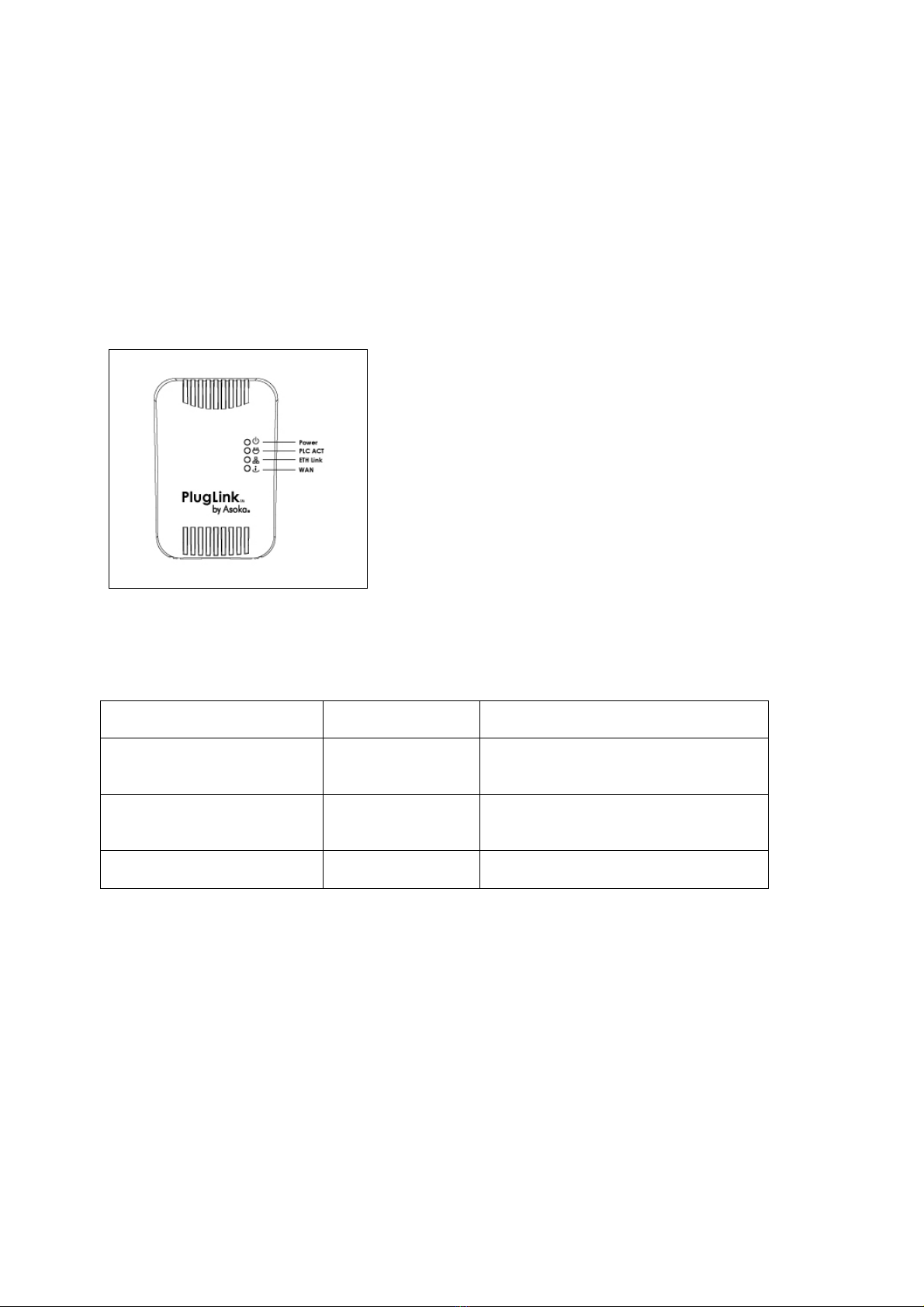
The front panel of the PL9950-BBR Router contains the status lights described below.
Figure 3-1: PL9950-BBR Front Panel
You can use the status lights to v erify connections. Viewed from top to bottom, left to right, the
table descri bes the light s on the front panel of the uni t.
Table 3-1: Status Light Descriptions
POWER On
Off
Indicates Devi ce Powered On
Indicates No Power
PLC ACT
Blinking
Off
Indicates Activity on Powerline
Indicates No Activ ity on Powerli ne
(Should blink Intermittently)
ETH Li nk On
Blinking
Off
Indicates Ethernet C onnectiv ity
Indicates Ethernet Traffic
Indicates No Ethernet Activity
WAN On
Off
Indicates Activity on t he WAN
Indicates No Activity on the WAN
Left Panel
The left panel of the PL9950-BBR Router contai ns a reset button as shown i n figure 3-2.

Asoka® User’s Guide
PlugLink 9950 Cable/ DSL Router PL9950-BBR
Page 8 of 43
Figure 3-2: PL9950-BBR Left Panel
The Bottom Panel
The bottom panel of the PL9950-BBR Router contains a WAN port and a LAN port as shown i n
figure 3-3.
Figure 3-3: PL9950-BBR Bottom Panel
The Rear Panel
The label on the rear panel of the PL9950-BBR Router contains the items listed below.
Model Number
Unique device password
PLC MAC address
Ethernet MAC address
Serial number
Note: For future convenience, please write this information down in your Warranty Support
Information card.

Asoka® User’s Guide
PlugLink 9950 Cable/ DSL Router PL9950-BBR
Page 9 of 43
Figure 3-4: Rear Label

Asoka® User’s Guide
PlugLink 9950 Cable/ DSL Router PL9950-BBR
Page 10 of 43
Chapter 4
Preparing to Install the PlugLink 9950 Cable/ DSL Router
The PlugLin k 9950 Cable/ DSL Rout er lets you set up a home or an office net work using your
existi ng electri cal outlet s. It can also easily compli ment your existi ng network by connecting t o
any 10BaseT/ 100BaseT Ethernet-capable devi ce.
In order to share a Broadband connection between computers, all you will need is:
One (1) PL9650-ETH dev ice attached t o each computer or one (1) PL9550-WAP device for
any wireless-enabl ed computers
Standard Cable/DSL Modem
One (1) PL9950-BBR devi ce
Figure 4-1: Shared broadband connection network diagram.
Este manual sirve para los siguientes modelos
1
Tabla de contenidos
Otros manuales de Enrutador de red de Asoka
Manuales populares de Enrutador de red de otras marcas

NETGEAR
NETGEAR FS526T - Switch Manual de usuario

Korenix
Korenix JetNet 5710G Series Manual de usuario

Automated Logic
Automated Logic ZN551 Manual del propietario

Cisco
Cisco ASR 1000 Series Manual del operador

EnGenius
EnGenius ESR-9710 Manual de usuario

Cisco
Cisco 805 Series Instrucciones de funcionamiento y seguridad