2
CONTENTS
1. INTRODUCTION ..........................................................................................................................................3
1.1 FEATURES ............................................................................................................................................................................................. 4
1.2 PACKING LIST ....................................................................................................................................................................................... 4
1.3 PRODUCT VIEWS ................................................................................................................................................................................... 5
1.4 PC SYSTEM REQUIREMENTS ................................................................................................................................................................. 7
1.5 HARDWARE INSTALLATION ................................................................................................................................................................... 7
1.6 SOFTWARE INSTALLATION ..................................................................................................................................................................... 8
2. SOFTWARE OPERATION...........................................................................................................................9
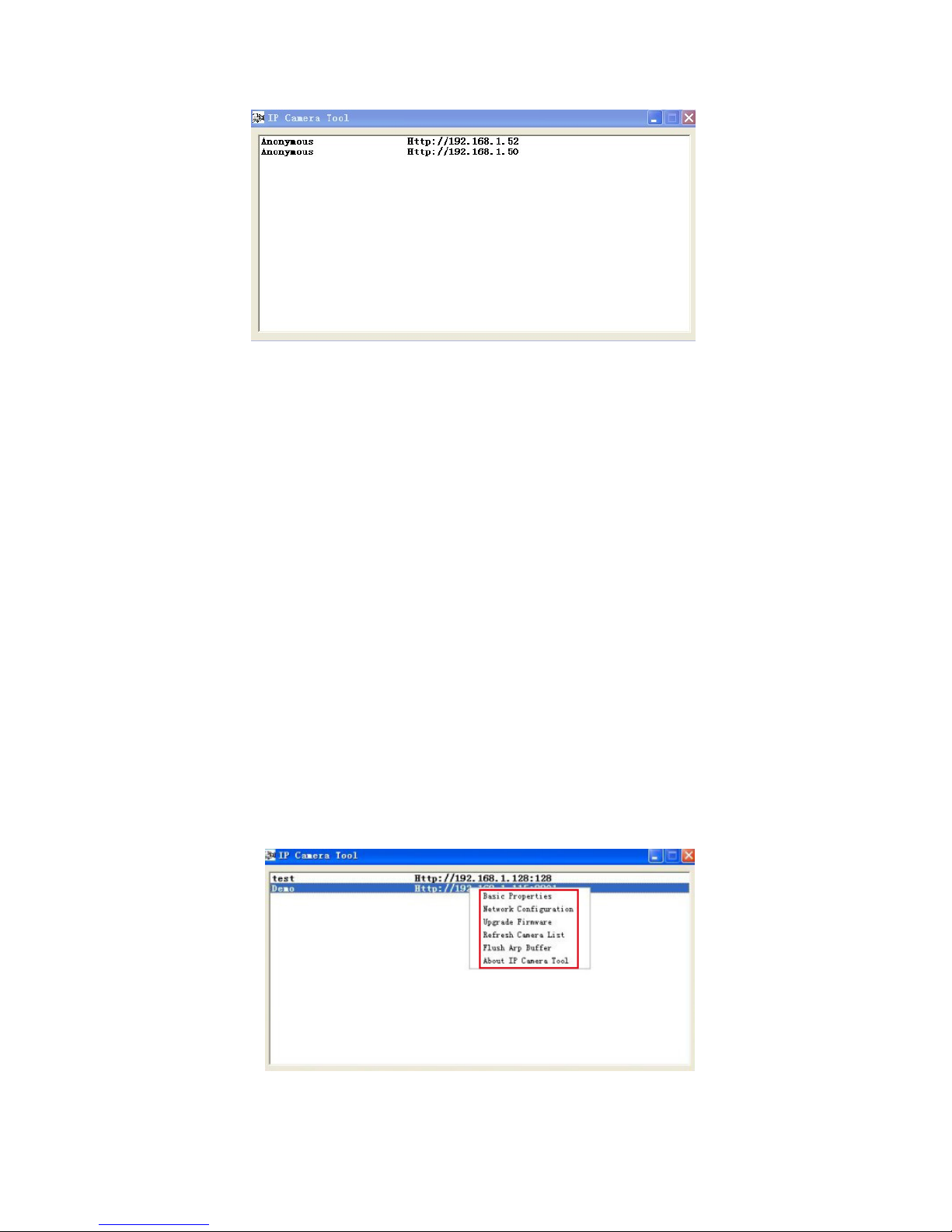
2.1 IP CAMERA TOOL.................................................................................................................................................................................. 9
2.2 CAMERA LOGIN .................................................................................................................................................................................. 13
2.3 FOR IE BROWSER................................................................................................................................................................................ 15
2.4 FOR SAFARI,FIREFOX,AND GOOGLE BROWSER.................................................................................................................................. 18
2.5 FOR MOBILE PHONE ........................................................................................................................................................................... 19
2.6 ACTIVEXMODE (FOR IE BROWSER) .................................................................................................................................................. 19
2.7 FOR VISITOR ....................................................................................................................................................................................... 19
2.8 FOR OPERATOR ................................................................................................................................................................................... 23
2.9 FOR ADMINISTRATOR .......................................................................................................................................................................... 24
3 SETTINGS AS ADMINISTRATOR.............................................................................................................. 25
3.1 MULTI-DEVICE SETTINGS ................................................................................................................................................................... 25
3.2 NETWORK SETTINGS ........................................................................................................................................................................... 31
3.3 BASIC NETWORK SETTINGS ................................................................................................................................................................ 31
3.4 WIRELESS LAN SETTINGS .................................................................................................................................................................. 33
3.5 ADSL SETTINGS ................................................................................................................................................................................. 35
3.6 UPNPSETTINGS .................................................................................................................................................................................. 35
3.7 DDNS SERVICE SETTINGS .................................................................................................................................................................. 36
3.8 P2P SETTINGS...................................................................................................................................................................................... 40
3.9 SYSTEM SETTINGS .............................................................................................................................................................................. 41
3.10 ALIAS SETTINGS ............................................................................................................................................................................... 41
3.11 DATE &TIME SETTINGS..................................................................................................................................................................... 42
3.12 USERS SETTINGS ............................................................................................................................................................................... 42
3.13 BACKUP &RESTORE ......................................................................................................................................................................... 43
3.14 OTHER SETTINGS .............................................................................................................................................................................. 44
3.15 MAIL SERVICE SETTINGS .................................................................................................................................................................. 45
3.16 FTP SERVICE SETTINGS .................................................................................................................................................................... 46
3.17 ALARM SERVICE SETTINGS ............................................................................................................................................................... 47
3.18 SEND MAIL ON ALARM ..................................................................................................................................................................... 49
3.19 PAT H SETTINGS ................................................................................................................................................................................. 50
3.20 SERVER PUSH MODE (FOR SAFARI,FIREFOX,AND GOOGLE BROWSER) ........................................................................................... 52
3.21 SIGN IN MOBILE PHONE ..................................................................................................................................................................... 53
4. APPENDIX .................................................................................................................................................54
4.1 FREQUENTLY ASKED QUESTIONS ........................................................................................................................................................ 54
4.2 DEFAULT PARAMETERS ....................................................................................................................................................................... 56
5. SPECIFICATIONS...................................................................................................................................... 57
6. OBTAINING TECHNICAL SUPPORT ....................................................................................................... 58