
Acuma Labs RTA-31 Manual de usuario

USER’S GUIDE
RTA-31™
™
®
Plug-in for Mackie Digital Mixers
™

2
Acuma RTA-31
Iconography
“Mackie” and the “Running Man” figure are trademarks or
registered trademarks of Mackie Designs Inc. All other brand
names mentioned are trademarks or registered trademarks of
their respective holders, and are hereby acknowledged.
Part No. 820-257-00 Rev. A1 07/2001
© 2001 Mackie Designs Inc. All Rights Reserved.
This icon identifies a description of how to
perform an action with the mouse.
This icon identifies a description of how to
perform an action from the console.
This icon will lead you to some further
explanations of features and practical tips.
This icon marks information that is very
important, so please make sure you have a read.
This icon does not appear in this guide.
Note: Any future revisions of this guide will e availa le for viewing and down-
loading from our we site: www.mackie.com.
Further plug-in details and preset downloads can e o tained from
www.acumala s.com.

User’s Guide
3
Contents
Iconography ----------------------------------------------------- 2
Introduction ---------------------------------------- 5
A out Acuma La s ---------------------------------------------- 5
A out the D8B UFX Card --------------------------------------6
A out the RTA-31 ------------------------------------------------6
Let’s Get Started -----------------------------------7
Requirements ---------------------------------------------------- 7
Authorizing the Plug-In---------------------------------------- 7
Unlock Procedure ---------------------------------------------- 8
Configuring the Plug-In----------------------------------------9
Using the RTA-31 ---------------------------------- 11
Front Panel (Overview) --------------------------------------- 11
EQ Panel --------------------------------------------------------- 11
31 Bands of Graphic EQ --------------------------------------- 11
Mouse Control -------------------------------------------------12
Input/Output -------------------------------------12
The Main Control Bar ---------------------------- 13
EQ ----------------------------------------------------------------- 13
Analyze ---------------------------------------------------------- 13
Morph ------------------------------------------------------------ 13
Morph Rate ----------------------------------------------------- 13
Menu ------------------------------------------------------------- 13
Memory A/Memory B ---------------------------------------- 13
Ena le ------------------------------------------------------------14
Preset Toggle Buttons-----------------------------------------14

4
Acuma RTA-31
Preset Title Window ------------------------------------------14
Input Select ----------------------------------------------------14
The Close utton ----------------------------------------------14
The Analyzer Panel -------------------------------15
The Analyzer Window ---------------------------------------- 15
The dB Range Magnifier -------------------------------------- 15
The dB Reference Window----------------------------------- 15
Graph Type ------------------------------------------------------ 15
Graph Speed Select------------------------------------------- 16
To EQ (Live Application/Pre EQ Only) ------------------ 16
Pre EQ ----------------------------------------------------------- 16
Post EQ ---------------------------------------------------------- 16
Freeze ----------------------------------------------------------- 16
The Reduced Screen Control Bar --------------17
The Reduced Screen Control Bar ---------------------------17
Input/Output Meters (Reduced Screen) -----------------17
31-Band Graphic EQ (Reduced Screen) ---------------------17
EQ -----------------------------------------------------------------17
Analyze ----------------------------------------------------------17
Saving, Loading and Resetting a Preset ------------------ 18
Automation and Snapshot Control -----------21
Dynamic Real Time --------------------------------------------21
Dynamic Off-Line ---------------------------------------------- 21
FX Routing ---------------------------------------- 22
Factory Presets----------------------------------- 27

User’s Guide
5
Introduction
Thank you for purchasing the RTA-31, the ultimate in
equalization and frequency analysis from Acuma Labs. It is one
of the exciting new family of 24-bit plug-ins for the D8B,
specifically designed for the new Mackie Universal Effects (UFX)
card.
The RTA-31 is a highly creative tool that enables you to produce
great mixes quickly and easily. The first time that you use the
visual and easy-to-use graphic user interface (GUI), you will
quickly understand the power of this package. After using the
functions that let you draw EQ curves, you will soon realize that
the RTA-31 is destined to become an integral part of the way you
produce sessions from now on.
A out Acuma La s
Acuma Labs develops real-time embedded systems for
professional audio applications to create high-quality products
for the music and pro-audio industries. Acuma specializes in
digital audio effects using DSP, real-time operating systems,
graphical user interfaces, and digital hardware design.

6
Acuma RTA-31
A out the RTA-31
Acuma Labs' RTA-31 is a dedicated software plug-in for the
Mackie Digital 8•Bus that utilizes 24-bit digital processing
power to view and modify the frequency response from any given
signal within the D8B. An invaluable tool for live sound and
studio applications, the RTA-31 lets you create great sounding
mixes quickly and easily. View frequency response using the on-
board spectrum analyzer to quickly identify the peaks and
valleys of your signal. Modify frequency response using the To
EQ function, which automatically compensates for the highs and
lows of your signal. A unique feature called Sweep Draw lets you
quickly paint any EQ curve using your mouse like an on-screen
paint brush. Save your edits and settings as presets or create
comparative editing references by toggling (morphing) between
the Memory A and B settings. The Spectrum Analyzer has a
selectable dB reference level (0dB to –60dB) that enables you to
zoom in on a specific signal range. Five different graph types
(bar, peak hold, peak difference, point, and peak bar) are
available for various display options. As with all Mackie plug-
ins, 31-Band Graphic EQ+ Analyzer can be routed via channel
insert, auxiliary sends, or inserted on the main Left and Right
Masters.
A out the D8B UFX Card
The Mackie UFX card provides robust processing power for
computation-heavy plug-ins. The UFX card is a 4-in/4-out
architecture, which means it can support four mono, two mono
and one stereo, or two stereo sends simultaneously. Up to four
UFX cards can be installed in the D8B, allowing up to sixteen
simultaneous single-channel effects, eight stereo plug-ins, or
combinations thereof.
Note: It is recommended that you increase the D8B’s memory if you install
more than one UFX card. Memory upgrade instructions are supplied with each
card.

User’s Guide
7
Requirements
• One or more Mackie UFX cards
• Mackie Real Time OS 3.0 Software
• Plug-in Software
We will assume you have successfully installed a Mackie UFX
card and Mackie Real Time OS 3.0 software upgrade. If you have
encountered problems with the installation of hardware or
software, please see their associated user guides or contact
Mackie support (www.mackie.com).
Authorizing the Plug-In
If you have Digital 8•Bus version 3.0, build 186 or higher, the
RTA-31 may already have been installed on the Digital 8•Bus
hard drive via the demo kit. If not, go to www.mackie.com and
download the Digital 8•Bus Plug-in Demo Kit for Macintosh or
Windows. When the demo kit has been installed, the D8B’s
Setup Screen Licensing window displays a “locked” icon for
GraphicEQ. You must enter an authorized unlock code to unlock
the plug-in for normal operation.
Let’s Get Started
An Unlocked
Plug-In
D8B SETUP screen’s
LICENSING window
D8B Electronic Serial Number (ESN)
AUTHORIZE
LICENSING
8
Acuma RTA-31
Unlock Procedure
1. Locate your D8B’s Electronic Serial Number (ESN). This
is displayed at the bottom of the Licensing window,
which is accessed from the Setup screen. The 12-digit
ESN is made from numbers 0–9 and letters A–F. It is
unique to the D8B processor, and is not the same as the
serial number on the rear of the control surface or CPU
chassis.
2. You will also need your plug-in’s serial number, which
is printed on the floppy disk label. If you download the
plug-in, you won’t have a serial number unless you
purchase it (and obtain the floppy disk).
3. To obtain the unlock code, have the ESN and plug-in
serial number ready. Then you have two options:
• Log on to the Mackie plug-in authorization web page:
(http://www.mackie.com/d8bauthorize.htm)
or
• Telephone Mackie Tech Support at 800-258-6883.
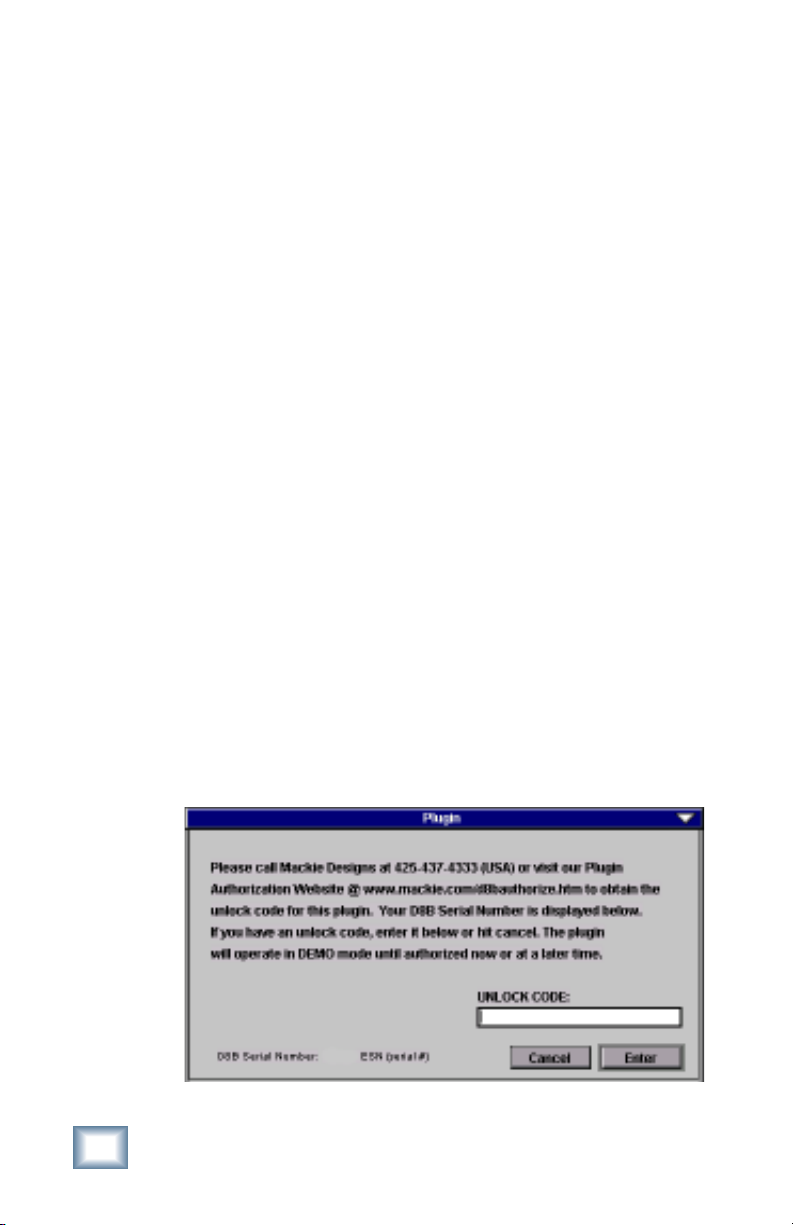
4. When you have obtained an unlock code, open the D8B
Setup window, and click Licensing.
5. With your plug-in highlighted in the Licensing window,
click Authorize, and enter your unlock code in the
UNLOCK CODE box. Click Enter, and enjoy your newly
expanded console.

User’s Guide
9
Configuring the Plug-In
After installing your UFX card, unlocking the plug-in, and
booting up the D8B, all you need to do is assign the RTA-31 to a
UFX card slot.
Assigning the Acuma RTA-31 to a UFX Card
1. Click the Plugins menu and select
Plugins, or use the keyboard
shortcut Ctrl+P.
2. In the Plugin Configuration menu, locate the card slot
that contains the UFX card to which you want to
assign the RTA-31.
3. In the MODE column, click the MONO/STEREO toggle
button and select MONO.
4. In the PLUGIN column, select Graphic EQ.
It should look something like this:
Note:Note:
Note:Note:
Note: A Plug-in can also e loaded from the Setup section on the console.

10
Acuma RTA-31
Assigning an Input Source
In the INPUT column of the Plugin Configuration screen, select an
input source for the RTA-31. This can be an auxiliary send, a Pre-
or Post-DSP channel insert, or the main left or right mix. In this
example, we’ve chosen the Pre-DSP insert point for Channel 1.
Deactivating the RTA-31
If you wish to deactivate
the plug-in from a UFX
card slot, select none
from the PLUGIN
column’s pull-down menu.
Otros manuales de Software de Acuma Labs


Manuales populares de Software de otras marcas


PS Audio
PS Audio PowerPlay Manual del propietario

Brady
Brady LOCKOUT PRO 3.0 Manual de servicio

Avaya
Avaya Interaction Center Manual de usuario

Texas Instruments
Texas Instruments TI-83 Plus Silver Edition Manual

Novell
Novell GROUPWISE 8 - INTERNET AGENT Manual de usuario

Oracle
Oracle Application 9i Manual de usuario

Acer
Acer RDM Manual de usuario

Canon
Canon Vixia HF21 Manual de usuario

Canon
Canon ZR950 Manual de usuario

Samsung
Samsung Auto Backup Manual de usuario

Polycom
Polycom Vortex EF2201 Instrucciones de instalación y funcionamiento

Brocade Communications Systems
Brocade Communications Systems Brocade 8/12c Manual de usuario