Xterasys USB Adapter Manual de usuario

802.11b/gMiniWirelessLAN
USB2.0Adapter
User’s Manual

REGULATORY STATEMENTS
FCC Certification
The United States Federal Communication Commission (FCC) and the
Canadian Department of Communications have established certain rules
governing the use of electronic equipment.
Part15, Class B
This device complies with Part 15 of FCC rules. Operation is subject to the
following two conditions:
1) This device may not cause harmful interface, and
2) This device must accept any interface received, including interface that may
cause undesired operation. This equipment has been tested and found to
comply with the limits for a Class B digital device, pursuant to Part 15 of the
FCC Rules. These limits are designed to provide reasonable protection
against harmful interference in a residential installation. This equipment
generates, uses and can radiate radio frequency energy, and if not installed
and used in accordance with the instructions, may cause harmful
interference to radio communications. However, there is no guarantee that
interference will not occur in a particular installation. If this equipment does
cause harmful interference to radio or television reception, which can be
determined by turning off and on, the user is encouraged to try to correct the
interference by one or more of the following measures:
ωReorient or relocate the receiving antenna.
ωIncrease the distance between the equipment and receiver.
ω Connect the equipment into an outlet on a circuit different from that to
which the receiver is connected.
CAUTION:
1) To comply with FCC RF exposure compliance requirements, a separation
distance of at least 20 cm must be maintained between the antenna of this
device and all persons.
2) This transmitter must not be co-located or operating in conjunction with
any other antenna or transmitter.

Table of Contents
INTRODUCTION...................................................................................................1
FEATURES ..............................................................................................................1
SOFTWARE INSTALLATION.............................................................................2
INSTALL THE DRIVER & UTILITY ............................................................................2
HARDWARE INSTALLATION............................................................................5
HARDWARE INSTALLATION VERIFICATION..............................................................5
NETWORK CONNECTION .................................................................................7
IN WINDOWS 98SE/ME..........................................................................................7
IN WINDOWS 2000/XP.........................................................................................10
IP ADDRESS .........................................................................................................12
Configuration Utility.............................................................................................13
PROFILE ...............................................................................................................14
LINK STATUS........................................................................................................15
SITE SURVEY........................................................................................................16
STATISTICS...........................................................................................................17
ADVANCED ..........................................................................................................19
ABOUT .................................................................................................................20
UNINSTALLATION.............................................................................................21

- 1 -
INTRODUCTION
The 802.11b+g Wireless LAN USB Adapter is designed for a USB type A port
of a laptop or desktop computer for creating a wireless workstation. It is USB 2.0
compliant which connects to any available USB port on a notebook or desktop
computer.
The 802.11b+g Wireless LAN USB Adapter complies with IEEE 802.11g
standard that offers a data rate up to 54Mbps in a wireless LAN environment. It is
backward compliant with IEEE 802.11b specification. The high-speed wireless
network card can plug into your notebook or desktop PC and accesses to
the LAN or peer-to-peer networking easily without wires or cables.
Whether you’re at your desk or in the boardroom, it allows you to share
printers, files, and other network resources.
Features
Complies with IEEE 802.11g standard for 2.4GHz Wireless LAN
USB 2.0 compliant
USB Plug & Play
Interoperable with existing network infrastructure
Secure information transmission
Freedom to roam while staying connected
Compatible with specialty wireless products and services
Up to 54 Mbps data rate
Antenna is built in the card with LED indication
Low power consumption
Easy to install and configure

- 2 -
SOFTWARE INSTALLATION
Install the Driver & Utility
Caution!
Do not insert the wireless LAN adapter into your computer until the
procedures in “ Install the Driver& Utility” have been performed.
1. Exit all Windows programs. Insert the included CD-ROM into your
computer. The CD-ROM will run automatically.
2. When the Main Menu screen appears, click “ Driver & Utility
Installation” to continue.
3. When the License Agreement screen appears, please read the
contents and then click Yes to continue.
4. Select the check box to choose a configuration Tool from the listed
two choices.

- 3 -
Wireless Configuration Tool: Choose to use our configuration
utility.
Microsoft Zero Configuration Tool: Choose to use Windows XP’s
built-in Zero Configuration Utility (ZCU).
Click Next to continue.
5. There are two modes for you to choose in this screen, either choose WiFi
mode or performance mode (TxBurst mode). This mode selection screen is
set for the default mode shown in the utility screen, you can still change its
mode later in the utility screen. Click Next to continue.

- 4 -
6. When the following screen appears, click Finish to complete the software
installation.

- 5 -
HARDWARE INSTALLATION
Note: Before you install the device to your computer, make sure you
have installed the driver and utility as described in the previous
section.
Windows 98SE/2000/ME / XP
1. Locate your USB host and insert the USB Adapter.
2. Once the device has been inserted to your computer, Windows will
detect the new hardware.
Hardware Installation Verification
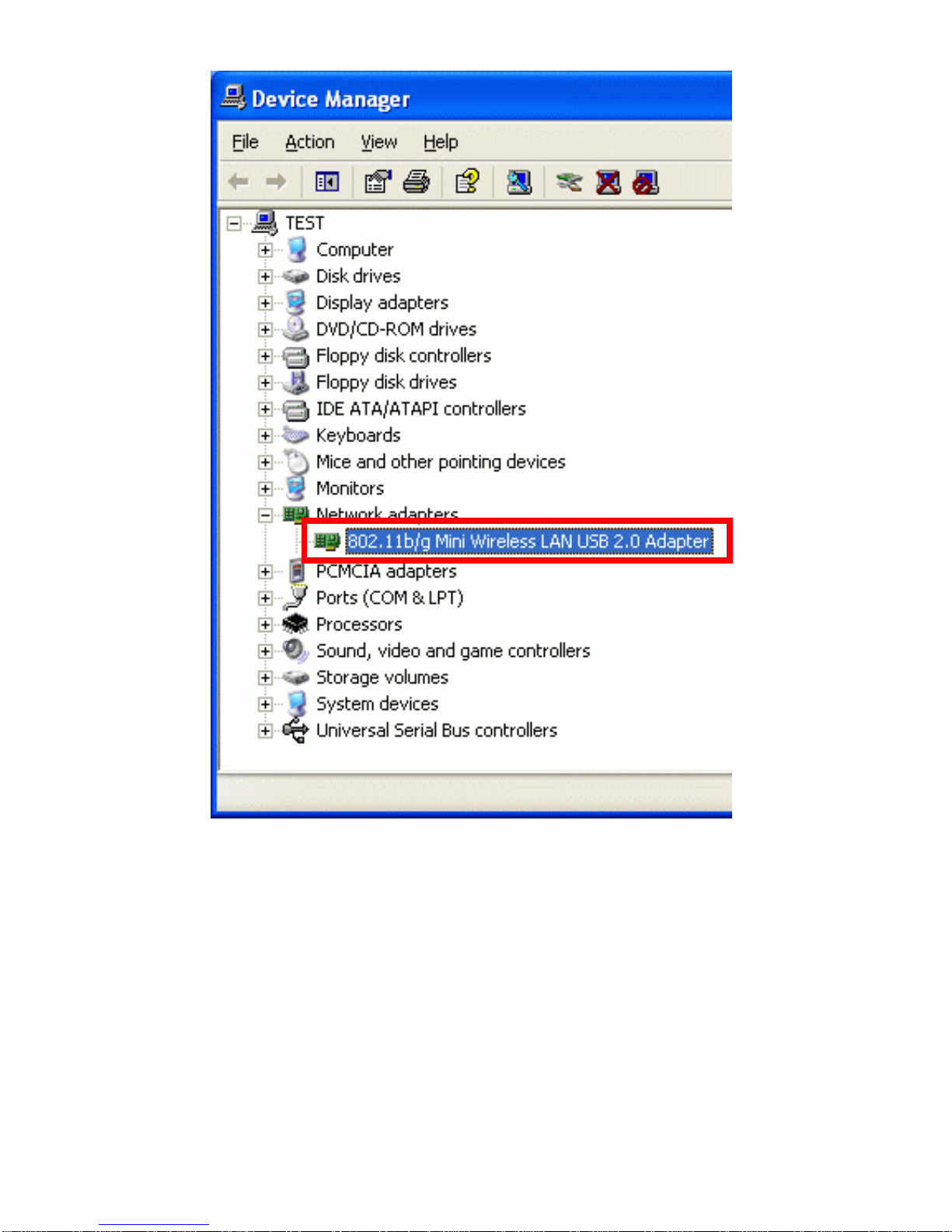
To verify if the device exists in your computer and is enabled, go to Start
Settings Control Panel System (Hardware) Device Manager.
Expand the Network Adapters category. If the 802.11b/g Mini Wireless LAN
USB 2.0 Adapter is listed here, it means that your device is properly installed and
enabled.

- 6 -
- 6 -

- 7 -
NETWORK CONNECTION
Once the device driver is well installed, a network setting described in the
following should be also established.
In Windows 98SE/ME
1. Go to Start Settings Control Panel Network.
2. Make sure that all the required components are installed. If any
components are missing, click on the Add button to add them
in.
Tabla de contenidos
Otros manuales de Tarjeta de red de Xterasys
Manuales populares de Tarjeta de red de otras marcas

3Com
3Com EtherLink 3C509B Manual de usuario

TRENDnet
TRENDnet TEG-PCITX Manual de usuario

Cisco
Cisco MC16E Manual de usuario

Delta Electronics
Delta Electronics Braking Modules VFDB Series Manual de usuario

TwinMOS
TwinMOS Booming Manual de usuario

Dialogic
Dialogic Media Board DM/V1200BTEPEQ Manual de usuario

Buffalo
Buffalo AirStation WLI-PCM-L11GP Manual de usuario

National Instruments
National Instruments NI 9234 Manual de usuario

Hama
Hama 49276 Manual de usuario

Linksys
Linksys WCF54G - Wireless-G Compact Flash Card Manual de operación

Compaq
Compaq Wireless LAN 100 Manual de usuario

Bose
Bose PowerMatch Dante Manual de usuario