Xiaoyi YI-87001 Manual de usuario

H18小蚁智能摄像机说明书(五国语言版):
图号
料号 6098H18001AR1A
H18008JA.DWG
Thank you for choosing YI Home Camera
H18 FG V2.0
Manufacturer: Shanghai Xiaoyi Technology Co.,Ltd.
Address: 6/F,Building E,No.2889 Jinke Road,Pudong District,Shanghai,China.
www.WeAreYi.com
FCC ID:2AFIB-H1500A
MSIP-CRM-stx-H1500A
70g无光铜

1. English
2. Español
3. Italiano
4. Français
5. Deutsch
Table of Contents
1
7
13
19
25

2. Getting Started
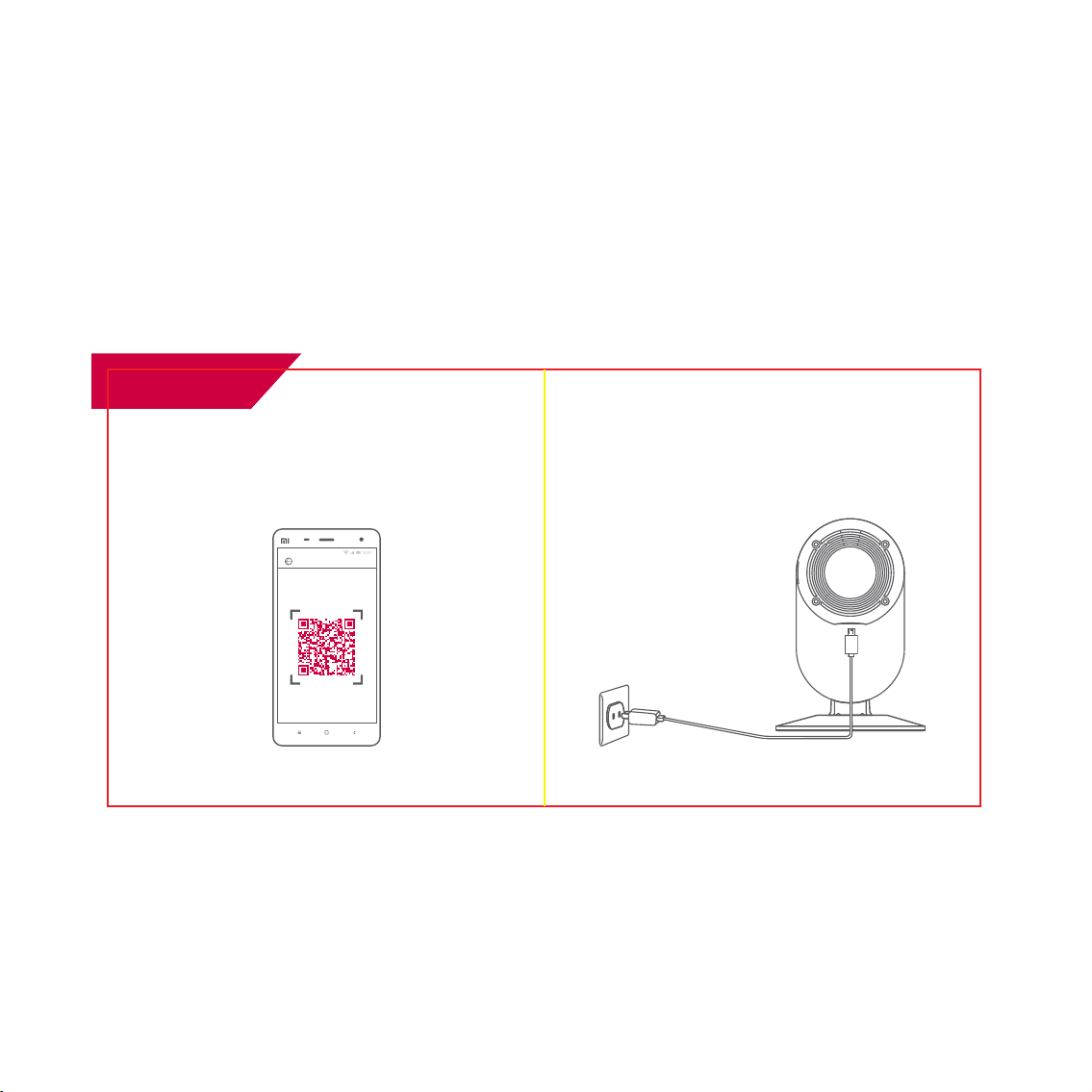
1. Place the camera close to the router, and make sure Wi-Fi access is available,
then connect the cable to the Micro USB port on the back of the camera to the
power outlet as shown.
1. Downloading the app
Scan the YI Home app QR code below to complete the installation.
YI Home app QR Code
Scan the QR code
You can also download it on the App Store or Google Play store by searching
for YI Home app.
R
English
YI Home Camera
1 2

Reset
Reset Button
Micro SD
Card Slot
Indicator
Light
2. Wait a few seconds until the yellow light starts to blink on the front of the camera.
If the yellow light does not blink, use a clip to press the reset button on the back of
the camera, and wait until the yellow light comes on again.
Note: To enable local recording of video clip, please insert a Micro SD card*
(not included) to the slot as shown below.
*support minimum of 8GB up to 32GB,class 4 & above Micro SD card
The WiFi camera needs to connect
XXXXX XXXXXXX
Add Camera
Power on camera,
wait until orange light flashes
Light is not bright?
Next
My Camera
Password
Next
3. Connecting the camera to your phone
1. Ensure that the camera is on and a yellow light is blinking on the front of the
camera.
2. Follow the simple setup instruction on the app. You can configure multiple
c ameras one at a time.
3 4

5. Switching Wi-Fi Networks
4. Previewing live footage
1. Use the YI Home app to watch real-time video on your phone.
You can also record and save videos or images.
When you need to switch Wi-Fi networks or update your Wi-Fi password,
follow the instructions below:
Recommendations
1. Place the camera in open areas with Wi-Fi signals and away from metal
objects.
1. Use a clip to press the reset button on the back of the camera, and wait
until the yellow light comes on.
2. Open the Yi Home app on your phone,and compiete the simple Add Camera
instructions.Your videos stored on your Micro SD card will not be affected.
2. Avoid placing the camera behind furniture, near microwaves, or in locations
with cables twisted together.
07/22 07/23
11:30 00:00 00:30 01:00
Hold to talk
Take photos & save
to your phone
Access Album
Playback History
(Available if Micro SD
card is inserted)
Capacity: 8-32GB
Record & save videos
to your phone
Mute / Unmute Speaker
My Camera
HD
Attention: It is illegal in
many jurisdictions to
record an audio
conversation without
the consent of all
individuals. Please
comply with all laws
when using your YI
Home Camera.
5 6

Español
YI Home Camera
2. Primeros Pasos
1. Conecte el cable de datos al puerto USB en la parte inferior de la cámara. La luz
indicadora delantera se activará cuando la cámara esté en modo de alimentacói n.
1. Descargar la App
Descargar e instalar la App YI Home.
Código QR de App YI Casa
Escanear el código QR
Escanear el código QR para completar la instalacói n de YI Home.
7 8

Reset
Botón
Restablecer
Ranura de
Tarjeta
Micro SD
Luz
Indicadora
2. Espere aproximadamente 20 segundos hasta que la luz amarilla parpadee.
Nota: Para habilitar la grabación, la visualización de vídeo, así como la
actualizacói n de firmware, se recomenda introducir una tarjeta Micro SD
de mínimo 8GB, y máximo 32GB.
Se necesita conectar la cámara al Wi-Fi
XXXXX XXXXXXX
Guía de Agregar
Conecte la cámara a la
alimentación, espere hasta que la
luz anaranjada parpadee
La luz indicadora no parpadea?
Siguiente
Mi Cámara
Contraseña
3. Añadir cámara
Agrague la cámara de acuerdo con las instrucciones de instalación en la App.
(Se puede agregar múltiples cámaras.) Cuando la luz anaranjada parpadee,
el dispositivo está listo para conectar.
Si la luz amarilla no parpadea, pulse el botón de Restablecer alrededor de 5
segundos, hasta que se active la luz amarilla que significa restablecimiento
se ha completado..
Siguiente
9 10

5. Cambio de Redes WiFi
4. Descripción de la función de vista previa
en la App Cuando necesite cambiar la red, mantenga presionado el botón Restablecer
alrededor de 5 segundos hasta que la luz amarilla se active.Luego conecte
al Wi-Fi de nuevo. Luego conecte al Wi-Fi de nuevo.
07/22 07/23
11:30 00:00 00:30 01:00
Presionar
para hablar
Tomar foto
Carpeta
Reproduccói n de historia
(Asegúrese de insertar
la tarjeta Micro SD.)
Capacidad: 8-32GB
Grabar vídeo
Monitor de la voz
HD
Mi Cámara
Recomendaciones
1. Coloque la cámara en áreas abiertas lejos del metal.
2. Evite colocar la cámara detrás de los muebles, o cerca de los h orno microondas.
3. Evite que el cable de alimentacói n enrolle los cables de datos, de audio o de v ídeo.
4. Coloque la cámara en áreas con señales de Wi-Fi.
11 12

13 14
2. Per iniziare:
1. Metti la camera vicino al router, stando certi che la connessione WiFi sia
disponibile.
Poi connetti il cavo da una parte alla Porta Micro USB locata dietro la Camera,
dall'altra alla corrente come mostrato in foto.
1. Scaricare l'applicazione:
YI Home app QR codice
Scan il QR codice
Italiano
YI Home Camera
Scannerizza il codice QR sottostante per scaricare l'applicazione.
Puoi anche scaricarla dall' App Store o dal Google Play Store ricercando:
YI Home App.

15 16
Reset
Riporta
pulsante
Micro SD
scheda slot
Indicatore
luce
2. Aspetta qualche secondo fino a quando la luce gialla inizia a lampeggiare sul
lato frontale della Camera..
Telecamera vuole collegare con Wifi
XXXXX XXXXXXX
Aggiungere telecamera
Avviare camera, aspettare
fino luce arancione flash.
La luce non è brillante?
Prossimo
La mia telecamera
Wifi password
Prossimo
3. Connettere la Camera al tuo telefono:
1. Assicurati che la camera sia accesa e che la luce gialla stia lampeggiando
nella parte frontale della Camera.
2. Segui le istruzioni del semplice setup nell'applicazione. Puoi configurare
più di una Camera nello stesso momento.
Se la luce gialla non lampeggia, utilizzare il Tasto Reset nella parte posteriore
della camera e aspetta fino a quando la luce gialla ritorna accesa di nuovo..
Nota: Per accendere la registrazione video locale, inserire una Micro SD card*
(Non inclusa) nello slot come mostrato qui sotto.
*Supporta da un minimo di 8 GB a un massimo di 32GB, Micro SD classe 4 o
superiore.
Tabla de contenidos
Idiomas: