
WIWACAM MW3N Pro Manual de usuario

MW3N Pro Mini Camera
Quick Guide
English
Before using the camera for the first time, please read
the important notes and setup camera procedure in
this quick guide.
Video tutorial: https://wiwacam.com/mw3npro-s-en
VER:3NP-EN-2307

- 2 -wiwacam.com/support
Table of Contents
Important notes: ............................................................................................................................................................... - 3 -
Note ...................................................................................................................................................................................... - 5 -
1 Product Brief................................................................................................................................................................... - 5 -
2. Set up Camera and Connect to WiFi..................................................................................................................... - 6 -
2.1 Preparation ............................................................................................................................................................. - 6 -
2.2 Turning on the camera ....................................................................................................................................... - 6 -
2.3 WIWACAM app ..................................................................................................................................................... - 7 -
2.4 Setup Camera......................................................................................................................................................... - 7 -
2.5 The Other Option of Setup Method.............................................................................................................- 10 -
3 Work with Mobile Power Bank ...............................................................................................................................- 11 -
4. Reset the Mini Camera.............................................................................................................................................- 11 -
5. microSD Card Slot .....................................................................................................................................................- 12 -
6. Night Vision Quick Guide........................................................................................................................................- 13 -
7 Feature Guides.............................................................................................................................................................- 15 -
7.1 Add camera on more smartphones..............................................................................................................- 15 -
7.2 Check Live Video.................................................................................................................................................- 19 -
7.3 Set Continuous Recording...............................................................................................................................- 21 -
7.4 Set Alarm Recording..........................................................................................................................................- 22 -
7.5 Playback microSD card Recordings ..............................................................................................................- 25 -
7.6 Set Alarm and Alarm Notification..................................................................................................................- 25 -
7.7 Check Alarm List..................................................................................................................................................- 28 -
7.8 Notes about Playback Recordings on PC/MAC........................................................................................- 29 -
7.9 Use Camera with No WiFi ................................................................................................................................- 29 -
8 Online FAQ and Resources......................................................................................................................................- 29 -
9 Error diagnostics .........................................................................................................................................................- 29 -
8.1 Setup Camera not Successful .........................................................................................................................- 30 -

- 3 -wiwacam.com/support
Warranty
If you encounter any problems with the product or need
to request a replacement or refund, please send us an
email (see below). We will respond within 24 hours, and
in most cases, within a few hours.
…………………………………………………………………………………………
Service email:
service@wiwacam.com
More camera operating guides:
wiwacam.com/support
Important notes:
1. If the seal labels on the packing box were opened or deformed before
opening, please contact us: (email: service@wiwacam.com).
2. The camera has no built-in battery. Connect camera to a power bank
to run on the go, or connect to USB power adapter for 24/7 running.
3. Make sure to handle the front cap of the camera with care as it is made
of fragile glass. Avoid dropping it on the floor or causing any impact that
could result in breakage.

- 4 -wiwacam.com/support
4. Before using the camera, please perform the Setup Camera as
described in Chapter 2 of this manual.
5. WiFi performance of each camera has been tested before delivery.
However, the WiFi antenna may get impacted during shipping. If you
have any weak WiFi performance problem on the camera you receive,
please contact us for a replacement.
6. In night vision mode, be careful not to have objects too close to the
lens. Objects closed to lens will block the infrared rays or reflect the
infrared rays to the lens. The blocking or reflection will severely
degrade night vision image quality.
7. To achieve better image quality and better night vision, please place
the MW3N Pro camera closer to the edge of the table. If it is positioned
too far away from the table edge, a significant portion of the image may
be occupied by the table itself, and degrade night vision image quality.
We recommend keeping a distance of LESS than 1 inch from the camera
to the table edge for optimal results.
8. The camera uses external surfaces for heat dissipation. So if the
camera feels hot, it is not a cause for concern. The surface material is
heat resistant up to 248°F, so it is safe. Furthermore, the material used
is flame retardant.
9. To improve heat dissipation during operation, make sure that the
side of the main control box without any labels is exposed to the air, not
covered by a table or any other surface.
10. The MW3N Pro prevents rapid switching back and forth between
day mode and night mode. If the camera switches modes frequently
within 1 minute, it will stay in night mode for 30 minutes. Afterward, it
resumes attempting to detect the lighting conditions automatically. If
you see the camera still in night mode when the room is well-lit, simply
wait a few minutes for it to switch back to auto light detection mode.

- 5 -wiwacam.com/support
Note
There is a PDF online we provide regularly update and with more
information, check this link:
https://wiwacam.com/mw3npro-pdf-en
How to record without WiFi or without internet, check out this link:
https://wiwacam.com/no-wifi-en
1 Product Brief
There are two modes of using the camera. Just choose the mode that suits
your needs best.
⚫With the Front Cap Equipped for Better Hiding: By default, the
camera comes with a front cap that is attached to hide the camera lens and
IR LED. This makes the camera less noticeable to people, such as
intruders. However, please note that the night vision quality may be
slightly reduced due to the glass on the cap limiting the amount of light
entering the camera lens.
⚫Front Cap Removed for Better Night Vision: If you require better night
vision quality, you have the option to remove the front cap from the
camera. This will enhance the camera's night vision capabilities.
Status LED
Lens
Power LED
IR LED
Front Cap
RESET
ON/OFF
SD Card
Slot
USB Interface
WiFi Antenna
(inside)

- 6 -wiwacam.com/support
2. Set up Camera and Connect to WiFi
2.1 Preparation
Please check the following before using your camera for the first time:
✓Your router has a 2.4GHz WiFi (Most 5GHz routers also have a 2.4GHz
WiFi network simultaneously. Therefore, if you have a 5GHz WiFi
network, it should most likely work with the camera as well.)
✓ Connect your smartphone to the target WiFi (the one you want the
camera to connect to).
✓ Put your smartphone and camera close to your WiFi router, within a
radius of max. 9 feet (3 meters) during the installation process (once installation
completed; you can move the camera further away)
✓ You have the correct WiFi password of this WiFi
2.2 Turning on the camera
✓ Connect the camera to the power by standard USB adapter (5V 1A or 5V
2A). Put the Power button to ON.
✓Wait for 40 to 60 seconds, you will see the status LED will flash in red
and blue.
✓If the status LED does not flash in red and blue, please try resetting the

- 7 -wiwacam.com/support
camera (See Chapter 4)
2.3 WIWACAM app
✓Search ‘wiwacam’ in the App Store (iPhone) or in Google Play
(Android) to find and install the ‘WIWACAM' app for free.
✓Set up a new account in the WIWACAM app by clicking 'New User
Registration'.
(If you already have a WIWACAM app account, just login with the account)
2.4 Setup Camera
The app will guide you to through the configuration process step by step.
Video tutorial available: https://wiwacam.com/mw3npro-s-en
(The camera support two setup methods. Here is the first way. The second
way can be found in Chapter 2.5 ‘The Other Option of Setup Method’)
1. Start the WIWACAM app, click the + button in top right corner to add a
new camera.
Select ‘MW3N' from the menu options. Then, follow the instructions in
the app.
2. Confirm the network shown here is correct network to connect (must be
2.4G Wi-Fi) --> input correct Wi-Fi password, press ‘Next’.

- 8 -wiwacam.com/support
Note: if the WiFi name here is not the one you want camera to connect,
go to your phone WiFi settings, connect your phone to the correct WiFi,
then start from the beginning of this Chapter again.
3. Keep camera about 6 inches (15 cm)
away from phone, the camera facing the
QR Code on the phone screen.
At the same time, keep an eye on the
Status LED on the camera, once camera
has scanned successfully, you will see
the status LED flashing in blue quickly,
then Click ‘NEXT’ button in the current
app page.
(In some cases the app will detect
camera automatically, app will continue
to next step automatically.)

- 9 -wiwacam.com/support
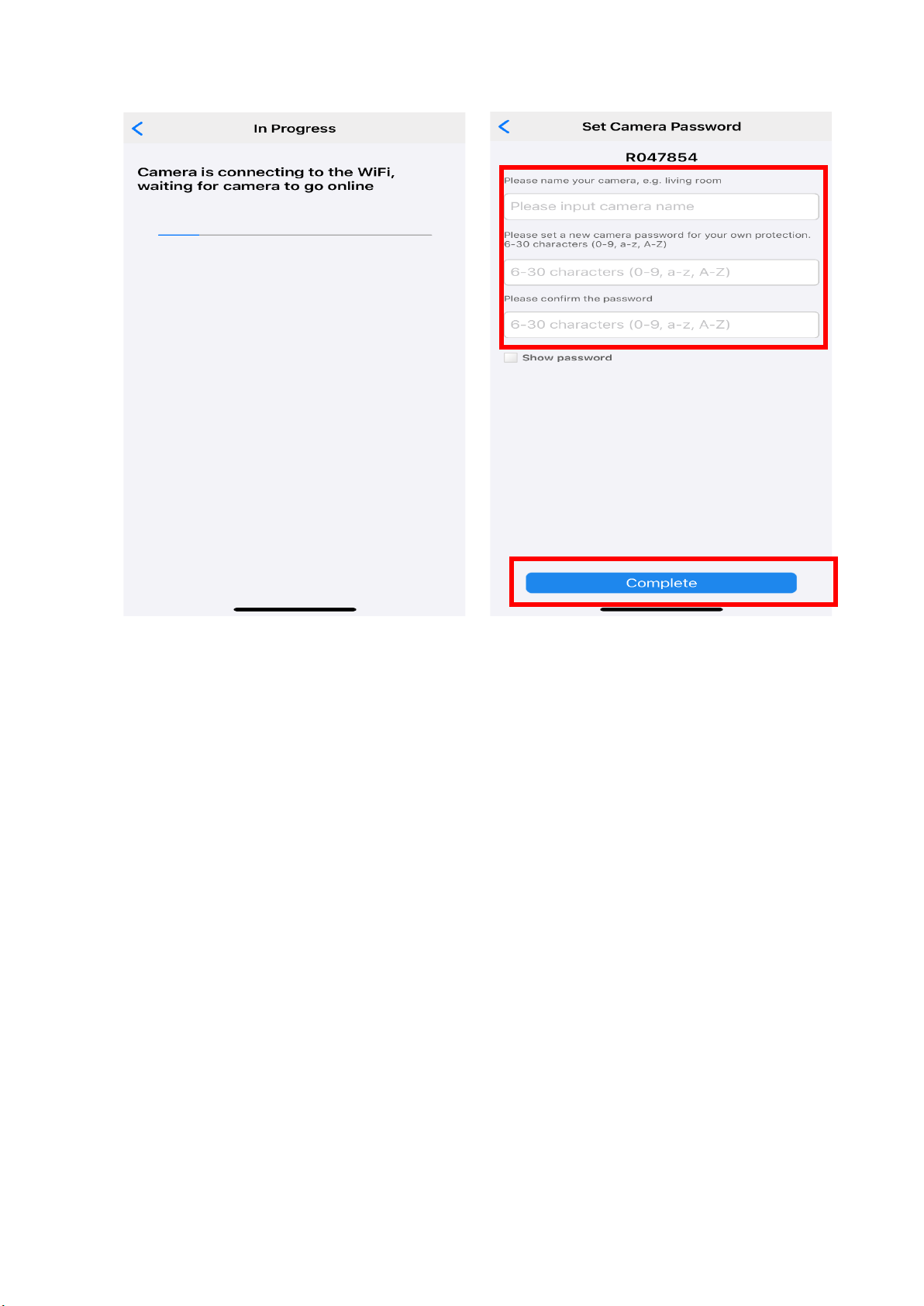
4. The app will find and add the camera, and ask you to name it and set
your own password to the camera.
- 10 -wiwacam.com/support
Now, the camera has been added into the app. You can watch the live video.
Tip: You can change the camera settings once the camera is added.
Note1: After the camera has been connected to your WiFi, if the camera has
been powered off, you only need to powered it on (there is no need to set it
up again). After powering on, the camera will automatically reconnect to
your WiFi. This process takes around 1 minute.
Note2: After camera setup, as long as your phone has internet (either via
WiFi or mobile data), you can access the camera video via the app, no
matter you are at home, outside or on the go.
Note3: If you have reset the camera, you need to run this Setup Camera
procedure again.
2.5 The Other Option of Setup Method
The camera supports two setup methods.
If the setup guide above cannot be completed in your case, please try the
Tabla de contenidos
Otros manuales de Cámara digital de WIWACAM


