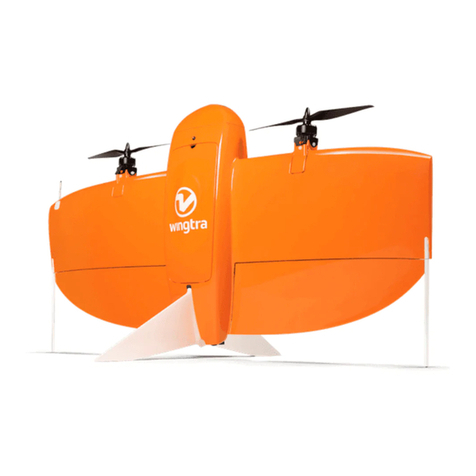
wingtra WingtraOne Manual de usuario


Table of Contents
Introduction
Quick Start Guide
WingtraOne Package Content
WingtraOne Deliveries
WingtraOne Image Sensor QX1
WingtraOne Image Sensor RX1
WingtraOne Image Sensor RedEdge
Safety Guidelines
Weather Conditions
Safety Parameter
Regulations
Warranty Disclaimer
Charging of WingtraOne
Charging Acessories
Charging WingtraOne Flight Batteries
Flight Preparation
Handling of WingtraOne
Download-Maps-for-Offline-Use
Create-a-New-Flight-Plan
Advanced Flight Planning
Preflight-Checklist
Flying
Flight Modes and In-Flight Interactions
Return-to-Home
Assisted Mode
Failsafe Scenarios
WingtraOne PPK
Postprocessing
Geotagging
Mapping Recommendations
Image Postprocessing Software
Update and Maintenance
Maintenance of WingtraOne
Update WingtraPilot & WingtraOne
Update Android OS
FAQ / Troubleshooting
Access Flight Logs
Preflight Checklist Troubleshooting
Handling of WingtraOne Troubleshooting
WingtraOne 40MP RX1 Troubleshooting
WingtraOne 20MP QX1 Troubleshooting
2

Announcements and Release Notes
Wingtra Release
WingtraOne Documents
3

WingtraOne User Manual — Release 1.7
Congratulations and a warm thank you! for being a Wingtra Customer. We hope you get the best out of your new aerial data collection tool!
To get started, make yourself familiar with the support and feedback setup, and have a look at our quick start guide.
Support and Feedback Setup
This knowledge base should always be your first point of contact where most queries have been addressed already. We want you to enjoy the best experience possible
and will be happy to support you in the following ways as well.
Adhoc Support
If you are on the field and cannot take-off due to technical reasons, please check the Tips and Tricks section below. If your issues are still not solved, you can call us
under the following number, where a Wingtra employee will respond immediately during working hours (8am - 6pm, CET).
+41 44 505 15 38 (Adhoc support only)
General Support and Feedback
For all questions that are not time-critical and cannot be answered by this knowledge base, please write open a new ticket. We are also very happy to receive emails
regarding your feedback about our product.
Tips and Tricks
Tip 1: Search this Knowledge Base for Help
Most of your questions are likely answered in one of the chapters in this knowledge base. Please try different search terms if you cannot find your answer. For most
update to date content of the Knowledge Base please refer to the online version https://support.wingtra.com.
Tip 2: Go through the Quick Start Guide
Reassess the quick start guide. It describes all steps that need to be performed before, during, and after flight. It also links you to detailed explanations provided in
different chapters.
Tip 3: Repower WingtraOne
Corner cases can lead to an unexpected situation that prevents WingtraOne from taking off. In case you cannot solve your issue with tips 1 and 2, repower WingtraOne
and try again.
Tip 4: Submit a support request
If you require further help or assistance for using our WingtraOne please submit a support request. We will get back to you as soon as possible.
4

5

WingtraOne Quick Start Guide
Use WingtraOne to collect high-end aerial imagery with accurate geolocation! The following 4 video tutorials show you in 12 minutes all basic steps you need to perform
before, while, and after your flight. If you are looking for more detailed information, browse the knowledge base or use the search function.
Check before you leave the Office
Plan your Flight
Setup your Flight in the Field
Fly & Collect Images
6

7

WingtraOne Deliveries
Your WingtraOne is shipped with the following accessories.
Pilot Box
1. Remote control (RC)
2. Tablet
3. Flight batteries (2 flight sets)
4. Telemetry
5. Charger
6. Charging cables, Wind measuring tool
7. Pitot covering tool, SD card adapter, Hex-wrench tool
WingtraOne
8

1. Flaps
2. Middle stand
3. Propellers
4. Airspeed sensor (Pitot Tube)
5. Battery compartment
6. Ready-to-Fly button
7. Top cover - access to camera, electronics
9

WingtraOne 20MP QX1
1. SD card slot
2. Battery compartment
3. Wi-Fi button
4. Closure lid
5. Power on / off button
Caution: The SD card can be inserted in the wrong direction - always check if you insert it as displayed on the figure.
During the flight, the dummy battery powered by WingtraOne needs to be inserted into the battery compartment. To change the settings without powering on WingtraOne,
the external camera battery can be used. The Charging Accessories chapter tells you how to charge this battery.
Check and Adjust Camera Settings QX1
In most cases, the default camera settings should be fine. If you want to change the settings, you have to power on WingtraOne, manually switch on the camera (press
On/Off button on camera housing), open the PlayMemories app on your tablet, and connect to the camera (See the WingtraOne QX1 Troubleshooting Section if it does
not connect). The recommended settings differ depending on the used lens, see below.
For more information about the camera see the official Sony Documentation.
QX1 with 16mm or 20mm Pancake Lens
Camera Program Mode Shutter Speed [s] Aperture, f-Number ISO Settings Image Quality
Shutter Priority 1/2000 auto 1000 fine
The default settings give good results in large range of light conditions. In case of very dark conditions you can increase shutter time (do not go beyond 1/1000s) and ISO
(do not go beyond 3200). In case of very bright conditions you can decrease the ISO value.
As a photogrammetry expert you can of course also try out different settings. If you want to adjust camera settings before every flight, you can use the cameras "Program
Mode" and set shuttertime, aperture and ISO to the sweet spot (shuttertime ~ 1/2000s, aperture ~ 5, ISO depending on conditions). Make sure you do not face the camera
into the sun when adjusting the settings in Program Mode.
Focus should be set to "manual focus" and infinity. Auto focus leads to inaccurate geotagging and potentially holes in the map due to missed triggers. We recommend not
touching the focus unless you have problems with image sharpness. After exchanging lenses (from 15mm Voigtländer to the 16/20mm lens) we highly recommend to
confirm a good focus setpoint of the lens prior to the first flight.
To check the focus setpoint of the camera, place the WingtraOne with the camera facing to the horizon and power on the WingtraOne. Then remove the top cover and
press the on/off button of QX1 and connect to the camera using the PlayMemories App on your tablet. You should see a live view of the camera image. Take a picture and
pinch to zoom into the fetched image on the tablet. If the image is sharp just disconnect the camera from the PlayMemories App by pressing the back button on the tablet
twice. If the image is not sharp you should adjust the focus set point, as explained in the WingtraOne QX1 Troubleshooting Section.
QX1 with 15mm Voigtländer Lens
Camera Program Mode Shutter Speed [s] Aperture, f-Number ISO Settings Image Quality
Shutter Priority 1/2000 4.5 (adjust on lens) auto-ISO fine
With 15mm Voigtländer lens, you fix both aperture (on the lens) and shutter time (on the camera). This means you fly manual exposure and should use auto-ISO.
The default settings give good results in large range of light conditions. In case of very dark conditions you can increase shutter time (do not go beyond 1/1000s). In case
of very bright conditions you can decrease shutter time (e.g. to 1/4000s).
The 15mm lens has a calibrated mechanical focus. Turn the focus ring to infinity and the images will be perfectly sharp.
10
Otros manuales para WingtraOne
3
Tabla de contenidos
Otros manuales de Zumbido de wingtra