Wattle Pegasus Manual de usuario

1
Wattle Pegasus
Quick Installation Guide

2
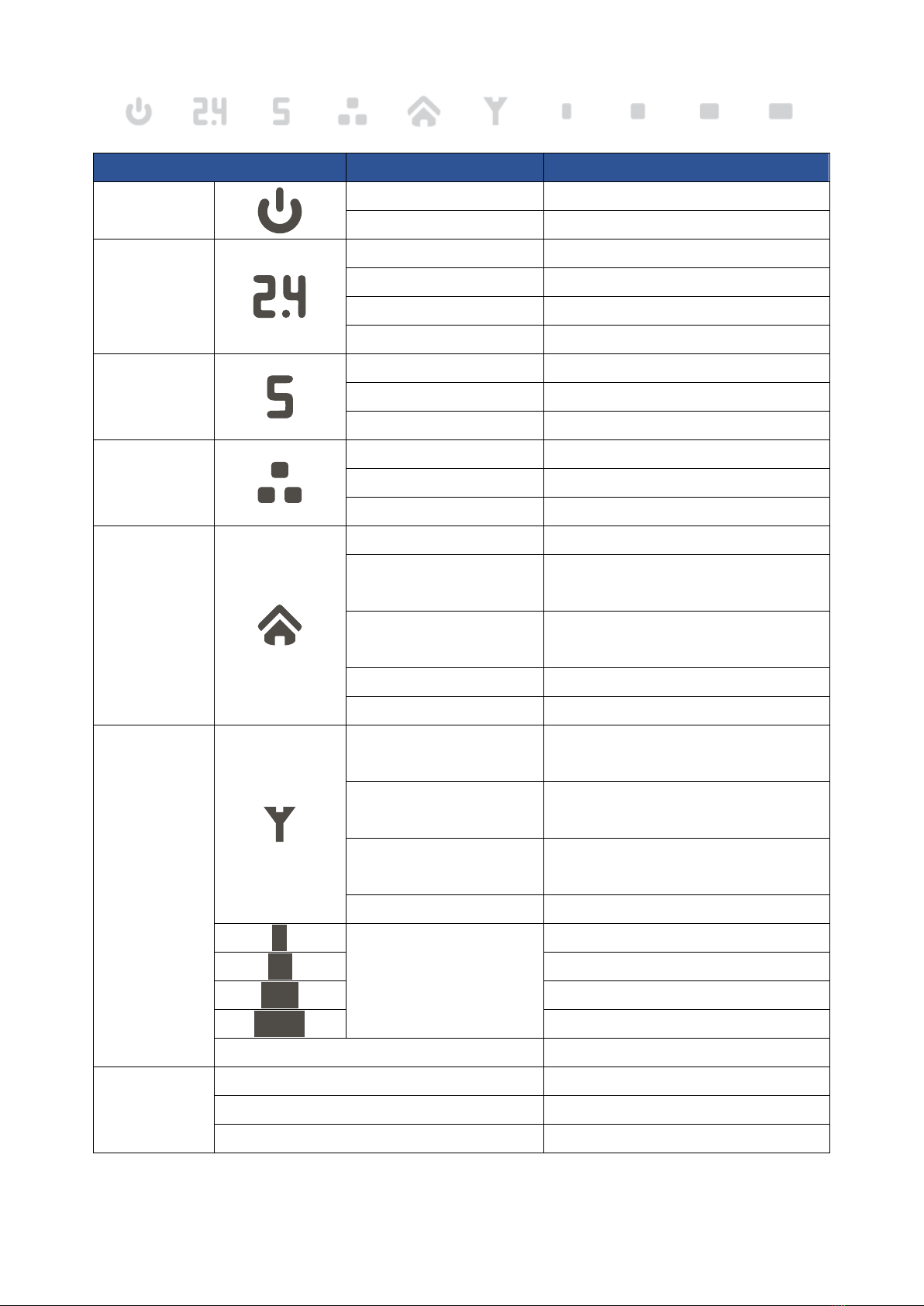
LED Indicators
Indicator
Status
Description
Power
Steady White Power ON
OFF Power OFF
2.4GHz Wi-Fi
Steady White 2.4GHz Wi-Fi ON
Blinking White Transmitting data
Periodic Blinking White WPS is activated
OFF 2.4GHz Wi-Fi OFF
5GHz Wi-Fi
Steady White 5GHz Wi-Fi ON
Blinking White Transmitting data
OFF 5GHz Wi-Fi OFF
LAN
Steady White Ethernet port connect with PC
Blinking White Transmitting data
OFF No Ethernet port connect with PC
Smart home
Steady White Join button pressed
Blinking White
(0,2 sec on / 4 sec off) Transmitting data / operating mode
Blinking White
(0,1 sec on, 0,1 sec off) Upgrading gateway software
Steady Red Not registered to cloud
OFF Smart home OFF
Signal Strength
Blinking White (0,1 sec on,
0,1 sec off) Firmware Upgrading
Blinking White (1 sec on, 1 sec
off)
PUK / PIN CODE REQUIRED
Blinking White (0,2 sec on, 4
sec off)
NO SIM / SIM ISSUE
Steady White
SINR < 0dB
Steady White
0dB ≤ SINR < 4dB
4dB ≤ SINR < 9dB
9dB ≤ SINR < 16dB
16dB ≤ SINR
All Signal LEDs OFF No Signal
Reset
All LED Steady ON Processing Reboot
All LED Blinking Processing Reset to default settings
All LED Off except Power LED Reset executing accepted

3
Connection Interface
1.Power On/Off Switch
2.Power Adapter Socket (DC-12V)
3.Join Button - Press button once to
enable join function Wattle Smart
Home.
4.Reset Button:
a.Press button shortly once to reboot
device.
b.Hold down the button for 5 seconds
to reset device to default settings.
5. LAN Port (RJ-45)
6. External Antenna Port (Female
SMA)
7. SIM Card Slot (2FF SIM)
Installation and SIM configuration
Please follow the steps below to install the device:
1. Insert SIM card into the device with exact orientation as illustrated below.
2. Insert the power cord into modem’s power adapter socket; and insert the plug into
power outlet. Toggle Power “on” to boot up the Pegasus.

4
3. Access the network by connecting an Ethernet cable to device’s LAN port and PC, or
connect wirelessly by using the default Wi-Fi SSID and Wi-Fi Key.
Modem Setup
Please follow below steps to configure and activate the cellular connection on your device
through the web interface:
1. Open the Web browser and enter the default IP address: https://192.168.8.1
2. Enter default username/password to access the web management interface.
Username: admin
Password: admin+ Last 4 digits of IMEI (e.g admin1234)
*You can locate the IMEI on the product label on the device
3. After successful login, you will be prompted to change password. Changing password
is not required. When you have successfully changed password, you will be required
to re-login. Now you are ready to configure the device settings from Modem Status
page. If you don’t want to change password, you can continue to configure the device
settings from this page.

5
Getting started – Wattle Smart Home
The Wattle Pegasus is an open platform including multiple wireless networks for
communication with smart meters, sensors, smart plugs, thermostat, cameras etc.
-Get connected and start the journey of easy living with Wattle.
The Pegasus is developed to protect your privacy and to handle many different wireless
protocols at the same time using the principles of open standards for communication.
Get started:
After completing the installation of SIM card and internet access configuration you are
ready to connect to your new smart home platform.
1. Download the app from Google Play or AppStore and follow the instructions as
described below and in the app.
2. Press the Join-button (3) once to enable the join and connect state on the gateway
3. Configure your Smart Home project
a. Name the project
b. Location
c. Time zone
d. Username
Factory reset
A factory reset is needed to remove abnormal behavior.
NOTE: This process will delete and reset your system. You need to reconfigure all your
devices after a reset.
1. Locate the reset button on the back of the gateway
2. Use a pen and hold down the reset button for 5 seconds as indicated on the picture
below
3. Release the reset button after 5 seconds when you see the Power LED turn ON
4. The system will do a factory reset and after 5 minutes the system will be booted
5. Follow step 2a. to reconnect to your gateway.
Troubleshooting Tips
If you are experiencing any issues with your device:
•Restart your device.
•Restore your device to factory default settings.
•Contact our customer support center.
•Contact your service provider or visit the point of sales.

6
Attention
•This modem is a complex electronic device. A fall may cause serious damage
•Never open or try to repair the device by yourself. Repairs should be performed by
qualified personal only, otherwise the warranty will be void.
•Do not expose the device to a very high or very low temperature.
•Use the 12V/1.5A power adapter that comes with the device only.
Recycling information
Dispose the product properly at the end of life. This is electronic waste which should be recycled
accordingly.
All rights reserved
Home Control AS assumes no responsibility for any errors, which may appear in this
manual. Furthermore, Home Control AS reserves the right to alter the hardware, software,
and/or specifications detailed herein at any time without notice, and Home Control AS does
not make any commitment to update the information contained herein. All the trademarks
listed herein are owned by their respective owners.
This DOCUMENT is copyrighted with all rights reserved. No part of this publication may
be reproduced, transmitted, transcribed, stored in a retrieval system, or translated into any
language in any form by any means without the written permission of Home Control AS.
Copyright © Home Control AS
Tabla de contenidos
Manuales populares de Enrutador de red de otras marcas

NETGEAR
NETGEAR FS526T - Switch Manual de usuario

Korenix
Korenix JetNet 5710G Series Manual de usuario

Automated Logic
Automated Logic ZN551 Manual del propietario

Cisco
Cisco ASR 1000 Series Manual del operador

EnGenius
EnGenius ESR-9710 Manual de usuario

Cisco
Cisco 805 Series Instrucciones de funcionamiento y seguridad