
VRinsight MS Panel Manual de usuario

MS (Multi Switch) Panel by VRinsight
FEATURES
Thank you for purchasing Multi Switch panel. Please read through this guide before use and contact
info@vrinsight.com, if you have any problem.
This guide consists of four sections : FEATURES, INSTALLATION, CALIBRATION and APPLICATION.
A
E
F
H
I
Guide-MS panel(Sept2010)
www.vrinsight.com
Tel : +82-31-284-7090~91 Fax : +82-31-284-7092
1. Standard gaming device with USB 2.0 connection
2. Fully compatible with most flight & fighter software
3. Full metal case
4. Backlit blue LED
5. Many buttons and switches :
12 x buttons (A), 2 x two positions ON/OFF toggle switches (B), 1 x return toggle switch (C),
1 x three positions ON/OFF toggle switch (D), 6 x encoder switches (E), 2 x potentiometers (F),
4 x Sliders (G), 1 x four positions view button (H)
6. “Fast Rotate and Hold” feature for rotary encoders (I)
7. Size : 30.5cm (L) x 12.5cm (W) x 11cm (H) / 12 inch (L) x 4.9inch (W) x 4.3 inch (H)
8. Weight : 1.5kg
A
B C D
E
G
H
1

D
A
B
C
INSTALLATION
1. Connect the USB cable of MS panel to your computer.
2. MS panel is recognized as a new Human-Interface Device (New Hardware)
3. Check all four parts are illuminated.
(Button part: A, toggle switch part: B, Slider part: C and Coolie hat part: D)
NOTE : The blue LED light will be dim in a bright environment
CALIBRATION
NOTE
:
Since MS panel is recognized as a joystick, it must be calibrated before use.
www.vrinsight.com
Tel : +82-31-284-7090~91 Fax : +82-31-284-7092
NOTE
:
Since MS panel is recognized as a joystick, it must be calibrated before use.
Calibration part is explained based on Windows VISTA.
1. Go to “Control panel” => “Game Controllers” and
check MS panel is recognized as an USB pad.
2. Click “Properties” => “Setting” => “Calibration”.
3. Run “Calibration Wizard” and click “Next” till you
see “Axis calibration”.
2

4. Gently rotate R1 & R2 knob from the left to the right several times.
(R1 knob will move “+” left to the right and R2 knob will move
“+’ up and down)
5. Click “Next” till you see “Axis Calibration for Z Axis”.
(S1 slider is recognized as Z Axis)
www.vrinsight.com
Tel : +82-31-284-7090~91 Fax : +82-31-284-7092
7. Click “Next” till you see “Axis Calibration for X Rotation”.
(S2 slider is recognized as X Rotation)
8. Move S2 slider up and down.
.
6. Move S1 slider up and down.
3
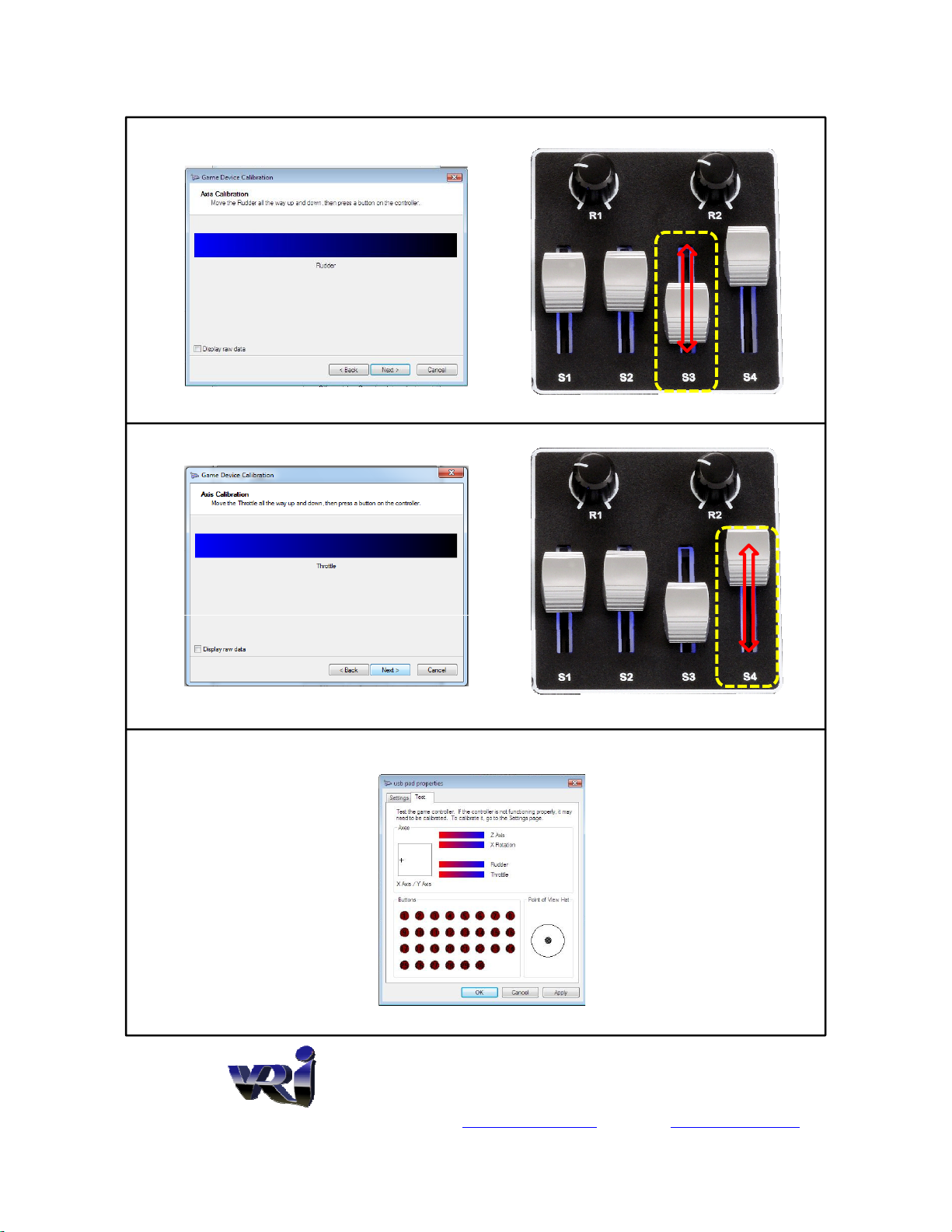
9. Click “Next” till you see “Axis Calibration for Rudder.
(S3 slider is recognized as Rudder)
10. Move S3 slider up and down.
11. Click “Next” till you see “Axis Calibration for Throttle”.
(S4 slider is recognized as Throttle)
www.vrinsight.com
Tel : +82-31-284-7090~91 Fax : +82-31-284-7092
14. Calibration is done. Go to “Test” and see if all controls are properly assigned for MS panel.
12. Move S4 slider up and down. 13. Click next and finish the calibration wizard.
4

15. Refer to the below tables and check each control on MS panel is assigned by OS default.
Game Controller’s
Axis Assignments X axis Y axis Z axis X Rotation Rudder Throttle
MS panel
Potentiometers & Sliders R1 R2 S1 S2 S3 S4
Game Controller’s
Button Assignments #1 #2 #3 #4 #5 #6 #7 #8 #9 #10 #11 #12
MS panel
Push buttons
A1 A2 A3 A4 A5 A6 B1 B2 B3 B4 B5 B6
www.vrinsight.com
Tel : +82-31-284-7090~91 Fax : +82-31-284-7092
Push buttons
Game Controller’s
Button Assignments #13 #14 #15 #16 #17 #18
MS panel
Toggle Switches
T1
(ON)
T2
(ON)
T3 T4
UP DOWN UP DOWN
Game Controller’s
Assignments #19 #20 #21 #22 #23 #24 #25 #26 #27 #28 #29 #30
MS panel
Rotary Encoders
E3 E2 E5 E6 E4 E1
CCR CR CCR CR CCR CR CCR CR CCR CR CCR CR
Notes on Encoder:
1.“CR” Clock-Wise Rotation, “CCR” Counter Clock-Wise Rotation
2.“Fast Rotate-and-Hold”, two fast consecutive rotational detents hold a button pressed status, which can be
released with another detent. This feature can be disable by placing the I-switch in off position.
Game Controller’s
Assignments HAT (View Control)
MS panel
4-way View Switch
VIEW
UP DOWN LEFT RIGHT
5

APPLICATION. 1
NOTE : Application part is explained based on Microsoft Flight Simulator X
1. Connect the USB cable of MS panel to your computer.
2. Run MSFSX and go to SETTINGS -> Controls. Check MS panel is recognized as USB pad
www.vrinsight.com
Tel : +82-31-284-7090~91 Fax : +82-31-284-7092
3. Go to “BUTTONS / KEYS” and select any pre-defined key assignment, And click “New Assignment”.
6

4. Choose button / Toggle switch / Rotary knob / Encoder / Slider or View key and click “OK”.
5. Apply it for all buttons / Toggle switches / rotary knobs / Encoders / Sliders and View key.
www.vrinsight.com
Tel : +82-31-284-7090~91 Fax : +82-31-284-7092

APPLICATION. 2
NOTE : Application part is explained based on FALCON 4.0 Allied Force.
Falcon4AF_patch_1.0.13 should be done before use.
1. Connect the USB cable of MS panel to your computer.
2. Run Falcon and go to SETUP -> KEYS.
3. Assign function for A1 ~ B6, T1 ~ T4, E1 ~ E4.
4. Click “APPLY” and save the file
www.vrinsight.com
Tel : +82-31-284-7090~91 Fax : +82-31-284-7092
5. Go to CONTROLLERS -> dropdown “FLIGHT CONTROLLERS” -> Select usb pad.
6. Rotate R1 & R2; R1 is assigned as Aileron and R2 is assigned as elevator
7. Move up T1 & T3 up and down: T1 is assigned as Throttle and T3 is assigned as Rudder
4. Click “APPLY” and save the file
8

APPENDIX
Microsoft’s Flight Simulator has more than hundred of controls which are not listed on “Control
Assignment” of Setting page. To assign unlisted function for control on MS-Panel including
buttons, toggle switches, rotary encoder knobs and sliders, the configuration file, i.e.
Standard.XML for FSX, FS9.CFG for FS2004, can be edited as explained in this section. See
“MSFS_Controls.txt” for more control items in Flight Simulator.
The DVD provided contains a predefined key assignment for MSFSX (standard.XML).
You can use provided key assignment or modify it for your taste.
1. Go to C:\Users\your_name\AppData\Roaming\Microsoft\FSX\Controls
NOTE : 1. Since “AppData\Roaming” is hidden file, you need to type all directory paths.
2. You should put your user name at ”your_name”
EX) C:\Users\steve\AppData\Roaming\Microsoft\FSX\Controls
www.vrinsight.com
Tel : +82-31-284-7090~91 Fax : +82-31-284-7092
2. Open “Standard.XML” with NOTEPAD. (see below)
9

3. Go to EDIT -> FIND. Type “usb pad” and click “Find Text”.
4. Then you will find below.
www.vrinsight.com
Tel : +82-31-284-7090~91 Fax : +82-31-284-7092
Otros manuales para MS Panel
1
Tabla de contenidos


