
Vonage VWRVD - D-Link VWR Wireless Router Manual de usuario
Quick Start Guide
Vonage
®
VWR Device

1. If you purchased your Vonage®Device from a retail store,
you must first activate your Vonage phone service.
(You will need to provide the MAC ID on the bottom
of the Vonage Device.)
In the U.S., visit www.vonage.com/activate.
In Canada, visit www.vonage.ca/activate.
2. If you received your Vonage Device in the mail
from Vonage, your Vonage phone service has
already been activated.
3. You also need a high-speed Internet connection,
such as DSL or cable, to use Vonage.
Helpful terms:
ISP (Internet Service Provider) –The company that
supplies your high-speed Internet connection.
Modem –Apiece of network equipment that your lnternet
Service Provider (ISP) sent you to gain high-speed
lnternet access – typically either DSL through your
phone line, or cable service.
Router –Arouter lets you connect more than one piece of
equipment (like computers) to your DSL or cable modem
to share one Internet connection. Some ISPs supply
combination modem/routers. (HINT: If you have more
than one computer connected to the Internet, then you
have a router.)
Port –This is an opening on a device where you connect a
cable. An Ethernet port looks like a wide phone jack.
Before you begin

Welcome
1
to the Quick Start Guide for Vonage.
Get ready to start saving money on your phone bill with
Vonage – just follow these easy step-by-step instructions to
set up your new Vonage device. Within minutes, you’ll be
making phone calls with high-quality, low-cost Vonage
phone service!
If you have questions along the way, please go to the
Troubleshooting Tips on page 9 or visit:
www.vonage.com/help (U.S.)
www.vonage.ca/help (Canada)
3Easy Steps!
Step 1: Identify the items you’ll need
Step 2: Set up your new Vonage Device
Step 3: Connect your phone
For your convenience, the complete User Guide for this
Vonage Device can be found online at www.vonage.com/vwr
or in Canada www.vonage.ca/vwr
NOTE: Ensure you are using the power supply provided with the Vonage
Device. Using the wrong power supply could result in damage to your
equipment.
*Not required for installation.
Identify the items you’ll need
from your Vonage®Startup Kit.
Locate your:
•High-speed/broadband modem
•Telephone
•Ethernet cable that goes from your modem to your
computer or router
2
Step 1:
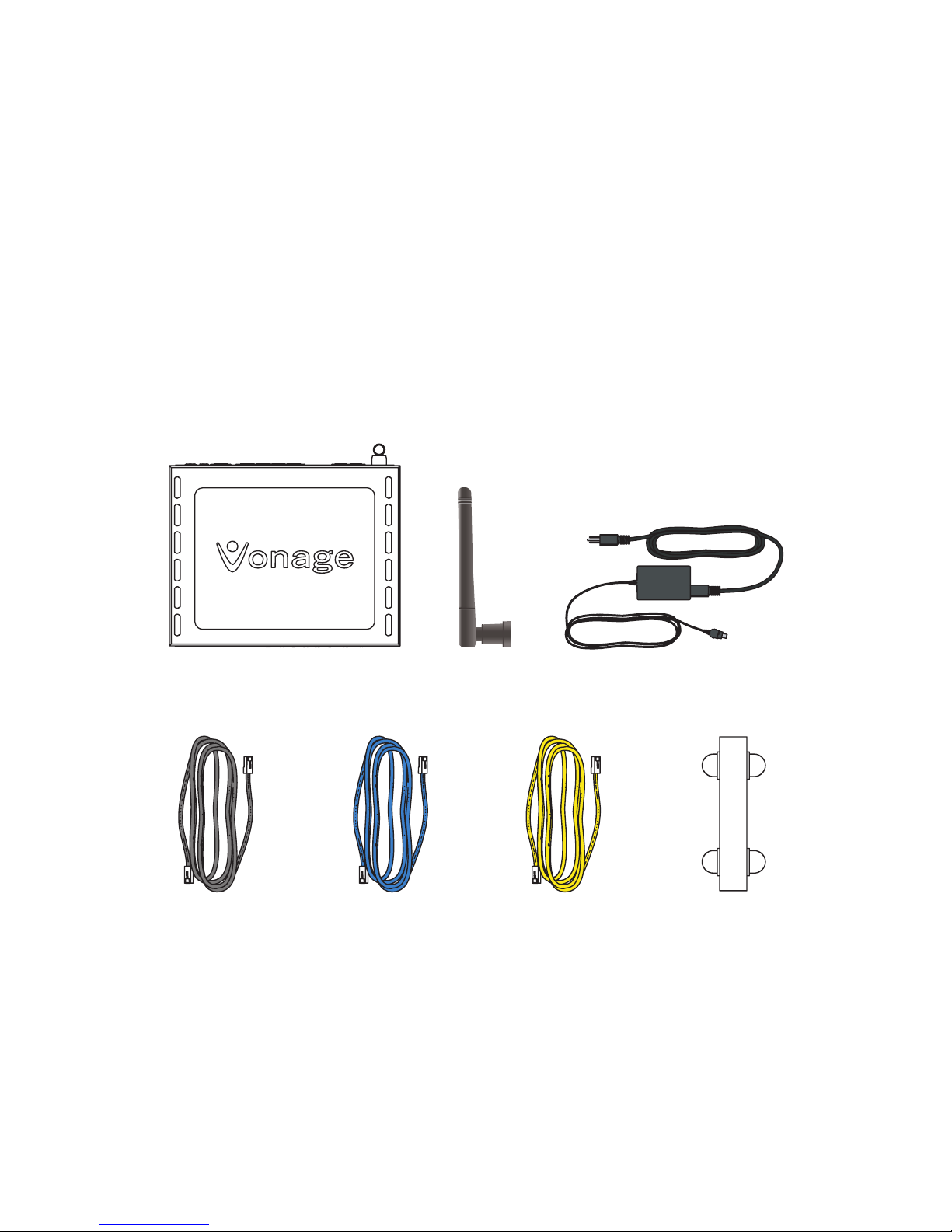
Yellow CableBlue Cable
Black Power Cord
Telephone
Cable
Base Support*
AntennaVonage VWR Device

3
Step 2:
Set up your Vonage®Device
1. Unplug your existing modem’s power cord.
Leave your modem connected to your cable or DSL
phone line that supplies your Internet connection.
2. Attach the antenna to your Vonage Device.
3. Unplug the Ethernet cable that connects your modem to
your computer or router. Unplug the cable from both
your modem and your computer (or router).
Note: In some instances the modem may be connected to the computer
via a USB cord and USB ports. If so, disconnect the cord at both ends
(modem and computer).
4. Wait 60 seconds for your modem to clear its
memory completely.
Existing Modem
Ethernet
Port
USB
Port

5. Connect one end of the blue cable to the Ethernet port
on your modem. Connect the other end to the blue port
labeled “Internet” on the back of the Vonage Device.
6. Connect one end of the yellow cable to the yellow port
labeled “Ethernet 1” on the back of the Vonage Device.
Connect the other end to the Ethernet port on your
computer or router that you unplugged earlier.
NOTE: If you unplugged a USB cord, do not attempt to plug the Ethernet
cordinto the USB port. If your computer does not have an Ethernet
port, you can purchase a USB-to-Ethernet adapter or Ethernet card at
your local electronics store.
4
Vonage Device
Vonage Device
Ethernet
Port
USB
Port
Vonage Device
Vonage Device
Ethernet
Port
USB
Port

7. Now plug your modem’s power cord back into an
electrical power outlet.
NOTE: You should allow enough time for your modem to complete its
start-up process. If you’re unsure about how long this takes, consult
the manual that came with your modem. Typical modem start-up takes
60 seconds.
8. Next, using the power cord that came with your Vonage
kit, plug the smaller end of the power cord into the
circular power port on the back of the Vonage Device.
Then, plug the larger end of the power cord into an
electrical power outlet.
NOTE: Before continuing, the “Power” and “Internet” lights on the front
of the Vonage Device should both turn on. Wait until the “Power” light
stops blinking and both “Power” and “Phone 1” lights are solid. The
“Phone 2” light will be solid if you have a second Vonage line.
Otherwise, it will not light. The “Internet” light will flicker whenever
there is communication activity.
9. On your computer, open a web browser and check your
Internet connection by visiting any website.
NOTE: After turning on your computer,the Ethernet light on the Vonage
Device will also flicker whenever thereis communication activity.
•If your Internet connection works,
go to Step 3: Connecting your phone, on page 7.
5
Vonage Device

1. Unplug the modem for at least 60 seconds. If left off for
less than 60 seconds, it might still “remember” old
information that could prevent it from working properly.
2. If your Internet connection still does not work, you may
need to register your Vonage Device with your cable
provider. You will need the WAN MAC ID on the bottom
of the Vonage Device.
1. Make sure you are using a computer that's connected to
ayellow port on your Vonage Device. On your computer,
open a web browser. In the address field, type
http://192.168.15.1 (the default IP address of the VWR
Home Page) and press Enter.Alogin window appears.
2. In both the Username and Password fields, type user
and click Login.The Home Page is displayed.
3. In the Home tab, make sure WAN is selected on the
left-hand side.
4. Under Internet Settings,select PPPoE IP Address.
5. In the Username and Password fields, type the
username and password you normally use to login to
your DSL service.
6. In the Keep Alive field, type 0to ensurethat your
DSL link is always active.
7. Click Connect to start your Internet connection.
Click Apply.Click Save and Restart button on the left
and click Reboot.
6
If your Internet connection doesn’t work and
you have a Cable modem:
If your Internet connection doesn't work and
you have a DSL modem:
Note: If you had an existing router connected to your DSL
modem, but it is now connected to your Vonage device, the
router will have to be set up as a DHCP client instead of PPPoE.

Connecting your phone
1. Plug the Vonage telephone cord into your phone or
unplug your existing phone cord from the wall and plug it
into the phone port directly on the Vonage Device.
NOTE: If not done so already, disconnect phone cord from wall.
2. Plug the other end into the Green Phone 1 Port on the
back of the Vonage Device.
NOTE: Make sure the phone light is solid.
This is what your setup should look like:
3. Pick up your handset. If you hear a dial tone, congratula-
tions! You’ve set up your Vonage service correctly, and can
now startmaking calls. To configure your voicemail and
other included services features, simply login to your web
account at www.vonage.com. In Canada visit www.vonage.ca.
NOTE: When you pick up your phone to check for a dial tone, the phone light
will blink.
If you do not hear a dial tone,
proceed to Troubleshooting Tips on page 10. 7
Step 3:
Vonage Device
Vonage Device
Computer
or Router
Existing
Modem
Phone
Vonage Device
Vonage Device
Computer
or Router
Existing
Modem
Phone

The default name of your wireless network is ‘DlinkVWR.’
To change the default settings and enable security
encryption (highly recommended) see the VWR User Guide
located online at www.vonage.com/vwr or in Canada
www.vonage.ca/vwr.
Note: The Vonage Device is a wireless B/G Router,with wireless turned
on by default. This means that if you have a computer that’swireless B
or G, you can take advantage of your new Wi-Fi network immediately
and connect your computer wire-free. When your Wi-Fi computer is in
range, it will connect automatically to your new ‘DlinkVWR’ Wi-Fi
network. Because your Vonage device is wireless, it is not required that
you have a computer physically connected to your Vonage Device for it
to work.
8
Wireless Networking
Your Vonage®Device is also a wireless router.
Tabla de contenidos


