
Vivitek LauncherPlus Manual de usuario

User Manual

Table of Contents
The Device .......................................................................1
Button Behavior........................................................................ 1
When the LauncherPlus is connected but not projecting (Main button LED is solid red)..................1
When the LauncherPlus is projecting (Main button LED is solid blue) ..............................................1
When the LauncherPlus is projecting to a quadrant (Corner button LED is solid blue).....................1
When the LauncherPlus is paused (Main button LED is solid red)....................................................2
LED Behavior............................................................................ 2
During the pairing process:...................................................................................................................2
After Pairing:.........................................................................................................................................2
Installation (Pairing)........................................................3
NovoConnect Device in Hotspot mode .................................. 3
Via the NovoConnect Device’s USB Port .............................................................................................3
Via your PC’s USB Port ........................................................................................................................5
NovoConnect Device in Wi-Fi mode....................................... 6
Via the NovoConnect Device’s USB Port .............................................................................................6
Via your PC’s USB port ........................................................................................................................7
NovoConnect Device with a Wired Connection..................... 9
Via the NovoConnect Device’s USB Port .............................................................................................9
Via your PC’s USB Port ......................................................................................................................11
Usage .............................................................................12
Additional Settings........................................................14
Connection Settings............................................................... 14
Password Lock ....................................................................... 15

LauncherPlus User Manual
Page 1
The Device
The LauncherPlus features a main button in the center of the device along with four
corner buttons, all with corresponding LED indicators, whose behavior is described
below.
Button Behavior
When the LauncherPlus is connected but not projecting
(Main button LED is solid red)
Button
Action
Behavior
Main Button
Press
Starts projecting
Corner Buttons
N/A
N/A
When the LauncherPlus is projecting
(Main button LED is solid blue)
Button
Action
Behavior
Main Button
Press
Pauses projection
(the NovoConnect device returns
to the main screen)
Press and hold for 3 seconds
Disconnects the LauncherPlus
Corner Buttons
Press
Projects the computer’s screen
onto the corresponding quadrant
of the display
When the LauncherPlus is projecting to a quadrant
(Corner button LED is solid blue)
Button
Action
Behavior
Main Button
Press
Projects the computer’s screen
onto the display in full screen
mode
Press and hold for 3 seconds
Disconnects the LauncherPlus

LauncherPlus User Manual
Page 2
The Selected
Corner Button
Press
Pauses projection
(the NovoConnect device returns
to the main screen)
An Unselected
Corner Button
Press
Switches projection of the
computer’s screen to the
corresponding quadrant of the
display
When the LauncherPlus is paused
(Main button LED is solid red)
Button
Action
Behavior
Main Button
Press
Projects the computer’s screen
onto the display in full screen
mode
Press and hold for 3 seconds
Disconnects the LauncherPlus
Corner Buttons
Press
Projects the computer’s screen
onto the corresponding quadrant
of the display
LED Behavior
During the pairing process:
LED
Definition
Main Button LED
Corner Button LEDs
Flashing Blue
(All) Flashing Blue
The LauncherPlus has been plugged
into a PC.
Solid Red
N/A
The LauncherPlus has been paired to a
NovoPro, but is not projecting.
After Pairing:
LED
Definition
Main Button LED
Corner Button LEDs
Solid Blue
N/A
The LauncherPlus is projecting in full
screen mode
N/A
(Single) Solid Blue
The LauncherPlus is projecting in the
corresponding button’s quadrant
N/A
(Single) Flashing
Blue
The LauncherPlus is switching
projection mode
Solid Red
N/A
Projection is paused

LauncherPlus User Manual
Page 3
Installation (Pairing)
There are various ways to pair the LauncherPlus to a NovoConnect device based on the
network setting of the NovoConnect device. The table below outlines the various
settings and their respective pairing methods:
NovoConnect Device’s Network
Connection Type
Pairing Method
Hotspot
Via the NovoConnect device’s USB Port
Via the PC’s USB Port
Wi-Fi
Via the NovoConnect device’s USB Port
Via the PC’s USB Port
Wired
Via the NovoConnect device’s USB Port
Via the PC’s USB Port
The sections below describe the instructions for each pairing method.
NovoConnect Device in Hotspot mode
Via the NovoConnect Device’s USB Port
1. Connect the LauncherPlus to the NovoConnect device.
NOTE: The NovoConnect device must be powered on and connected to a display.

LauncherPlus User Manual
Page 4
2. The main button on the LauncherPlus lights up red and a Loading…screen is
shown on the display.
3. Wait for the main and corner buttons on the LauncherPlus to light up blue and the
Pairing Completed screen to be shown on the display.
4. The pairing process is complete. Proceed to the Usage section to begin using the
LauncherPlus.

LauncherPlus User Manual
Page 5
Via your PC’s USB Port
Before pairing via the PC’s USB port, ensure that the PC features a working Wi-Fi
connection with WEP, WPA/WPA2, or 802.1x encryption.
1. Connect the LauncherPlus to your PC’s USB port. The LauncherPlus will check to
see if its software package is already stored in the PC. If the software package is not
stored in the PC, the PC will begin retrieving its software.
2. Once the software is ready, the LauncherPlus will begin scanning for NovoConnect
devices.
3. A list of scanned NovoConnect devices will appear. Select the NovoConnect device
you want to connect to from the list.
4. Once you have selected the NovoConnect device, the pairing process will be
complete. Proceed to step #3 of the Usage section to begin using the LauncherPlus.

LauncherPlus User Manual
Page 6
NovoConnect Device in Wi-Fi mode
Before pairing, ensure that the NovoConnect device is powered on and features a
working Wi-Fi connection with WEP, WPA/WPA2, or 802.1x encryption.
Via the NovoConnect Device’s USB Port
1. Connect the LauncherPlus to the NovoConnect device.
2. For WEP, WPA/WPA2 Wi-Fi Connections: A prompt will appear asking for the Wi-
Fi password. Enter the Wi-Fi password.
For 802.1x Wi-Fi Connections: A prompt will appear asking for the Wi-Fi login and
password. Enter the Wi-Fi login and password.

LauncherPlus User Manual
Page 7
3. Once you have entered the Wi-Fi connection login and/or password, wait for the
main and corner buttons on the LauncherPlus to light up blue and the Pairing
Completed screen to be shown on the display.
NOTE: If a pairing failure prompt appears re-enter the login and/or password.
4. The pairing process is complete. Proceed to the Usage section to begin using the
LauncherPlus.
Via your PC’s USB port
Before pairing via the PC, ensure that the PC features a working Wi-Fi connection with
WEP, WPA/WPA2, or 802.1x encryption.
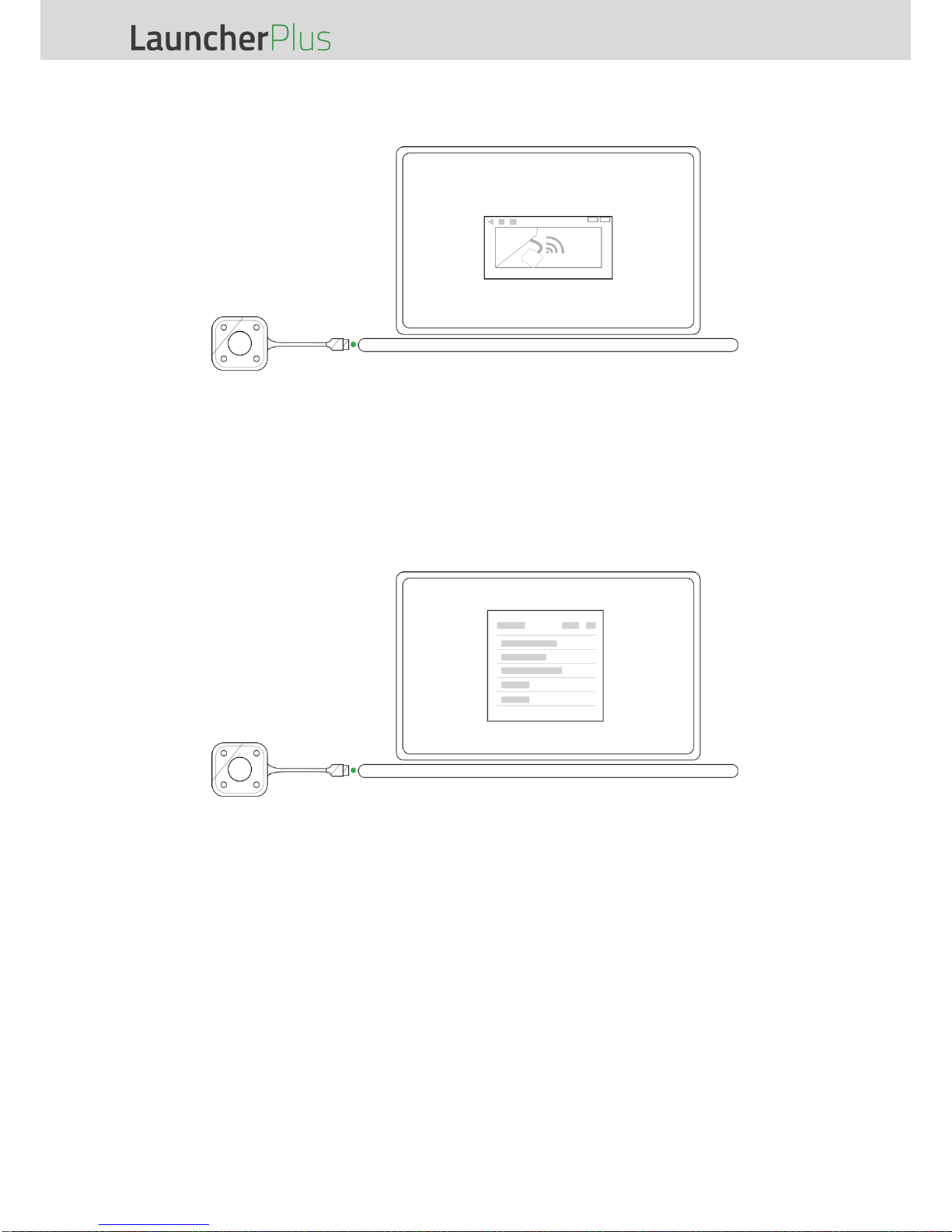
1. Connect the LauncherPlus to your PC’s USB port. The LauncherPlus will check to
see if its software package is already stored in the PC. If the software package is not
stored in the PC, the PC will begin retrieving its software.
LauncherPlus User Manual
Page 8
2. Once the software is ready, the LauncherPlus will begin scanning for Wi-Fi
connections.
3. A list of Wi-Fi connections will appear. Select the SSID of the Wi-Fi router which your
NovoConnect device is connected to from the list.
For WEP, WPA/WPA2 Wi-Fi Connections: A prompt will appear asking for the Wi-
Fi password. Enter the Wi-Fi password.
For 802.1x Wi-Fi Connections: A prompt will appear asking for the Wi-Fi login and
password. Enter the Wi-Fi login and password.
NOTE: If you are unable to find the SSID for the router you want to connect to select Scan.
4. Once you have entered the correct password and/or login, the pairing process will be
complete. Proceed to step #3 of the Usage section to begin using the LauncherPlus.
Tabla de contenidos
Otros manuales de Controladores de Vivitek


