
Vitek VT-TPTZ18HR-4N Manual de usuario

VITEK
Transcendent Series 4.0 MegaPixel IP PTZ Cameras
2
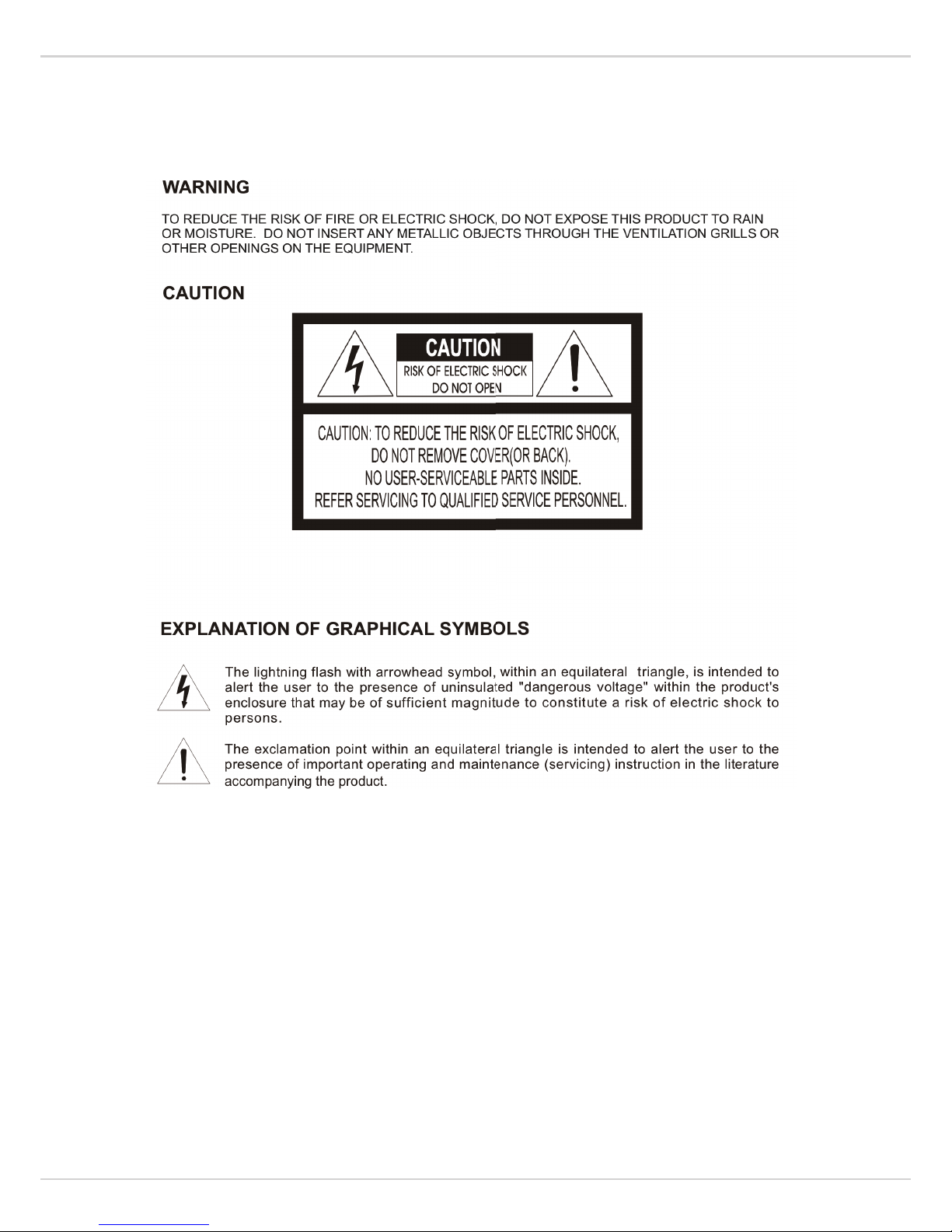
WARNINGS AND CAUTIONS

Transcendent Series 4.0 MegaPixel IP PTZ Cameras
3
TABLE OF CONTENTS
1PRODUCTINTRODUCTION......................................................................................................................3
1.1PACKAGECONTENTS.....................................................................................................................................3
1.2FUNCTIONDESCRIPTION................................................................................................................................3
2INSTALLATION........................................................................................................................................4
2.1INSTALLATION..............................................................................................................................................4
2.1.1WALLMOUNTED..............................................................................................................................5
2.2.1PTZConnection.................................................................................................................................6
2.2.3SettingIEBrowser............................................................................................................................6
2.2.4InstallActiveX..................................................................................................................................7
2.3.1VideoBrowse...................................................................................................................................8
2.3.2PTZControl.......................................................................................................................................9
2.3.3PTZFunction.....................................................................................................................................9
2.3.4CommonShortcuts.........................................................................................................................10
2.4SETTING...................................................................................................................................................10
2.4.1System............................................................................................................................................11
2.4.2Network..........................................................................................................................................13
2.4.4Camera...........................................................................................................................................16
2.4.5Video&Audio................................................................................................................................19
2.4.6PTZFunction...................................................................................................................................24
2.4.7Alarm..............................................................................................................................................25
2.4.8User................................................................................................................................................25
2.4.9log...................................................................................................................................................26
3.FUNCTIONINSTRUCTION.....................................................................................................................26
3.1SPECIALFUNCTION.....................................................................................................................................26
4OSDMENU...........................................................................................................................................27
4.1MENUINDEX.............................................................................................................................................27
4.2SYSTEMINFORMATION...............................................................................................................................28
4.3DOME......................................................................................................................................................28
4.3.1Communication..............................................................................................................................29
4.3.2IRDisplay........................................................................................................................................29
4.3.3GuardTours....................................................................................................................................30
4.3.4A-BScan..........................................................................................................................................30
4.3.5PanScan.........................................................................................................................................31
4.3.6Pattern............................................................................................................................................31
4.3.7ParkAction.....................................................................................................................................31
4.3.8PrivacyZone(Optional)..................................................................................................................32
4.3.9Advanced........................................................................................................................................33
4.4CAMERA...................................................................................................................................................33
4.5DISPLAY....................................................................................................................................................34
4.6LANGUAGE................................................................................................................................................34
4.7TIMINGTASK.............................................................................................................................................34
4.8ALARM(OPTIONAL)...................................................................................................................................35

4
1 PRODUCT INTRODUCTION
1.1 PACKAGE CONTENTS
IP IR Speed dome 1pc
Wall mount bracket 1pc
Power supply 1pc
Screws kits 1pc
User manual 1pc
CD (with CMS etc.) 1pc
1.2 FUNCTION DESCRIPTION
3D Allocation
Allows the camera to move diagonally while using zoom function
Pattern
A series of pan, tilt, zoom and focus movements from a single programmable dome. Up
to 4 patterns may be programmed for the dome camera.
Auto Flip
When the Speed Dome camera is mounted, it can track a moving target in a
path directly below the camera. When the camera reaches the moving object directly below the
dome, the dome will rotate to keep the image in the correct view
Focus
The auto focus enables the camera to focus automatically to maintain a clear image. Under the
following conditions camera will not auto focus on the camera target:
(1) Target is not in the center of the screen;
(2) Attempting to view images that are far and near at the same time;
(3) Target is very bright object, such as neon lamp, etc;
(4) Targets are behind glass covered with water droplets or dust;
(5) Targets are moving quickly;
(6) Low contrast large area targets, such as walls;
(7) Targets are too dark or faint.
BLC (Back Light Compensation)
BLC(Back Light Compensation) is used to brighten an image in the foreground
with a bright area behind it such as sunlight, limiting the affect of silhouette
Iris Control
Factory default is automatic camera aperture; in this mode the camera senses changes in ambient
light and through moving and adjusting the lens aperture it makes the brightness of the output
image stable.
Ratio Speed
Intelligent pan and tilt speed is variable depend on the zoom factor. When zooming in, the speed
will become slower and when zooming out, the speed will become faster.
360 Scan
360° continuously scans the display scene at a set speed in a horizontal direction under the
condition that pitch angle remains the same. In the scanning status, operator can move the joystick
to exit from scanning.
Preset
A Position preset stores pan, tilt, zoom and focusing positions with predefined
camera presets. Position presets can be call directly, assigned to actions or
applied as “HOME” position.

Transcendent Series 4.0 MegaPixel IP PTZ Cameras
5
Guard Tour Scan
Dome patrol scans according to certain edited preset order.
A-B Scan
The dome scans back and forth between two preset points (A & B).
Power Off Memory
This feature allows the dome to resume its previous status after power is restored.
Park Action
The Park function applies to the predefined functions such as Preset, Tour,
Pattern, or Scan function after the dome has been idle for a programmed time.
2 INSTALLATION
2.1 INSTALLATION

6
2.1.1 WALL MOUNTED
Installation conditions:
Wall mounted domes can be used in a hard wall structure whose thickness should be enough to
install expansion bolts in an indoor and outdoor environment. The wall must bear at least 4 times
the weight of the dome.
Installing the wall bracket:
Fig 2.3
As shown in fig 2.4, fix the wall hanging bracket on the wall with wire and cable through it.
Fig 2.4

Transcendent Series 4.0 MegaPixel IP PTZ Cameras
7
2.2.1 PTZ Connection
Before connecting, please power off and read the instructions carefully of all connected devices.
2.2.2 Connecting the Device
This device can be directly connected to a computer or network;
2.2.3 Setting IE Browser
User can view video through IE, ActiveX is required to be installed.
1. From menu, click “tool”, then choose “Internet options”.
2. Then click “Security”:
Fig 2.13
3. Choose internet icon, click “Customs level”. Then the follow pops up:

8
Fig 2.14
4. Change option “Download unsigned ActiveX controls” to “Enable” or “Prompt”. User can
optionally change “Running ActiveX controls and plug-in” into “Start” to avoid the prompt of
running.
2.2.4 Install Active X
(1) Download controls
Open IE and enter IP cameras IP address (default is 192.168.1.110).
On home page of camera login using user name and password (default is admin & admin)
(2) Install and run controls:
Please click “Run” in the prompt box.
If it is the first time you are running the software, please login as a super user.

Transcendent Series 4.0 MegaPixel IP PTZ Cameras
9
After login, you will enter the following interface:
Fig 2.16
The IP Camera supports H.265/H.265 and MJPEG triple encoding format.
2.3.1 Video Browse
Video Browse: For camera display setting, you can set the video type, video
size, play mode, image color. On the browsing interface, click “video”
to enter system setting interface. Here is the picture:
Fig 2.18
Set the video in the menu above:
Video Type: H.264/265 main stream, H.264 sub stream, MJPEG.
Video Size: screen original size 1*, original size *1/2, adaptive.
Play mode: Live, smooth.
Image Color: Fresh, Standard, Cold

10
2.3.2 PTZ Control
PTZ control: Adjust the rotation in all directions, set pan speed, tilt speed.
2.3.3 PTZ Function
PTZ functions: preset, auto pan, pattern, tour.
Fig 2.30
Este manual sirve para los siguientes modelos
1
Tabla de contenidos
Otros manuales de Cámara digital de Vitek

Vitek
Vitek VT-TPTZ10HR-2T Manual de usuario

Vitek
Vitek Transcendent VTC-THB2RMS Manual de usuario

Vitek
Vitek VT-TSP8 Manual de usuario

Vitek
Vitek VTD-TND6FP Manual de usuario

Vitek
Vitek Transcendent VTC-SMKC4 Manual de usuario

Vitek
Vitek VTC-TNT8RFA4-2 Manual de usuario

Vitek
Vitek VT-TPTZ32HRAN-8PNS Manual de usuario

Vitek
Vitek VTC-TNT5WFC-2 Manual de usuario

Vitek
Vitek Transcendent VTC-TNB16X4MS Manual de usuario

Vitek
Vitek VT-PIRC2/H Manual de usuario


